

- Sorting data ascendingly or descendingly by hierarchy or measure.
- Switching between widget types.
- Real-time updates, keeping widget data current as new data arrives from the server.
- Sharing with other users in an organization, so they can add the widget to their own dashboards.
- Exporting data to CSV.
- Appearance customization through the style tab, such as table cell colors or chart trace colors.
Widgets panel
The Widgets panel contains all of the available widgets in your application. It is located to the right of the Tools panel and can be collapsed, hidden, or expanded.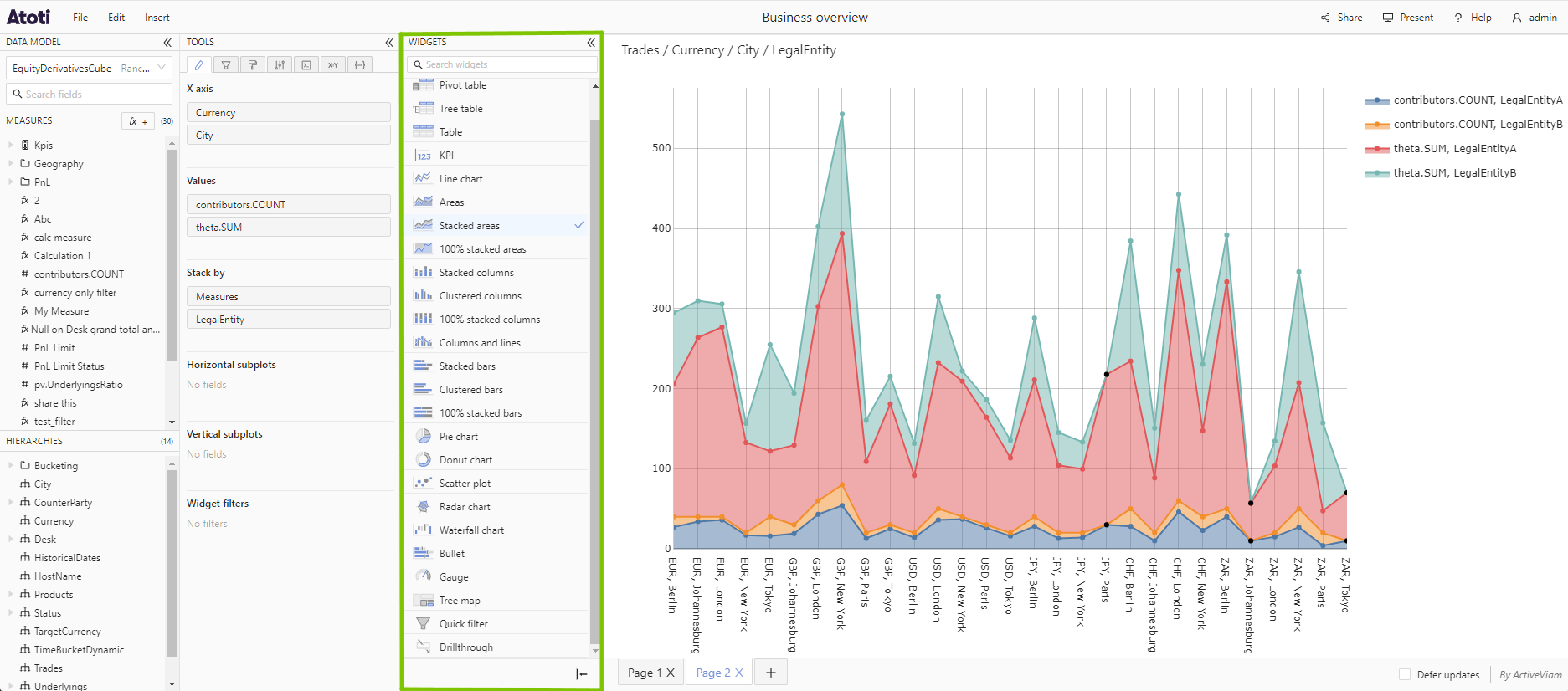
- Add new widgets.
- Switch the type of a widget.
Types of widgets
Many different types of widgets are available in the application. The majority are used to visualize data, for example, a Pivot table or a Line chart, but some widgets also provide extra controls or information for the user, for example, the Text editor.Widgets are plugins, so your application may not include all of the widget
types listed here. If you cannot find a specific widget type in your Widgets
panel, contact your system administrator.
Tables for aggregated data
These table widgets display data aggregated over a cube. A Pivot table displays aggregated data, organized as logical hierarchies and levels. It allows drilling down into level members to reveal their subtotals and children. A Tree table is similar to a pivot table, but the columns of its row header are condensed into a single column, displayed as a tree. A Table is more suited to displaying flat data and it does not have the drill-down functionality. The Table has a breaking sort: when a sort is applied, the members in a column are sorted without regard to the hierarchy. Pivot tables and Tree tables have a non-breaking sort. For more information, see sort data.Tables for raw data
These table widgets display raw, non-aggregated data. A Drillthrough table displays all the underlying facts (also referred to as records or contributors) that contribute to a specific cube location. A Database widget displays the content of an Atoti server’s database, one table at a time. It allows selecting a branch and a table, paging through rows, and showing, hiding, sorting, filtering, and resizing columns. Unlike the other table widgets, it is not driven by dashboard filters or a cube query. The two also expose different fields, not just different data. A cube can expose computed columns in a Drillthrough table that have no equivalent in the database. A database can hold columns and tables that are never part of any cube. For example, some columns are hidden from drillthrough. Whole tables might never be joined to the cube’s fact table, so they never appear in a drillthrough row. Use a Drillthrough table to debug an aggregated value shown in another widget and trace where it comes from. Use a Database widget to display data that will never be aggregated into a cube, such as market data.KPI widgets
KPI widgets allow you to see the values of high level indicators at a glance. There are two types of KPI configurations:- KPI - shows the totals for the members of the added hierarchy for each added measure.
- Comparison KPI - enables you to compare values for 2 members from the same hierarchy. For example, you could choose to compare values for USD and GBP from the Currency hierarchy.
KPI widgets are often used to compare values across 2 dates. In this situation, the “Compare current date to previous date” option allows to always compare the latest 2 dates. This way, the widget remains relevant day after day, even when new data comes in.This feature is only available for slicing hierarchies within dimensions of type
"TIME".