Refresh a widget and Turn on real-time are plugins. If you cannot find
them in your application, contact your system administrator.
Refresh a widget
To force a refresh of a widget’s data:- Right-click the widget to open the context menu.
- Select Refresh.
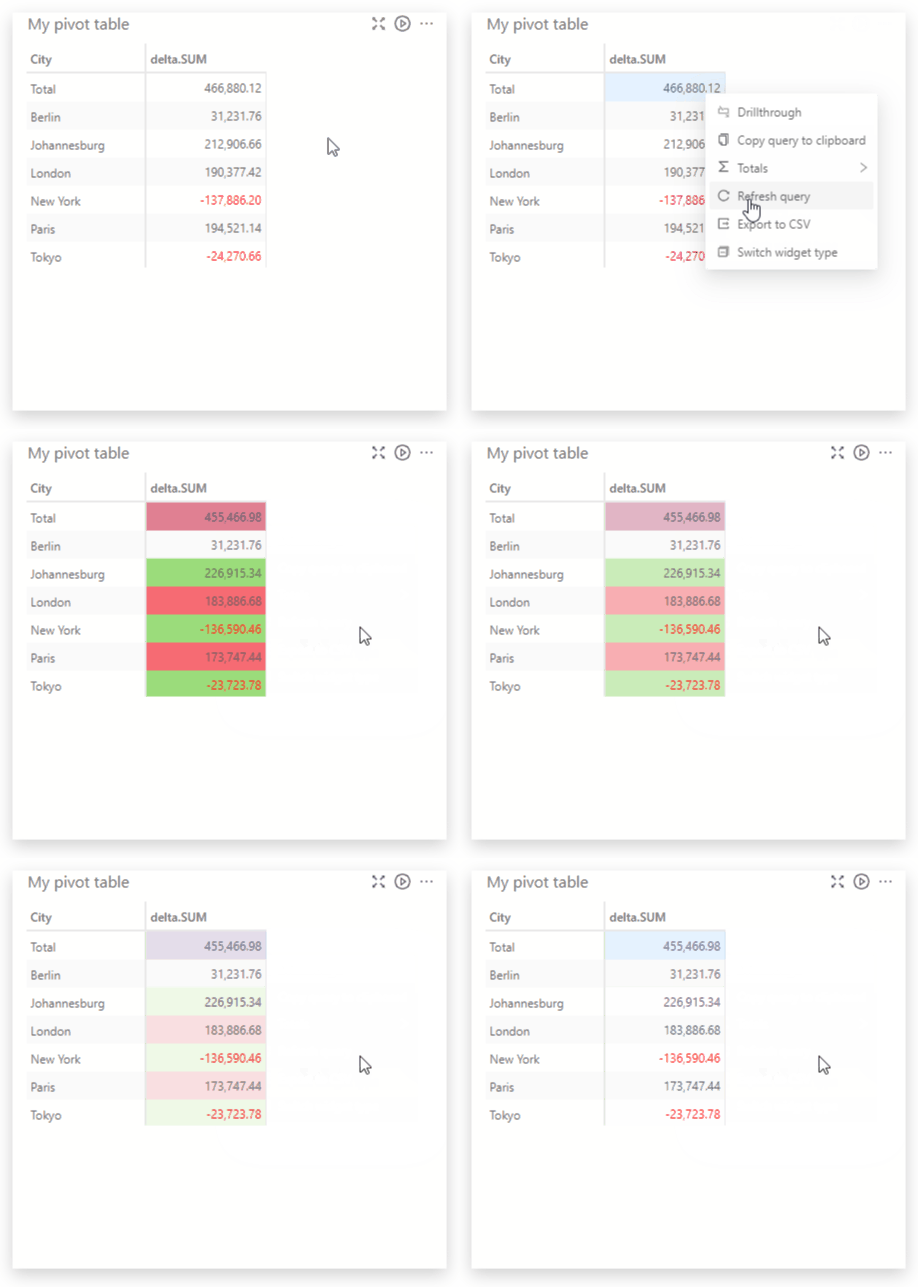
If the widget is a table, the cells will flash green or red if the values have
increased or decreased.
Turn on real-time
If your data changes very frequently and refreshing your widget manually is not enough, you can also turn on real-time. When this is activated, your widget will be updated as soon as new data becomes available from the server. You can toggle real-time by clicking the play/pause button that appears on hover at the top right of a widget.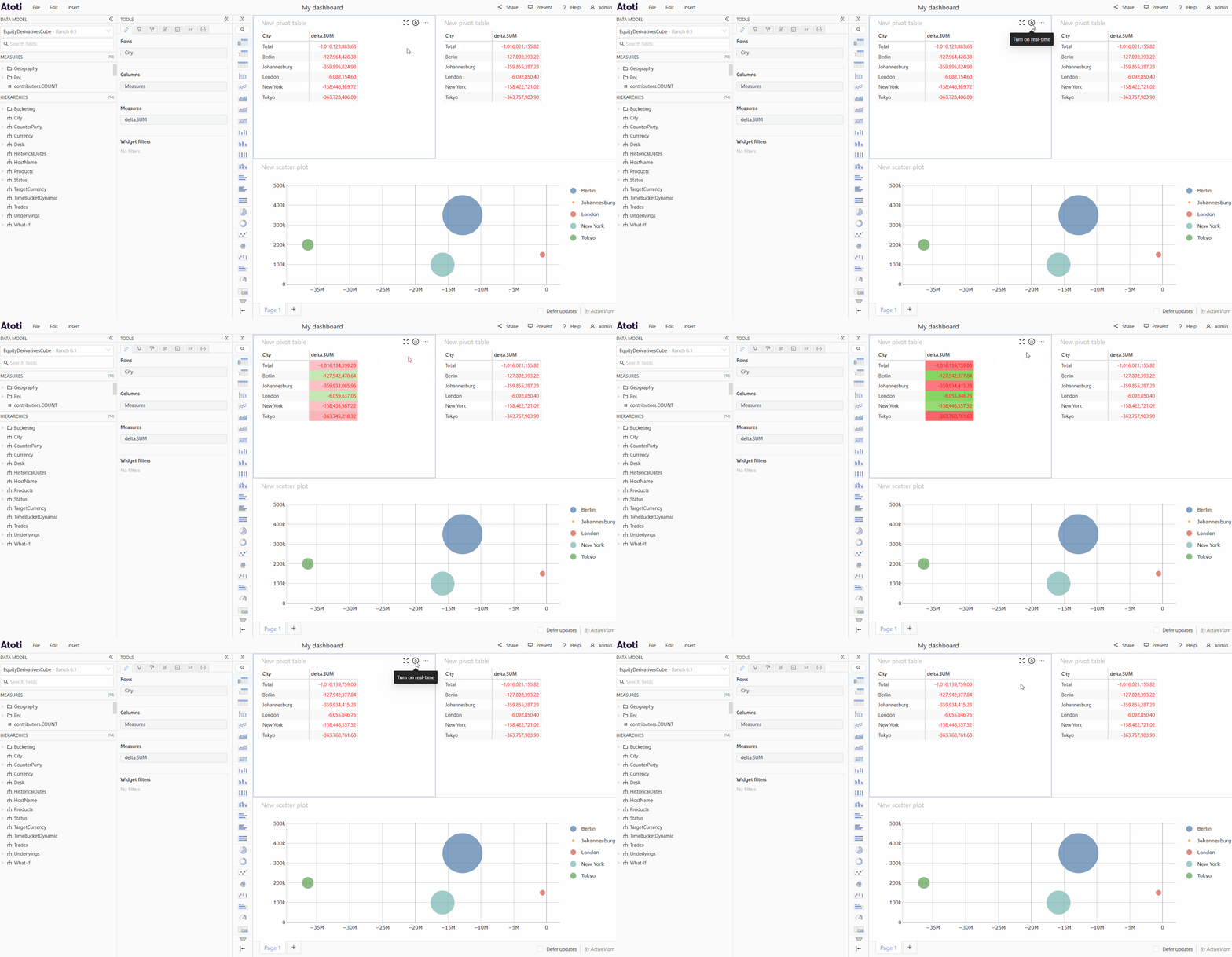
Turning on real-time for all widgets in a dashboard is an opt-in that can be
achieved via the Real
time
application menu item plugin provided by the Atoti UI SDK. For more
information on how to configure this, please refer to the documentation on how
to configure the application
menu
or contact your system administrator for help.
Defer updates
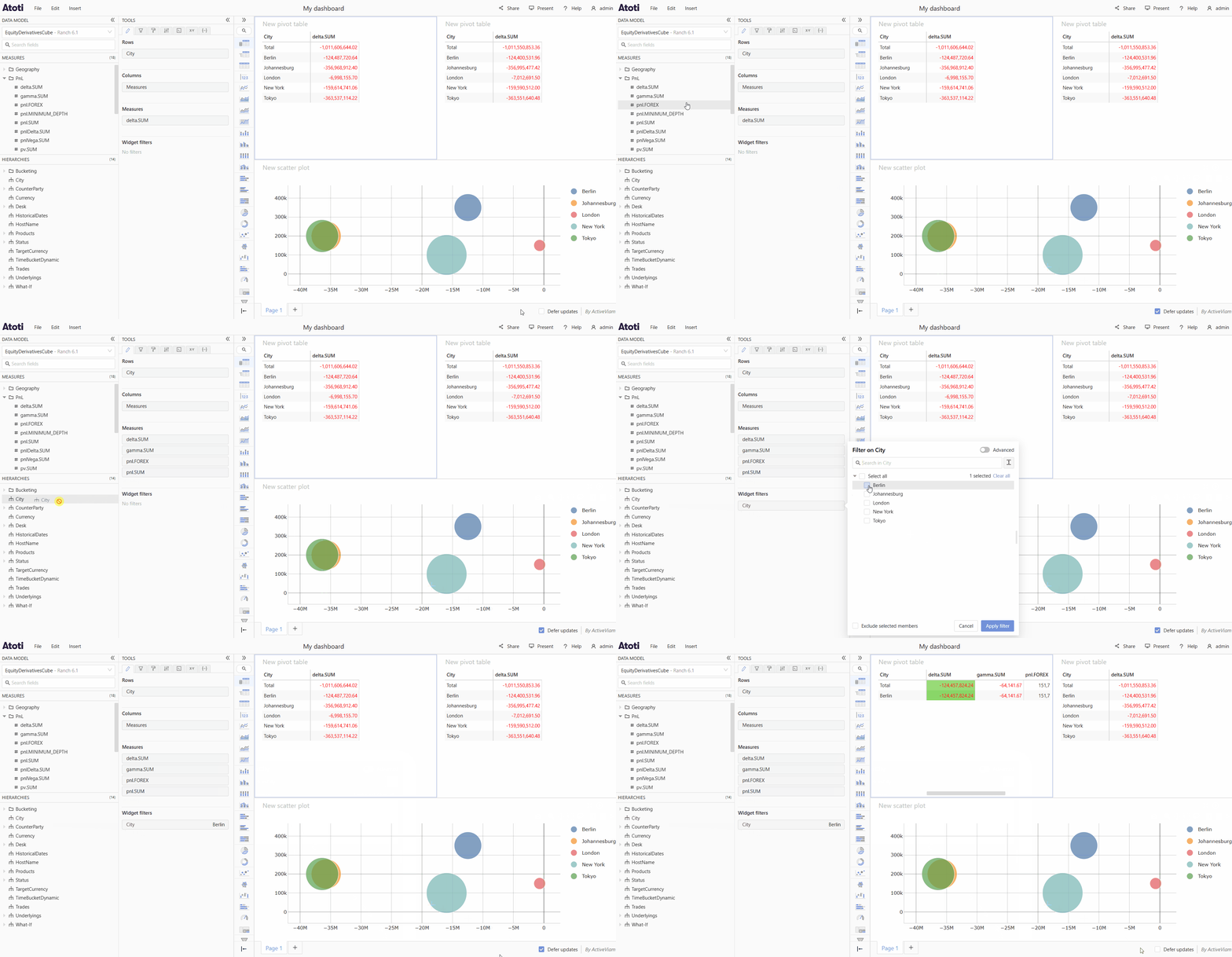
When adding fields and filters to a widget, every change initiates a call to the server for new data, and leads to the widget reloading in order to display the updated data. If you are creating a complex set of fields and filters, or working with a large amount of data you may prefer not to reload your widget on every change. Defer updates allows you to pause updates for all widgets across the entire dashboard.- To defer updates, check the Defer updates checkbox at the bottom right of the dashboard.
- To start receiving new data again, uncheck the checkbox.