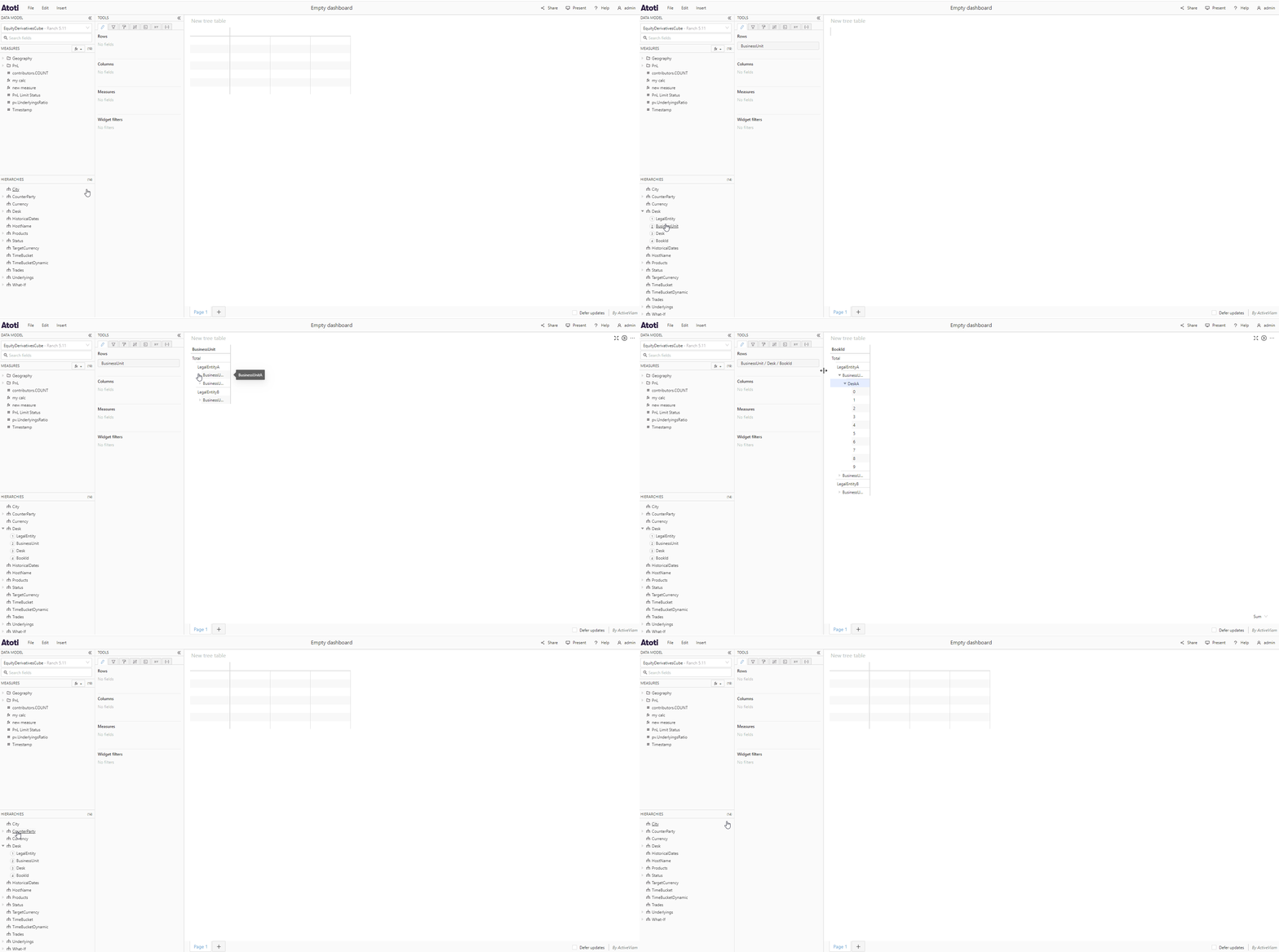
Add fields to a table for aggregated data
Tables for aggregated data have the attributes Rows and Columns, which each have their own section in the Fields tab.- Add a hierarchy by dragging it from the data model into either the Rows or Columns section. Alternatively, clicking on the hierarchy will automatically add it under Rows.
- Add a measure by dragging it from the data model to the Measures section, or click it to add it automatically.
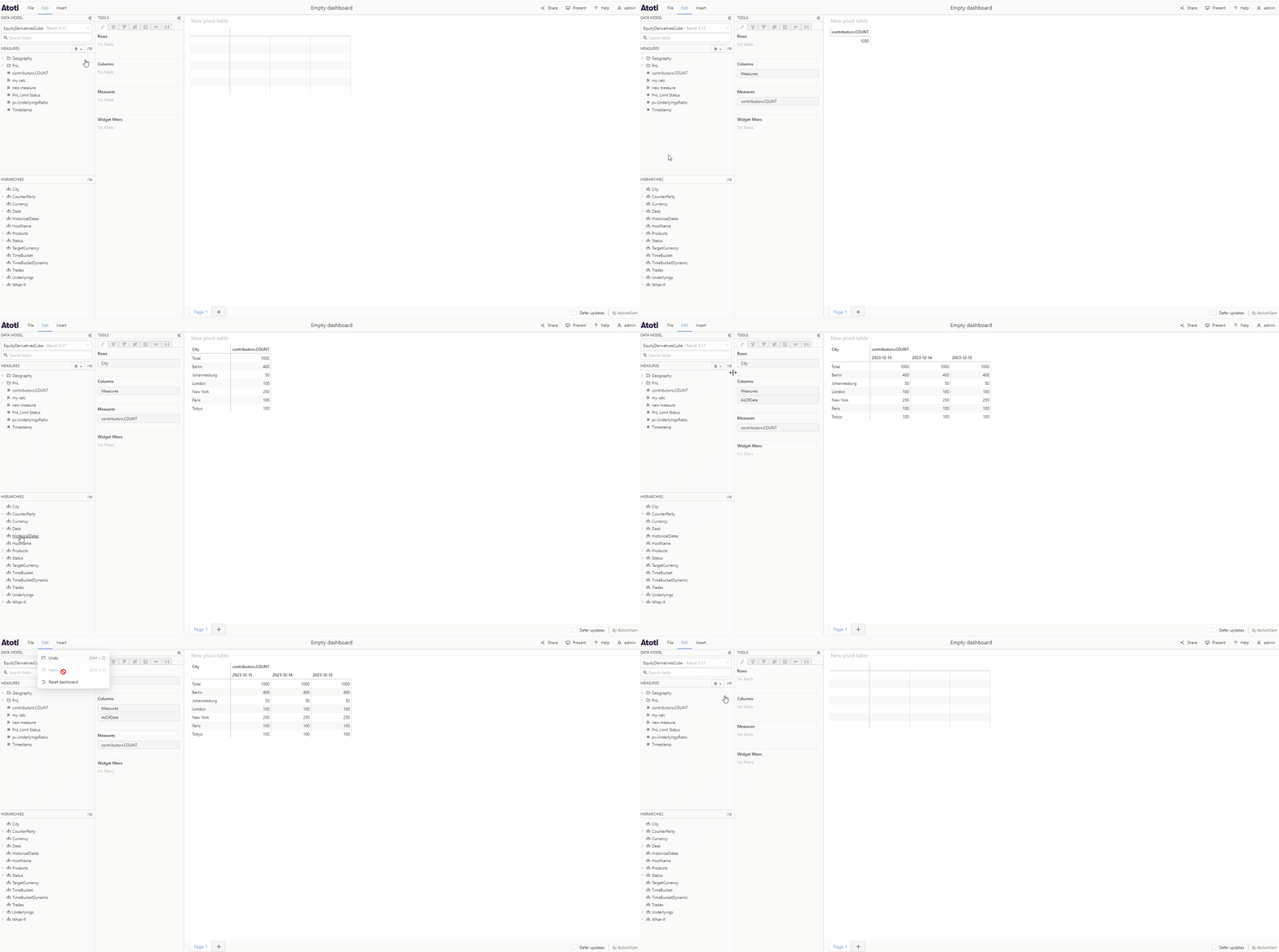
Add fields to a KPI widget
- Add hierarchies or measures to a KPI widget in the same way as detailed above for table widgets.
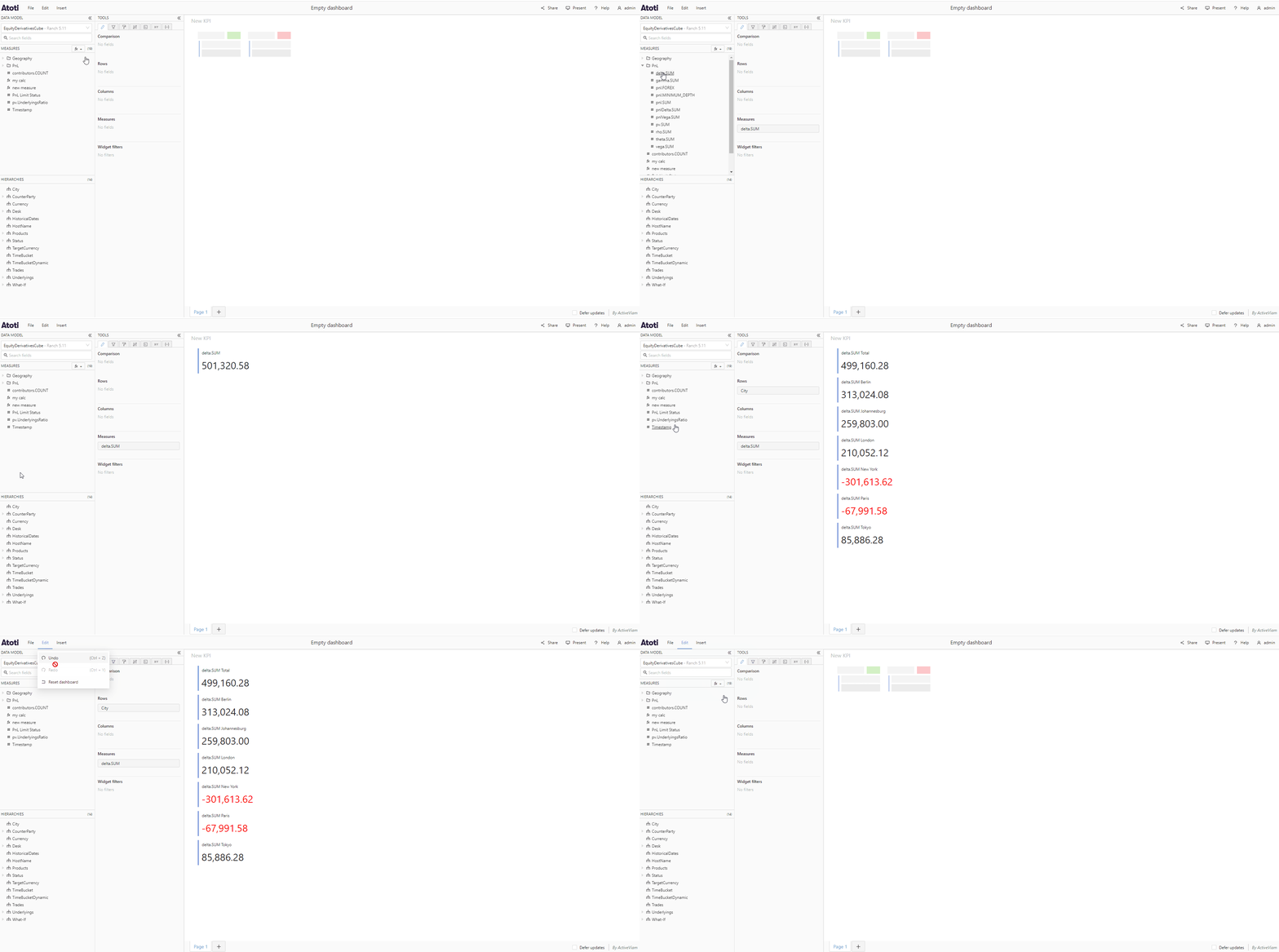
- Add a hierarchy to the Comparison section of the Fields tab.
- This will open the Add comparison on hierarchy popover.
- Use the dropdown to select two members from that hierarchy.
- Click Apply comparison.
Add fields to a chart
Different charts have different attributes, such as X axis for Line charts or Slice by for Pie charts. Fields are added by dragging and dropping them in the different sections of the Fields tab, as for table and KPI widgets. For most charts, measures are added to the Values section.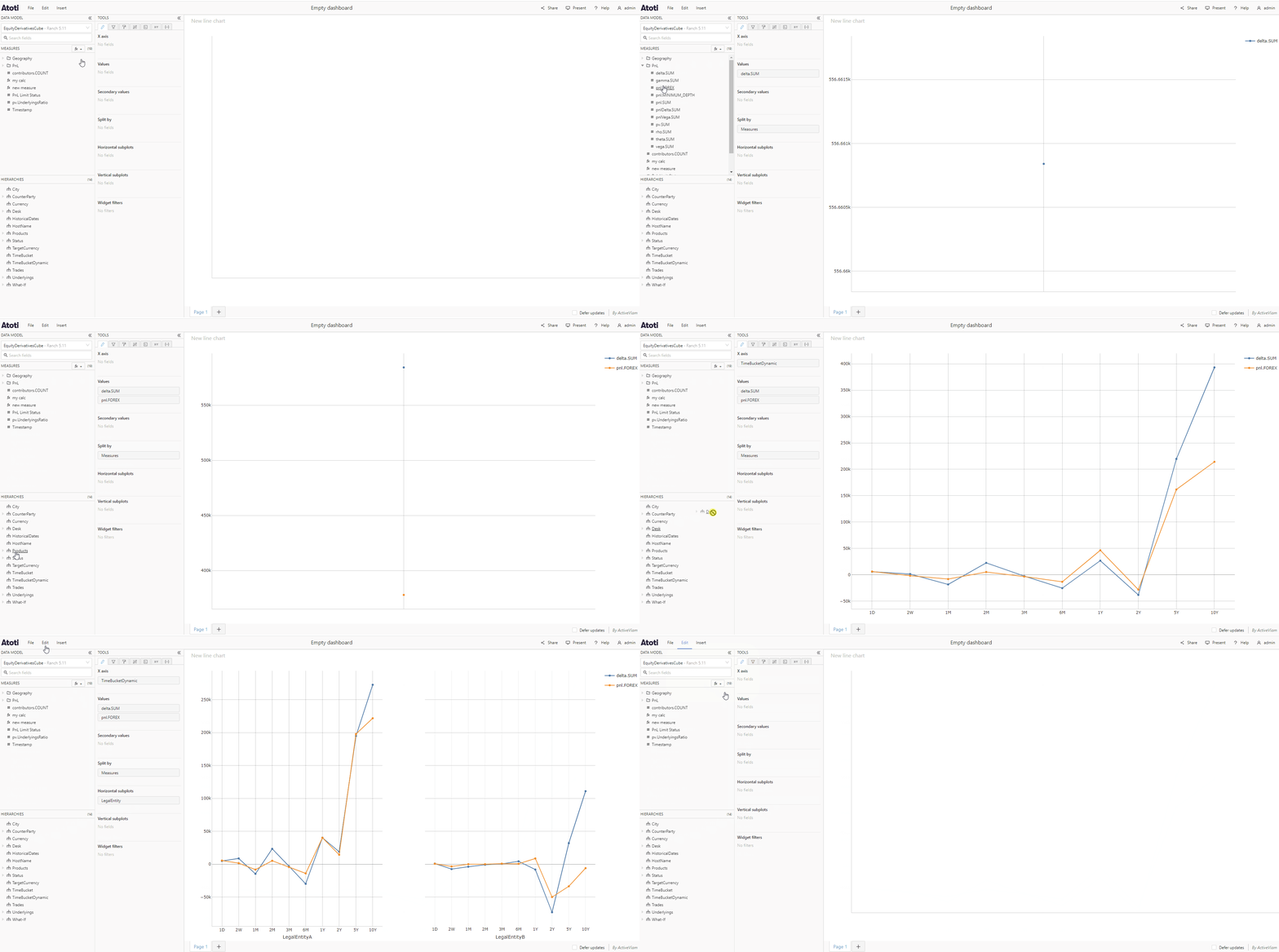
Horizontal and vertical subplots
Subplots (also known as facet plots or trellis plots) are groups of mini charts with a common scale and axes. Each subplot represents a different item from a selected hierarchy. To break a chart out into subplots:- Add a hierarchy to the Horizontal subplots and/or Vertical subplots section of the Fields tab.
Add fields to a drillthrough table
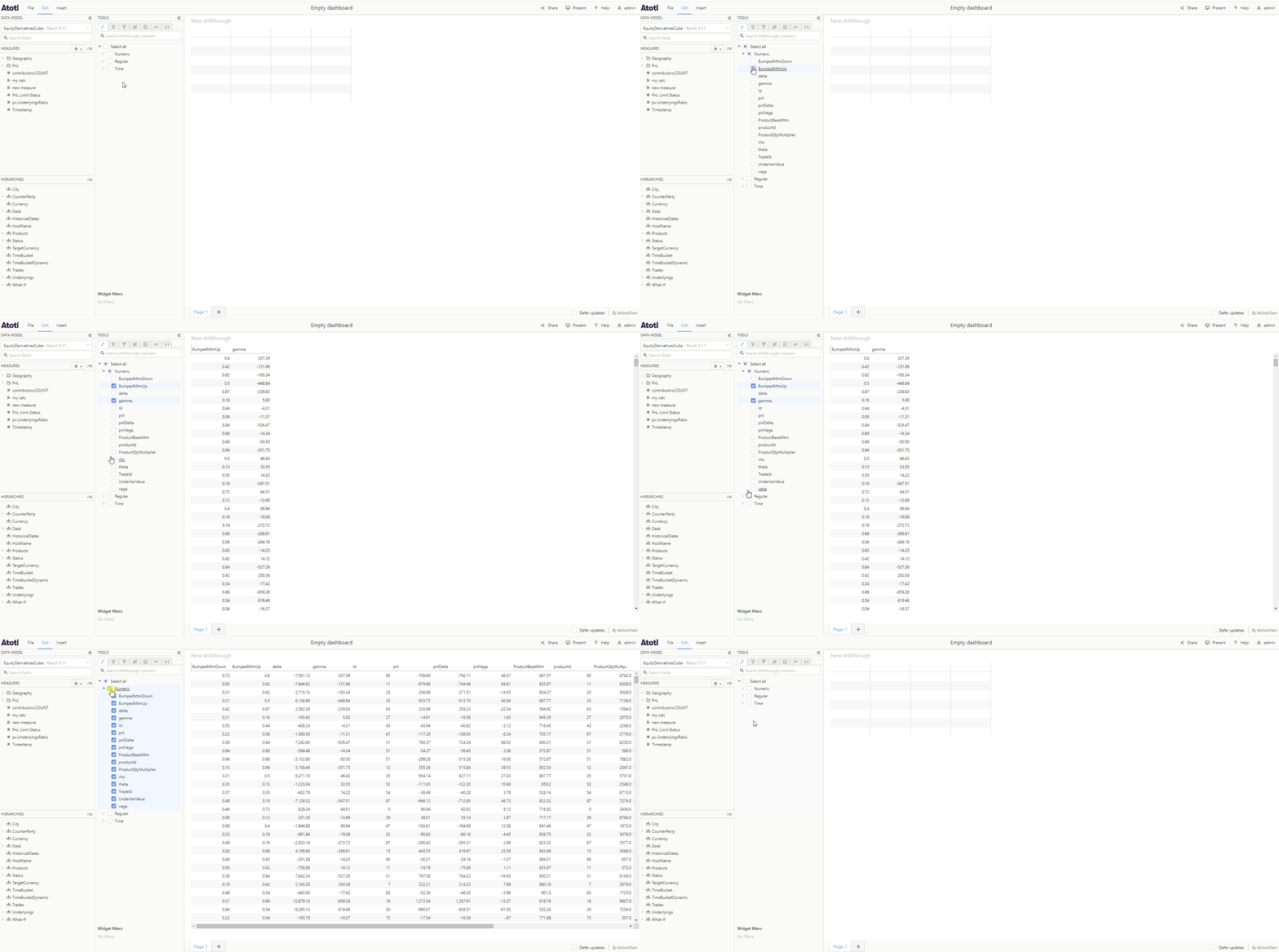
When you add a new drillthrough table to your dashboard, in the Fields tab you will see some checkboxes. Depending on your settings some of these may already be checked. There are 3 different types of column you can add to a drillthrough widget :- Numeric
- Regular
- Time
The list of columns you can add to a drillthrough widget may be different from
the list of columns available to build other widgets. The
cube data structure often acts as a
semantic layer on top of the raw data, reflecting the user perspective of the
data.
Add a multilevel hierarchy to a widget
Multilevel hierarchies are recognizable in the data model by the expansion caret next to their name. If you click this caret, you will see their levels displayed in a numbered list. You can drag and drop any of these levels in the Fields tab to add to it your widget. You can change the level of a multilevel hierarchy used in your widget by hovering over its tile in the Fields tab, then clicking the edit icon that appears on the right of the tile. This will open a popup containing a list of the levels in the hierarchy. Click on a level to select it, then click OK.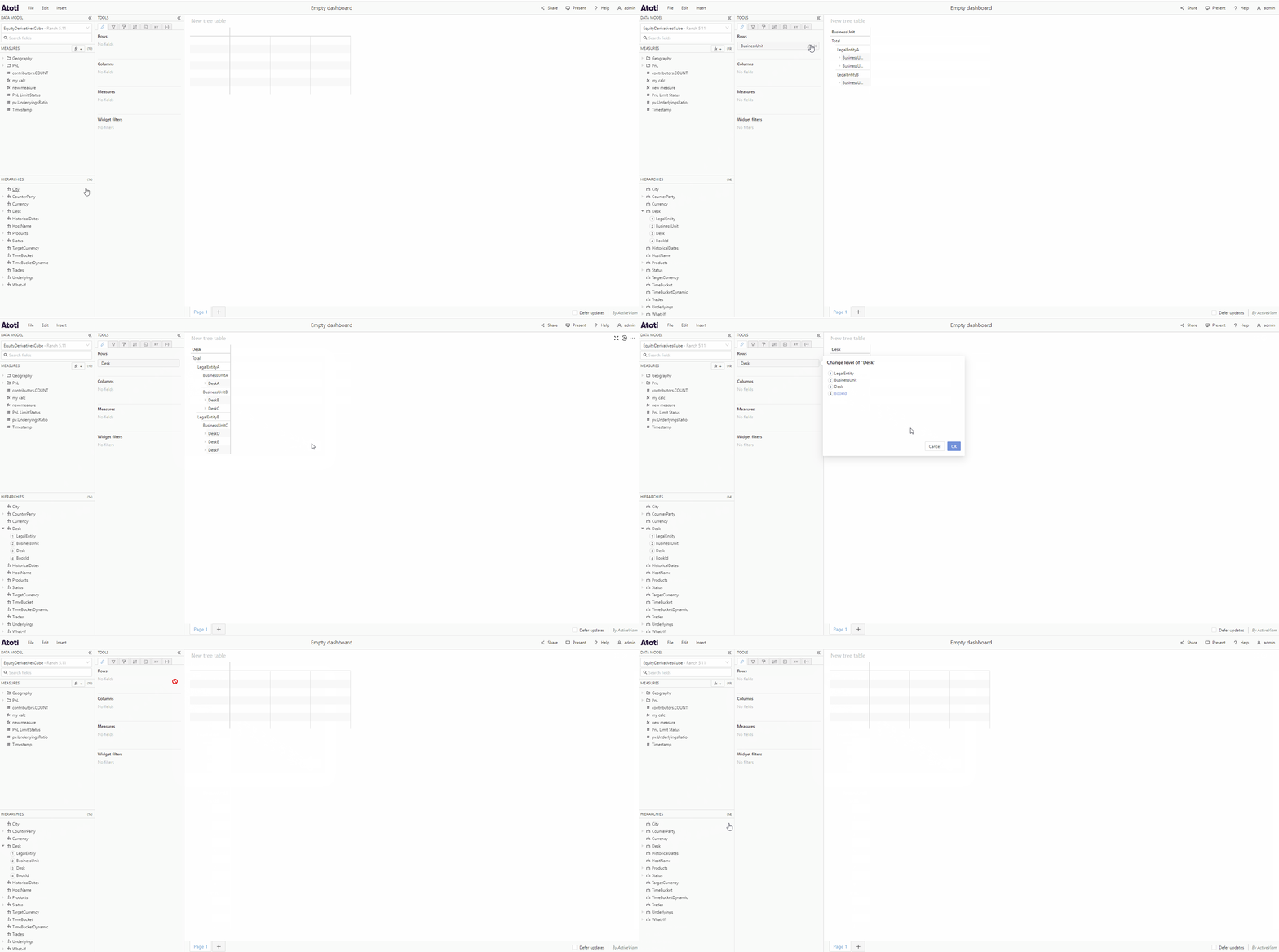
Add a multilevel hierarchy to a pivot table or tree table widget
Pivot table and tree table widgets allow you to drill down level members to reveal their subtotals and children. You can add a multilevel hierarchy to a pivot table or tree table as above, by dragging and dropping it in the Fields tab, or by dragging it directly onto a member in your widget. When you add a level of a multilevel hierarchy with parent levels to a pivot table or tree table widget, the members of these parent levels will be visible and it will not be possible to collapse them. However, if the chosen level has child levels, you will be able to drill down its members and its descendants. For example, if your hierarchy has four levels, Continent, Country, Region, and City and you add the second level, Country, to your widget, you will see all members of Continent and Country and you will be able to drill down any country to see its regions and cities.