2026-09-30
Summary
New featuresNew features
The spreadsheet
A spreadsheet is a new kind of dashboard page: a large editable grid with a formula bar. It brings Excel-like flexibility to users who are not fluent in OLAP or in their data model.The spreadsheet is an extension: contact your account manager to get access to it. It is a minimum viable product, with known limitations that upcoming releases will lift.See spreadsheets.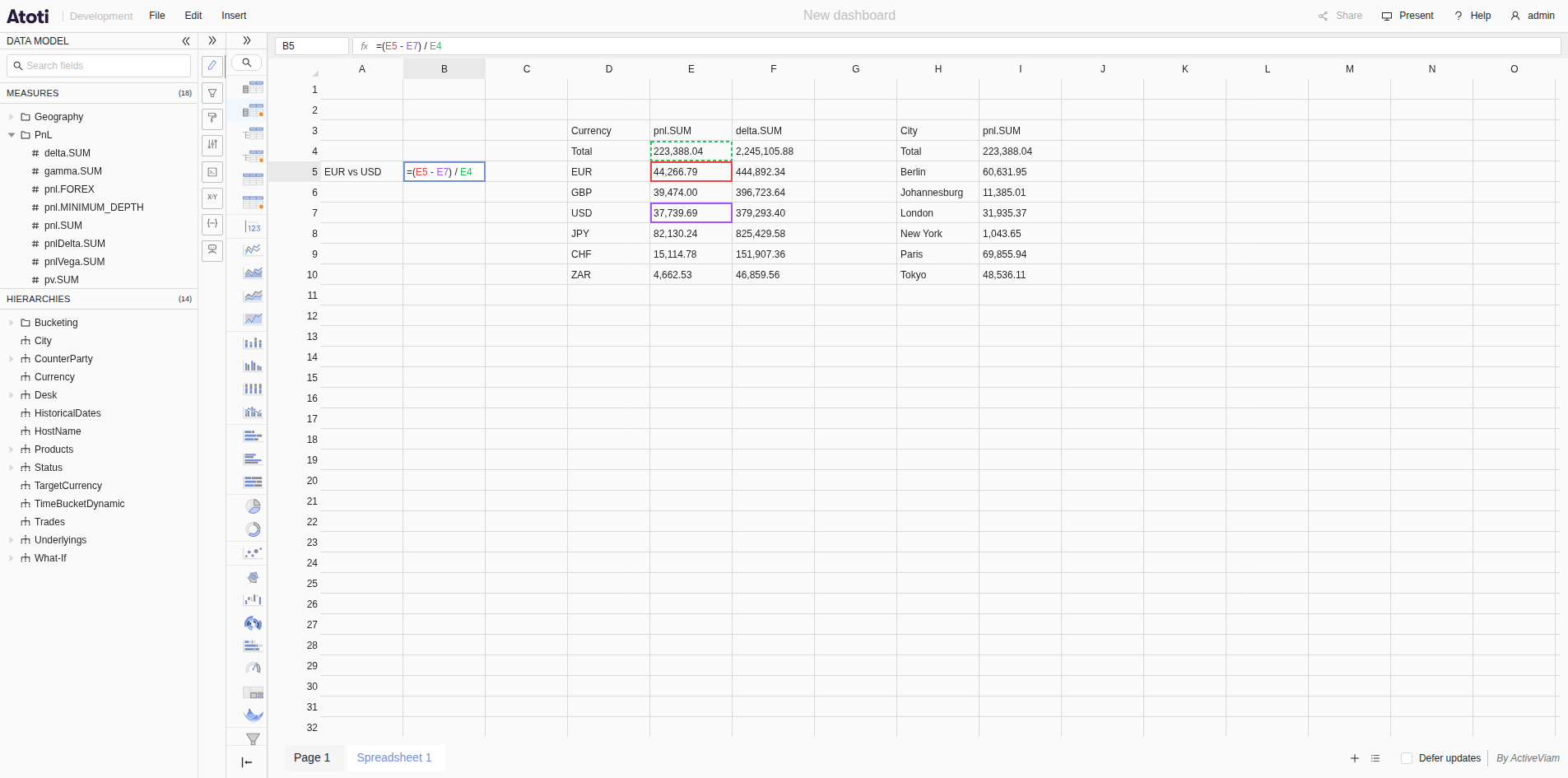
Group dashboard pages
Dashboards with many pages become easier to navigate. Consecutive pages can be gathered in a group, behind a named and colored tag in the pages bar.A group can be collapsed to hide its pages, renamed, recolored and moved among the other dashboard pages by drag and drop.See group pages.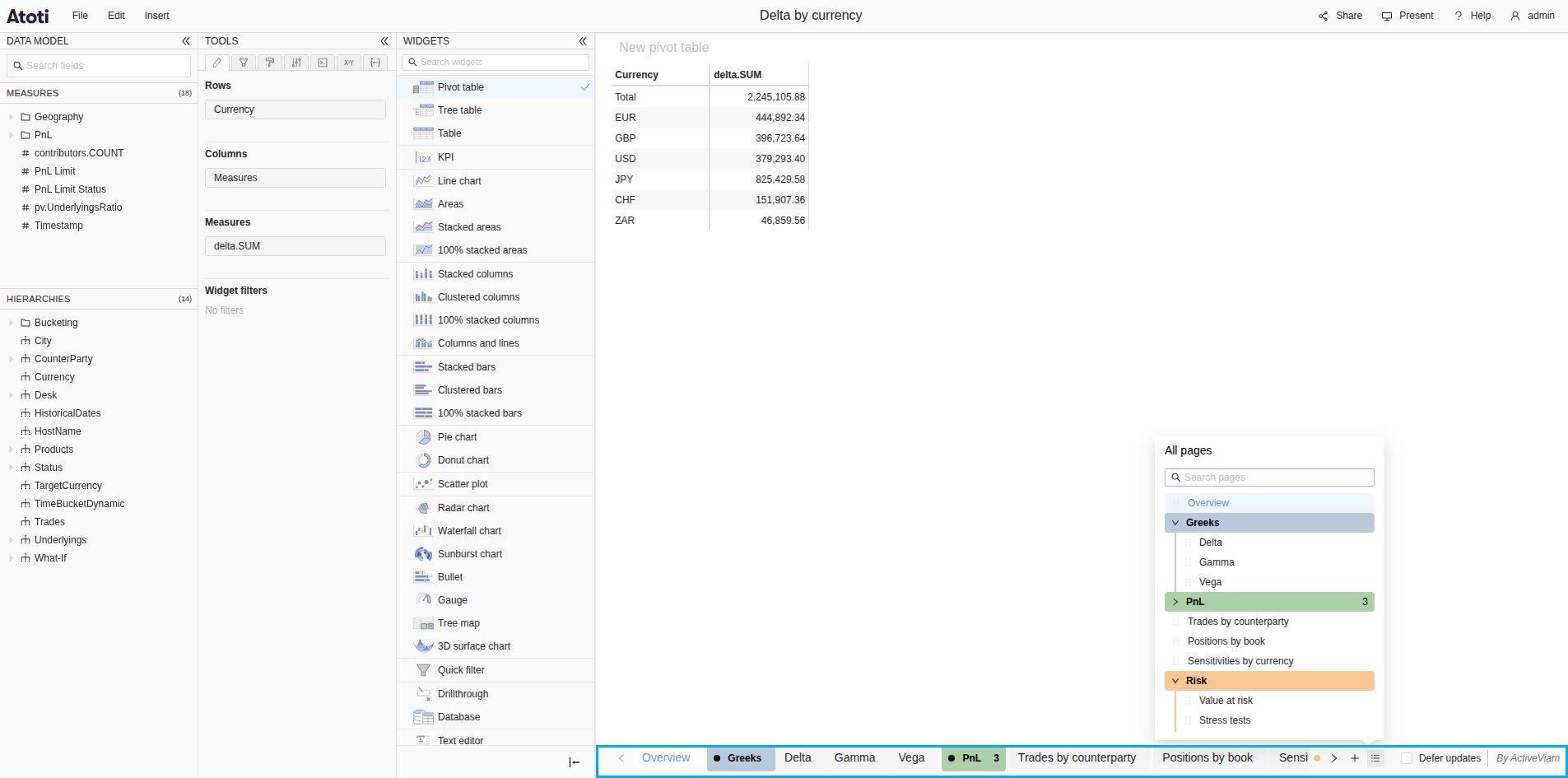
2026-08-31
Summary
New features- Copy and paste dashboard pages
- Calculated rows and columns
- Style all the measures of a widget at once
- Format the title bar of a widget
- Auto-explain from the AI chat
- Every kind of filter in the AI Assistant
New features
Copy and paste dashboard pages
The context menu of a page tab gains Copy page and Paste page, allowing users to reuse a page instead of rebuilding it. The copied page can be pasted into the same dashboard, into another one, into another browser tab, or even into another Atoti UI deployment. Right-clicking a tab inserts it to the right of that tab, and right-clicking the empty area of the pages bar appends it at the end.The page travels through the system clipboard, so the browser may ask for permission to read it when pasting. For the same reason, the two menu items are only available when the application is served over HTTPS.See dashboard pages.Calculated rows and columns
The Add a calculation submenu of tables gains New row and New column, defining a calculation as a single row or column nested under a chosen position of the axis.A calculated measure or member materializes under every parent of its axis, and its formula only refers to members of its own hierarchy. A calculated row or column instead refers to the rows and columns the widget displays, and can combine those that do not share the same parent, such as one measure at one currency minus another measure at another currency. Write its formula by clicking positions in the tree on the left of the editor.See how to add a single row or column.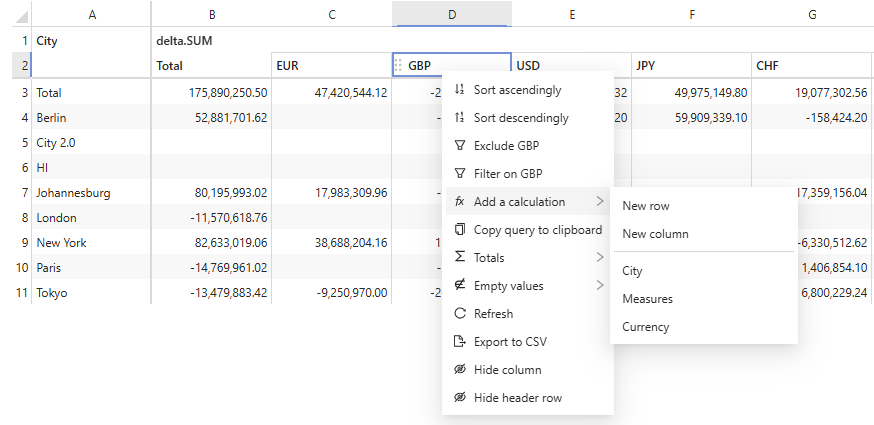
Style all the measures of a widget at once
The field dropdown of the Style tab gains an All measures entry. Select it to give every measure of the widget the same number format, number of decimals, alignment or conditional styles, instead of repeating the same work measure by measure.A measure that carries a setting of its own keeps it: its settings take precedence over those of All measures, one by one.See all measures.Improvements
Format the title bar of a widget
The Style tab gains a Title bar section. Its switch shows or hides the title bar of the selected widget, and the controls below it format the name of the widget and the background of the bar.See title bar.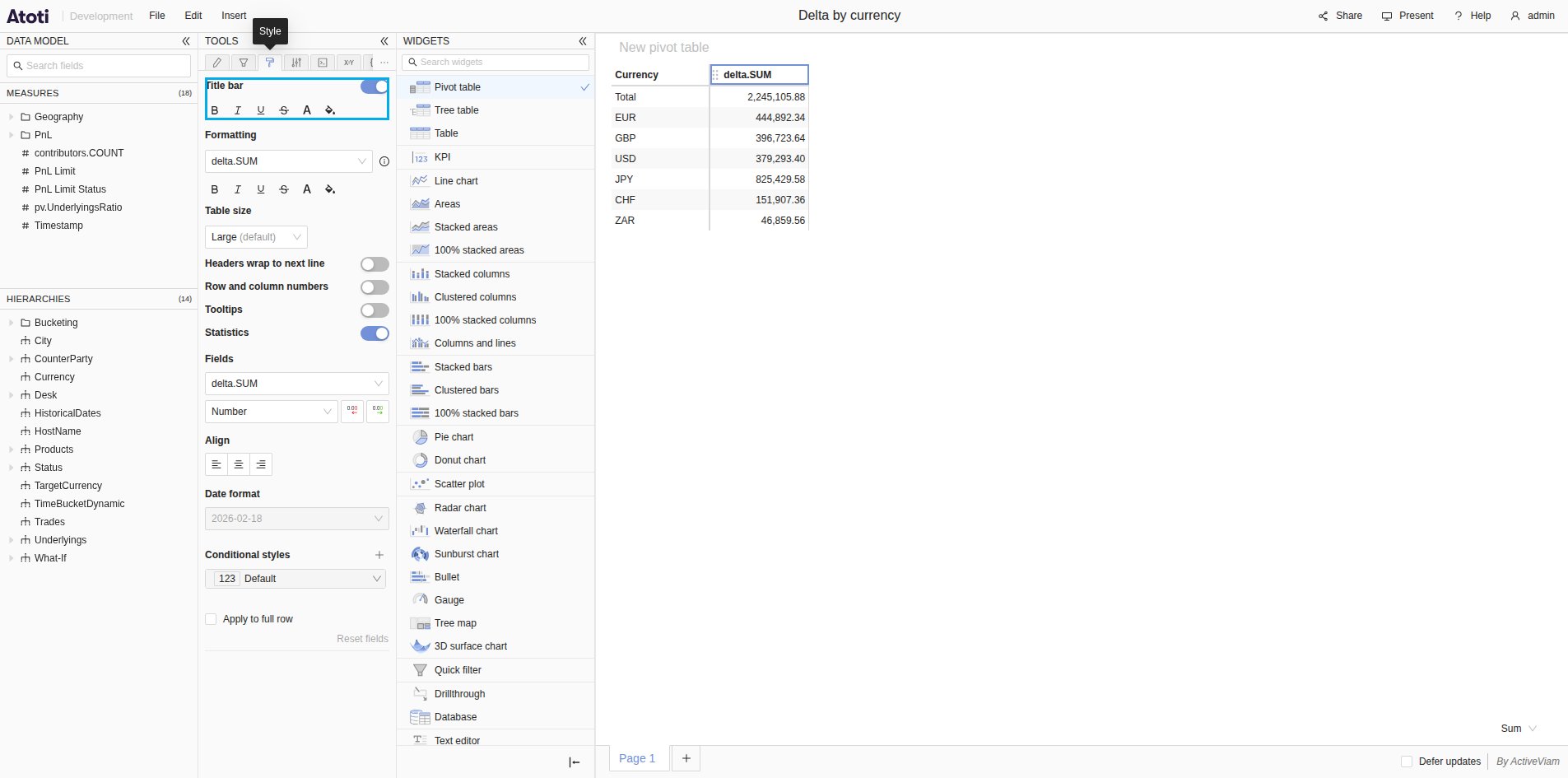
Auto-explain from the AI chat
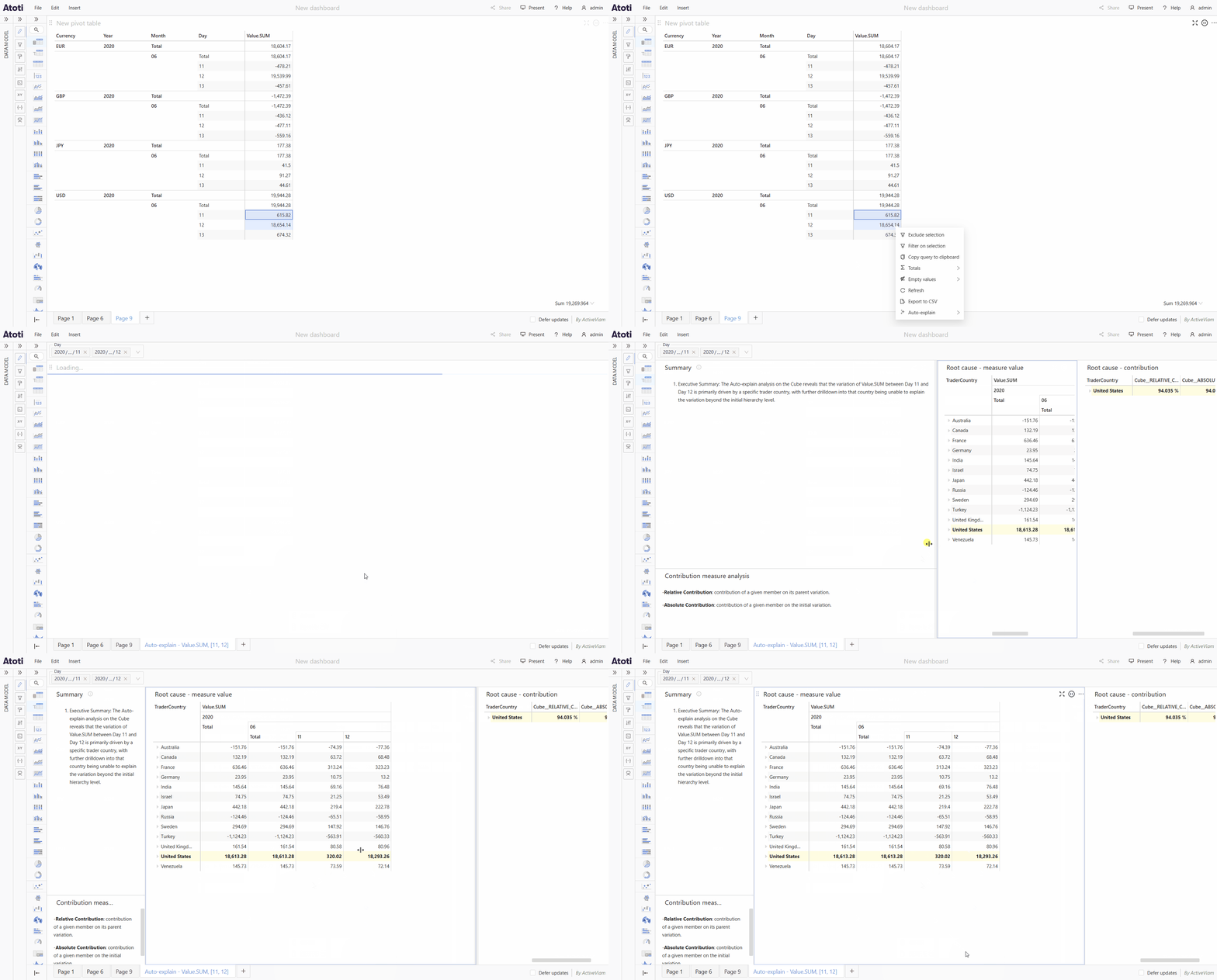
Auto-explain, until now triggered by selecting two values in a table and using a context menu item, can also be asked for in the chat of the AI Assistant tool. Describe in plain English the difference to explain, and the assistant runs the analysis and lays its result out as a new page of the active dashboard.Every kind of filter in the AI Assistant
The AI Assistant handles every kind of filter Atoti UI supports: date ranges, top or bottom members, value conditions, seasonal patterns, custom MDX, and so on. It previously only handled filters on explicitly selected members.2026-08-03
Summary
New features- Add a calculation to a widget
- Manage the calculated members of a hierarchy
- Rename row and column headers
New features
Add a calculation to a widget
Tables and charts gain an Add a calculation menu item, allowing users to define calculated measures and members on the widget instead of on the cube. Use it for ad hoc formulas that only make sense in one widget, or that should stay invisible to the other users of the cube. The calculation is saved along with the widget and follows it when the widget is copied, while the cube and the other widgets are left untouched.The same menu item can also be used to edit or delete calculations.See add a calculation to a widget.Manage the calculated members of a hierarchy
The hierarchies of the Data model gain a Manage members menu item, opening a popover to create, edit and delete their calculated members. A calculated member is a custom member defined by an MDX expression over the members the cube already contains, such as an EUR + USD member on the Currency hierarchy aggregating the values of EUR and USD. Once saved on the cube, it becomes part of the hierarchy, and every widget displaying that hierarchy can use it.Creating and modifying calculated members requires the canUseCalculatedMembers permission.See calculated members.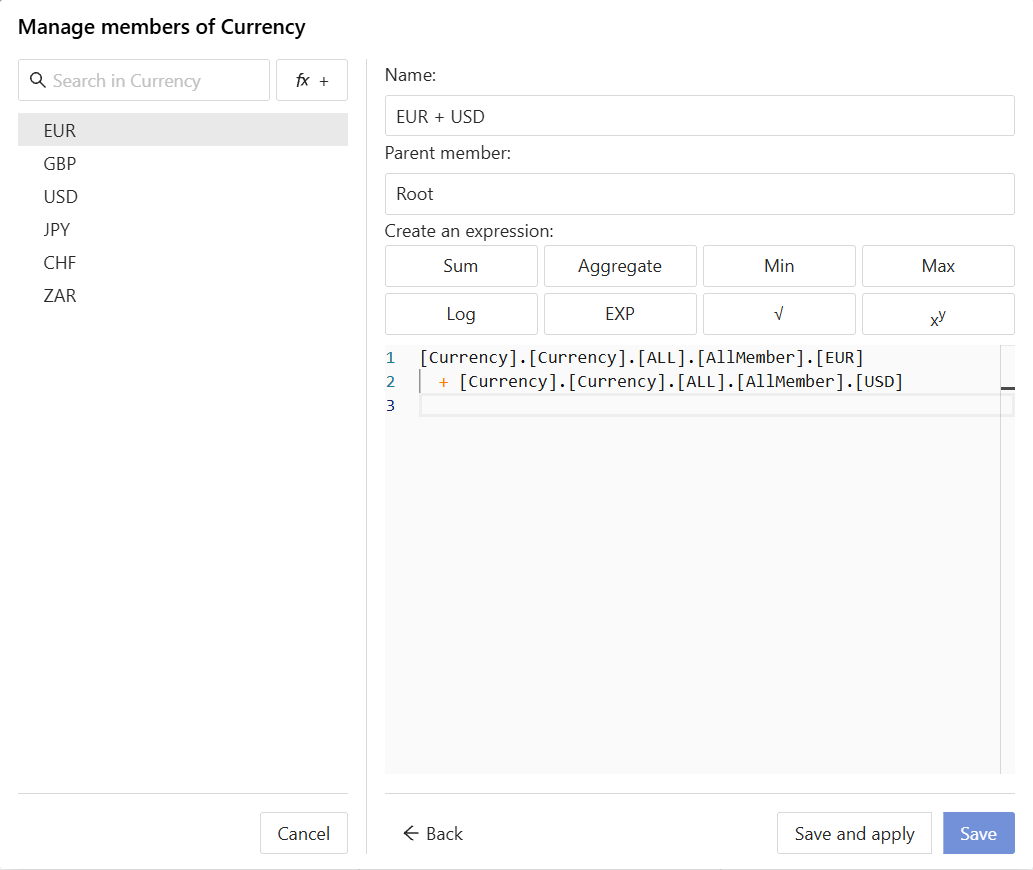
Rename row and column headers
The names displayed by the row and column headers of a table can be edited in place, to make them more meaningful to business users. Select a header cell and type the new name, press F2 to edit the current one instead of replacing it, or press Backspace then Enter to bring back the name coming from the cube.A new name only changes what the widget displays: sorting, filtering and expanding keep working, and the data in the cube is left untouched. Renamed cells are highlighted with a bar along their left edge, which the Highlight edited cells and Edited cells highlight color settings configure.See rename row and column headers.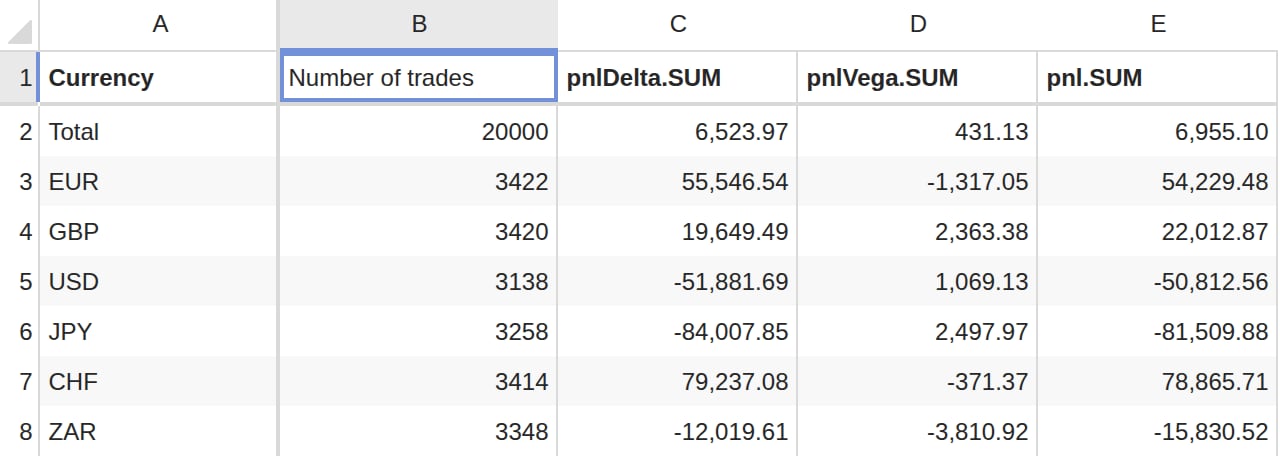
Improvements
Show or hide the title bar of a widget
The title bar of a widget can now be hidden, leaving more room for the data. The new Hide widget title bar menu item collapses it into a thin strip, and clicking that strip brings it back.Show or hide the selection statistics of a table
The selection statistics of a table, displayed below it while cells are selected, can now be hidden. The new Statistics switch in the Style tab hides them for one widget, and the new Statistics setting sets the default visibility for all of them.2026-07-01
Summary
New featuresImprovementsNew features
Database widget
A new Database widget lets users browse the tables of an Atoti server’s database directly from a dashboard, without leaving Atoti UI. Pick a branch and a table in the Fields tab, and the widget displays that table’s rows. The grid supports paging, choosing which columns to show, resizing columns, sorting and filtering, searching tables and columns, and opening the vector viewer on vector cells.Access to the widget is granted per role by an administrator through the widgets permission. For finer-grained control, database access control on the server lets administrators configure which database tables each user can access through the widget.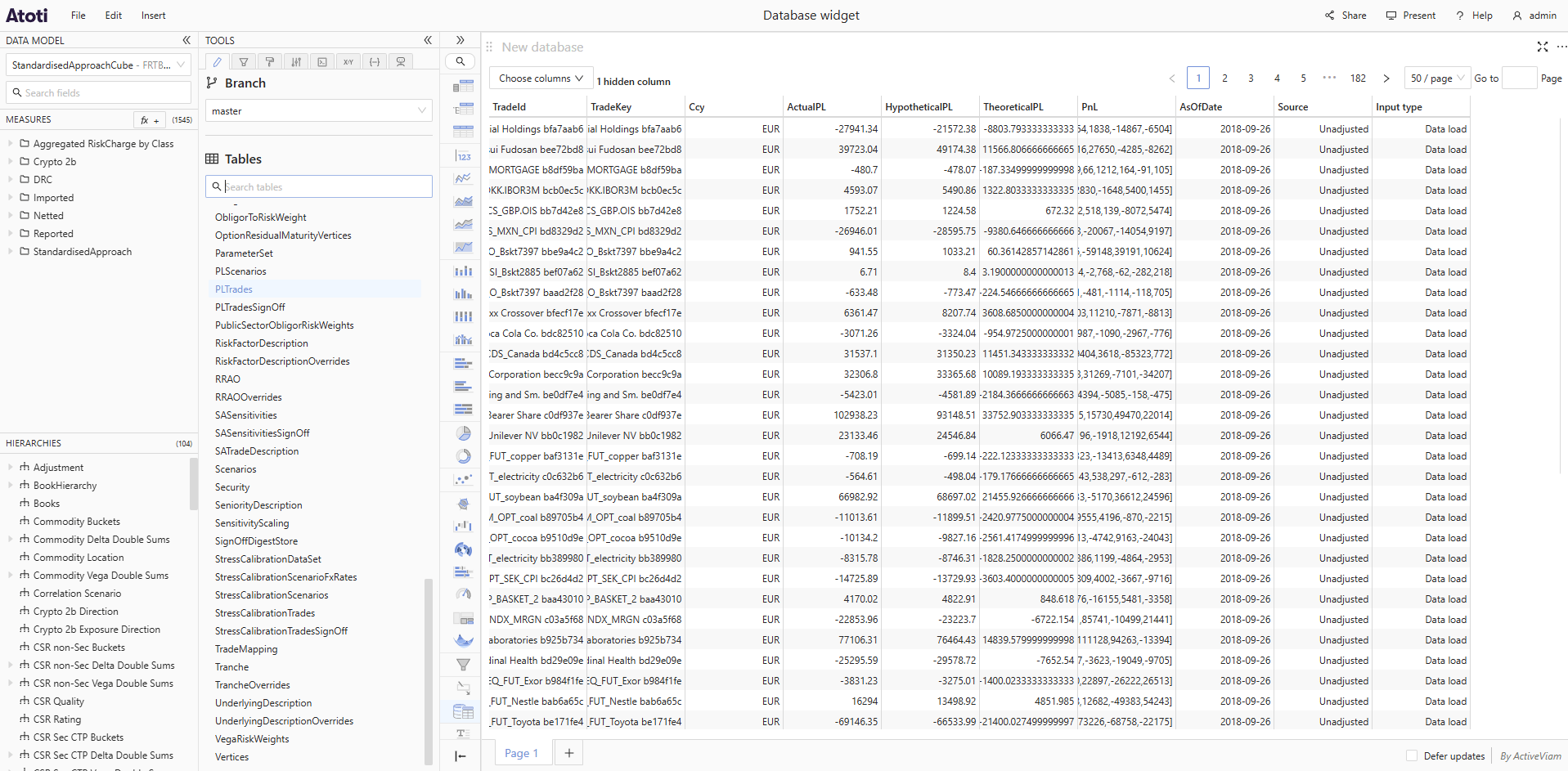
Improvements
Live status badge
The Live toggle in the application menu now displays a LIVE or PAUSED badge instead of a play or pause icon, making the current state easier to read at a glance. In a widget’s title bar, the play or pause icon represents the action it performs — switching live updates on or off — rather than the current state.2026-05-27
Summary
New featuresImprovementsNew features
Atoti Intelligence
Atoti Intelligence brings AI-assisted analysis directly into Atoti UI. It helps users build visualizations and understanding data through natural language, without prior knowledge on the software and the data model.Visualize thisDescribe the data visualization you want in plain English through the new AI assistant chat tool, and Atoti Intelligence builds it for you, ready to be used and interacted with within Atoti UI. Ask the assistant to help you explore, slice and dice your data.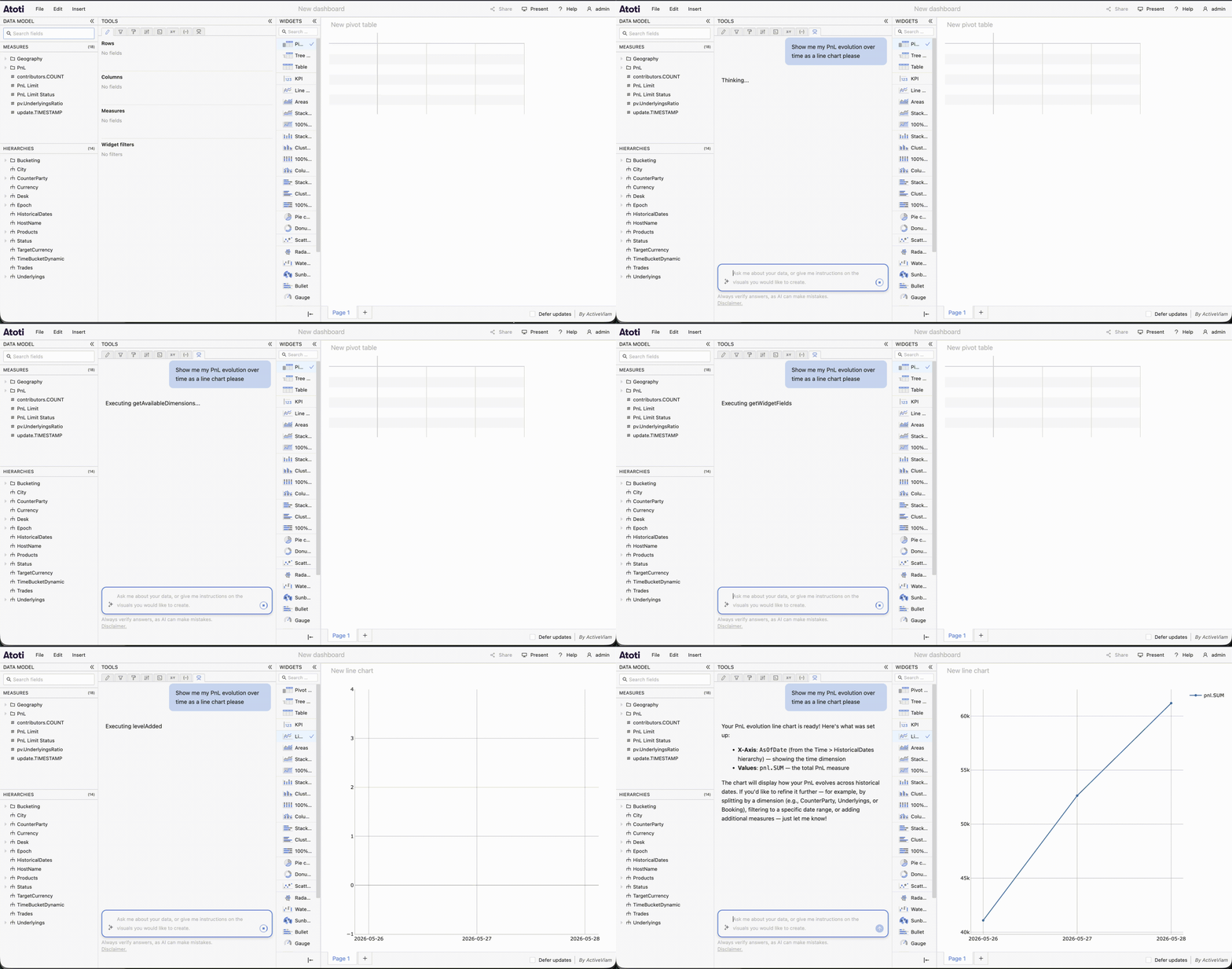
Seasonal pattern filter
Date filters gain a Seasonal pattern mode, letting users filter on recurring calendar periods instead of explicit dates. In the Calendar tab of a date filter, switch the period to Day, Month, or Quarter, then pick the periods to keep — for example, every Mon and Wed, or every Q1. The calendar highlights all matching dates, and an Exclude selected periods option inverts the selection to filter those periods out instead.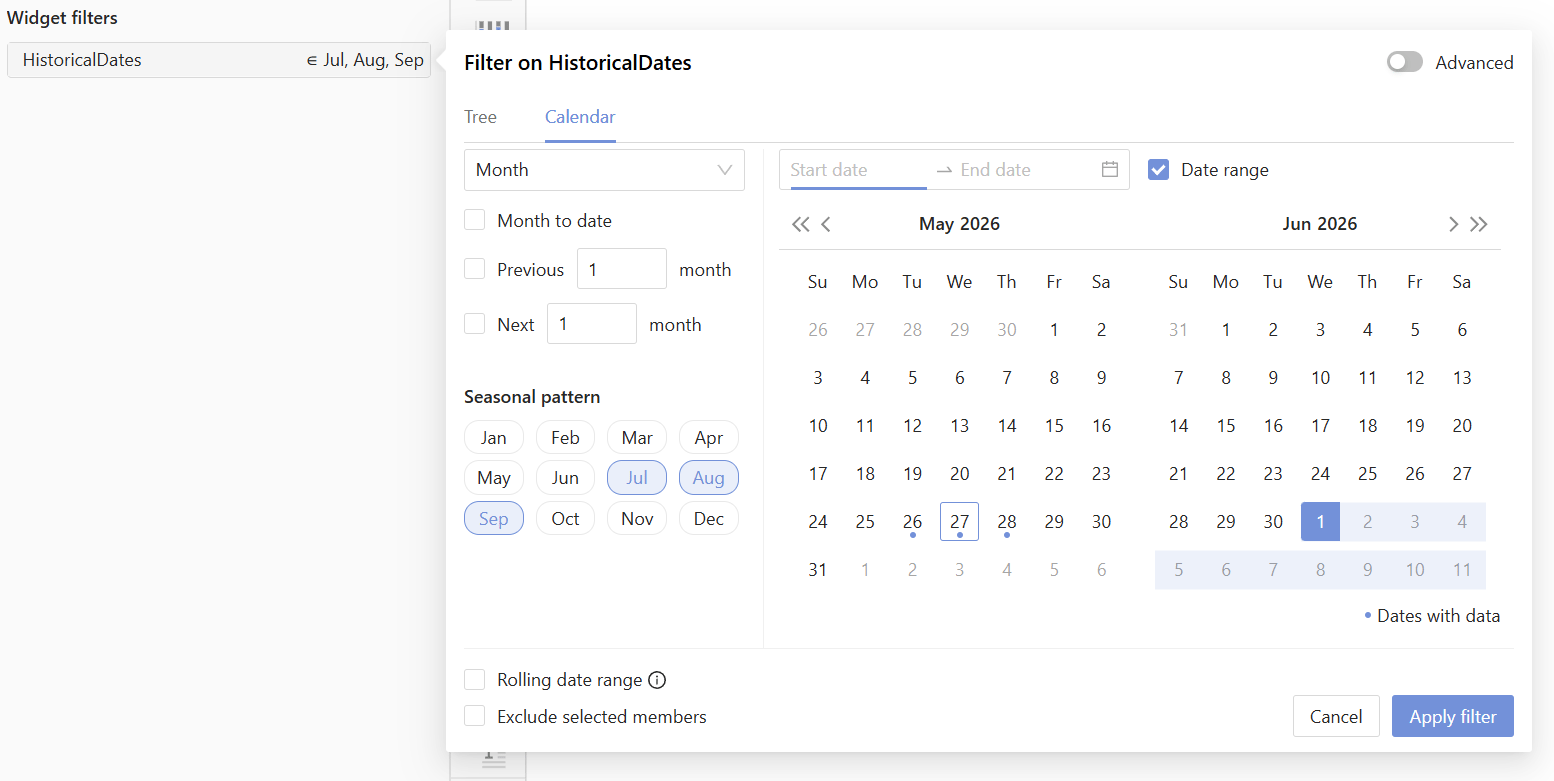
Share dashboards with URL filters
A dashboard can be opened with pinned filters supplied through the URL, which are applied at load time. This makes it possible to share a single dashboard with specific filter values applied, instead of saving and distributing filtered copies. The dashboard opens marked as unsaved, so recipients can keep their own copy from File > Save as.See Share dashboards with URL filters for the URL format and an encoding example.Improvements
Focus cell shape
The Focus cell highlight shape is configurable through the new Focus cell shape setting: Row and column (default), Row only, or Column only. The shape can also be overridden per widget from the Behavior tab.Live toggle
The Real-time toggle in the application menu and on widget titlebars is renamed to Live. Its icon shows a play when live updates are on and a pause when off, making the current state easier to identify at a glance.Waterfall chart delta computation on time axes
When the X axis of a waterfall chart uses a time level, the chart now computes and displays the change between each consecutive date rather than the raw values. The oldest date is shown as the absolute starting value, and each subsequent bar shows the gain or loss since the previous date. Date members are automatically sorted from oldest to newest so that the deltas always reflect the correct chronological direction, regardless of the order in which the server returns them.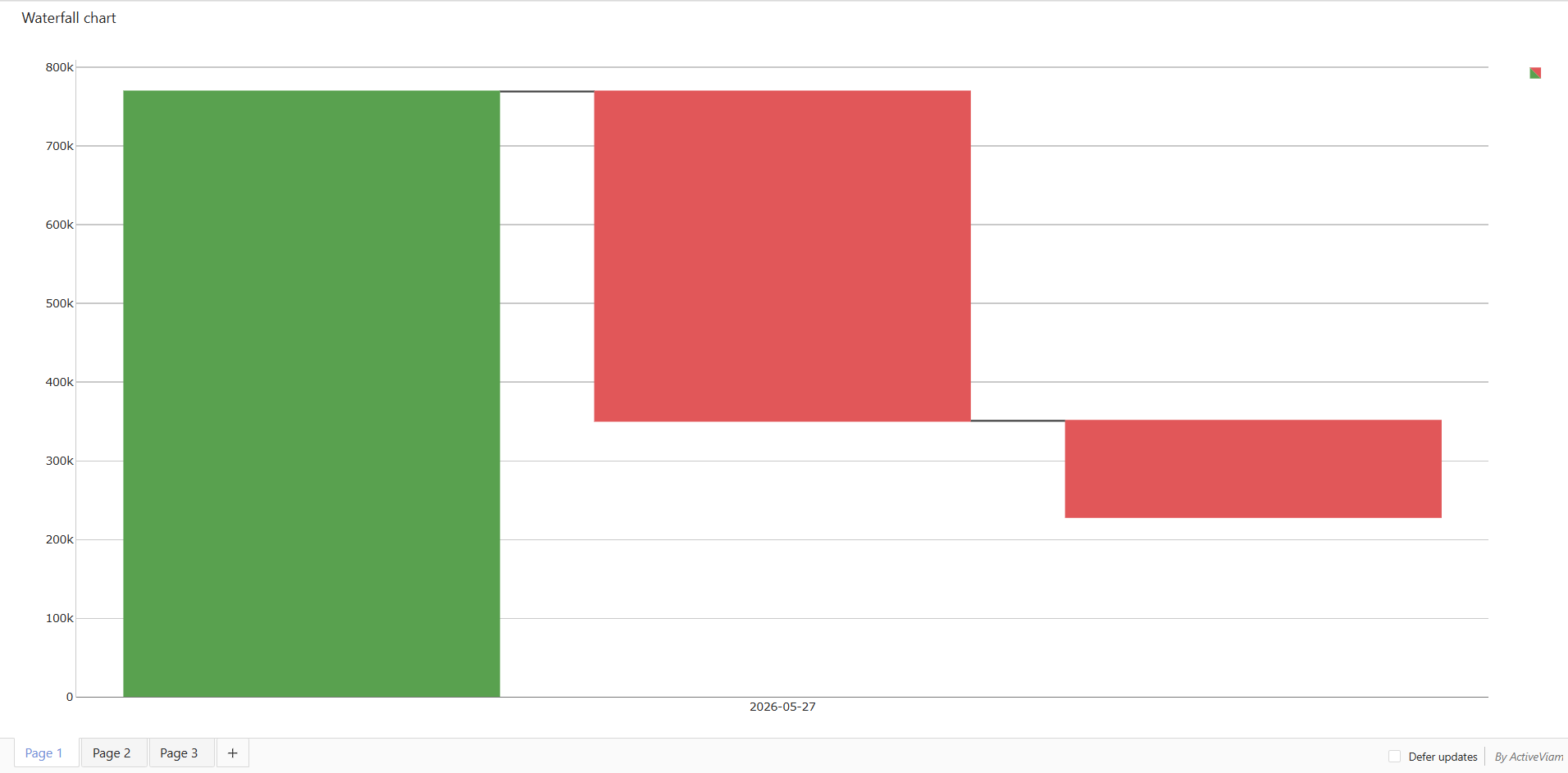
2026-05-11
This release only contains maintenance updates.
Refer to the changelog for the list of bug fixes.
2026-05-06
Summary
New featuresNew features
Shared with me
A new Shared with me section is available on the home page, where users can browse the folders and dashboards that other users have shared with them.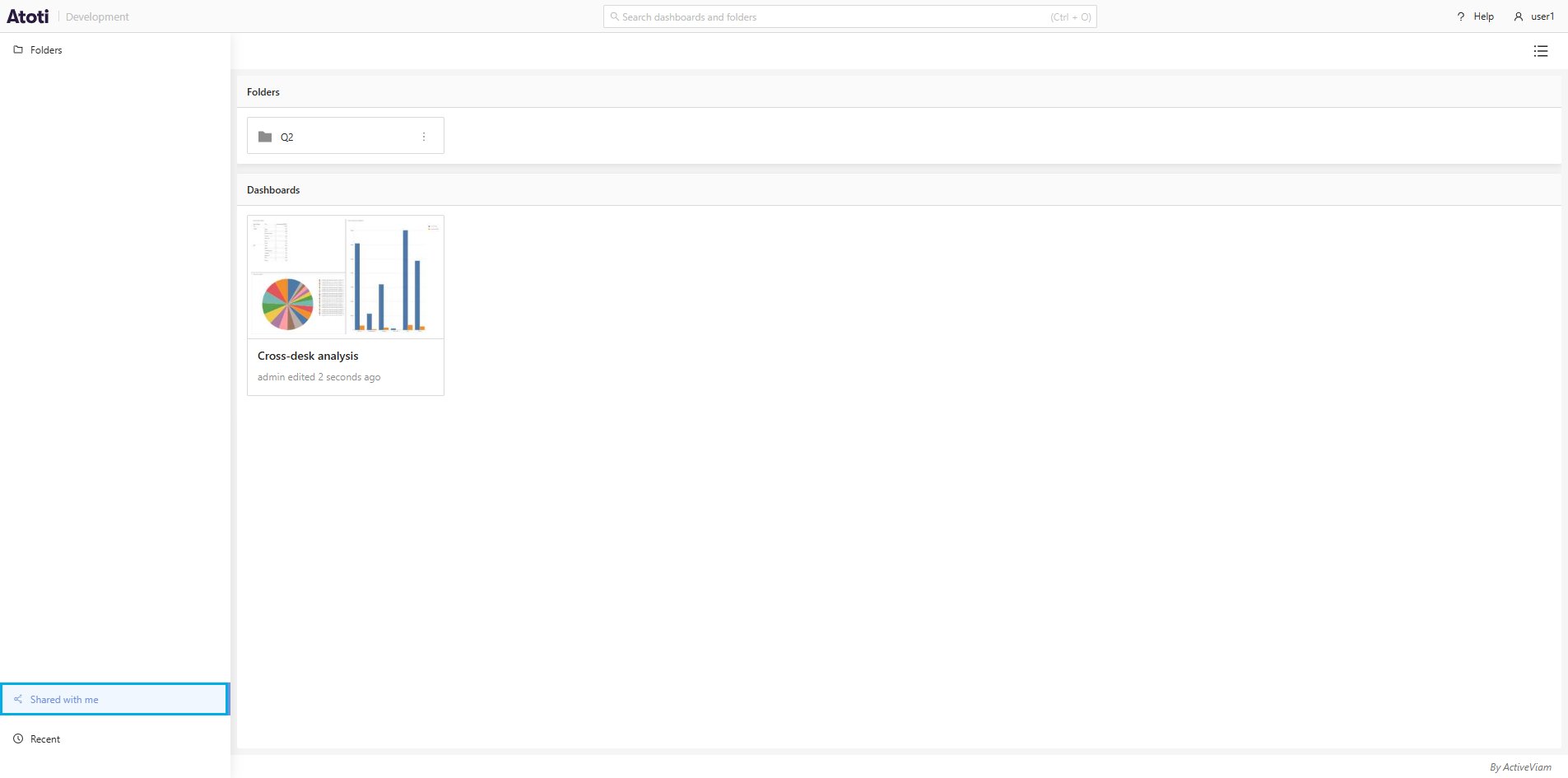
Format header cells by value
Formatting applied to a header cell follows the underlying member, instead of staying at a fixed position. For example, color the CM_OILGAS cell, then apply a filter that hides the book above. CM_OILGAS shifts up by one row, and its formatting follows.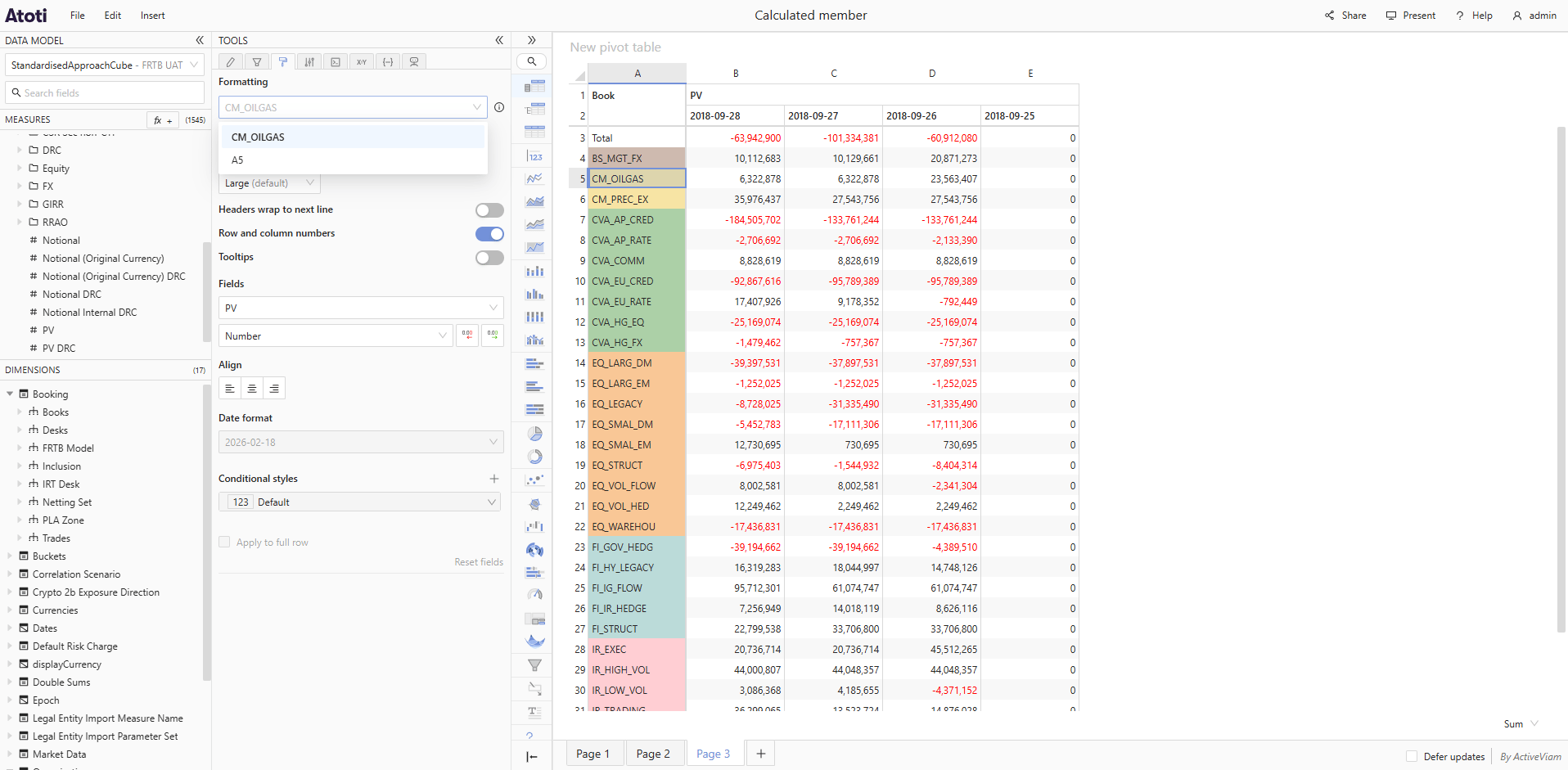
2026-04-01
Summary
New featuresImprovementsNew features
Focus cell in tables
A new Focus cell toggle is available in the Behavior tab of Pivot Table, Tree Table and Table widgets. When enabled, hovering a cell highlights its full row and column, making it easier to read which row and column a cell belongs to. Clicking a cell pins the highlight on it, making comparing two cells simpler.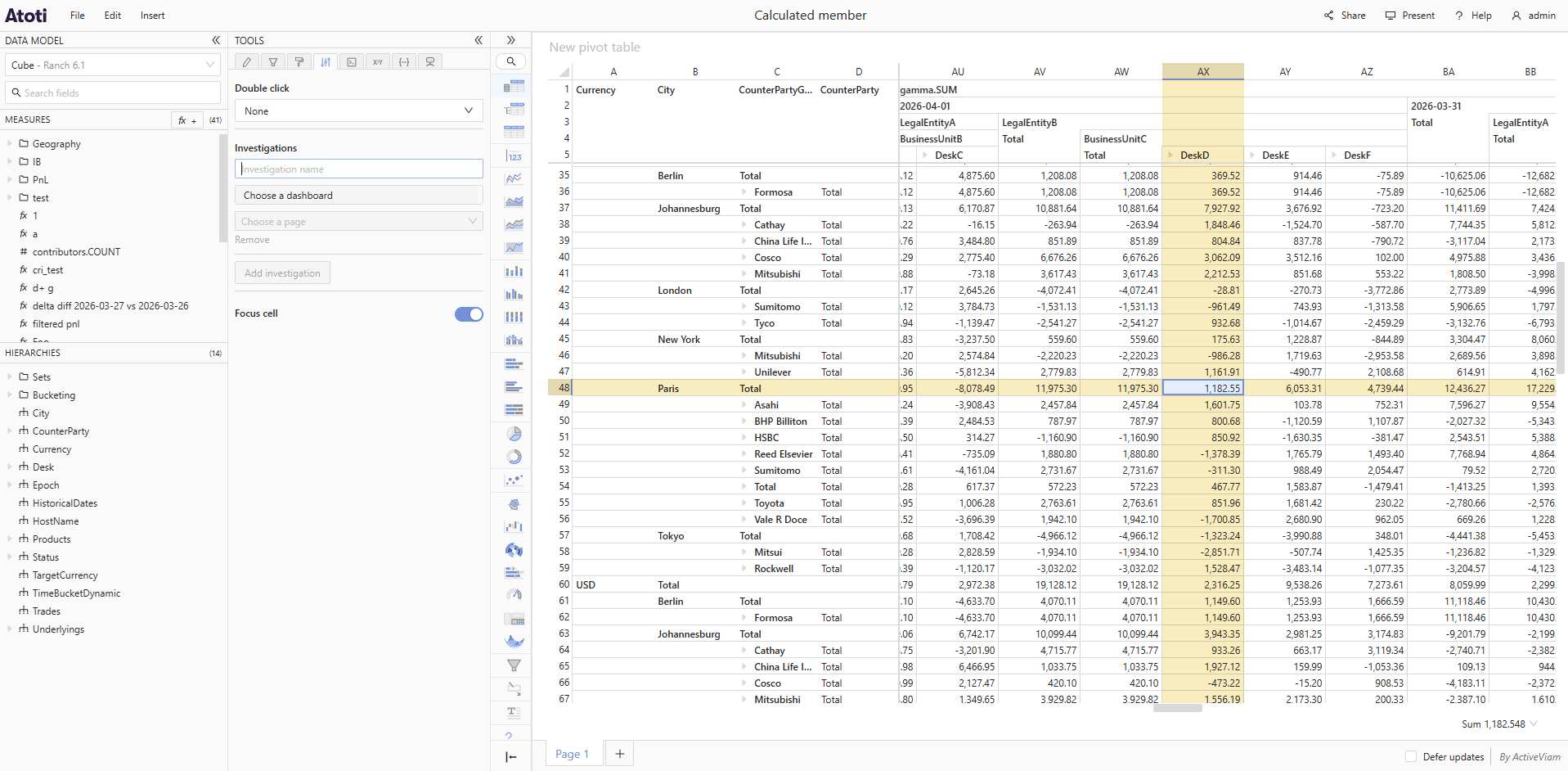
Improvements
Formatted CSV exports
CSV exports now reflect the number and date formatting configured in the Style tab.Improved dark mode contrast
Dark mode has been updated with a darker background color, better text readability, and a theme-specific color palette with improved contrast for table cell backgrounds.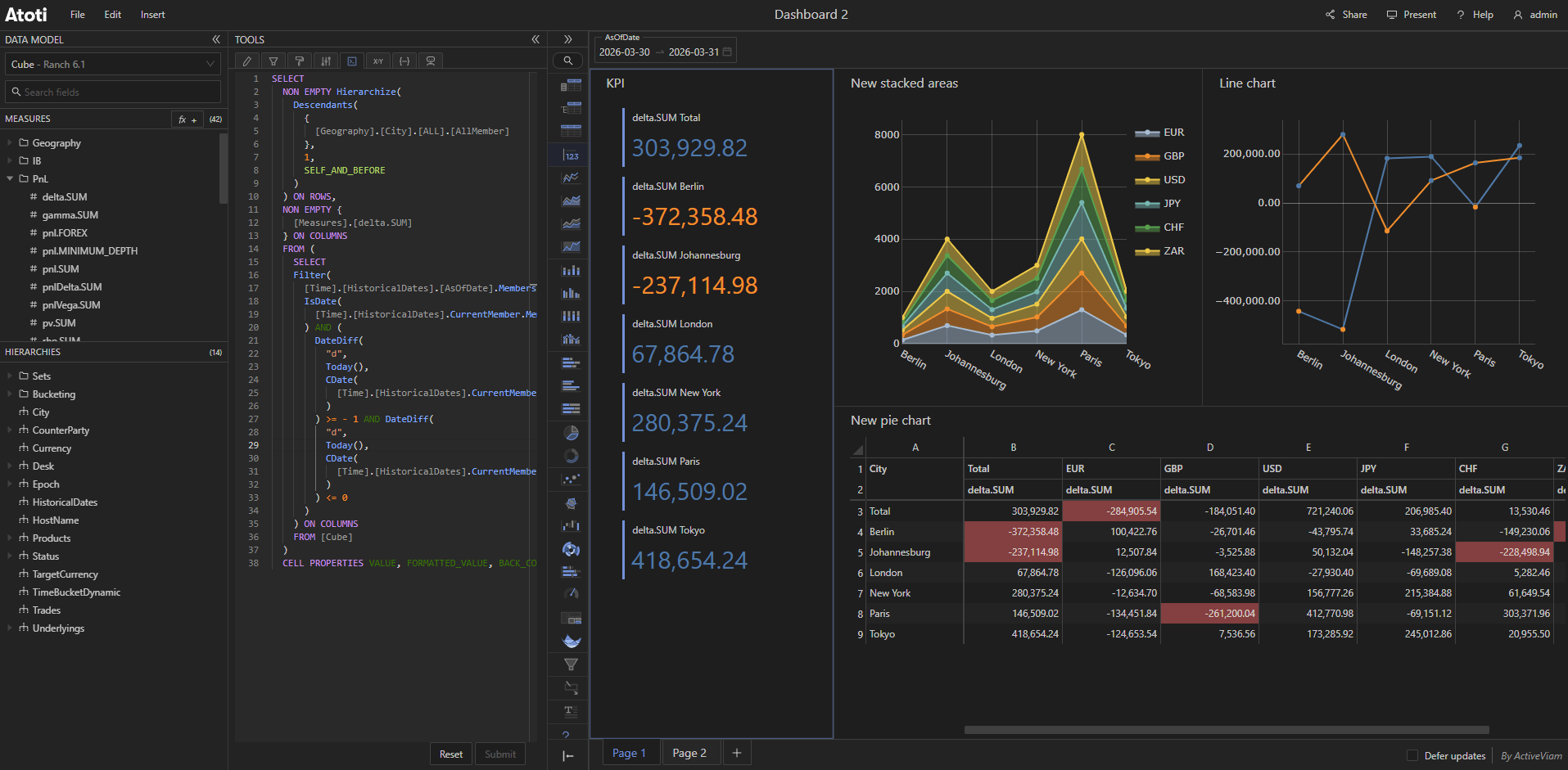
Navigate to folder from dashboards
When browsing inside a folder in the Open or Save as modals, a link next to the folder name lets you navigate directly to that folder.2026-02-27
Summary
New featuresNew features
Format rows and columns in tables
Users can format rows and columns in table widgets. The formatting controls are found in the Style tab and allow to format the selected cells. To format a row or a column, the user should select it by clicking its corresponding row or column number. Row and column numbers can be shown or hidden via a toggle, also in the Style tab.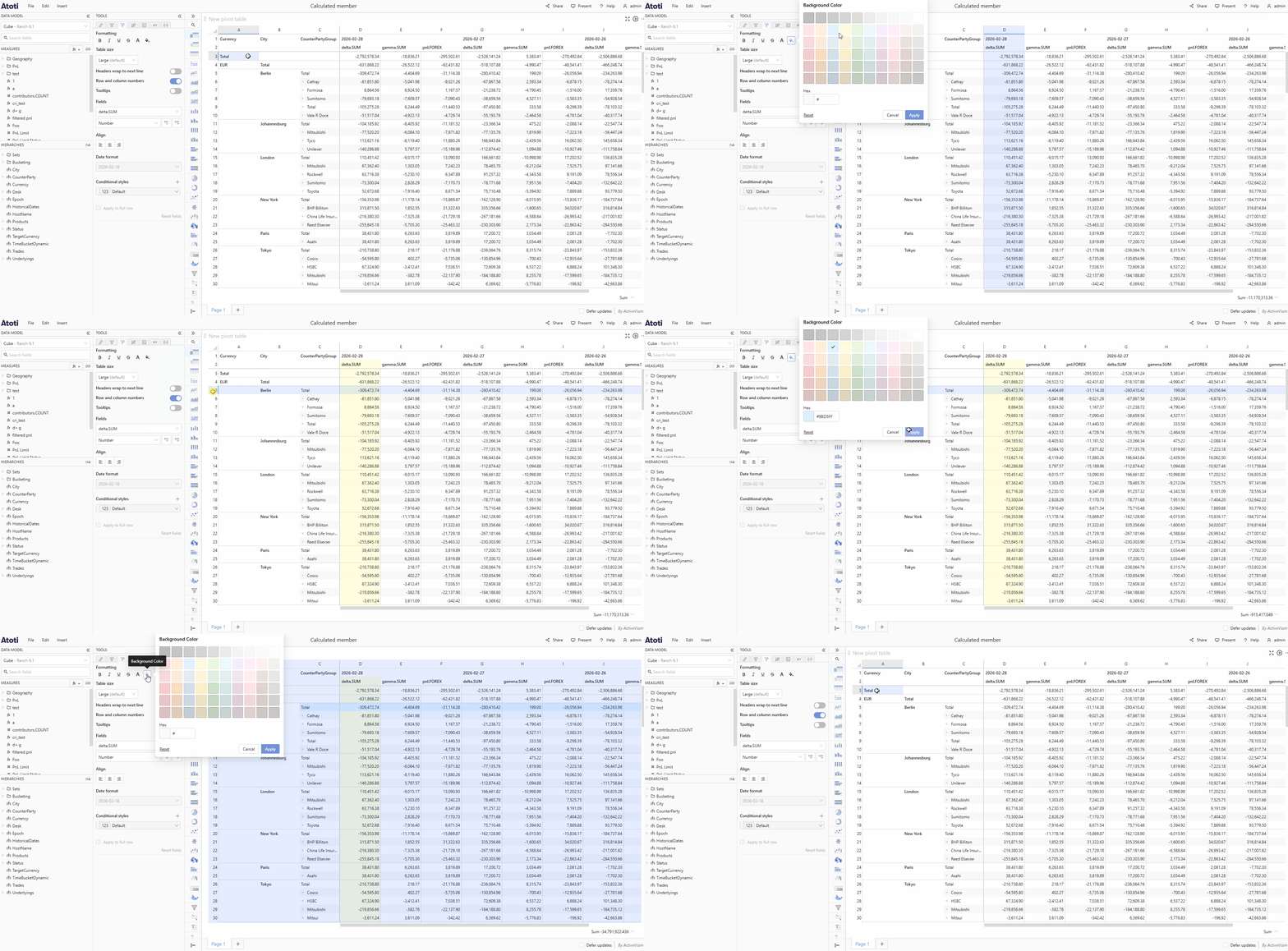
Reorder members of a level on columns in table widgets
Users can reorder the members displayed on columns in table widgets, by drag and dropping them.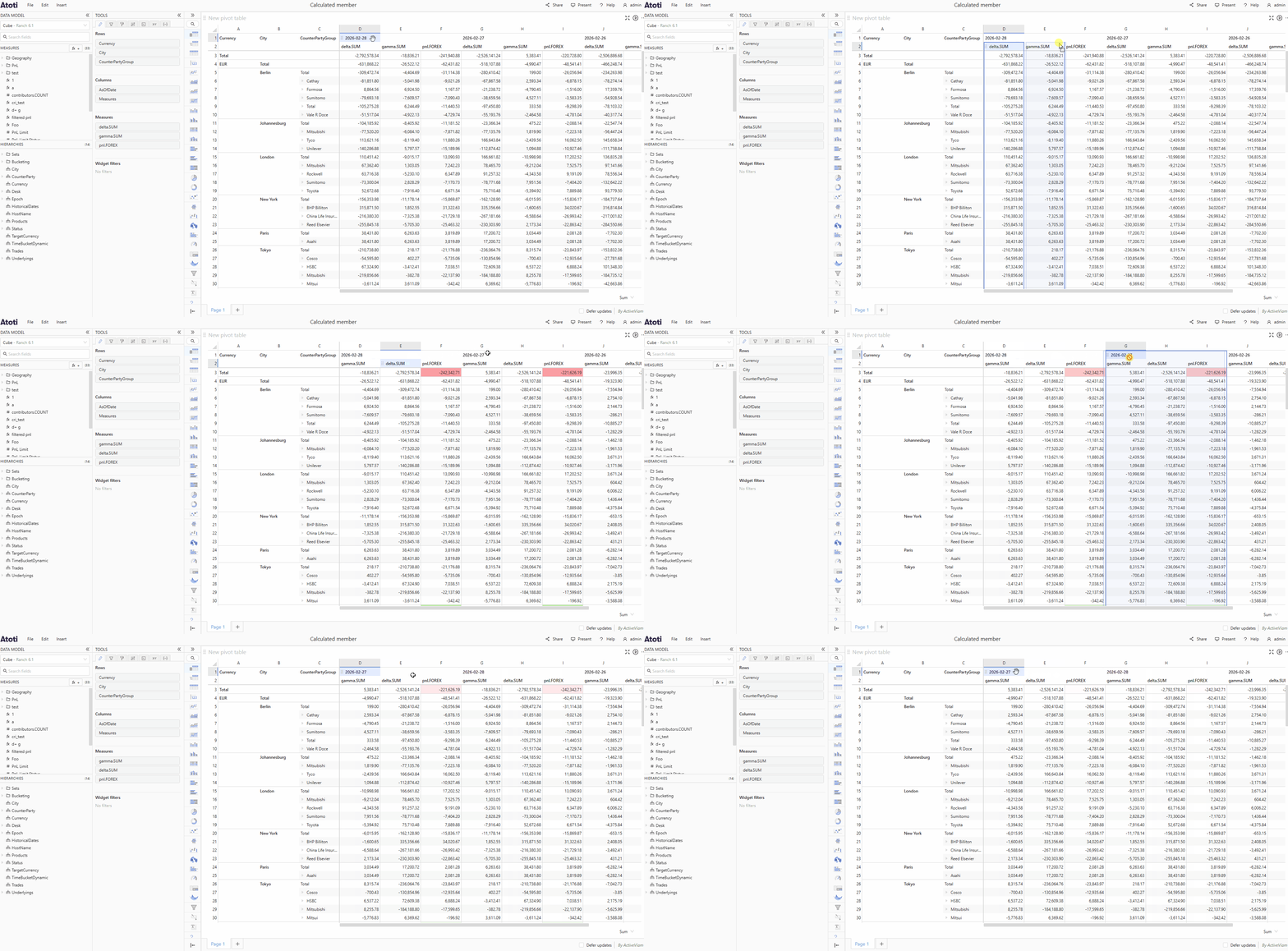
2026-01-30
Summary
Improvements- Navigate between dashboard pages with keyboard shortcuts
- Search in measure group selector
- Saved widget information
- Save as shortcut on read-only dashboards
- Edit query-scoped calculated measures
Improvements
Navigate between dashboard pages with keyboard shortcuts
Navigate between dashboard pages using the Ctrl/Cmd + Alt + Page Up/Page Down keyboard shortcuts.Search in measure group selector
Search for measure groups by typing their names in the Measure group selector.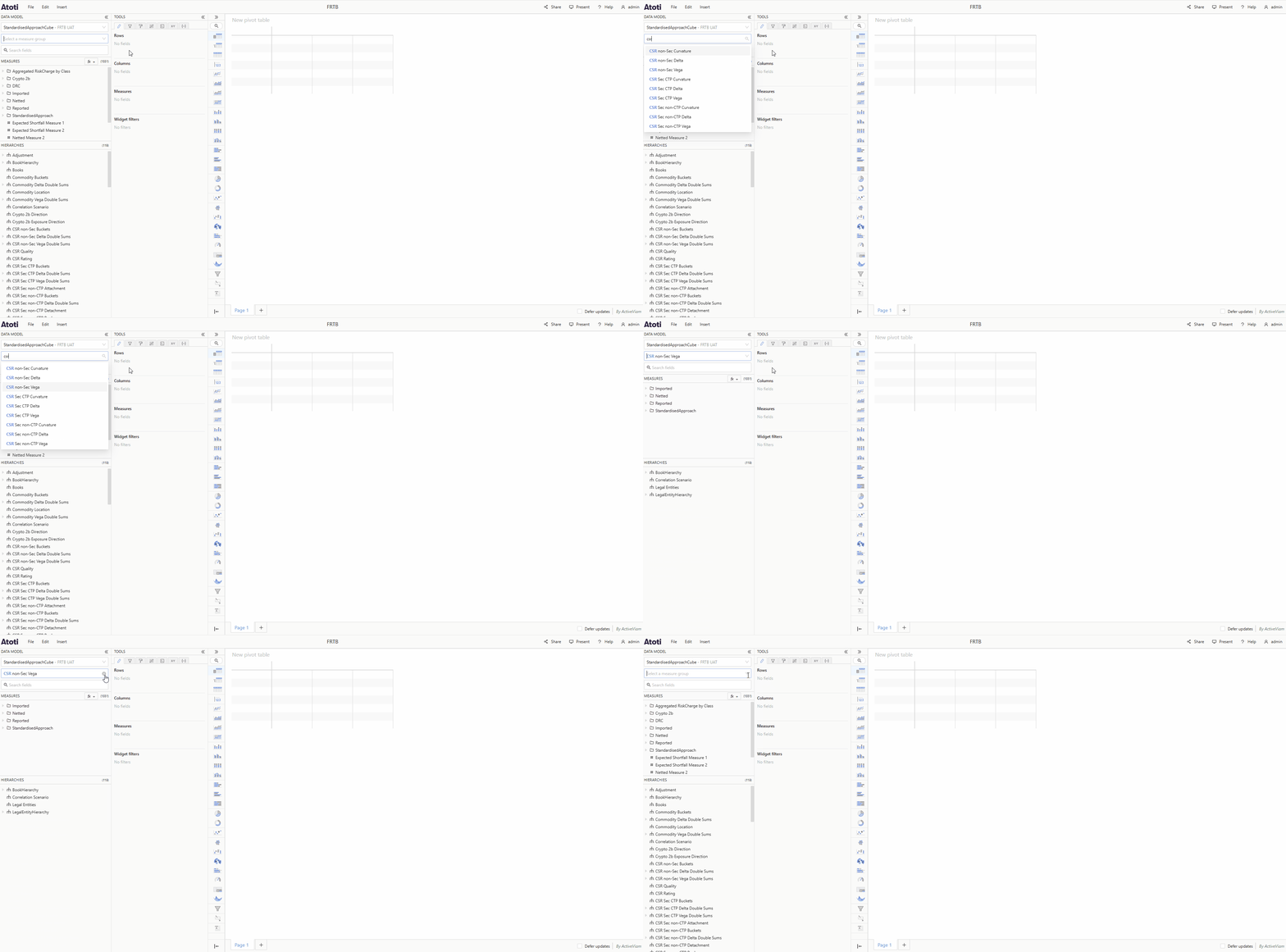
Saved widget information
A new Saved Widget Information button is available in the titlebar of saved widgets. It displays the owners, last editor, last update time, and folder location of the saved widget.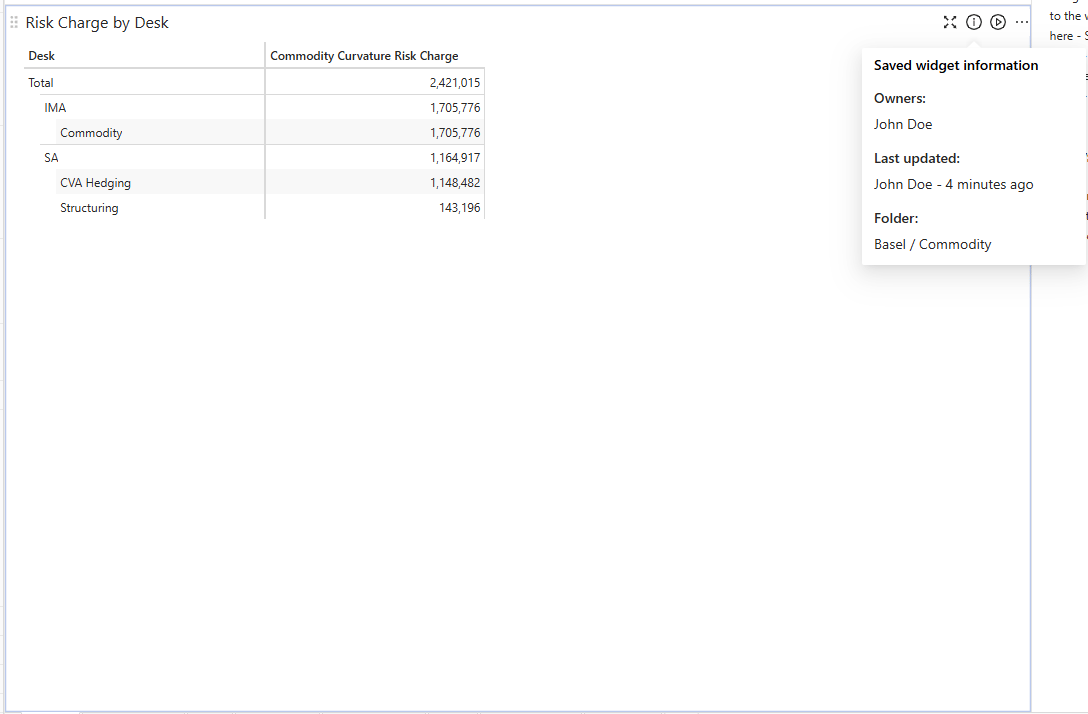
Save as shortcut on read-only dashboards
Pressing Ctrl+S (or Cmd+S on Mac) on a read-only dashboard opens the Save As modal, allowing users to save their changes to a new dashboard.Edit query-scoped calculated measures
Edit query-scoped calculated measures directly from the Fields tab using the Edit calculated measure popover. This provides an easier way to modify such measures than the Query tab.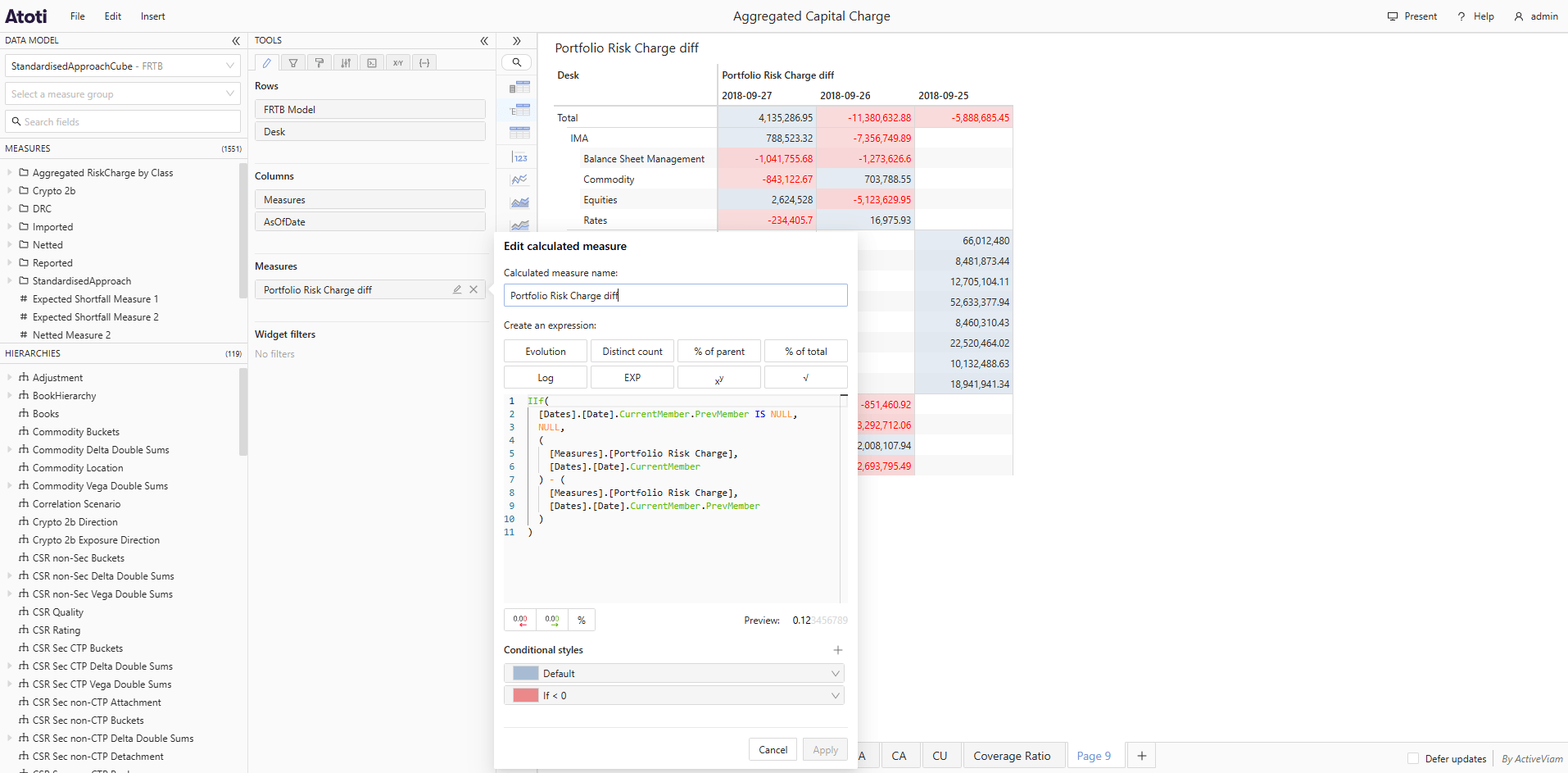
2025-12-31
Summary
ImprovementsImprovements
Default selection mode for hierarchies
Users have a new setting where they can decide the default behavior for selecting members from slicing hierarchies when filtering. It can be set to be Single mode, where one can only have one member selected at a time, or Multiple where one can select multiple members by default. No matter which is selected, users can still change the mode in the popup.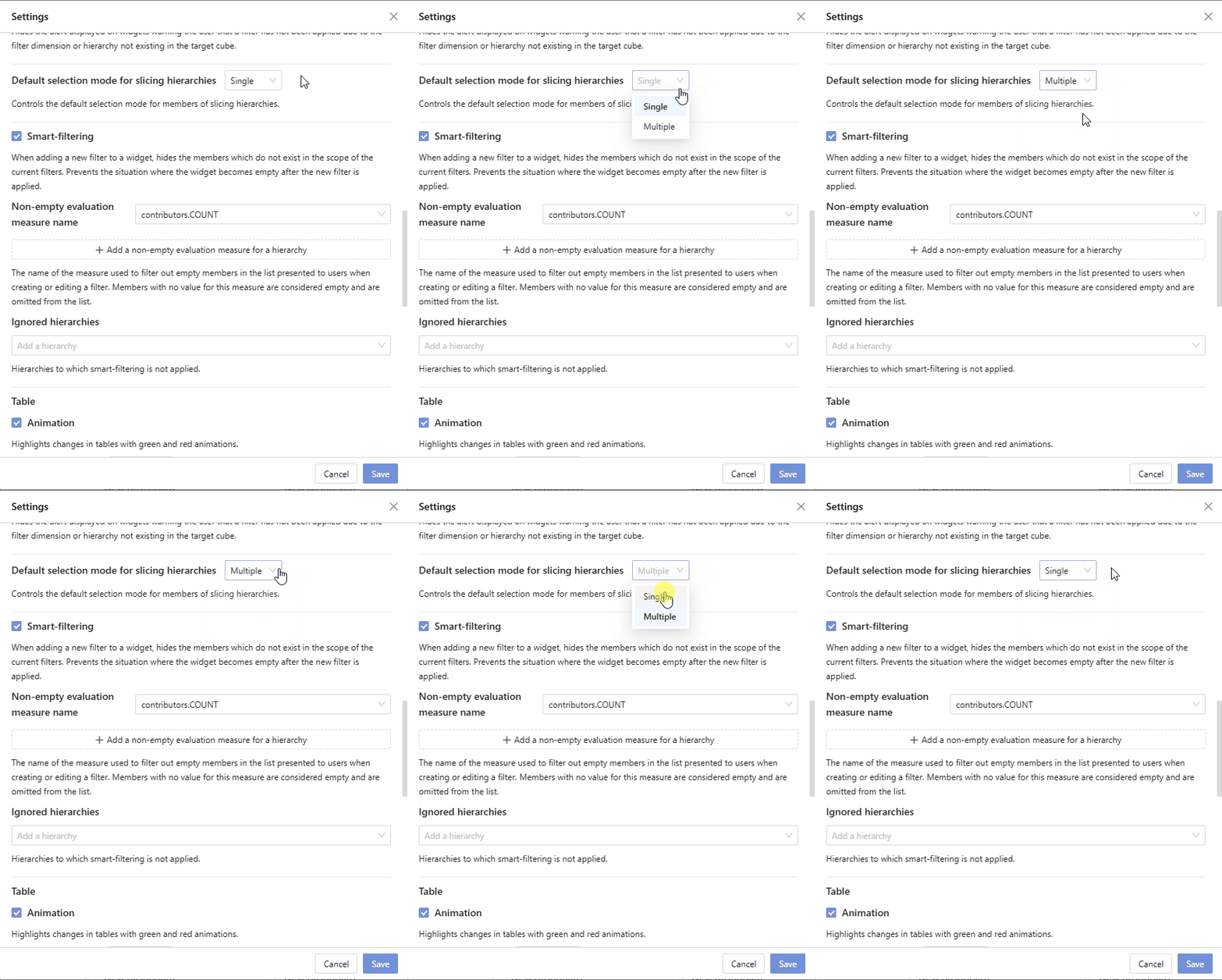
Search in open folder popup
Users can now search for folders in the Move and Save as popups for dashboards.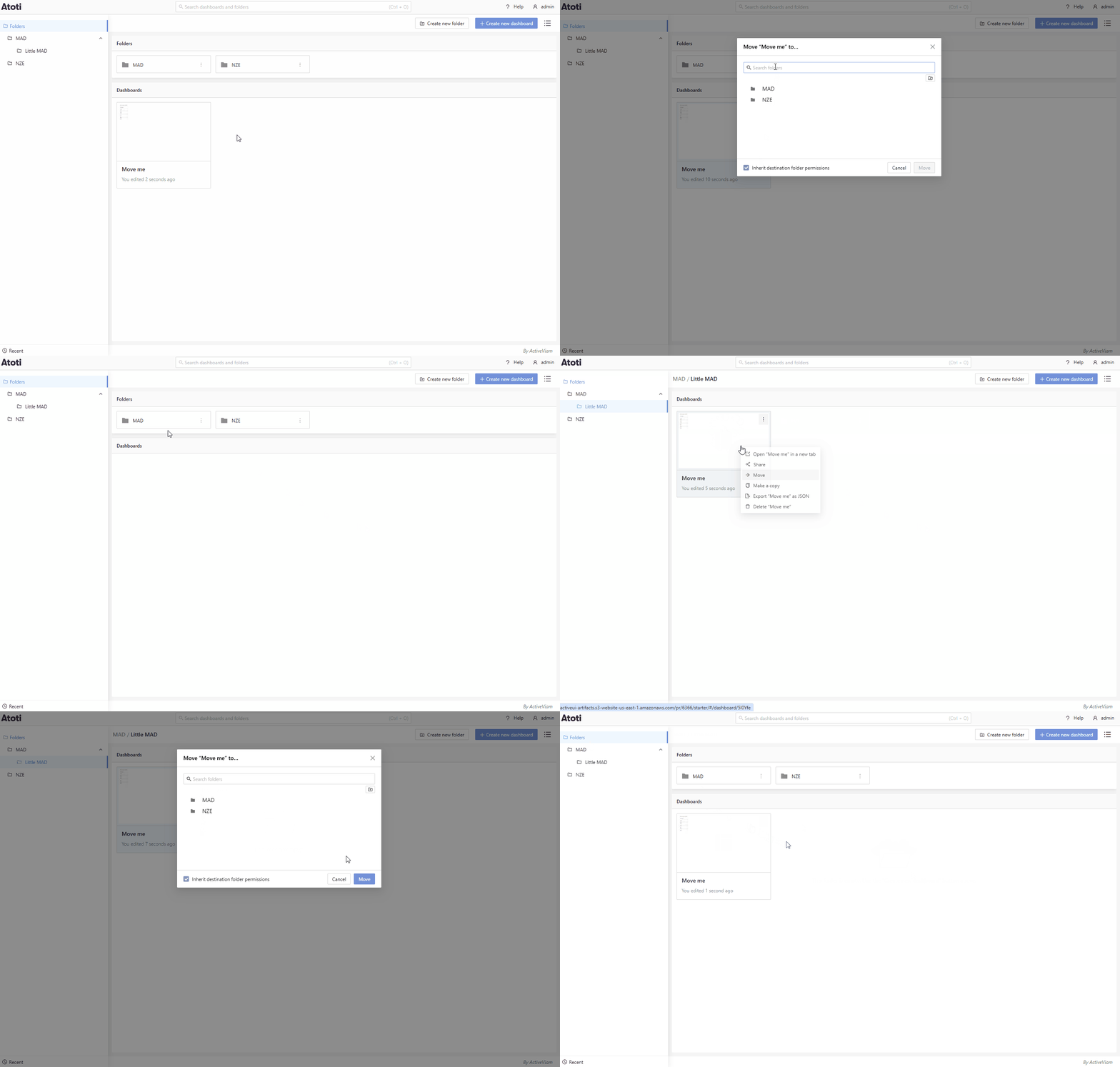
2025-12-09
Summary
ImprovementsImprovements
Share contents of folder
Users can decide to share all the folders and dashboards contained within a folder. They can achieve this by checking the checkbox in the Share popup. This feature is only available with Atoti Server 6.1.15 or higher.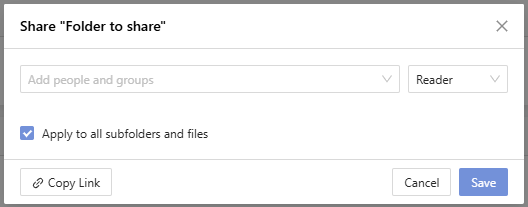
2025-12-01
Summary
New featuresImprovementsNew features
Move dashboard menu item
Users can move dashboards directly from the File menu. This way they do not have to return to the home page to reorganize their folders.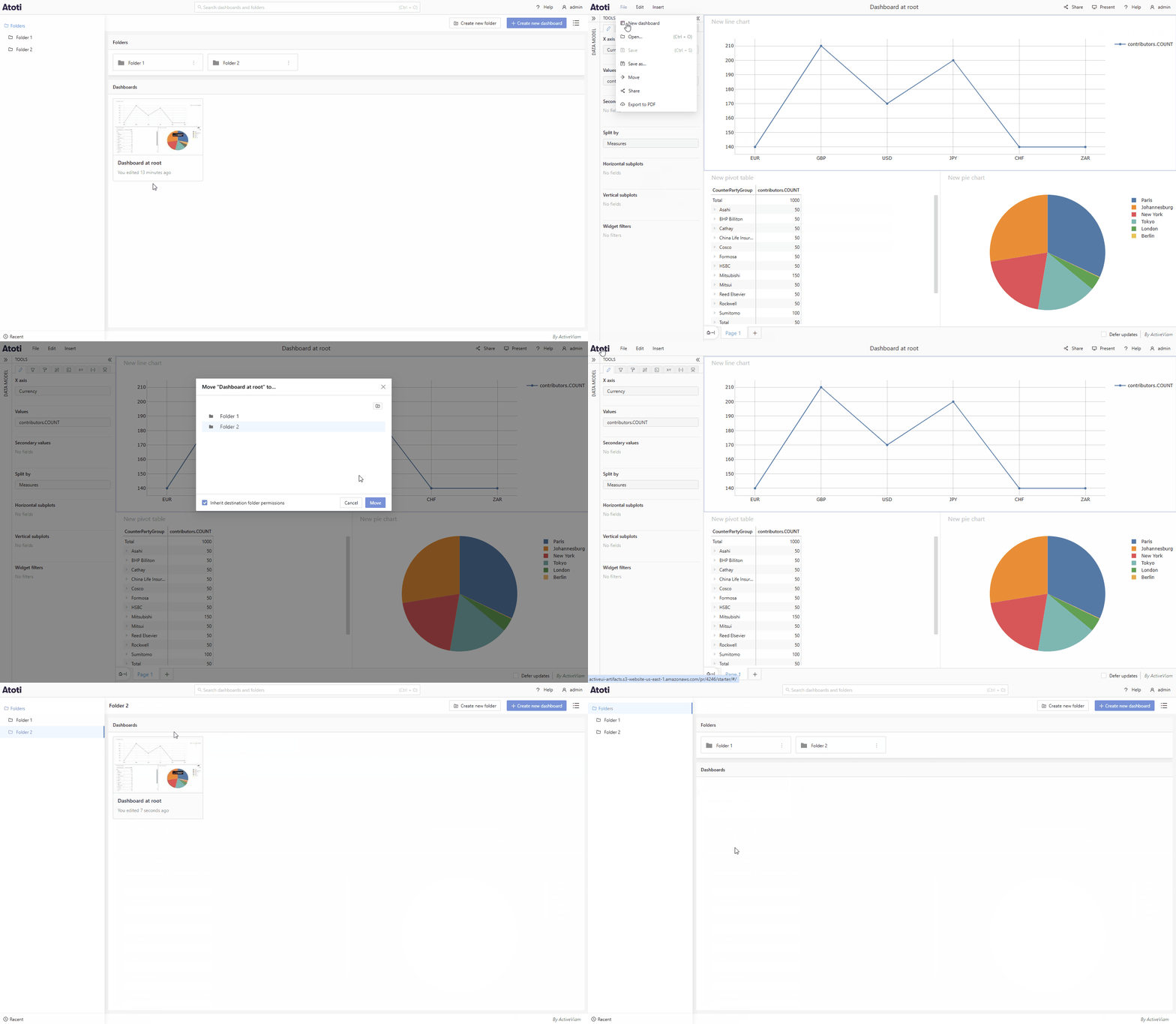
Improvements
Change axis ticks on charts
Users can format their axis ticks on charts.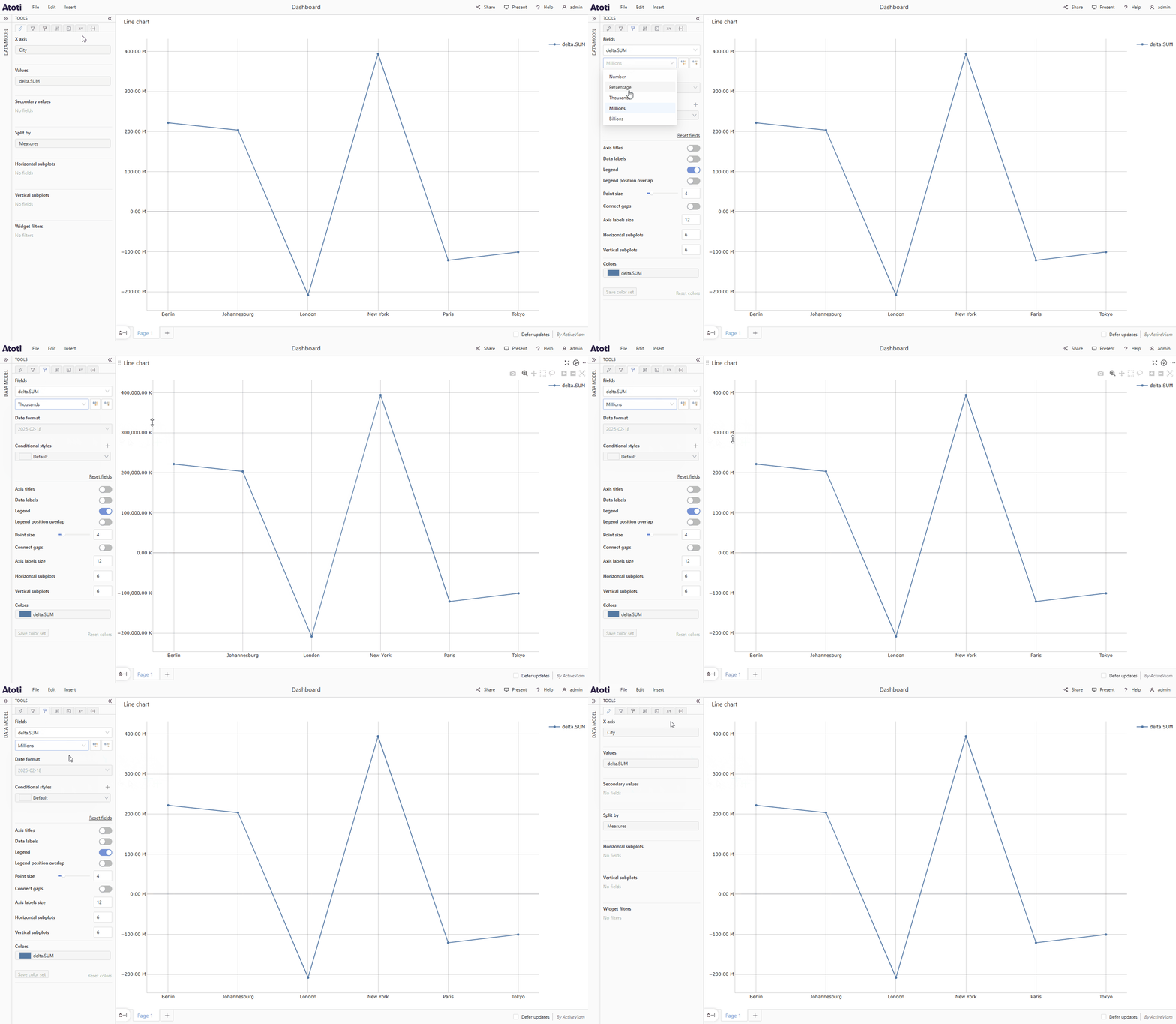
2025-10-31
Summary
New featuresNew features
Hide header rows
Users can hide row headers. This can help save space if there is redundant information.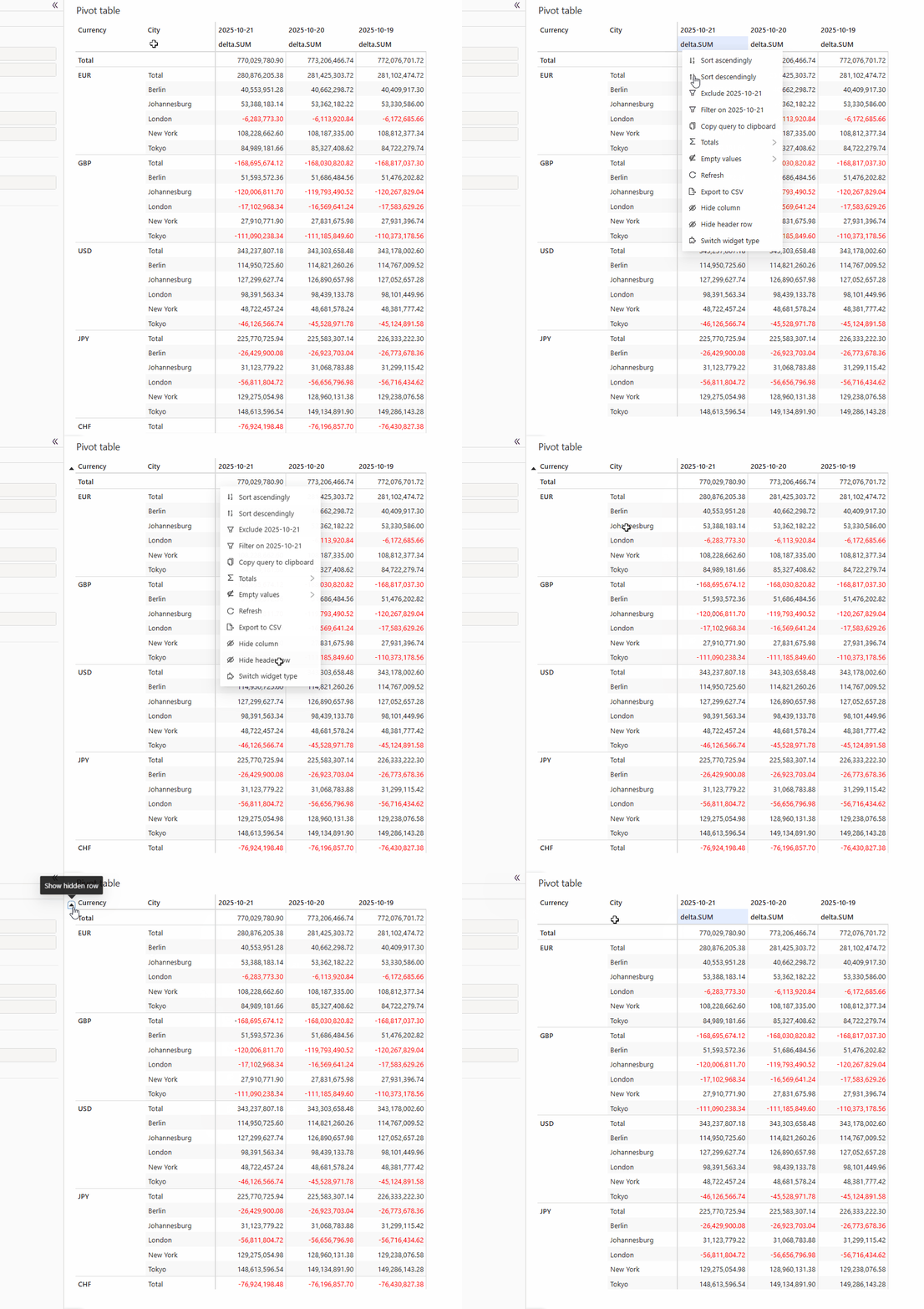
2025-09-30
Summary
New featuresImprovementsNew features
Add filter folders
Users can group relevant filters in folders and then quickly switch from one group to another using folders in Saved filters.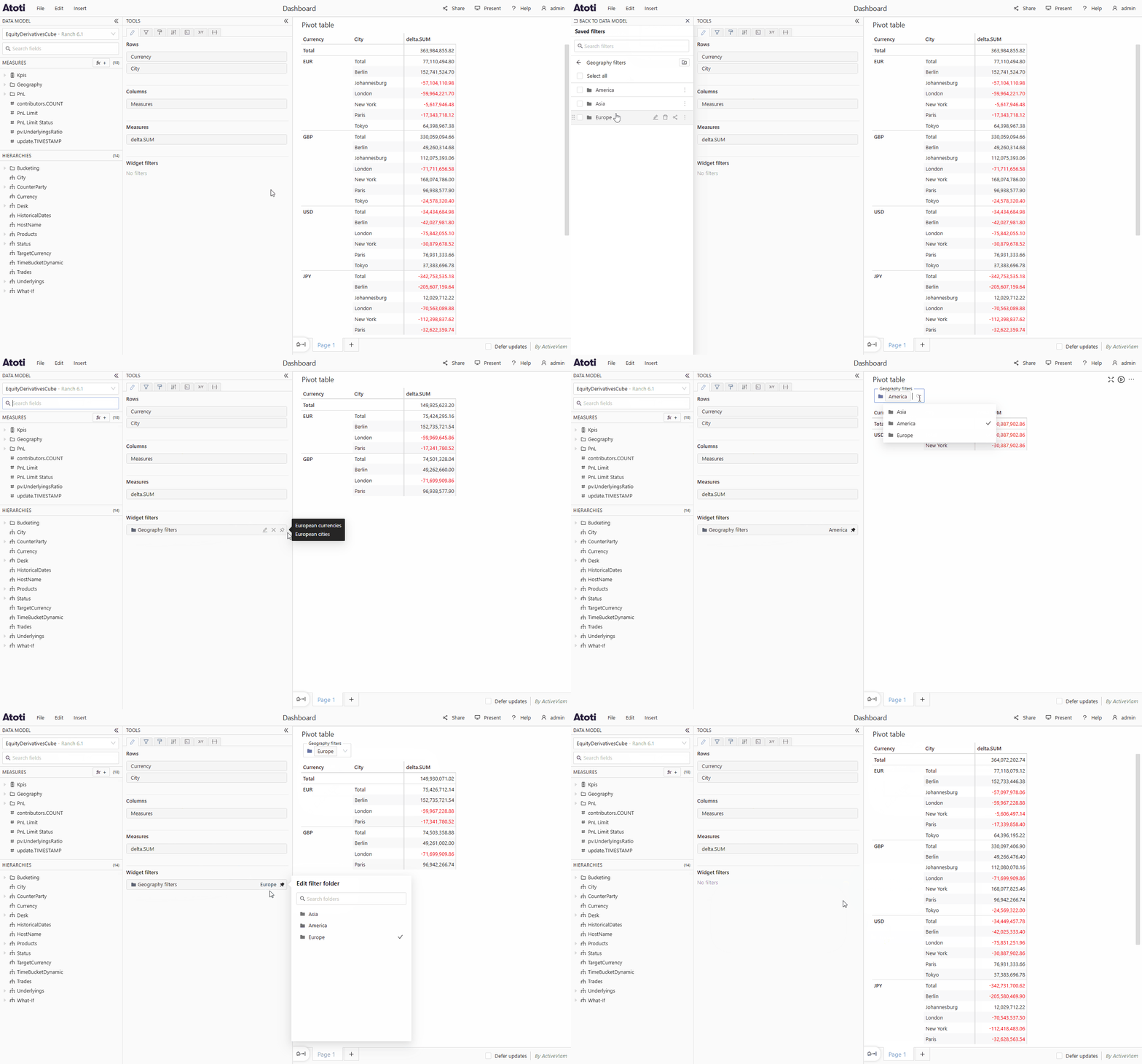
Improvements
Improved conditional styles for tables
Users have more comprehensive options for styling tables. They can now change the text and background color, and bold, italic, underline, and strikethrough the text.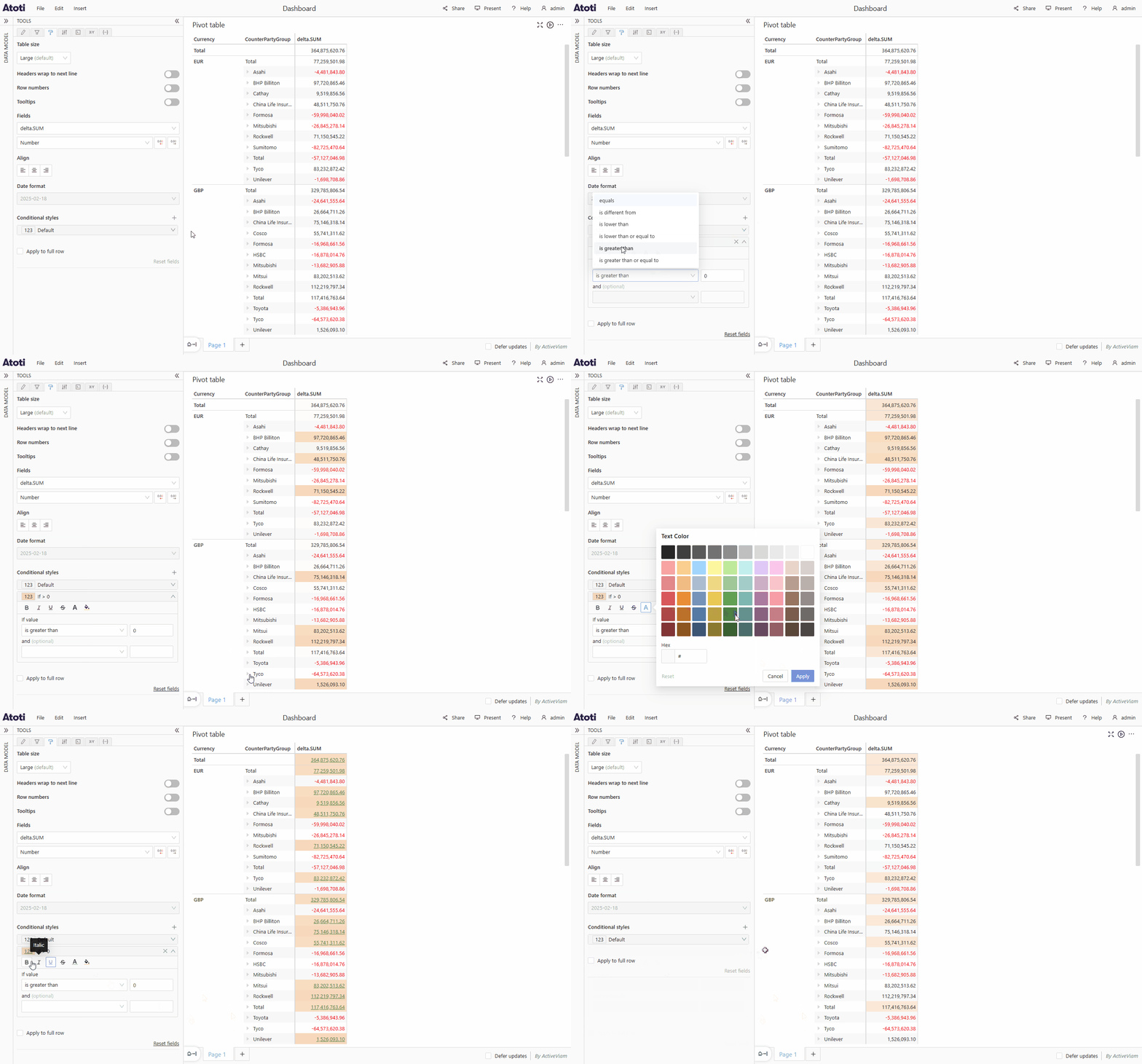
2025-08-30
Summary
New featuresNew features
Create named sets
It is now possible to create named sets which include members from several levels within a dimension. These can be reordered to have custom orders when adding them to tables or other widgets.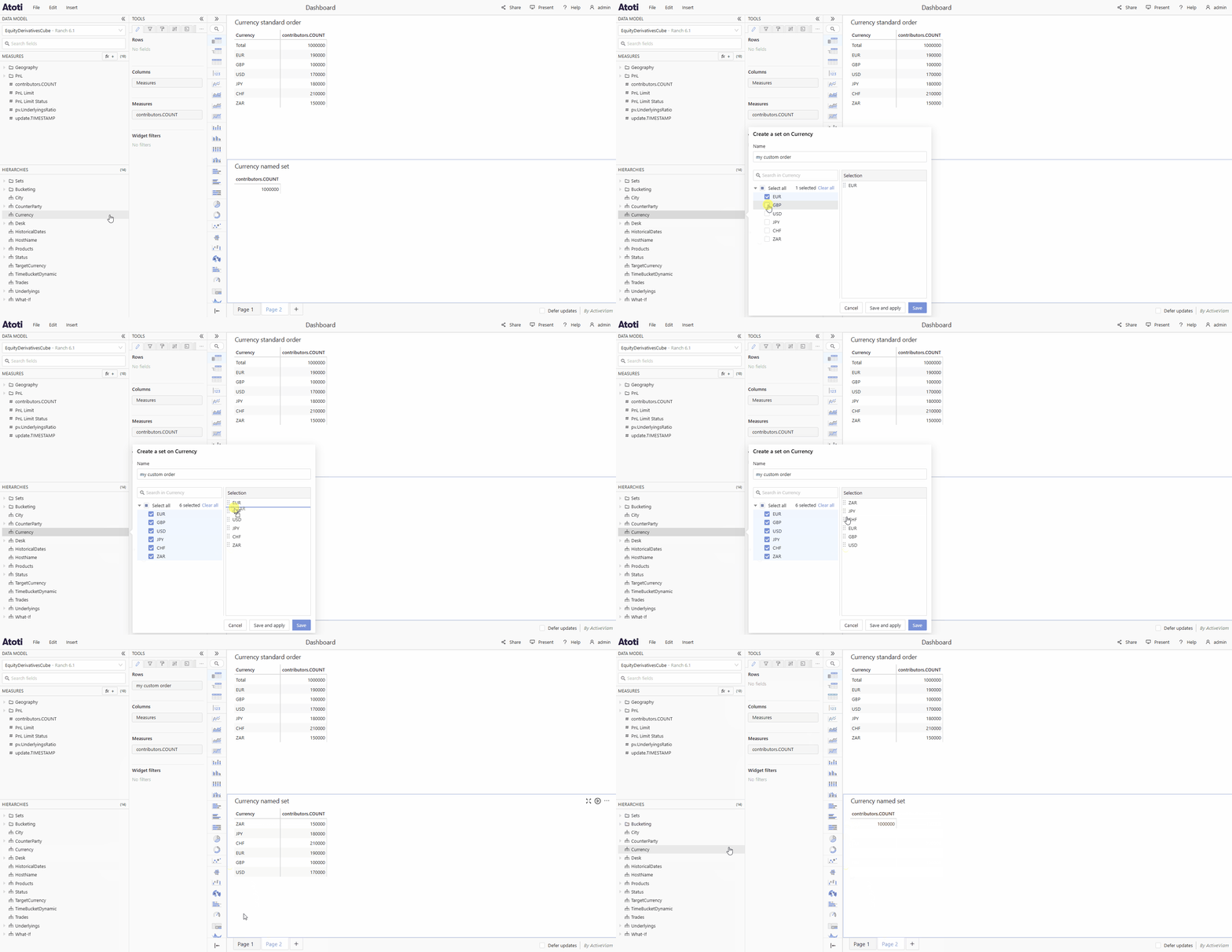
2025-07-31
Summary
New featuresImprovementsNew features
Sunburst chart
The sunburst chart was added as a new widget. This widget will be especially useful for visualizing hierarchical data.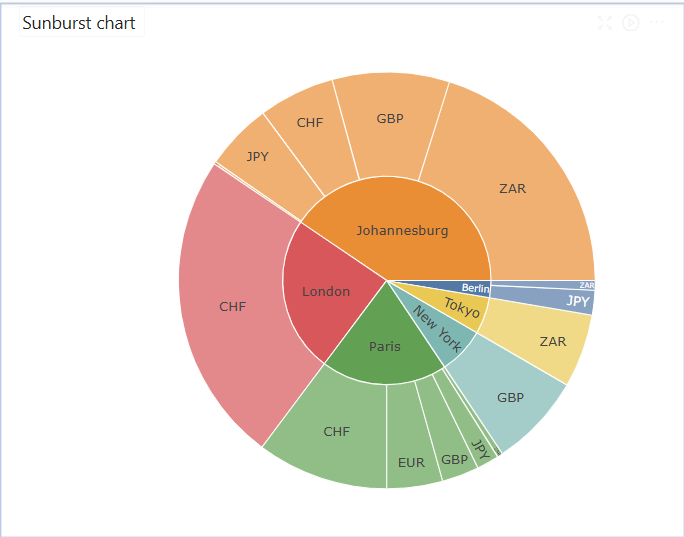
Measure groups
Users can now display measure groups in the UI. This allows you to group measures and hierarchies together, to make sure that all the relevant data is easily found.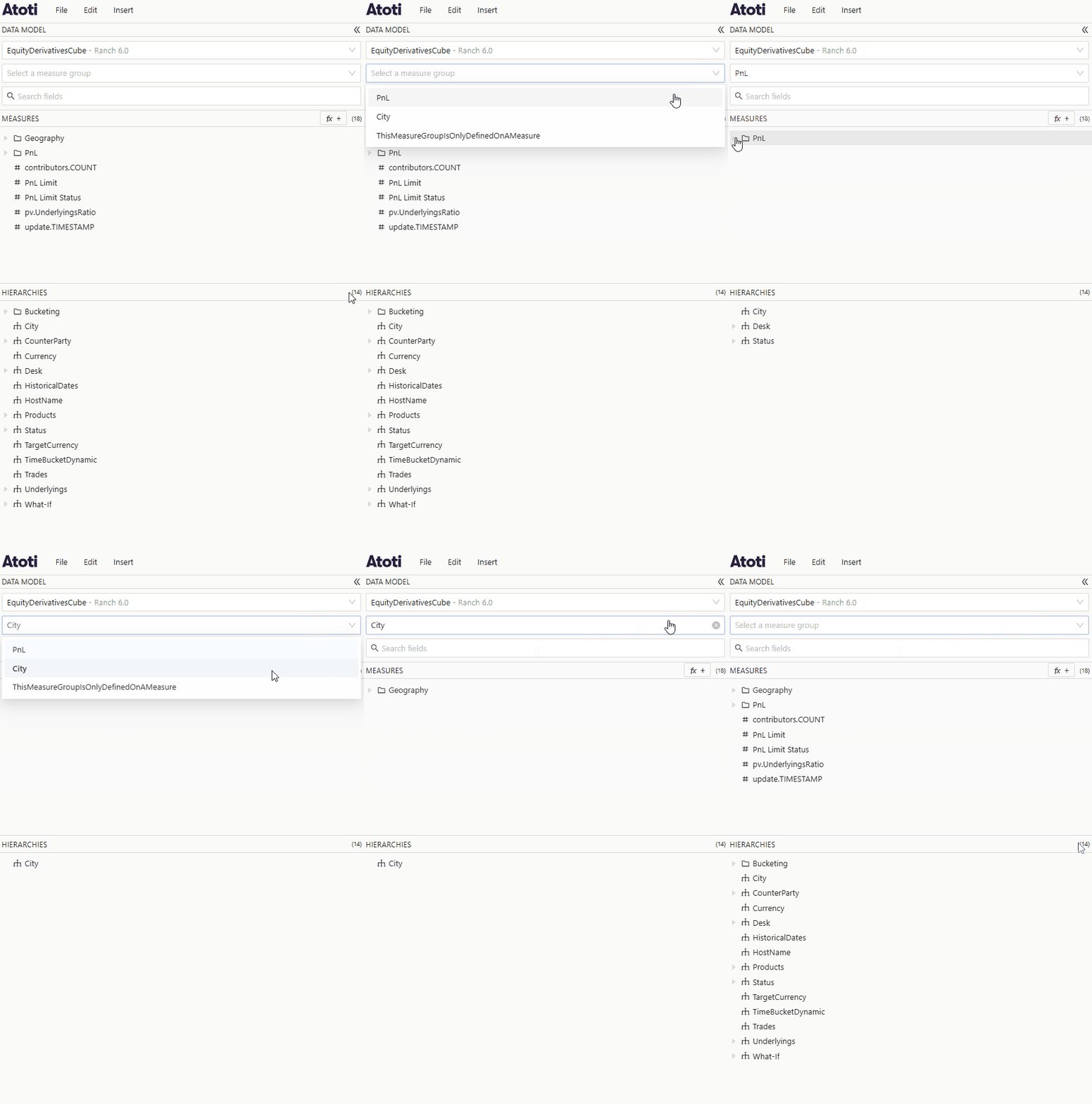
Connect gaps in line charts
Line charts with gaps in the data can be connected in the Style tab.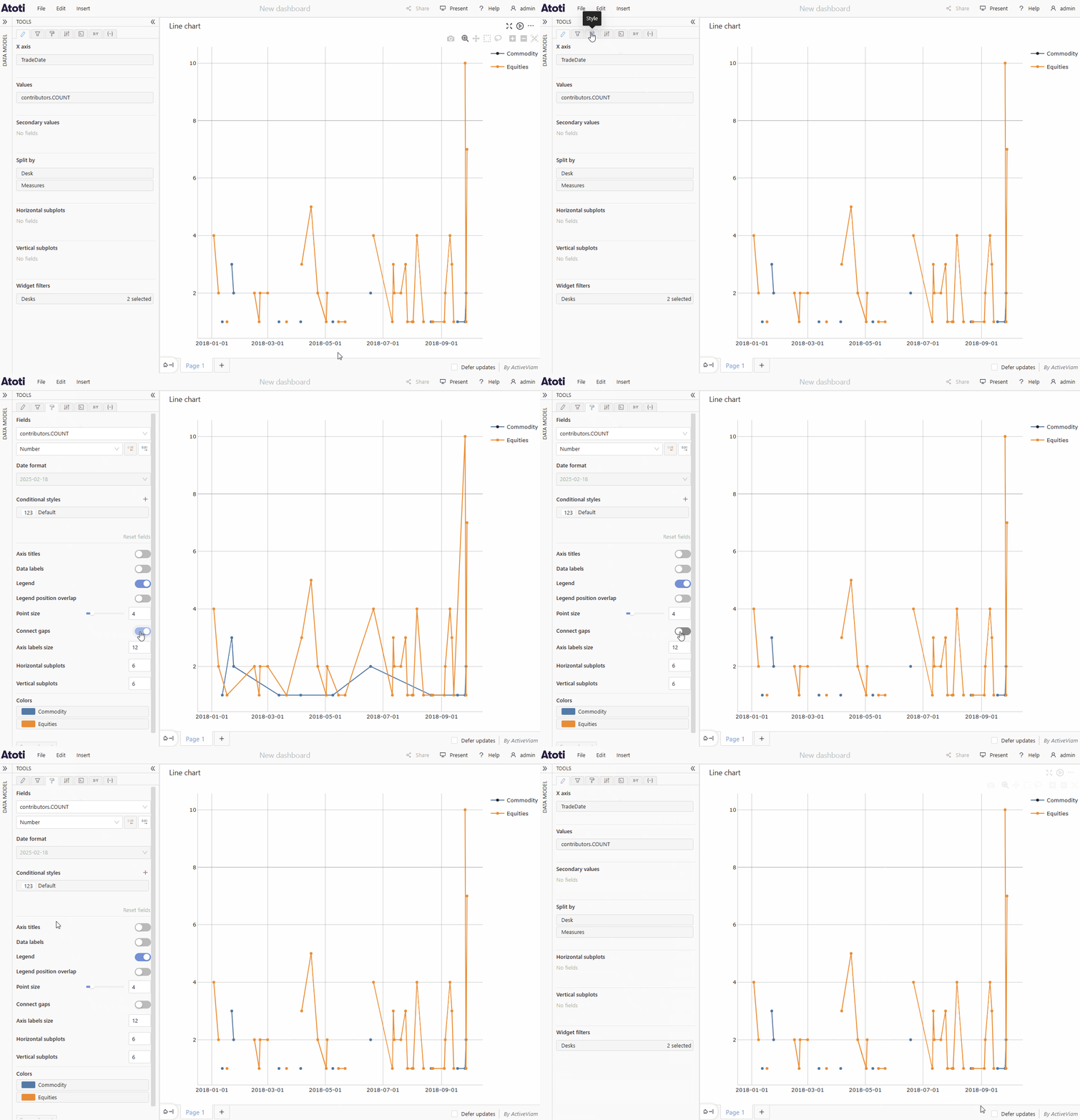
Improvements
Shortcut to toggle Present mode
Alt + p toggles Present mode.Description tooltips for dimensions
One can now show the description of a dimension, hierarchy or level by hovering over it. It is displayed in a tooltip.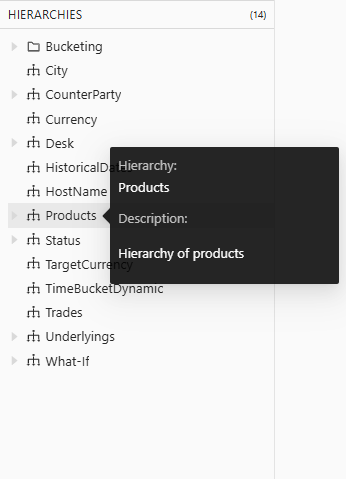
2025-06-30
2025-06-30ImprovementsImprovements
Dashboard layout when dropping widgets
When moving a widget, the dashboard layout does not change until the widget is dropped. You can cancel the move by dragging the widget back to its original place or off screen.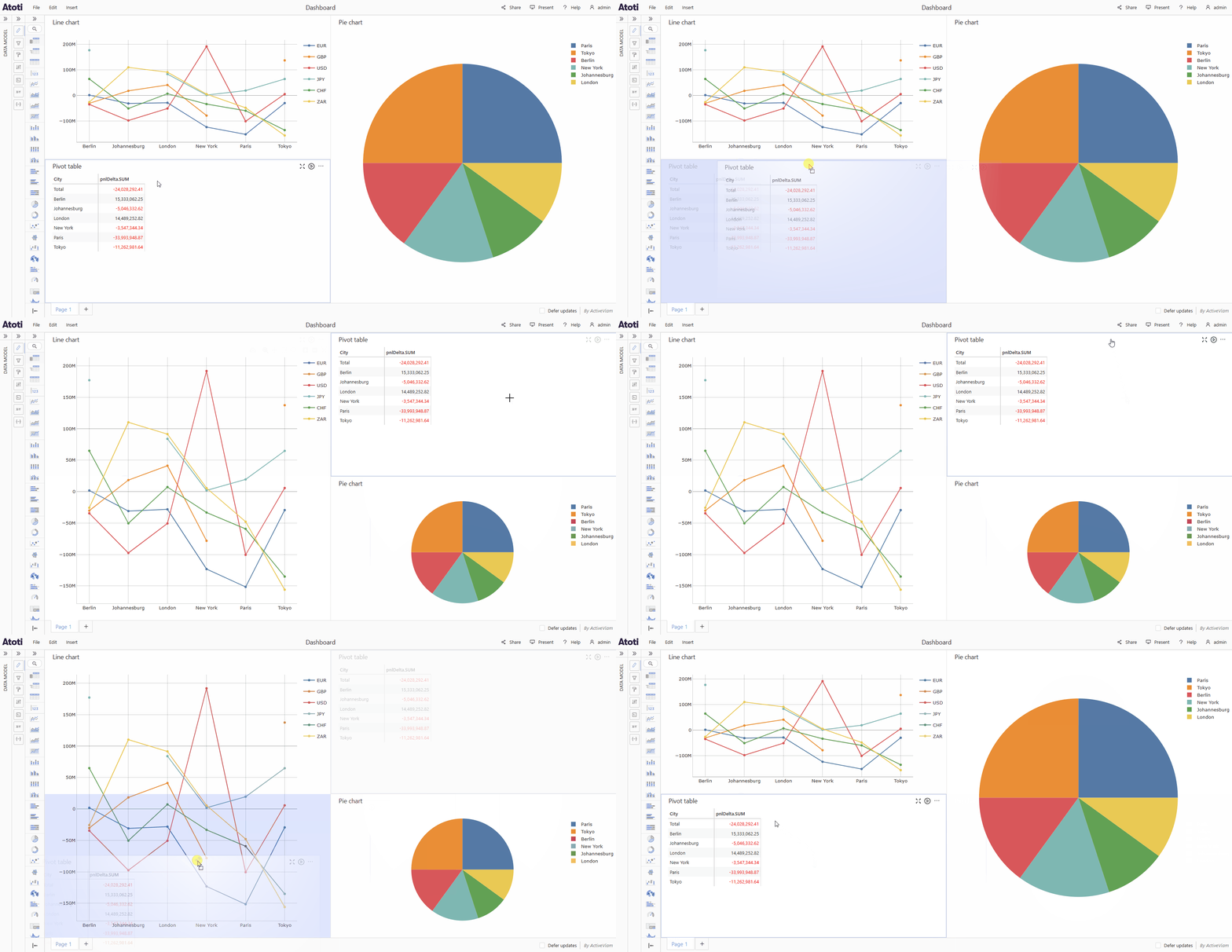
2025-05-28
2025-05-28ImprovementsImprovements
Move calculated measures
You can now quickly move calculated measures into folders by using their context menu and choosing the Move option.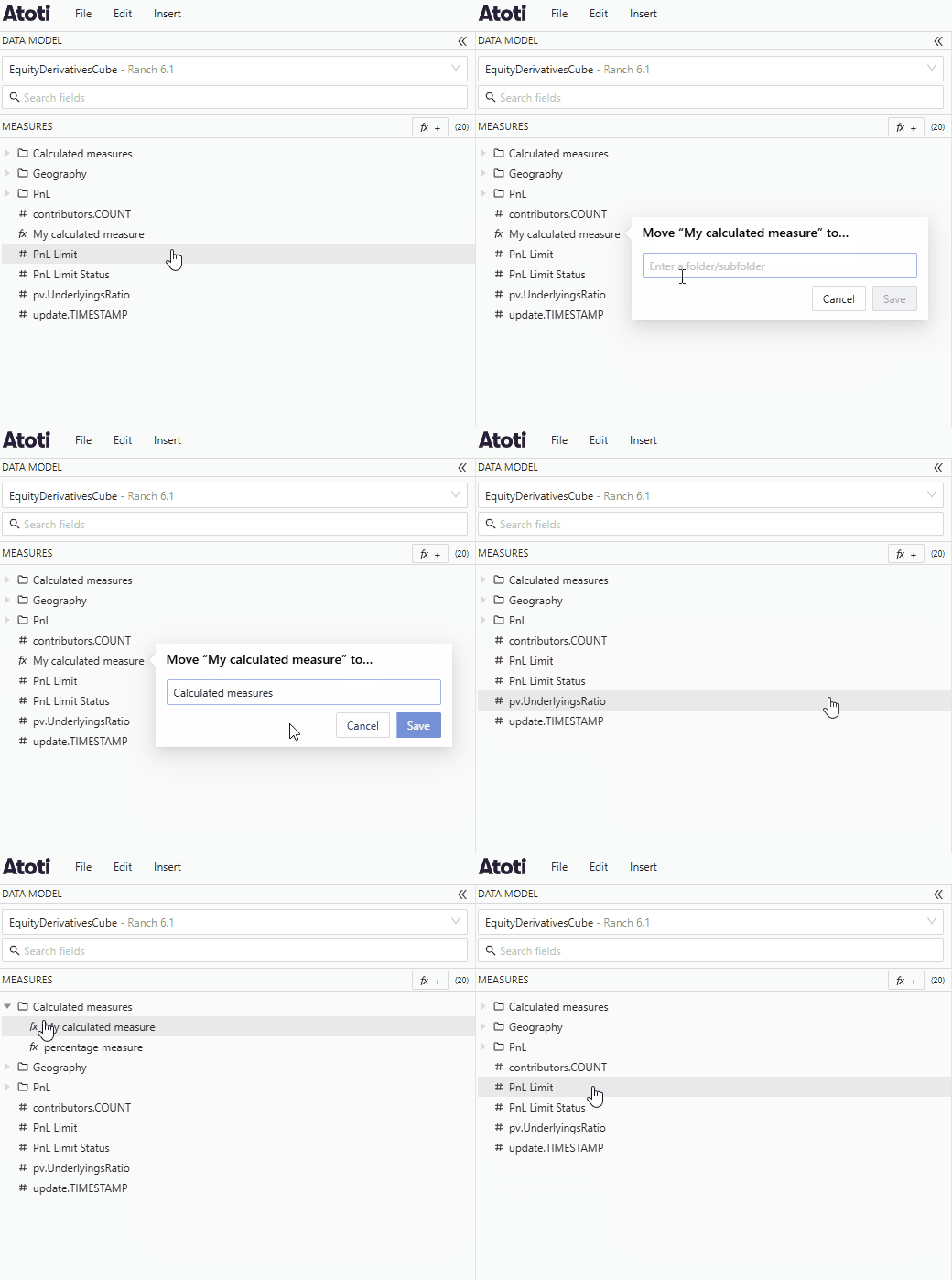
2025-05-01
Summary
New featuresImprovementsNew features
Previous date filters
You can now add filters on the next or previous day, week, month, quarter or year. This is accessible in the calendar view on the filter popover for date hierarchies.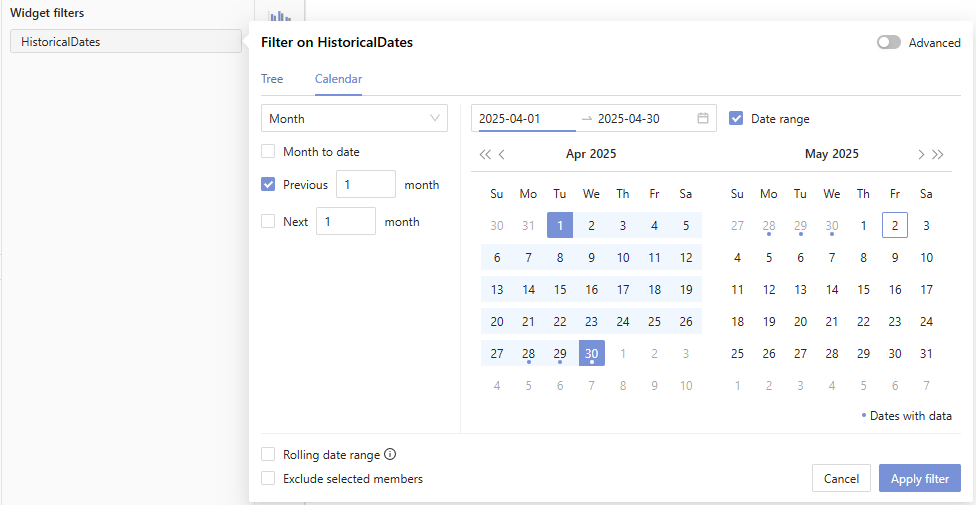
Improvements
Save calculated measures in folders
Calculated measures can now be saved in folders as you create them. You can also move a measure after creation by right-clicking to edit it, then specifying the folder.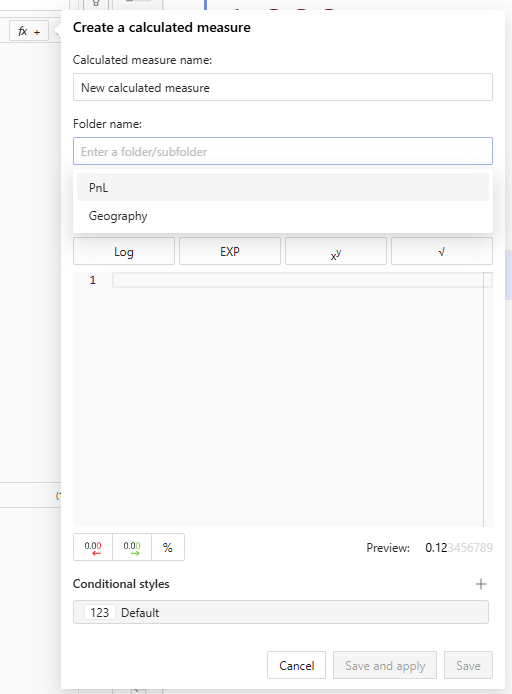
Context menus for tree maps
Improved support for tree maps by adding a context menu. Now you can right-click a section of a tree map and create a drillthrough table, or filter on it or other widgets.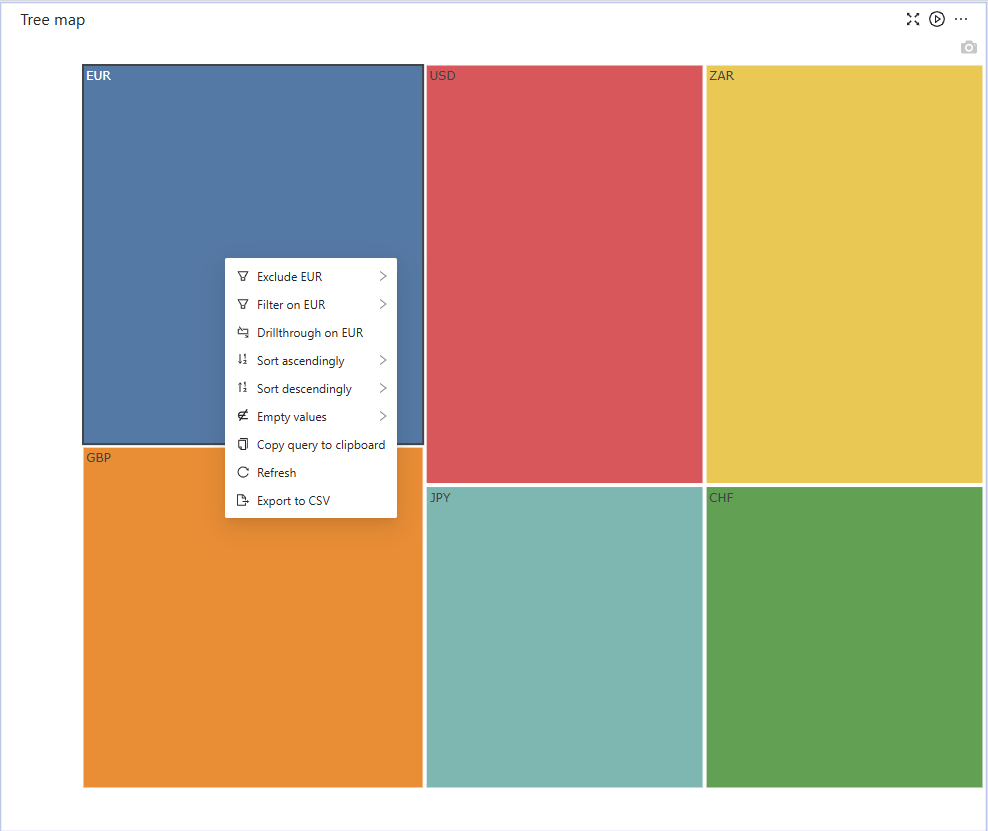
Style KPI widgets with MDX
KPI widgets respect font flags that you create in MDX by using the Query tab. With these font flags, you can format the text in the KPI, e.g. making it bold or underlining it.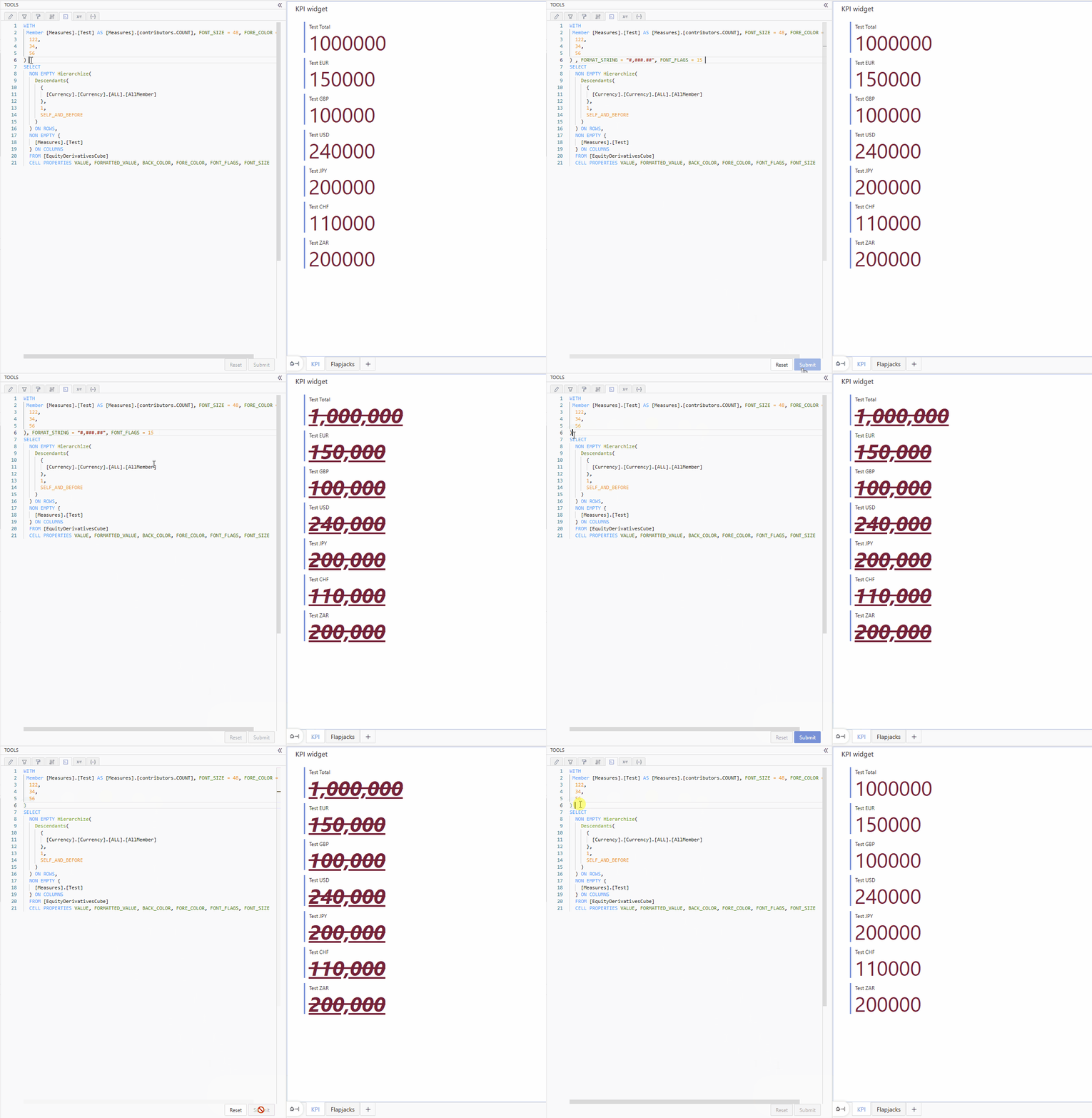
2025-04-01
Summary
New features- Apply filters to other widgets on double click
- Tree table level names
- Open dashboards in a separate tab
New features
Apply filters to other widgets on double click
You can set up a double click action on a table widget in the Behavior tab, which can then be used to apply any filters from the widget to one or more other widgets on the same page by double clicking on a row.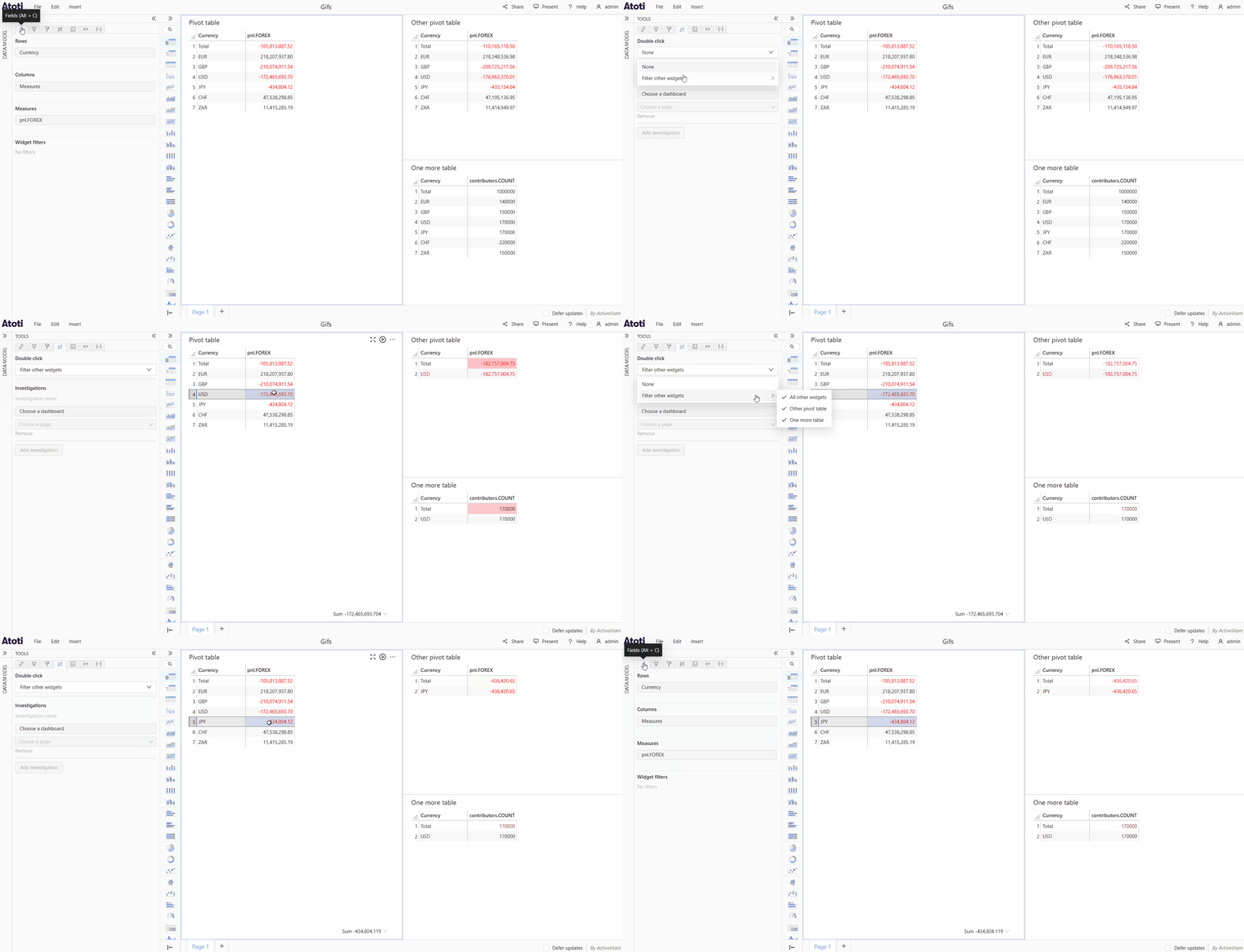
Tree table level names
You can display all level names or just the deepest level name in the header of tree tables via the Show names of all levels on rows toggle in the Style editor of the Tree table.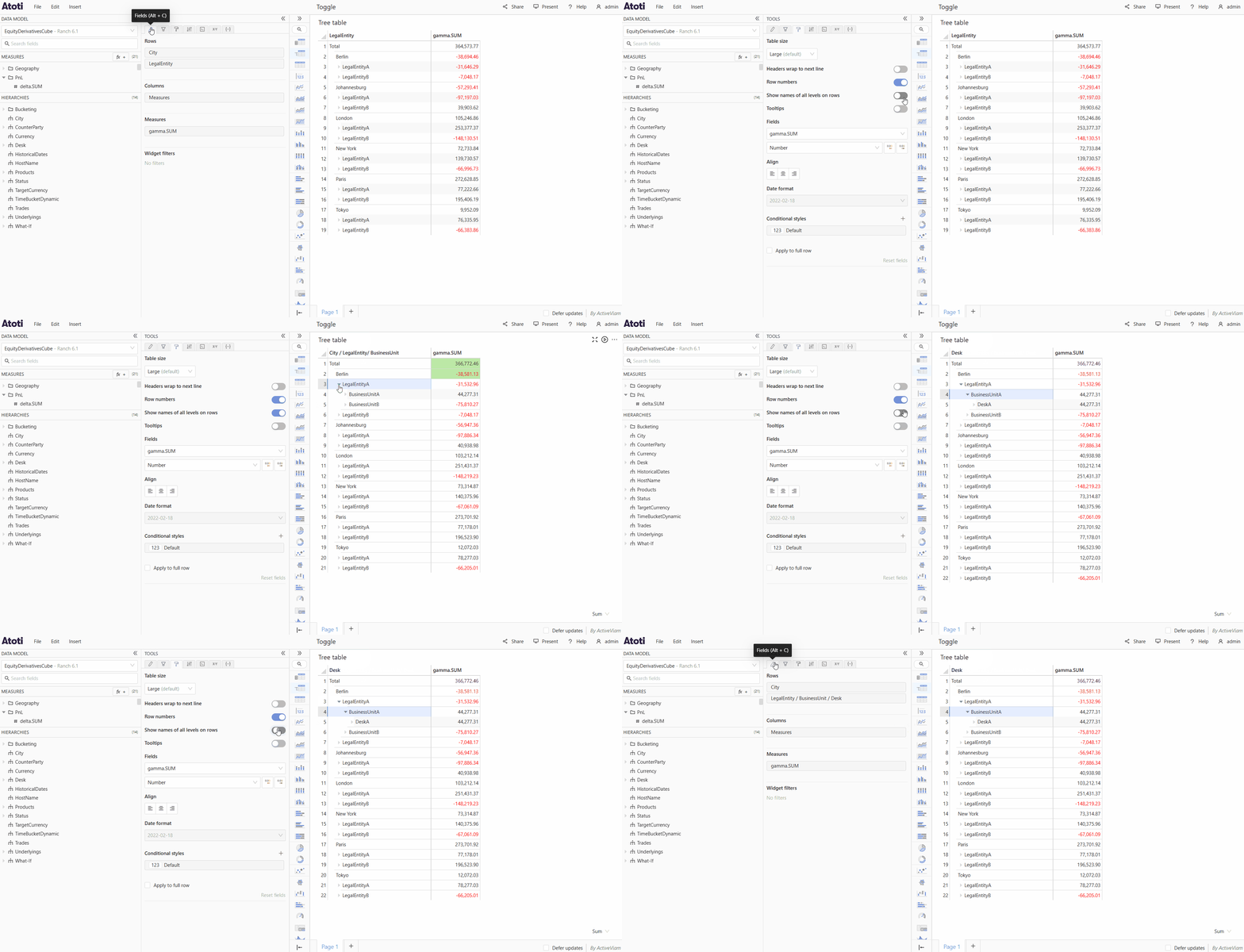
Open dashboards in new tab
Dashboards can now be opened in new tabs. You can either open a dashboard by mouse-wheel-clicking on it, or by right-clicking and selecting the Open “dashboard name” in a new tab context menu item.Improvements
More visible measure descriptions
Measures descriptions written by the development team inKatex are displayed on the measure’s tooltip when you hover on the list of measures.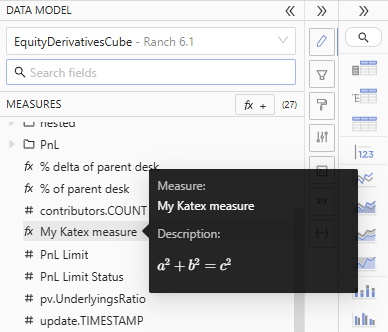
2025-02-28
Summary
New featuresImprovementsNew features
3D surface chart
The 3D surface chart was added as a new widget. This widget will be especially useful for front office traders who would like to better visualize volatility surfaces.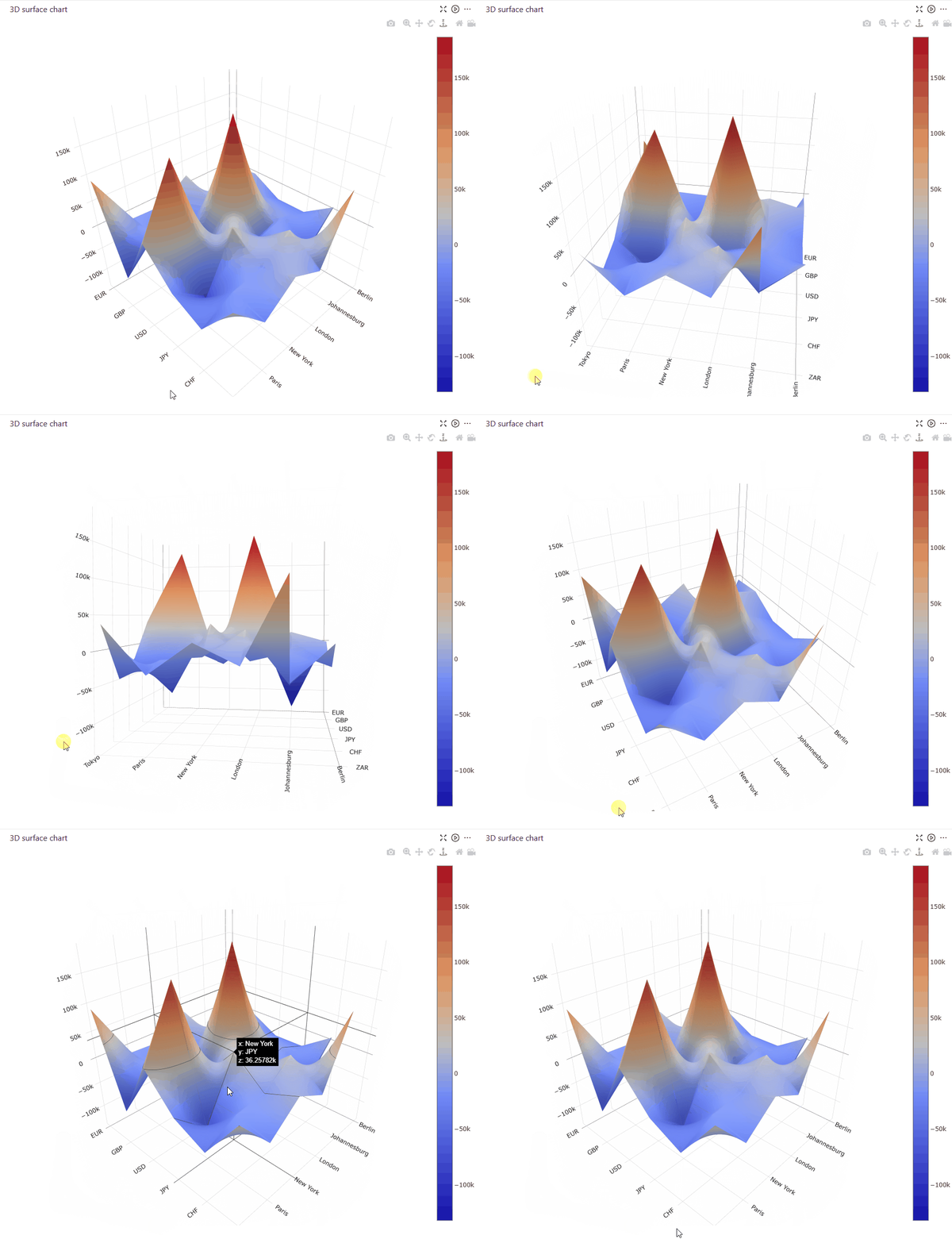
Data labels on Pie charts and Donut charts
Pie chart and Donut chart data labels can be configured in the Style editor to show the member names directly on the slice. Combined with toggling the legend off, this can save space in your dashboard.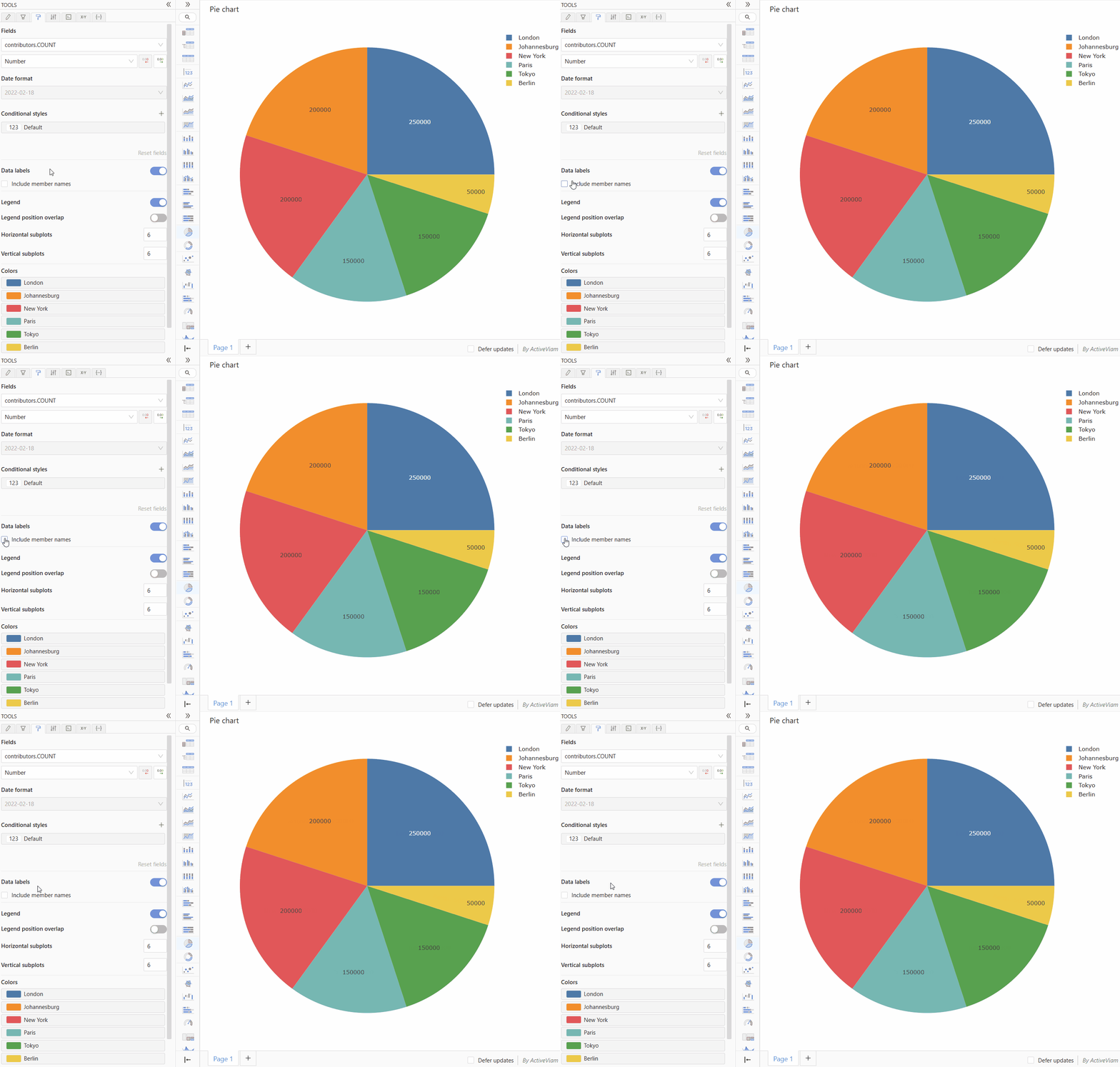
Single select filters
You can now choose to have your filters be either single or multi select. This feature is especially helpful when filtering on a hierarchy where it would not make sense to have multiple members selected.Improvements
Investigations on grand totals
Investigations are added to grand total cells. This allows you to dig deeper into underlying data points of all cells, not just child members to have a greater overview of how certain data points are broken down.Ampersands in MDX
Support for ampersand-quoted identifiers in MDX, e.g.[Geography].[City].&[Berlin]. This syntax is often used in Microsoft Excel when generating MDX.2025-01-31
- Ability to navigate the home page with the keyboard.
- Buttons to open the context menu on dashboards and folders in the home page.
- Ability to add KPIs to a calculated measure definition.
- Ability to select search results using the ↑, ↓ and Enter keyboard keys, in the Filter on popup.
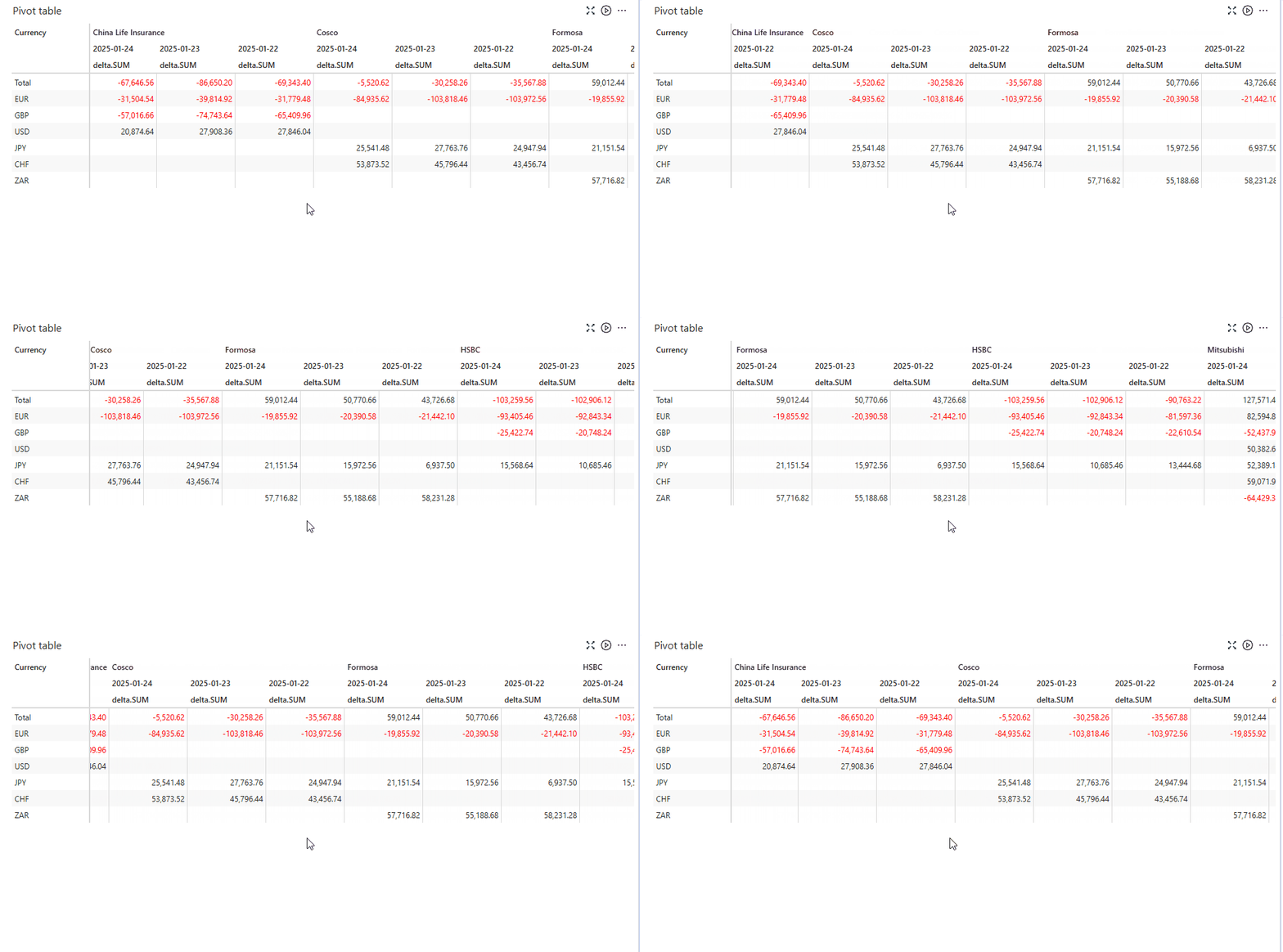
- Improved sticky headers in tables
2025-01-03
-
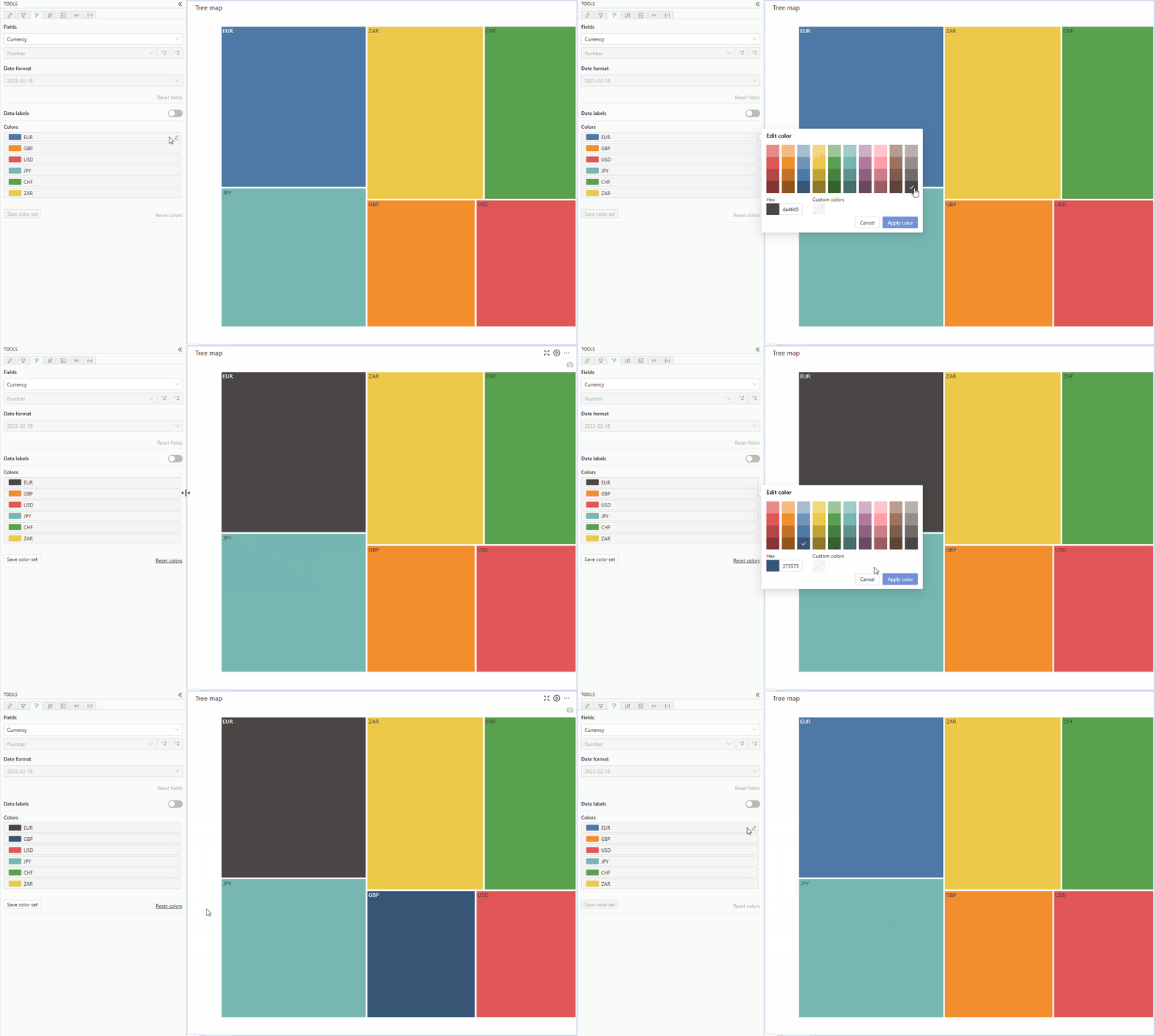
Ability to set colors on tree maps
2024-12-02
-
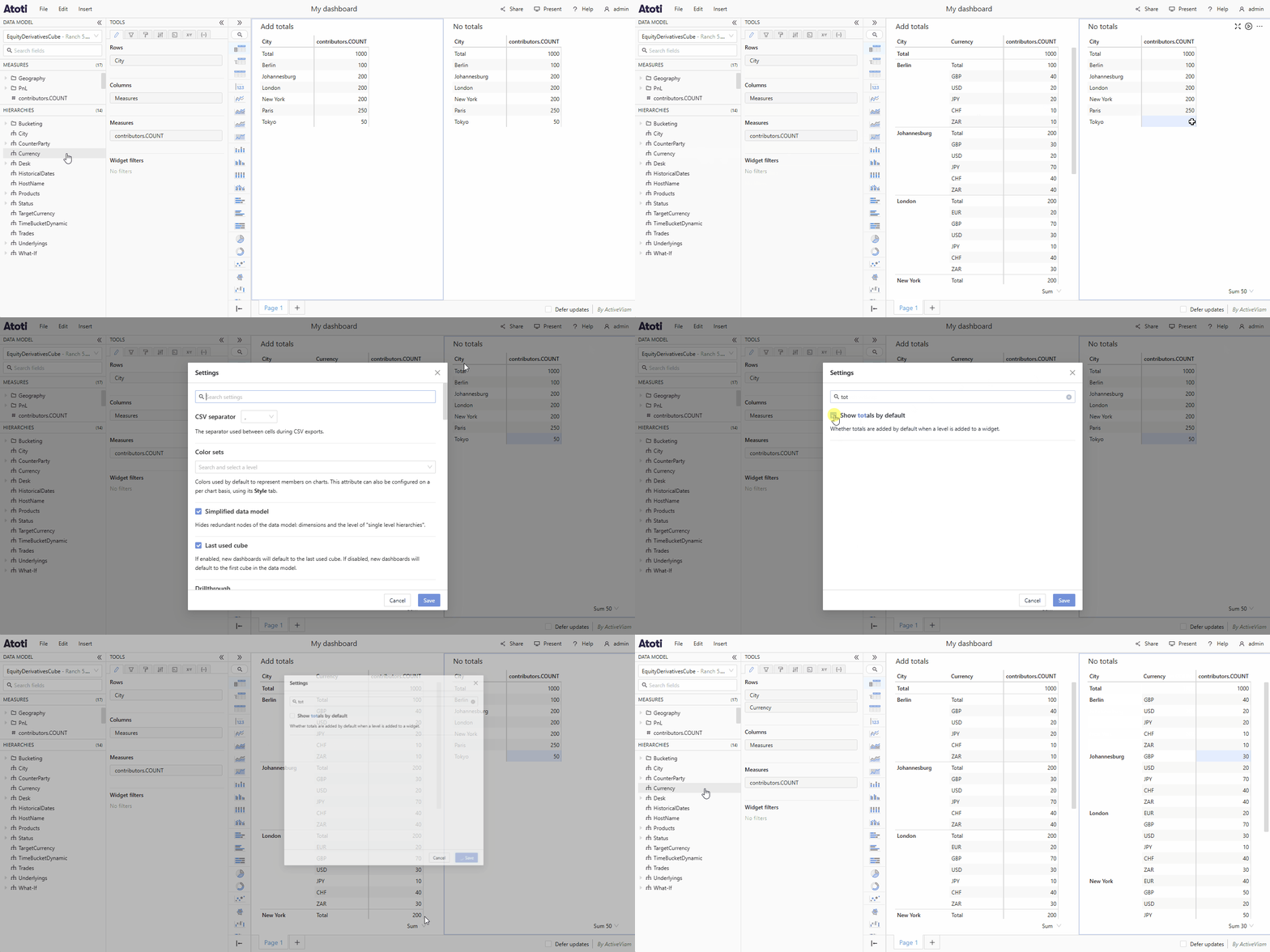
Setting to add totals by default
2024-10-31
-
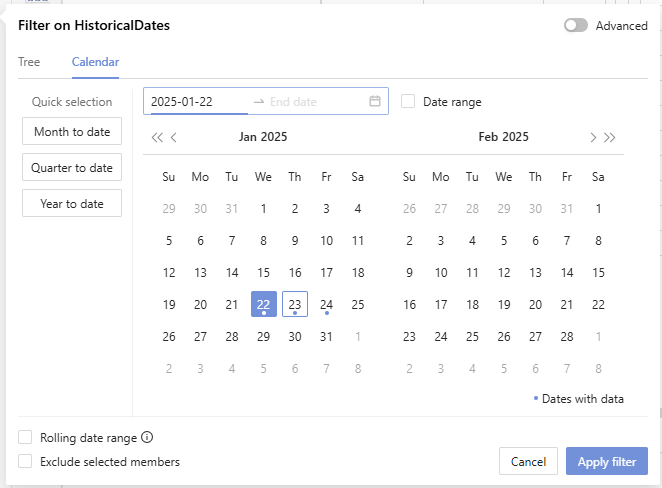
Dates in calendars are highlighted when the cube contains data for that date.
-
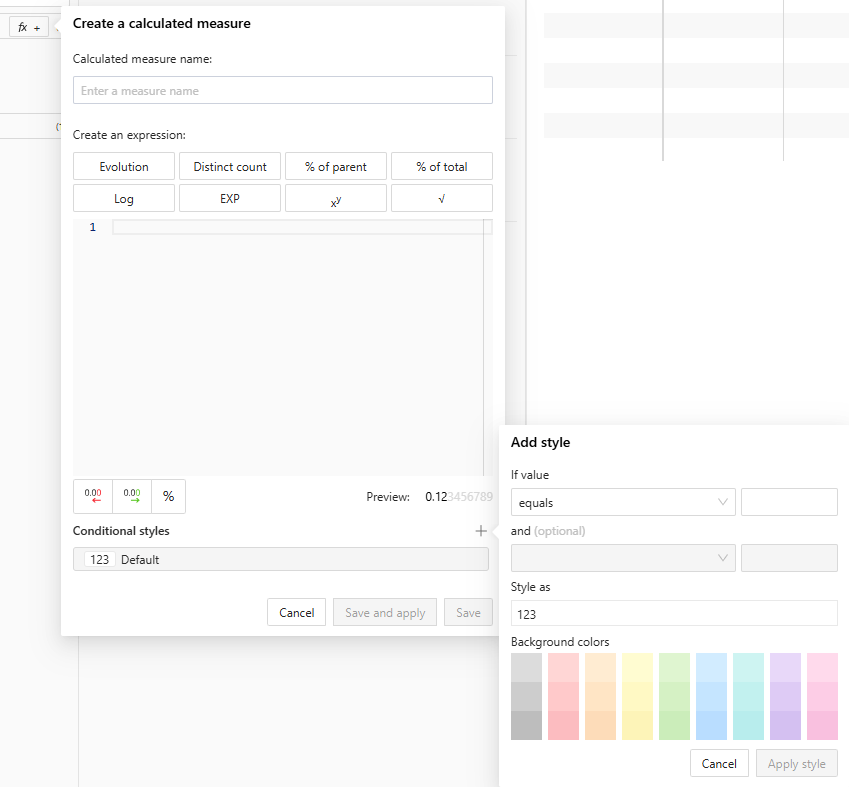
Save conditional style in a calculated measure
-
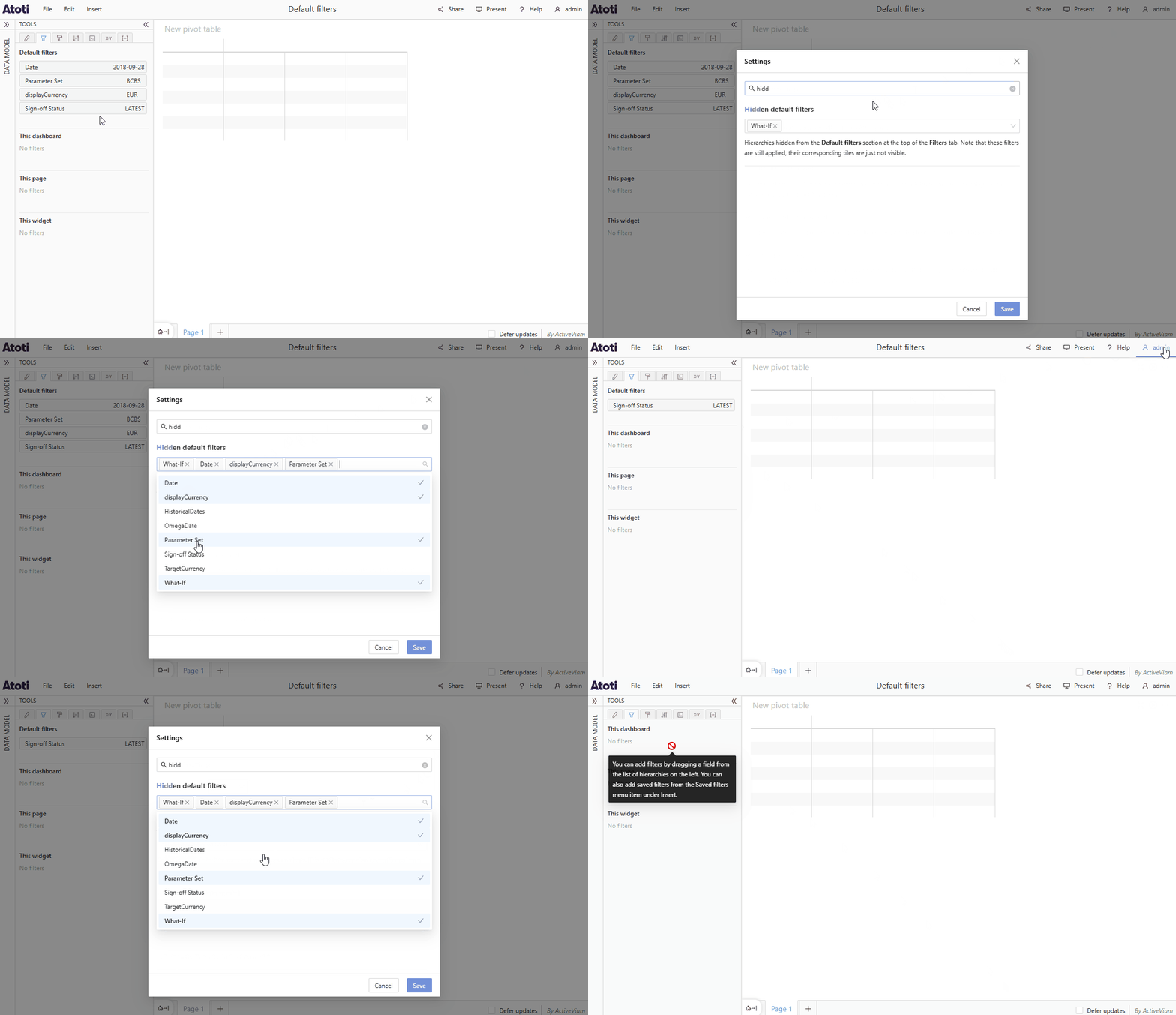
Hide default filters
-
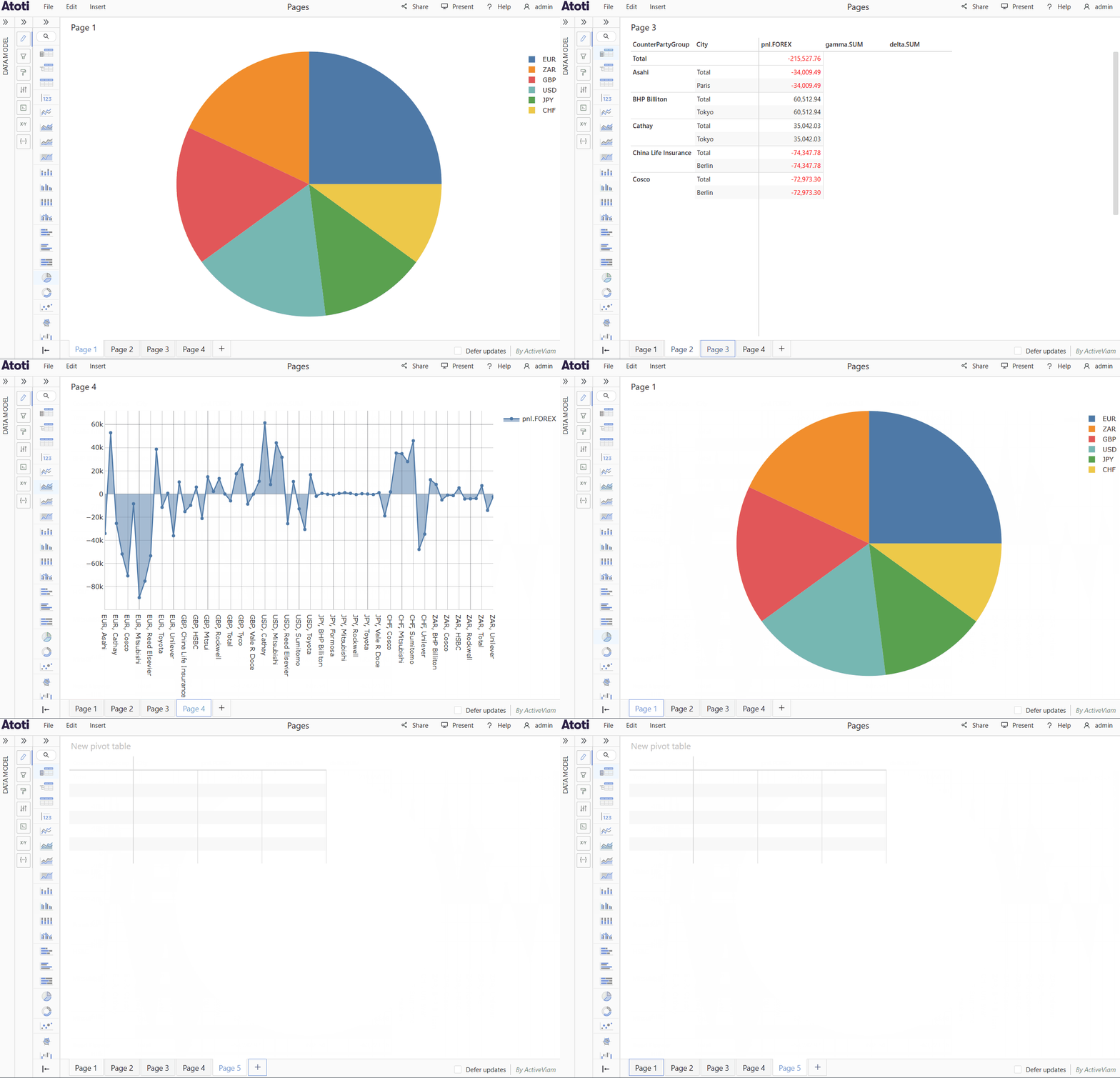
Navigate through dashboard pages using the keyboard
-
Real-time for entire dashboard
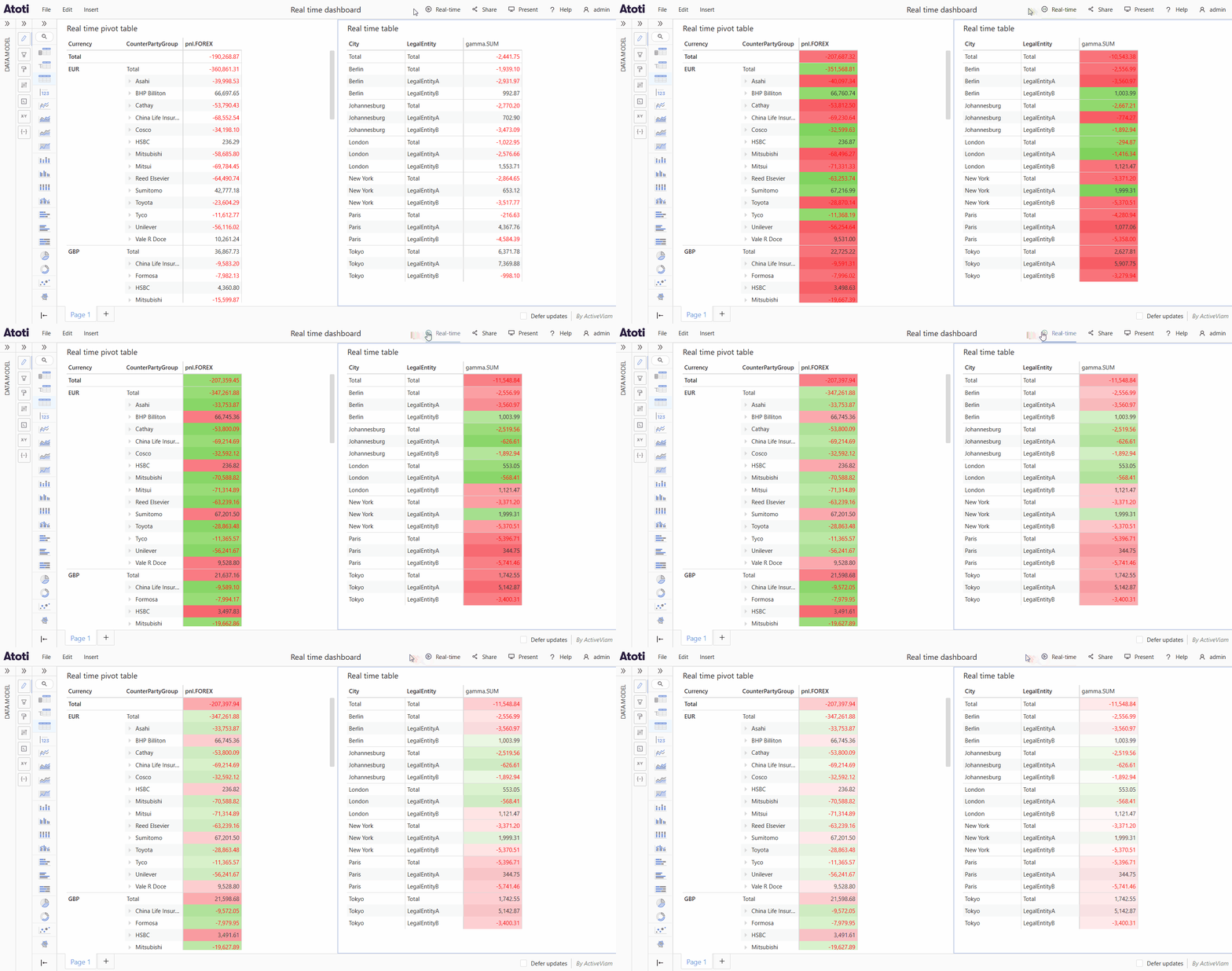
2024-09-30
-
Toggle between single and double scales on charts
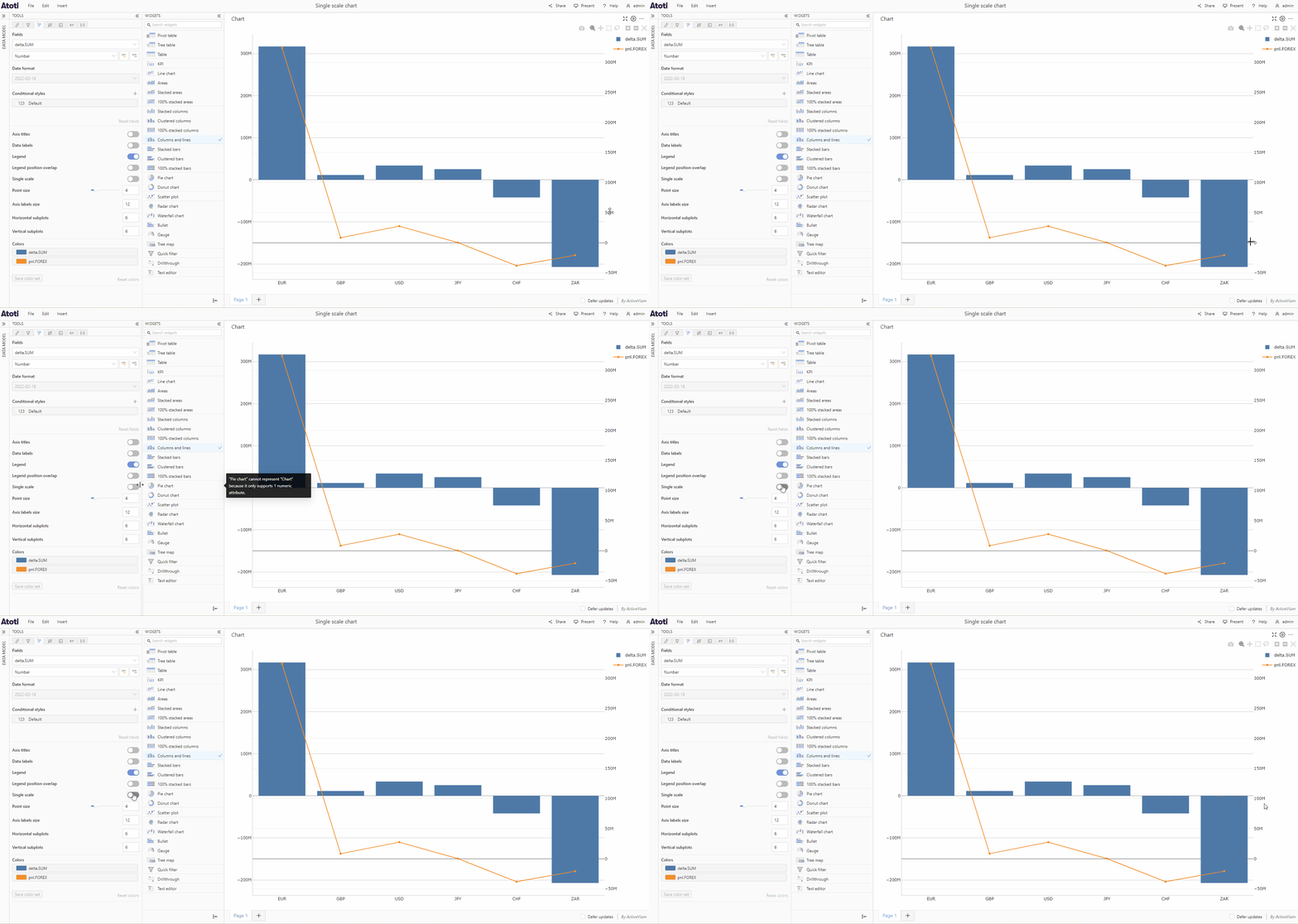
-
Hovering over a measure displays description
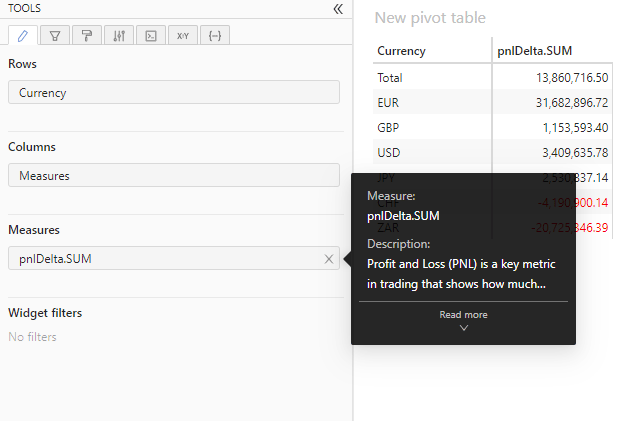
2024-08-30
-
Drill down on charts
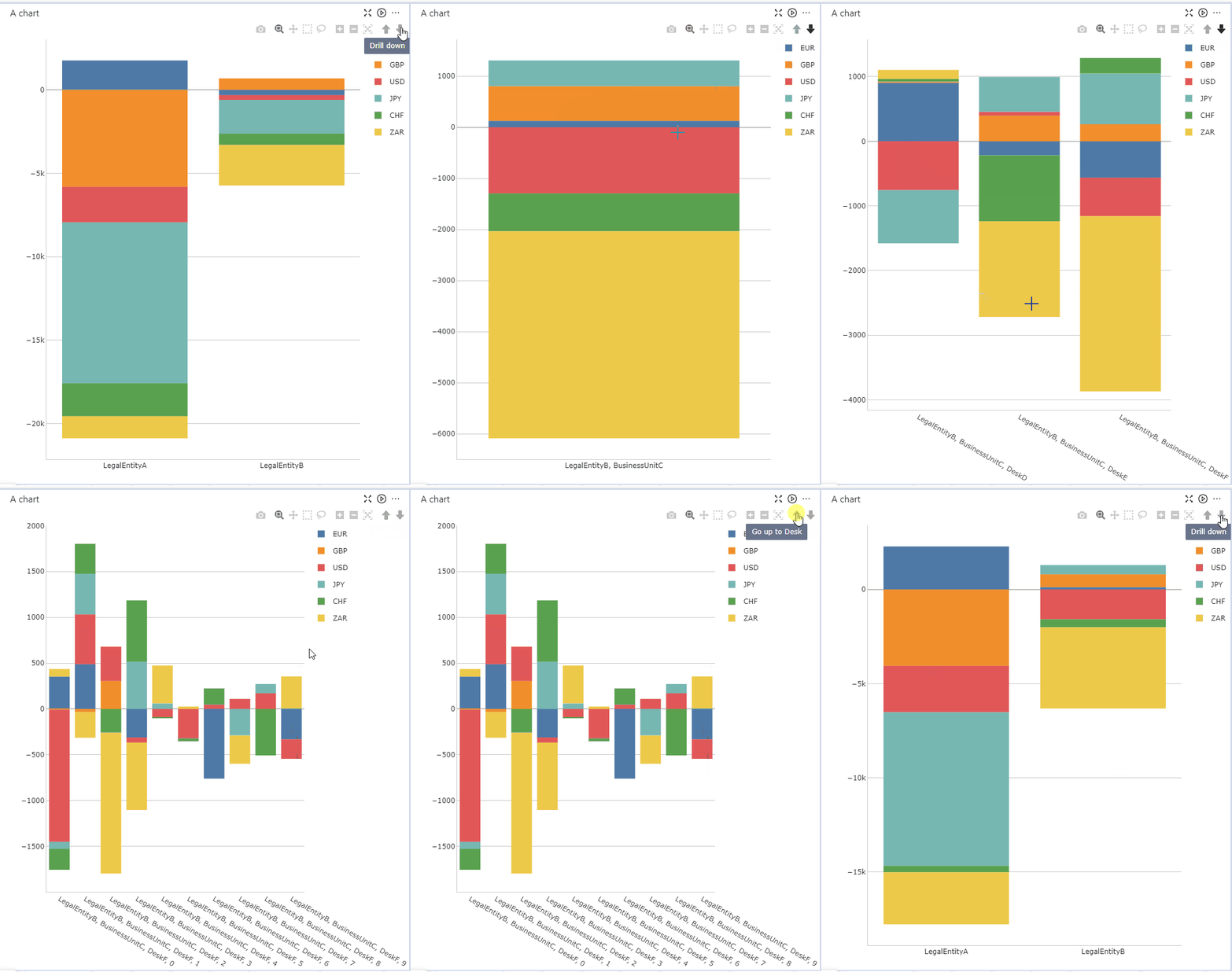
-
Command palette to quickly find actions
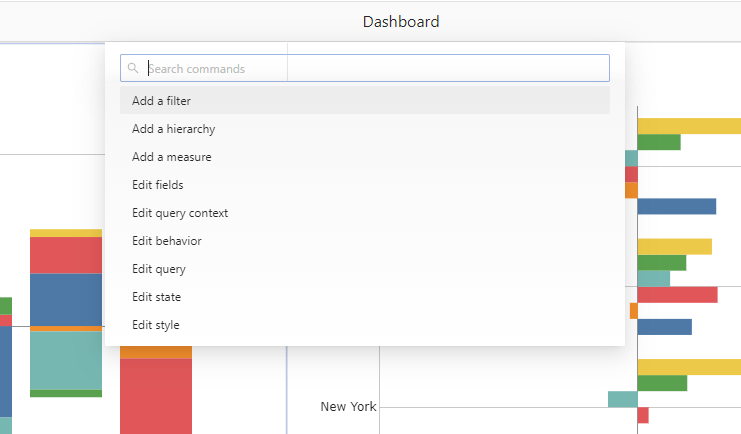
-
Save members colors