Drill down in a multilevel hierarchy
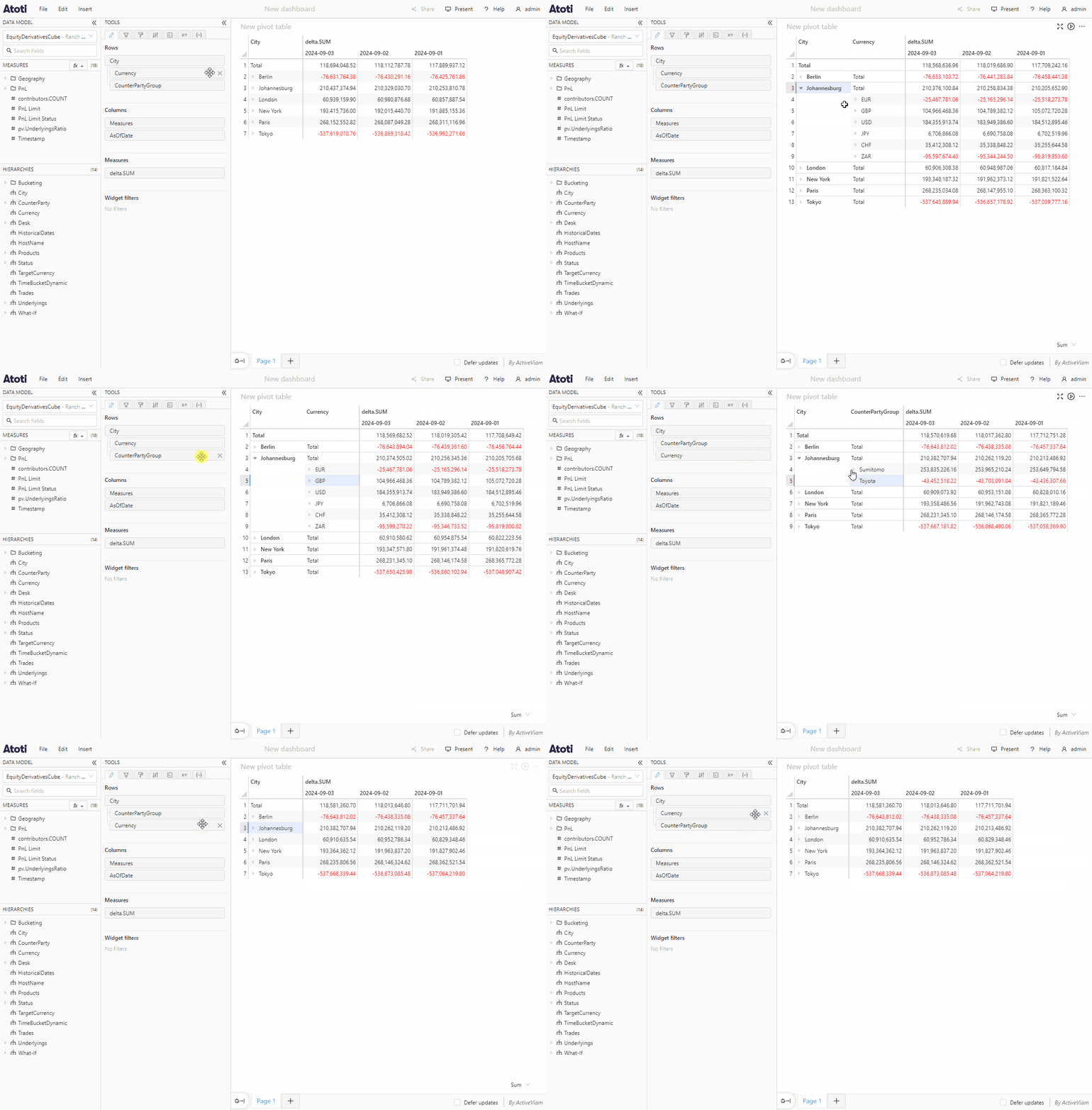
Members of hierarchies with more than one level can be drilled down directly within a pivot table or tree table widget. You can recognize which members can be drilled down by the drilldown caret next to their name. If a hierarchy has several levels, you can continue drilling down members through all its levels, all the way down to the leaf level. To drill down a member of a multilevel hierarchy:- Add a multilevel hierarchy to a pivot table or tree table widget.
- Click the drilldown caret to drill down that member to the next level.
- If the chosen hierarchy has more levels, you can choose to continue drilling down members through the different levels.
- Click the drilldown caret next to a drilled down member.
- This will collapse all descendant members.
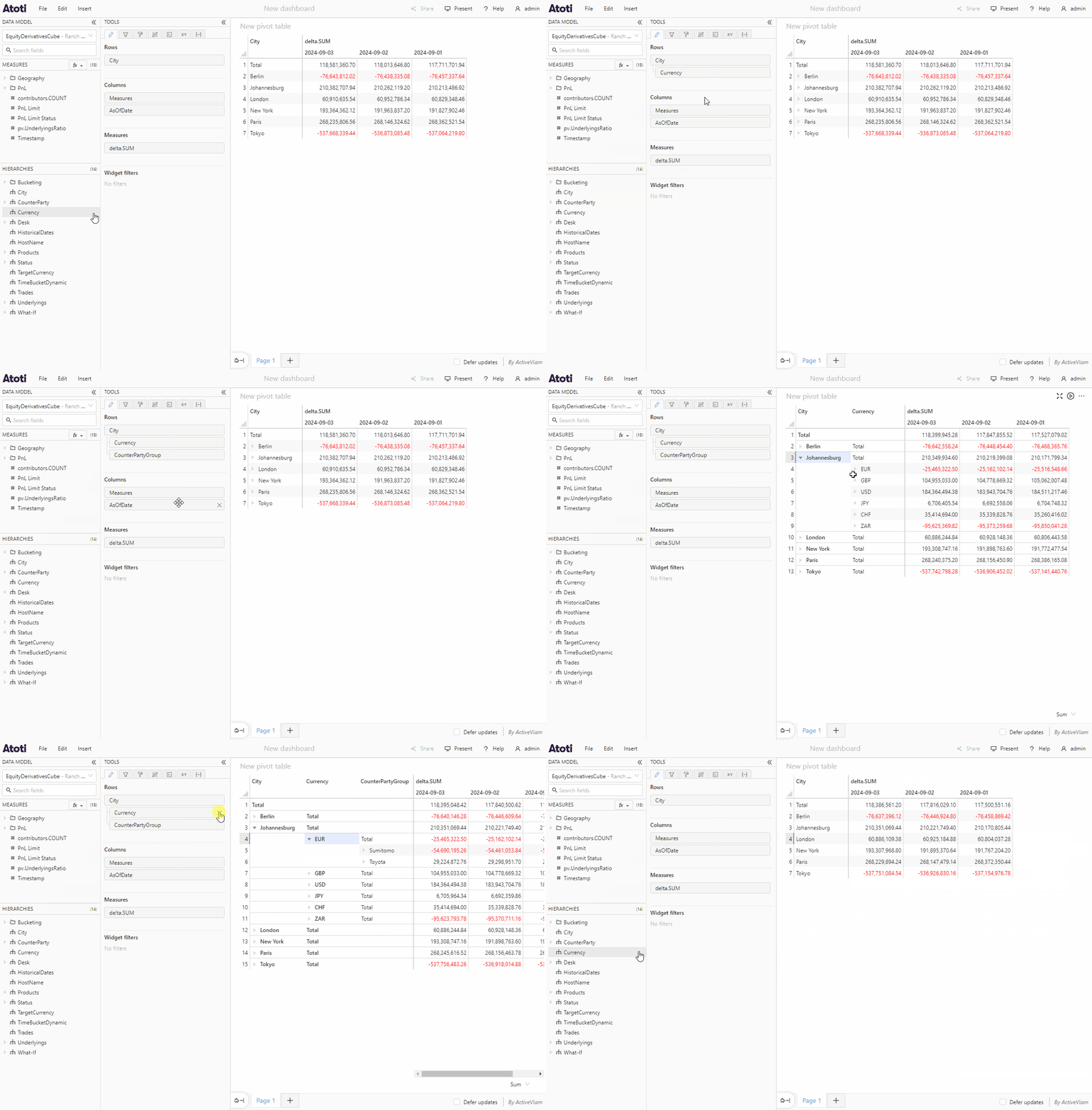
Drill down a member by a different hierarchy
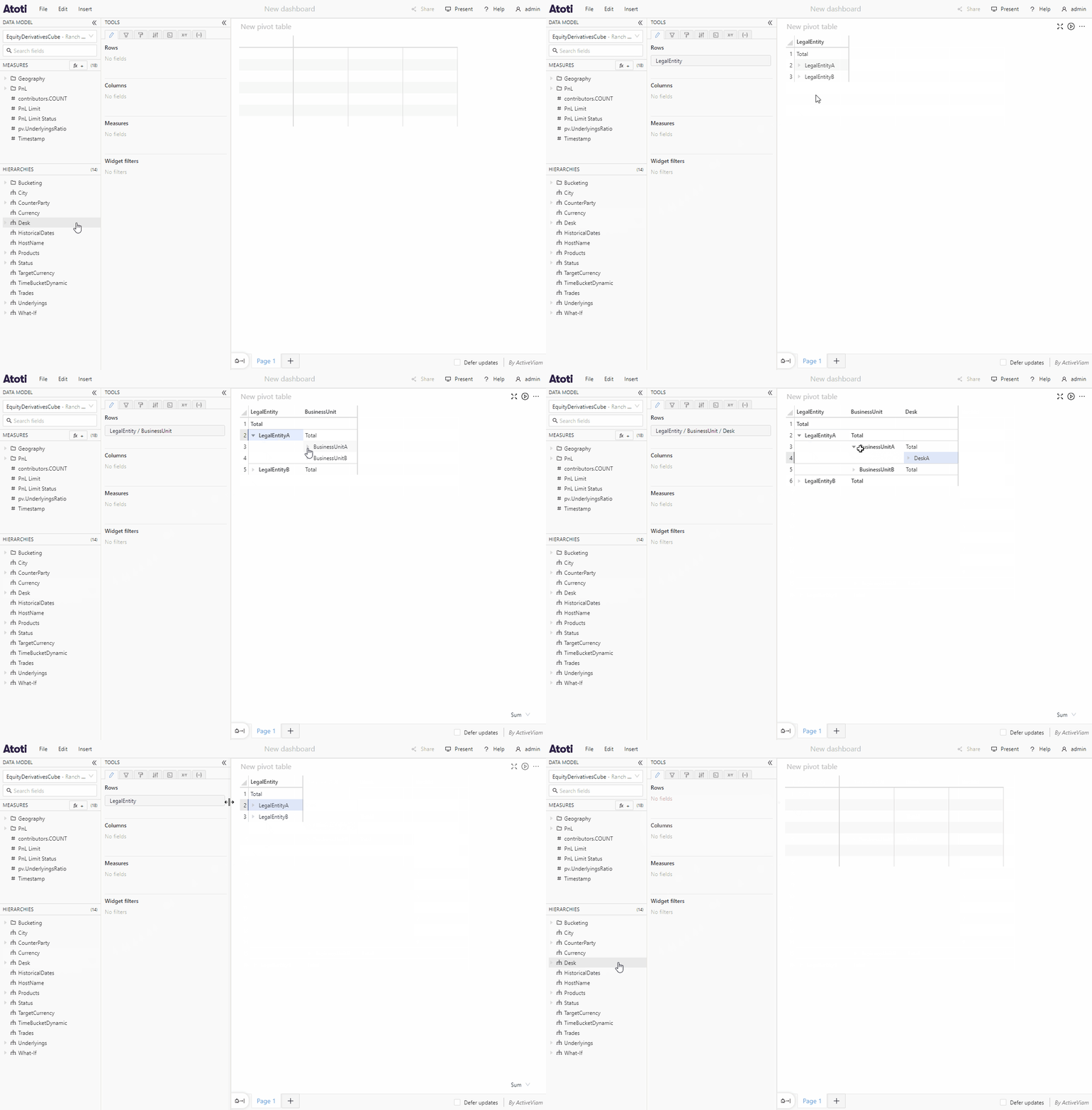
- Add the new hierarchy to the widget in the Fields tab by dragging it from the data model under another hierarchy. When hovering below the tile representing that hierarchy, move your cursor to the left or right to see the two possible options: Drill down all or Drill down one by one.
Drill down all
If you choose “Drill down all”, all members of the original hierarchy will be drilled down on the new hierarchy, and you will not be able to collapse them individually. However, if the new hierarchy is a multilevel hierarchy, you will be able to drill down its members individually further down by using their drilldown carets, as explained above.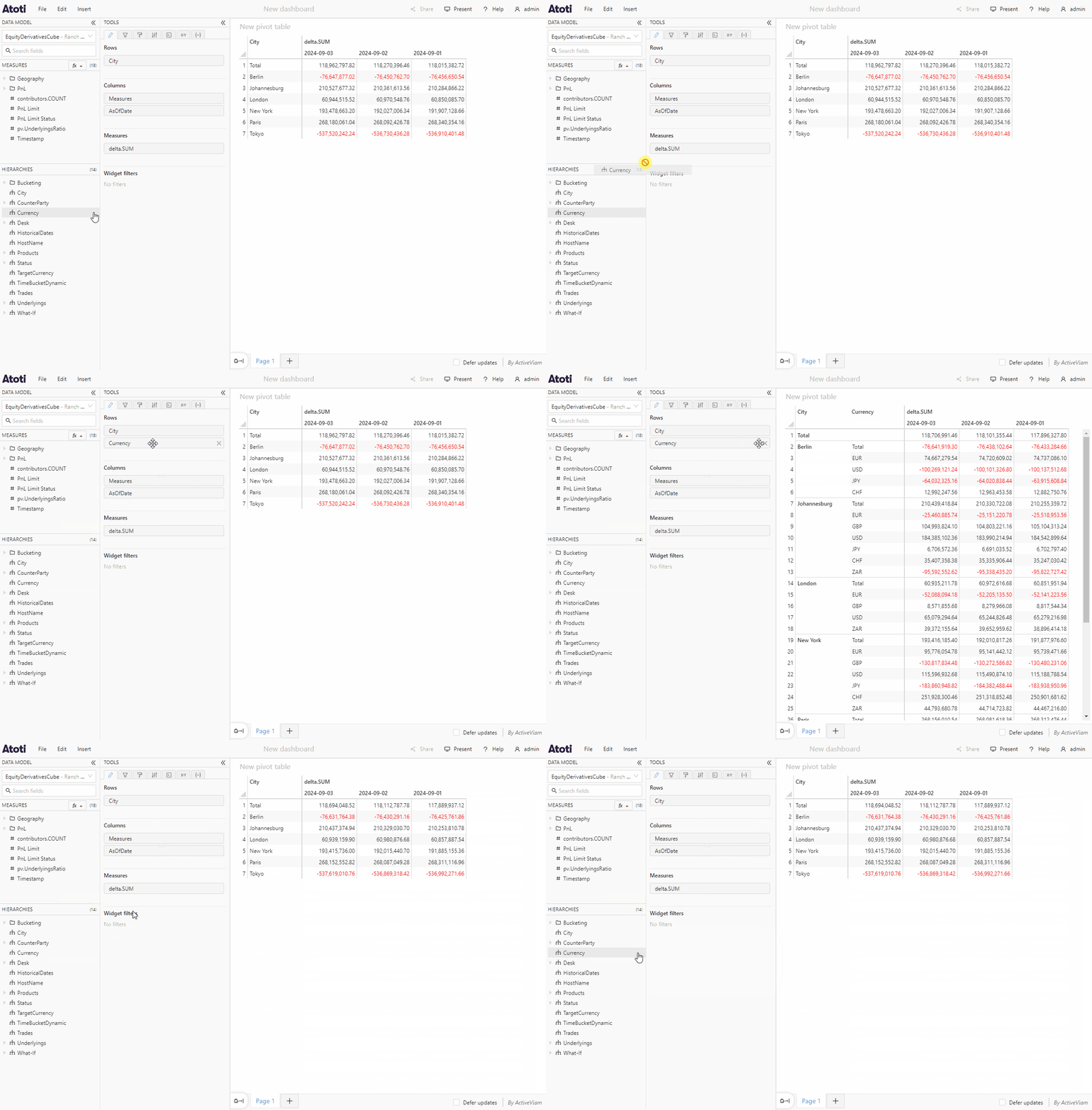
Drill down one by one
If you choose “Drill down one by one”, none of the members of the original hierarchy will be drilled down on the new hierarchy initially. Drilldown carets will appear next to their names, which can be used to drill them down individually. You can drill down as many members as you want. If the new hierarchy is a multilevel hierarchy, you will also have the possibility to drill down its members further.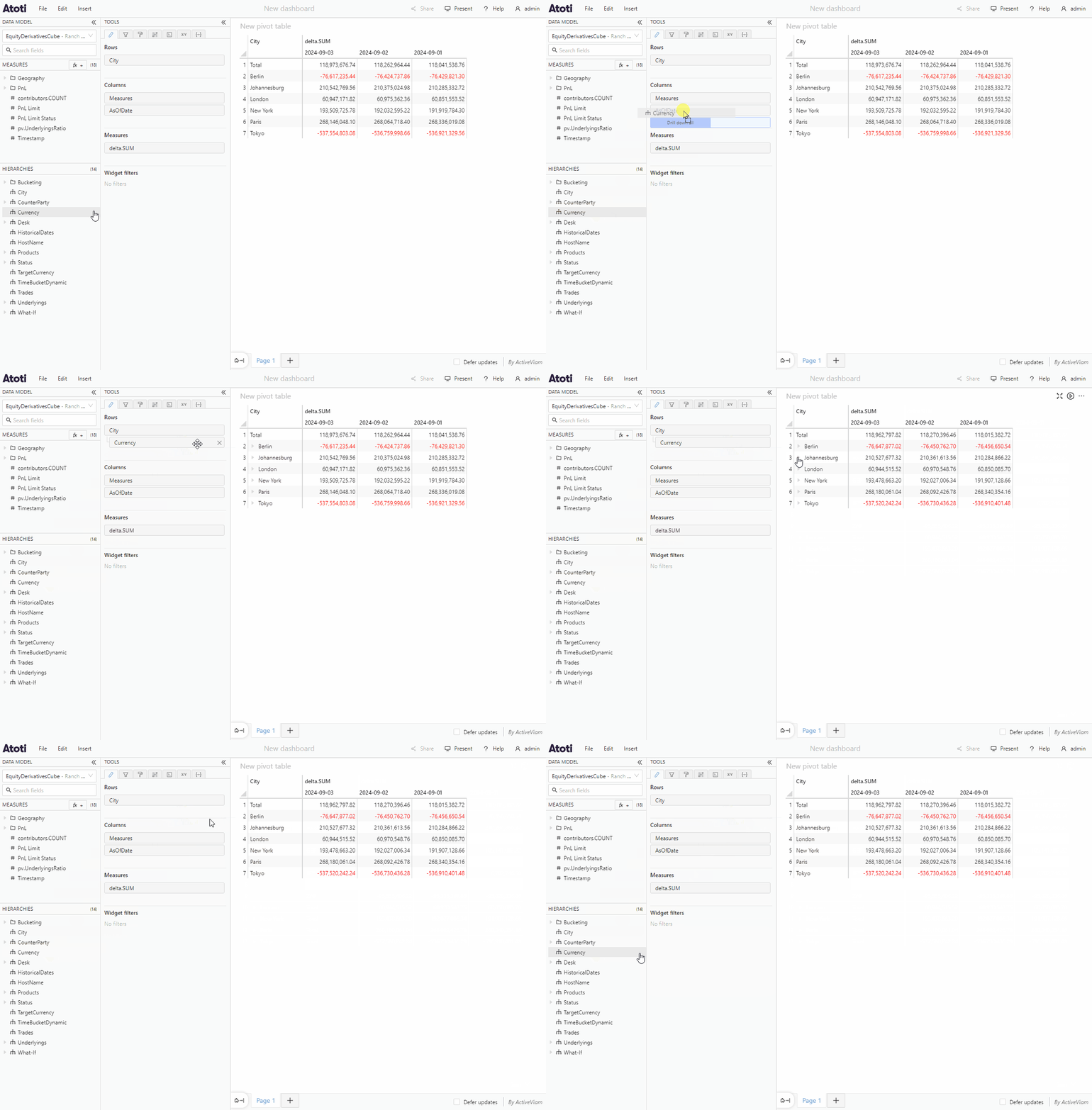
Once you have added a hierarchy choosing to “Drill down one by one”, you
cannot choose to “Drill down all” for any hierarchies added to the widget
beneath that hierarchy.
Drilldown chain
If you choose “Drill down one by one” when adding a hierarchy to your widget, this will create an drilldown chain. There is no limit to the number of hierarchies you can add to it. You will be able to drill down the members of your choice down through all the hierarchies in the chain. Within the drilldown chain, hierarchies can be reordered by dragging and dropping. A hierarchy that is part of the drilldown chain can also be moved above the first hierarchy in the chain to remove it from the chain and drill down all of its members instead.