

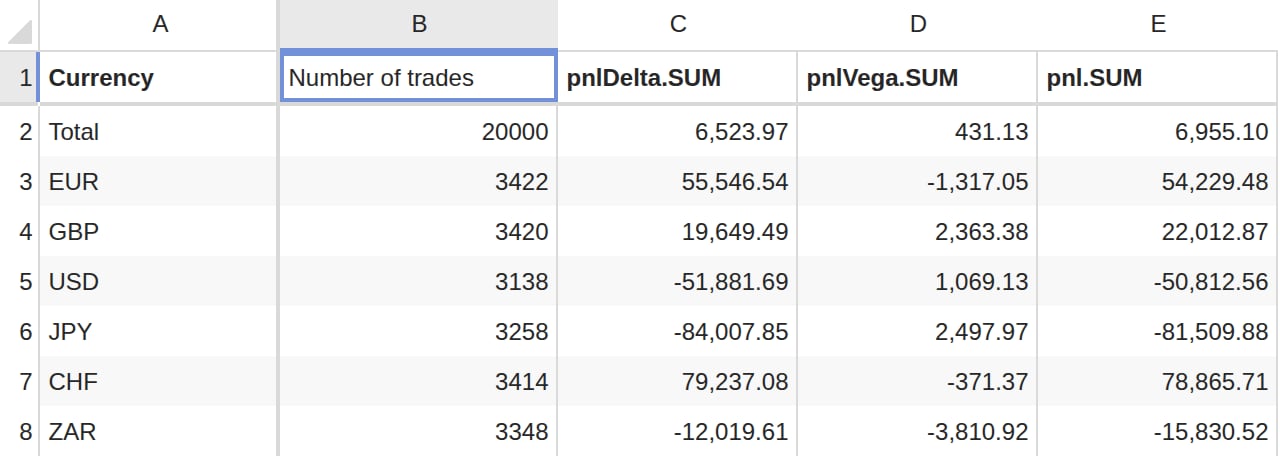
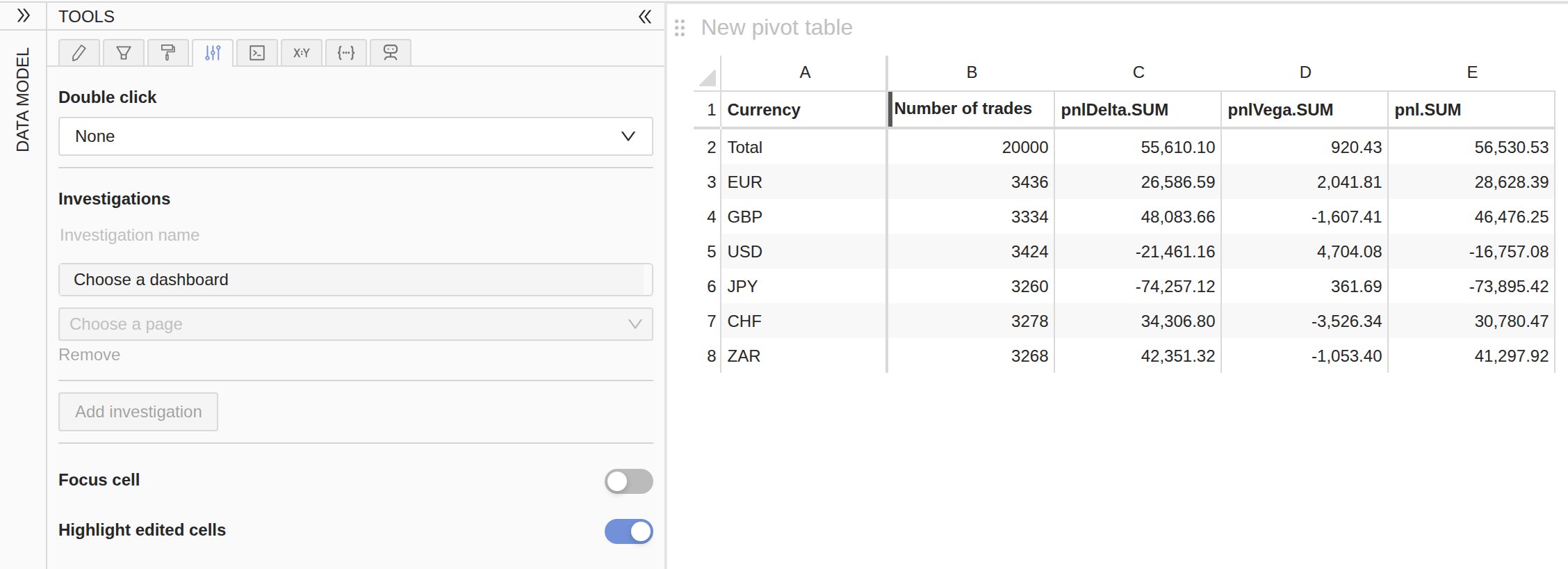
contributors.COUNT can be renamed to Number of trades. This name is more meaningful to business users.
A new name only changes what the widget displays.
The level member or measure behind the cell is left untouched, and so is the data in the cube.
Renaming is available only in the Pivot table, Tree table and
Table widgets.
How to rename a header cell
- Click the header cell displaying the name to change.
- Type the new name. To edit the current name instead of replacing it, press F2.
- Press Enter or Tab to apply the new name, or Escape to discard it. Leaving the cell in any other way, for instance by clicking another cell, applies the new name too.
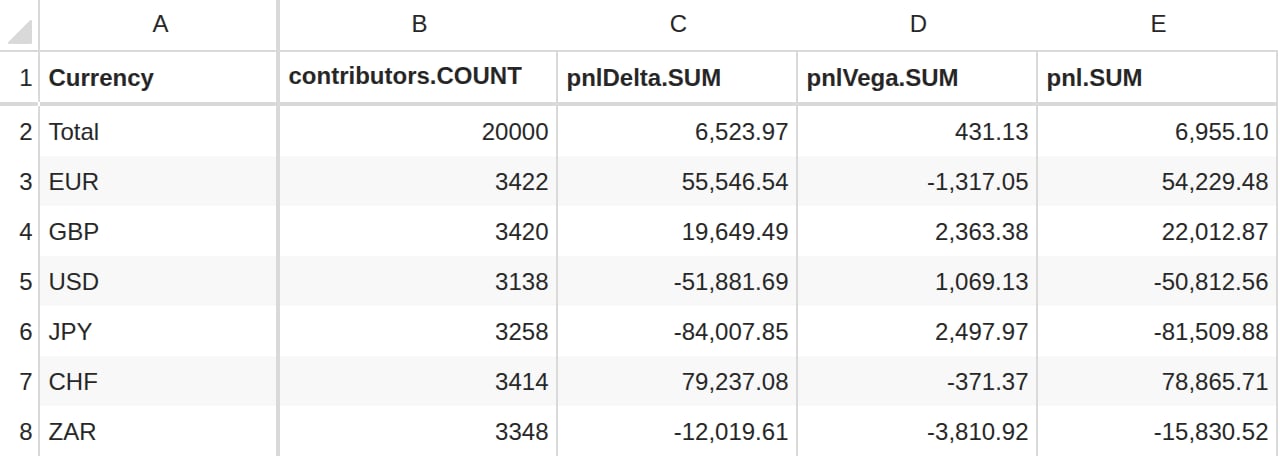
How to restore the original name
Applying an empty name brings back the name coming from the cube: press Backspace on the renamed cell to clear its name, then Enter.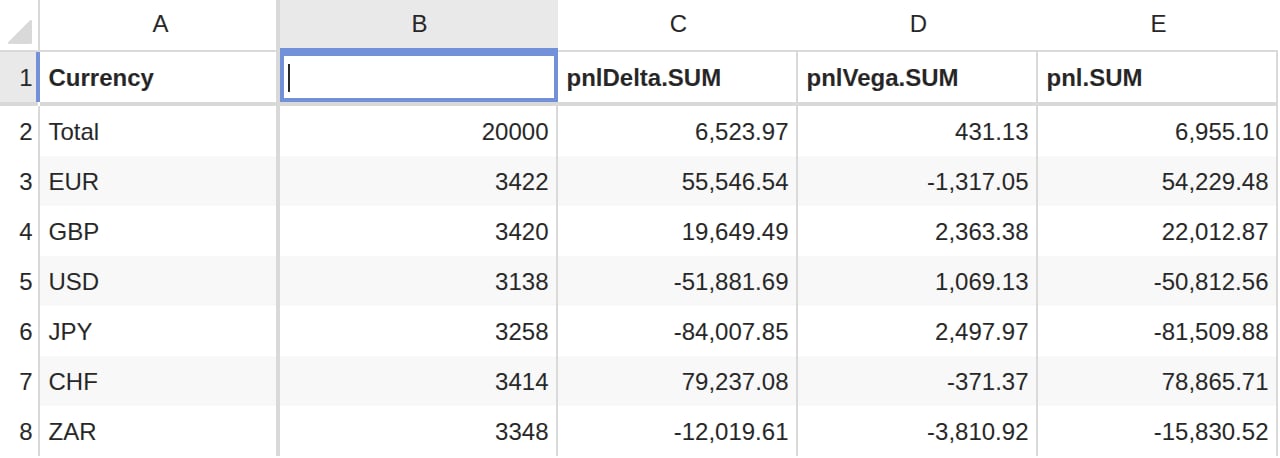
How are renamed headers highlighted?
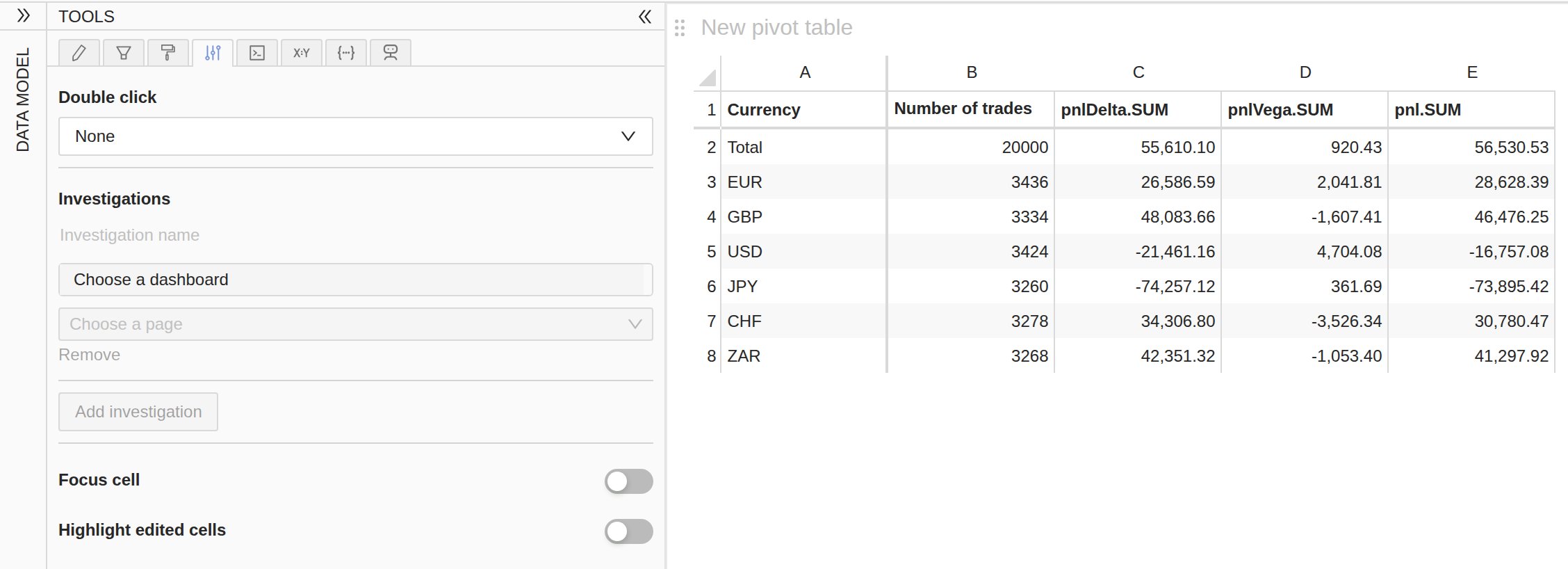
Every renamed cell is highlighted with a vertical bar along its left edge, setting it apart from the names coming from the cube. Restoring the original name removes the bar.How to configure the edited-cells highlight
In the Settings popup, Highlight edited cells turns the bar on or off for all widgets; when enabled, Edited cells highlight color sets the color it uses.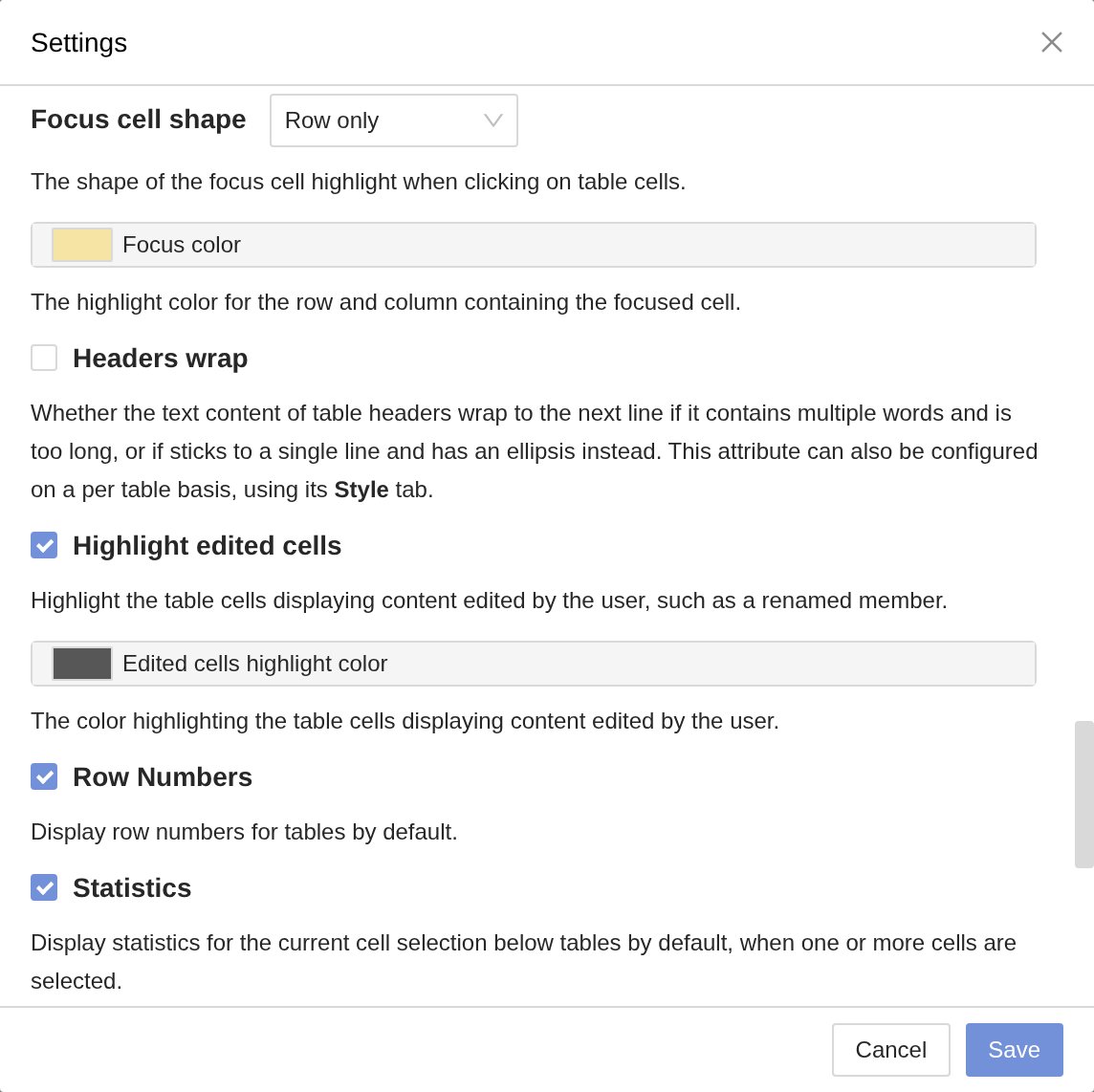
What does a new name affect?
A new name belongs to the widget it was entered in:- Other widgets keep displaying the original name, including when they display the same member.
- Charts and KPI widgets always display the original names, so switching the widget to one of those types displays them again.
- Sorting, filtering, drilling down and expanding keep working even with cells renamed.
- Copying cells and exporting to CSV use the displayed names.
- New names are preserved when the dashboard or the widget is saved.
To rename a calculated measure for every widget and every dashboard, edit it
from the data model instead, see rename a calculated
measure.