

How to filter a column or a row
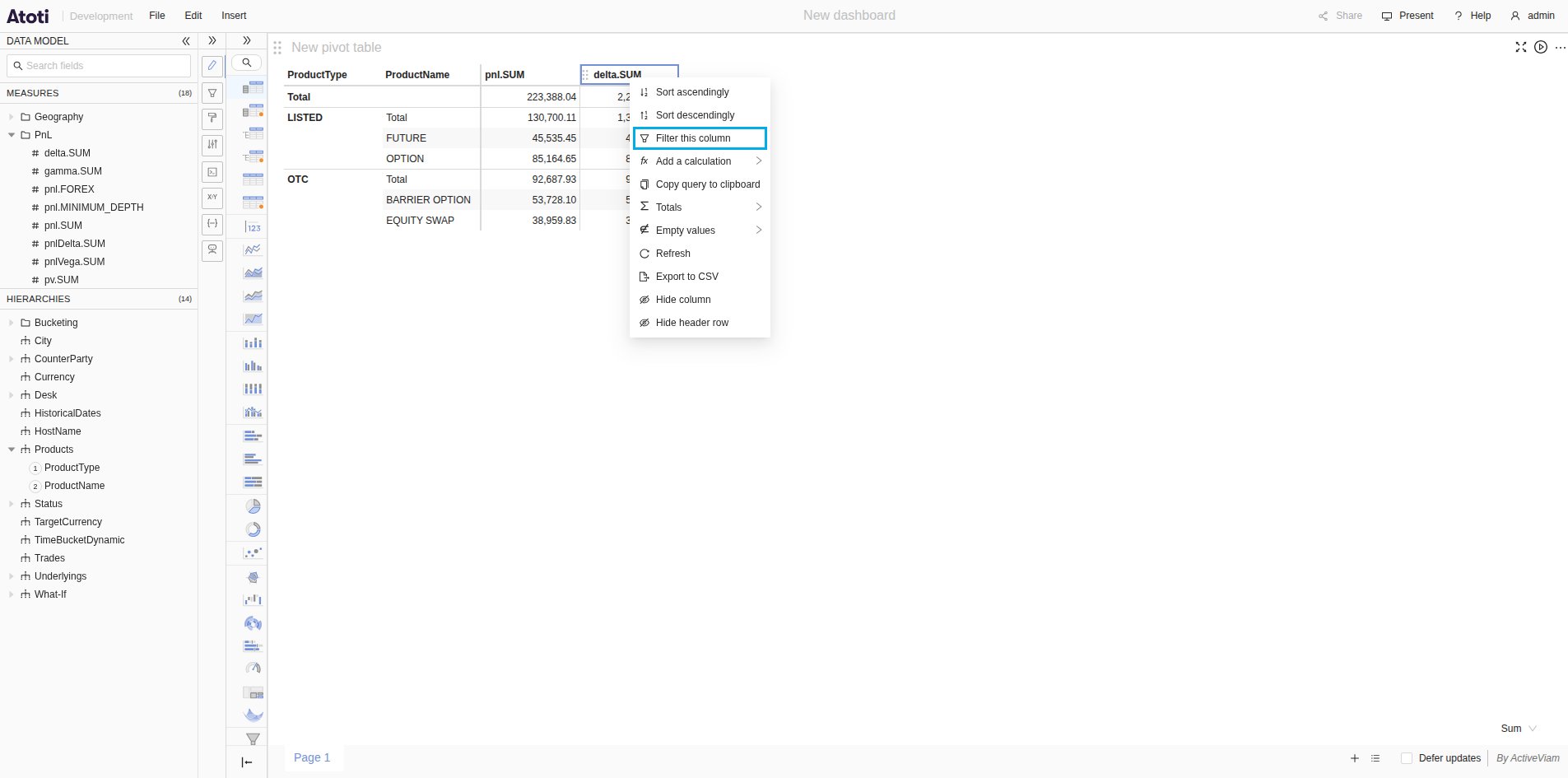
- Right-click a column header and select Filter this column. On a row header, select Filter this row.
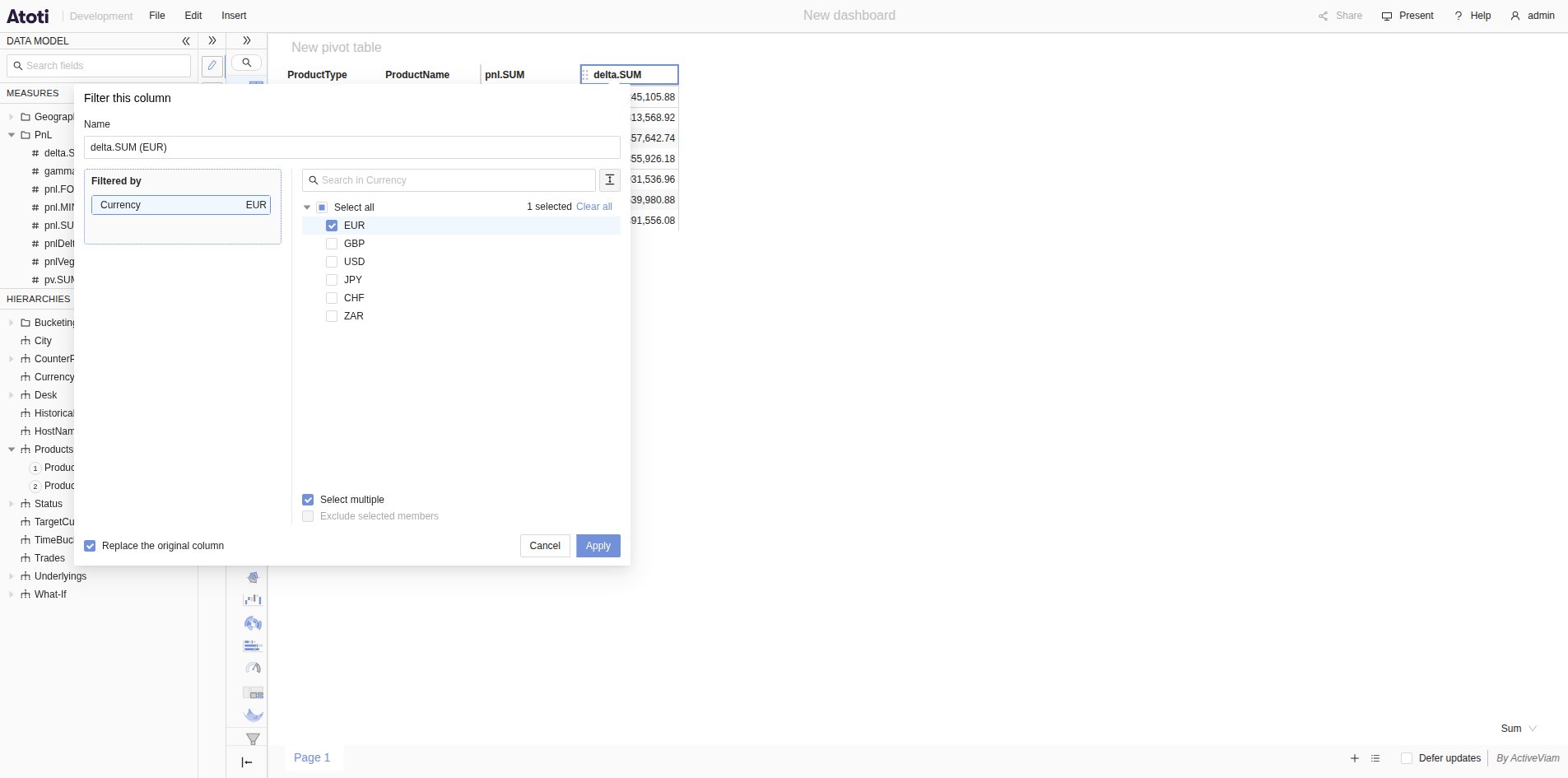
- In Filtered by, click or drag a hierarchy from the data model.
- Select members of that hierarchy. Repeat steps 2 and 3 to filter on more hierarchies.
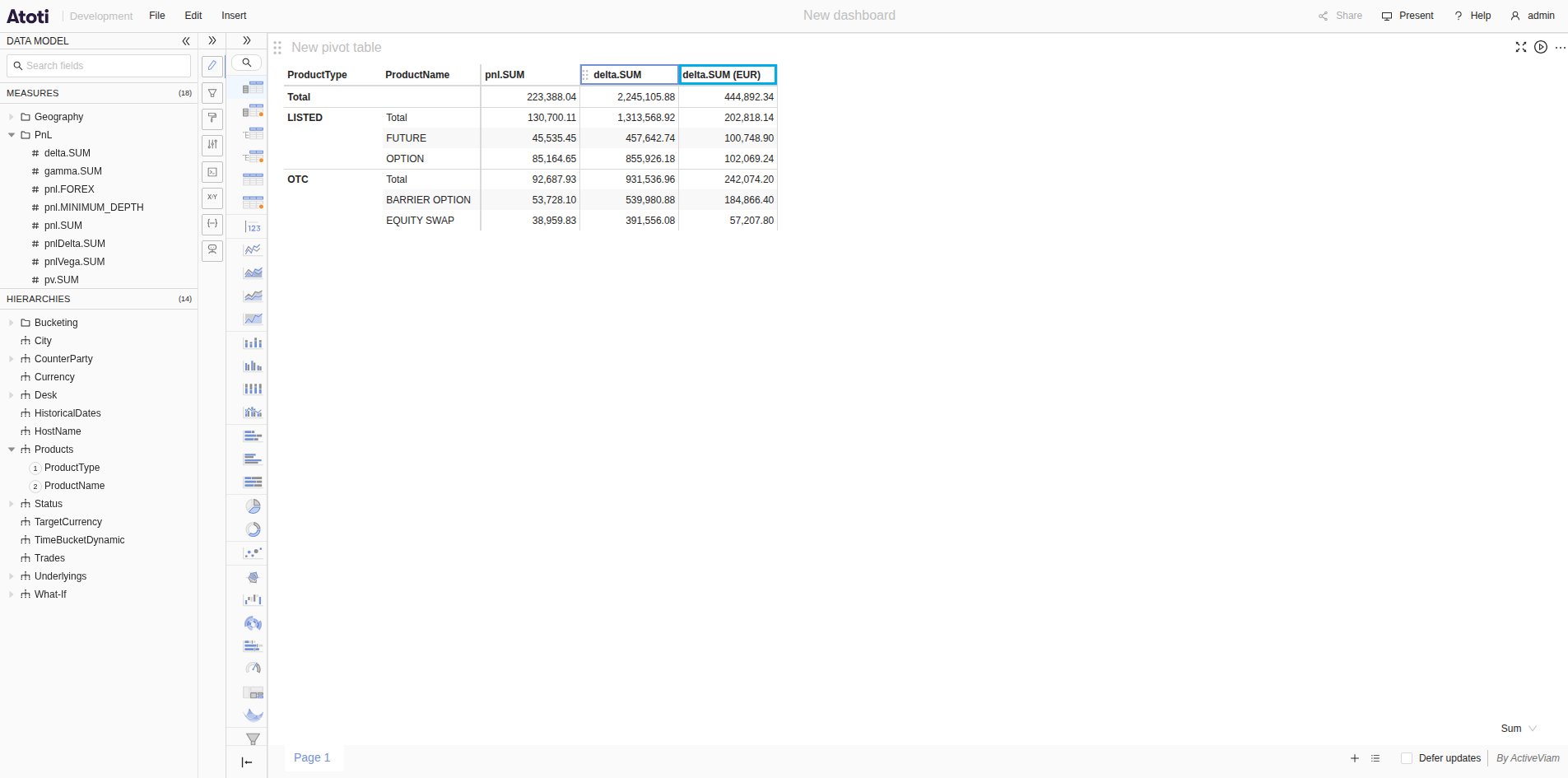
- Optionally, rename the filtered column. Its default name is the caption of the header, followed by the selected members.
- Click Apply.
Which headers can be filtered?
- A header in the last row of column headers, unless its column is a total. The filter applies to that column only.
- A measure in the first row of column headers. The filter applies to every column of that measure.
How to edit or remove a filter
- Right-click the header of the filtered column, and select Filter this column. The popover shows the filter as it stands.
- Change the name or the filters, or check or uncheck Replace the original column. Then click Apply. Alternatively, click Remove filter. The filtered column disappears, and the original column comes back if the filter replaced it.
Limitations
- A filtered column replacing its original column freezes its axis: fields cannot be added or reordered on it. This does not apply to a filtered measure. To add a field, remove the filter, or uncheck Replace the original column.
- When the table is too large to load at once, Filter this column and Filter this row are disabled. So an already created filtered column can then not be edited.