

How to add a calculation
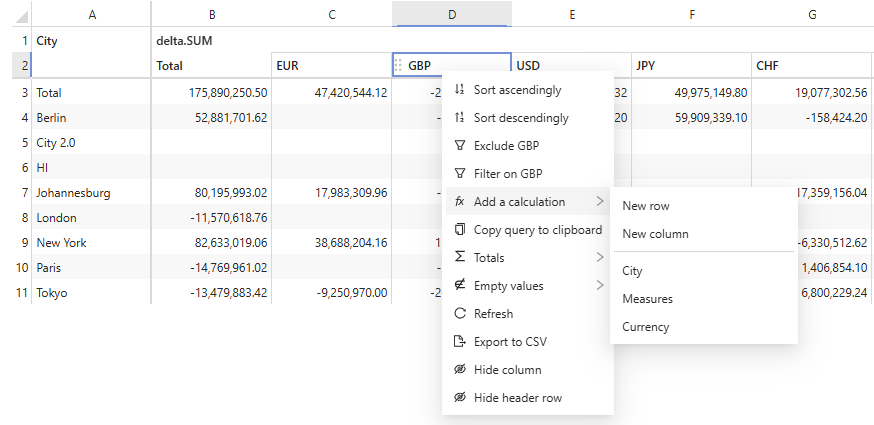
- Right-click a table or a chart, and open the Add a calculation submenu.
- Select Measures to define a calculated measure, or a hierarchy to define a calculated member on it.
- Fill in the editor that opens at the click location, then click Apply.
Displaying a calculated member added this way also reveals the calculated
members that the cube defines on the same hierarchy. A query asks for both at
once.
How to add a single row or column
Some calculations belong in a hierarchy, others make more sense as a single row or column. On an axis crossing several hierarchies, a calculated measure or member materializes under every parent. And its formula can refer to members of its own hierarchy, not to the rows or columns the widget displays as these rows and columns each represent one member per hierarchy of the axis. On the other hand, New row and New column add a single row or column, under one chosen position. And their formula can refer to the rows and columns themselves, such as one measure for one currency minus another measure at another currency.- Right-click a table, and open the Add a calculation submenu.
- Select New row or New column.
- Name the calculation, and pick in Add under the position it is nested under.
- Write its formula, clicking positions in the tree on the left to insert them.
- Click Apply.
Where does the calculation live?
Storing the calculation in the widget’s query, instead of on the cube, has a few consequences:- It is part of the widget’s state, so saving the widget or the dashboard holding it keeps the calculation.
- It follows the widget when the widget is copied.
- The other widgets are left untouched, including those built on the same cube.
- The cube is left untouched too, so the calculation stays invisible to the other users.
How to edit or delete a calculation
- Reopen the Add a calculation submenu.
- Select Measures, or the hierarchy holding the calculation.
- Find the calculation in the list within the popover.
- Right-click it and select Edit {name} or Delete {name}.