

Update a user’s settings
To change the settings of an individual user, follow these steps:- Open Atoti Admin UI. If you do not know how to, please contact the support.
- Open the file named settings in the folder
ui/users/<username>or create it if it does not exist.- To create it, right click the folder in the tree and click Create File.
- Edit it and press Ctrl/Cmd + S to save. The format of this file is JSON. Below is an example:
- Ask the user to refresh.
The user needs to have access to this file. To make sure they do, right-click the file in the tree and click “properties”. A popup will open. The name of the user must be in Owners and Readers.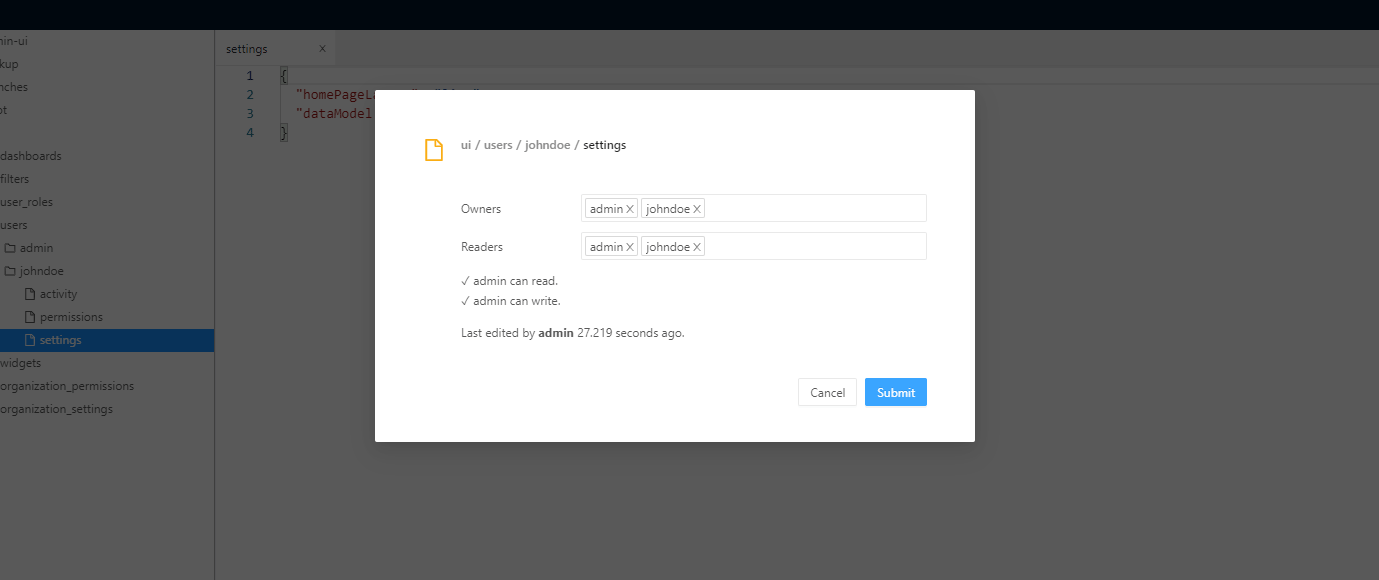
Update all users’ settings
Default settings can be created for all users in your organization at once. To do it, edit the file named organization_settings in the folderui. This file shares the same format as individual user settings files (see above). Note that to be taken into account, it must have ROLE_USER in its readers.
Consume settings
The useSetting hook allows to consume the value of a setting in a React component. For instance, here is how to consume the value of thetable.defaultSize setting:
Extend settings
Atoti UI extensions can register their own settings to customize the user experience. To add a custom setting, first you must create a setting definition. For instance:Users can search for settings by their titles, but you can also add search tokens for your settings if you want them to be matched by more search inputs:
activate function:
useSetting hook as described above.
Typing
In order to avoid the error thrown by TypeScript when callinguseSetting to retrieve the value of an extension setting, we need to create the TypeScript type representing the settings of our application (including the ones registered by our extension). It is done by leveraging the ExtendedSettings type as follows:
useSetting:
myOption appropriately.
Group settings
Settings can be grouped together in a single section within the Settings popup. This is particularly useful in order to group together several settings that are relevant to a single feature. You might have noticed that this is even leveraged for core Atoti UI settings related to table widgets and to smart filtering. To group settings together, you can create a SettingsGroup:You can also make your group act as a setting of its own, using the
hasCheckbox and defaultValue attributes of SettingsGroup. This will turn the title of your setting group into a checkbox within the Settings popup, allowing users to switch the whole feature on or off easily.