

To be able to create or modify calculated members within the application, you
must have the canUseCalculatedMembers
permission.
How to open the Manage members popover
In the data model, right-click a hierarchy and select Manage members of {hierarchy name}. The popover lists the members of the hierarchy, which can be expanded and searched. Calculated members are recognizable by the fx icon before their name. Calculated members are not supported on virtual hierarchies, so the menu item is disabled on those.How to create a calculated member
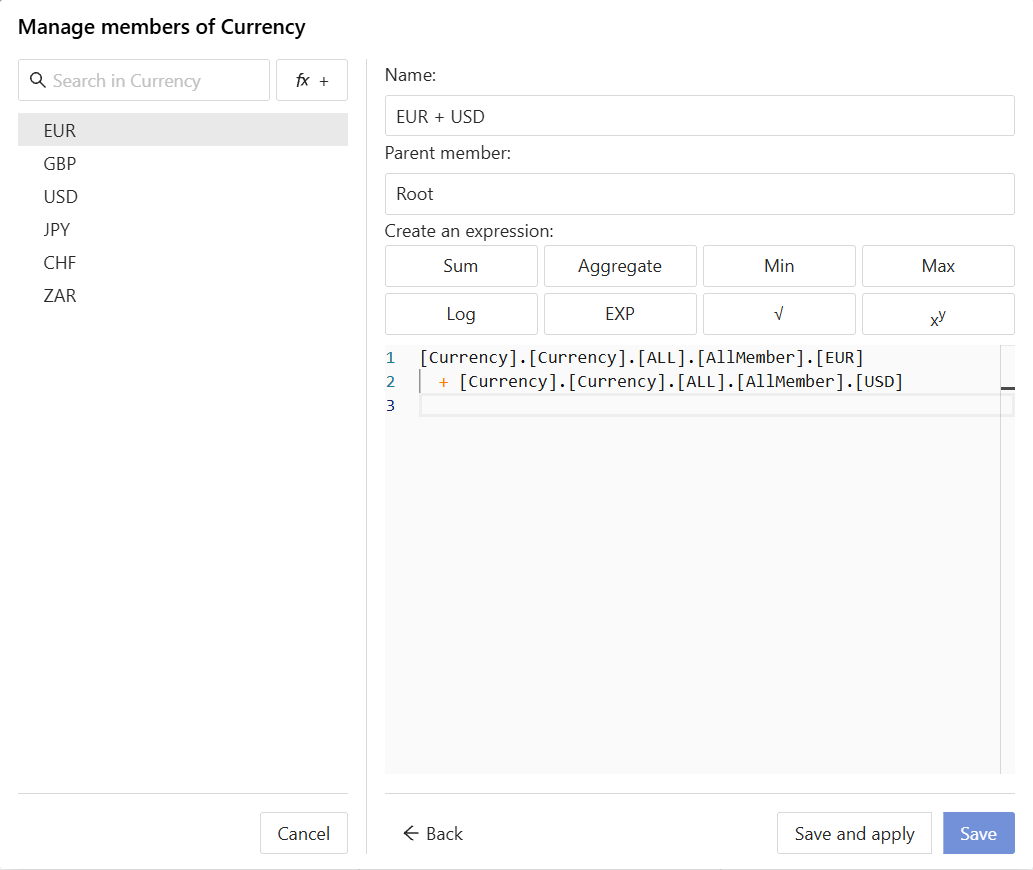
- Click the fx + button next to the search bar, which opens the editor on the right of the popover.
- Enter a Name. It must differ from the names of the other members sharing the same parent member.
- Leave Parent member on Root to add the member at the top of the hierarchy, or pick the member to nest it under. Only the members that can have children are offered, so on a hierarchy with a single level, Root is the only choice.
- Click one of the template buttons (Sum, Aggregate, Min, Max, Log, EXP, √ and xy) to insert its expression in the MDX editor below, then click members in the tree on the left to fill in the placeholders it left. Alternatively, use the MDX editor to type or paste your own expression.
- Click Save to save the calculated member to the cube, or Save and apply to also display it in the selected widget.
How to display calculated members in a widget
A widget only displays the calculated members of a hierarchy when its query asks for them. Save and apply updates the selected widget’s query so that it does, which makes the new member appear immediately. The other existing widgets do not display the new member, unless the hierarchy’s expression is wrapped in theAddCalculatedMembers() function in their MDX query.
To automatically display all calculated members in the widgets built afterwards, turn on the mdx.doesIncludeCalculatedMembers setting.
How to edit a calculated member
- In the popover, right-click the calculated member and select Edit {member name}.
- Change its name, its parent member or its expression, then click Save, or Save and apply to also display it in the selected widget.
How to delete a calculated member
- In the popover, right-click the calculated member and select Delete {member name}.
- A confirmation appears asking if you want to continue. If you do, click Delete.