This feature requires a license that enables the
bi-adapter component.Prerequisites
- Atoti application: An active Atoti application with a cube available.
- Atoti Tableau Adapter: Activated on the server.
- Tableau: Tableau Desktop or Tableau Cloud access. Tableau Desktop is supported from version 2026.1 onwards.
- PostgreSQL JDBC driver: Required for Tableau Desktop. The 42.7.7 version of the driver is the only one guaranteed to work with Atoti. This version may be upgraded in any bugfix release. However, if you have tested a more recent version and it does not work, please open a support ticket.
How to activate the Atoti Tableau Adapter
To activate the Atoti Tableau Adapter you need to follow these steps:1. Add the SQL Bridge artifact and enable the SQL endpoint
Include the following dependency in yourpom.xml file:
How to connect Tableau to Atoti
This guide explains how to connect Tableau (Desktop or Cloud) to an Atoti server using the PostgreSQL JDBC driver. Only User/Password authentication is supported. See Which SQL is supported? for the scope of SQL queries the SQL endpoint accepts.Connect using a Tableau data source file
Atoti can generate the Tableau data source file (.tds) of a cube.
A .tds file holds no data: it only stores the connection information and the field metadata Tableau
needs to open a data source, so it can be shared and reopened like a shortcut to the cube.
See the Tableau documentation
for the full description of the format.
The file generated by Atoti declares Tableau multilevel hierarchies that mirror the cube’s own
multilevel hierarchies and therefore reproduces the cube’s structure in Tableau.
This setup therefore skips both the manual connection steps and the
manual hierarchy creation described in
How to reproduce the cube’s structure.
Atoti generates the file on request, through the
BI adapter REST API.
See that reference for the endpoint path, its parameters and its responses.
The following command downloads the .tds file of the SALES_CUBE cube, specifying that Tableau
should connect to my-atoti-host.
Manual connection steps
- Tableau Desktop
- Tableau Cloud
Follow these steps to connect Tableau Desktop to an Atoti server:
- Open Tableau Desktop and create a new file.
-
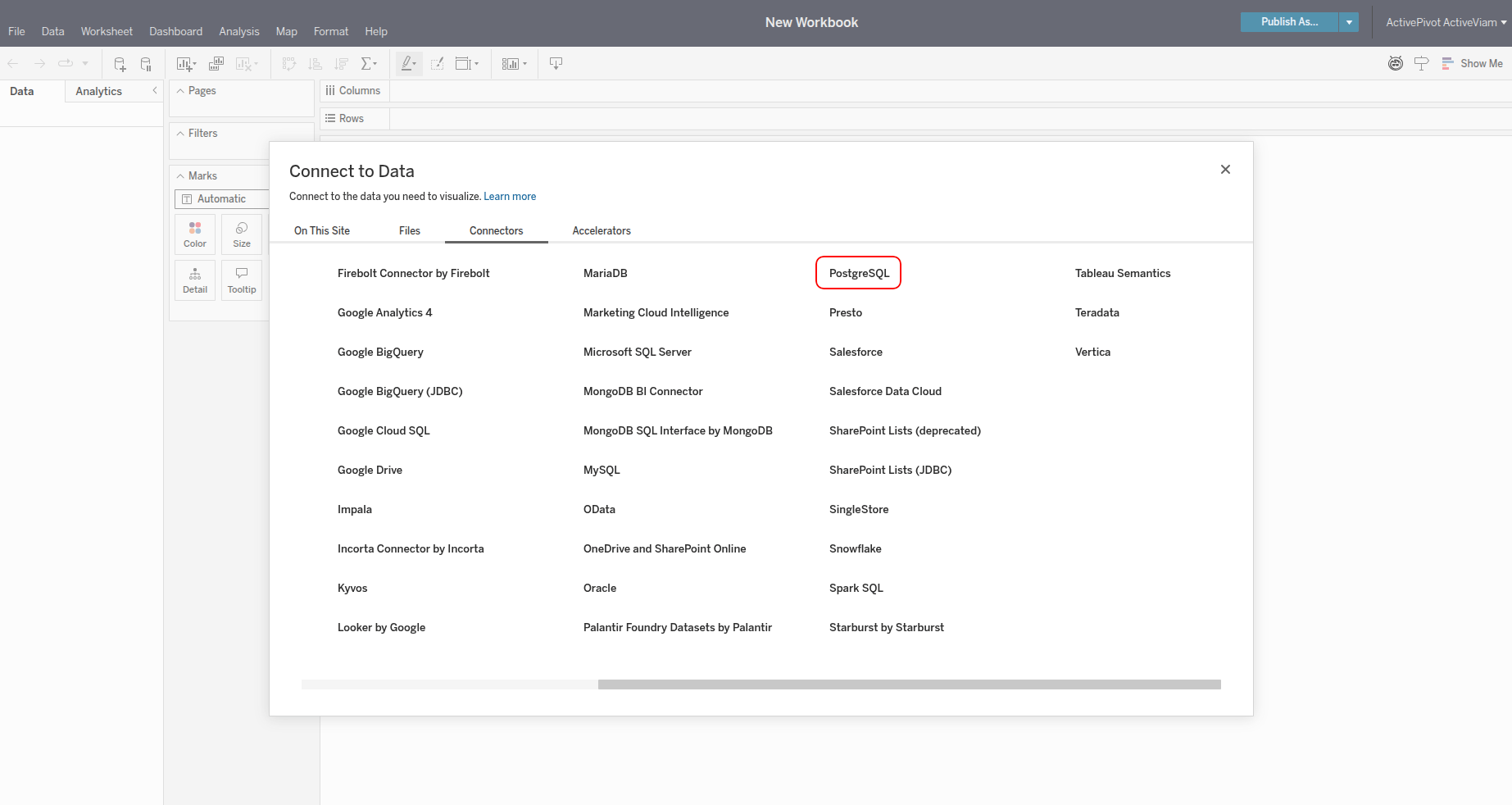
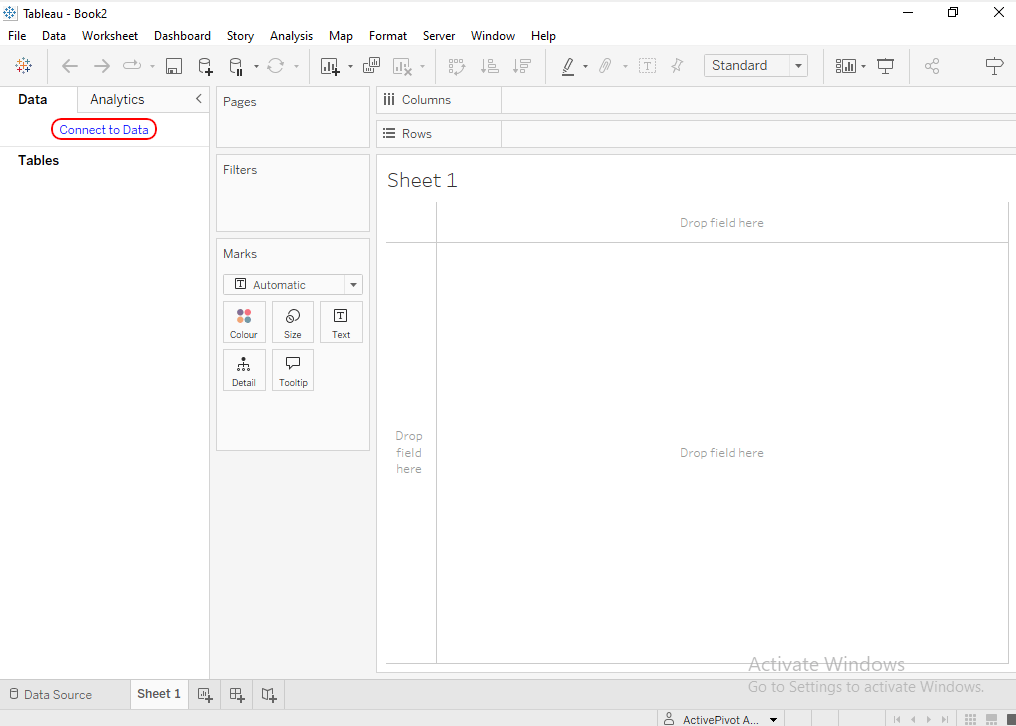
Click Connect to Data in the upper-left corner.
-
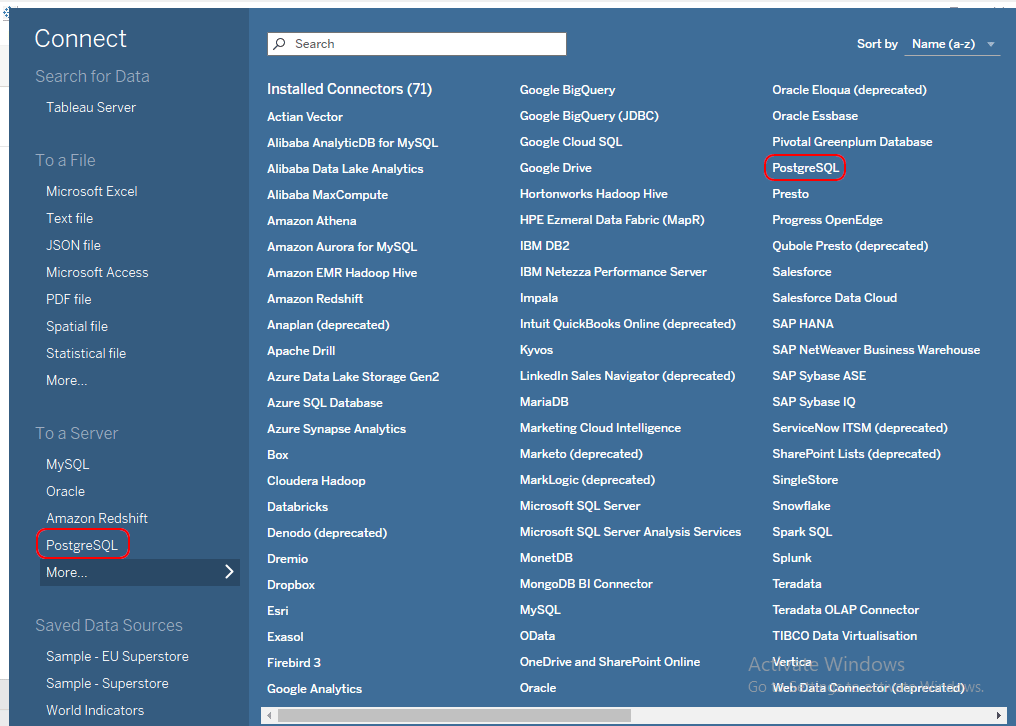
From the list of connectors, select PostgreSQL.
-
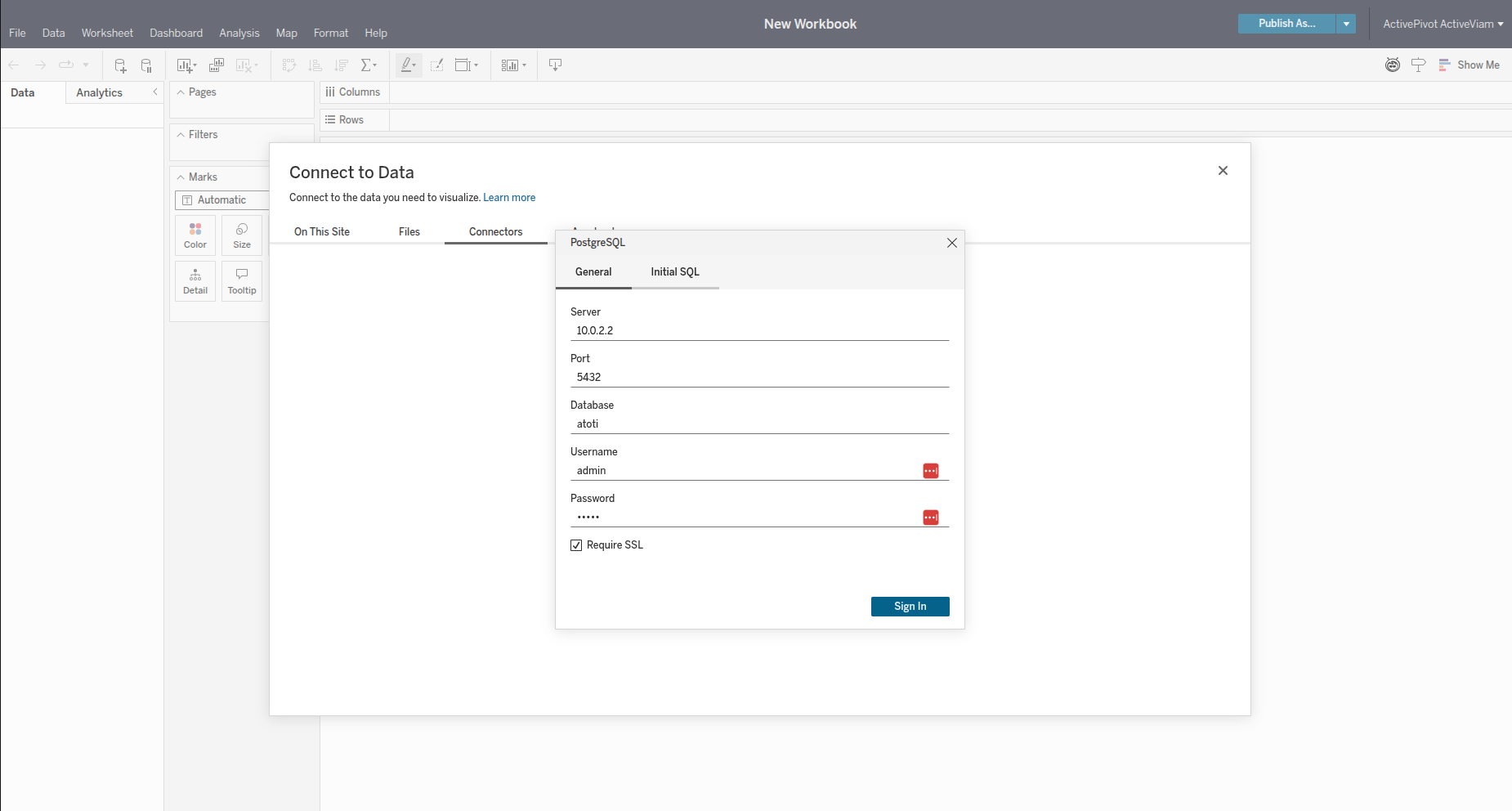
Fill in the required connection details:
- Address: IP address of the Atoti server.
- Port: Port used by the PostgreSQL wire protocol (default is
5432). If changed, refer to theatoti.server.sql-bridge.portproperty, described on the SQL endpoint page. When that property is0, the port is picked at startup, and the generated.tdsfile is what carries it. - Database: Always set to
atoti. - Authentication: Choose your preferred authentication method.
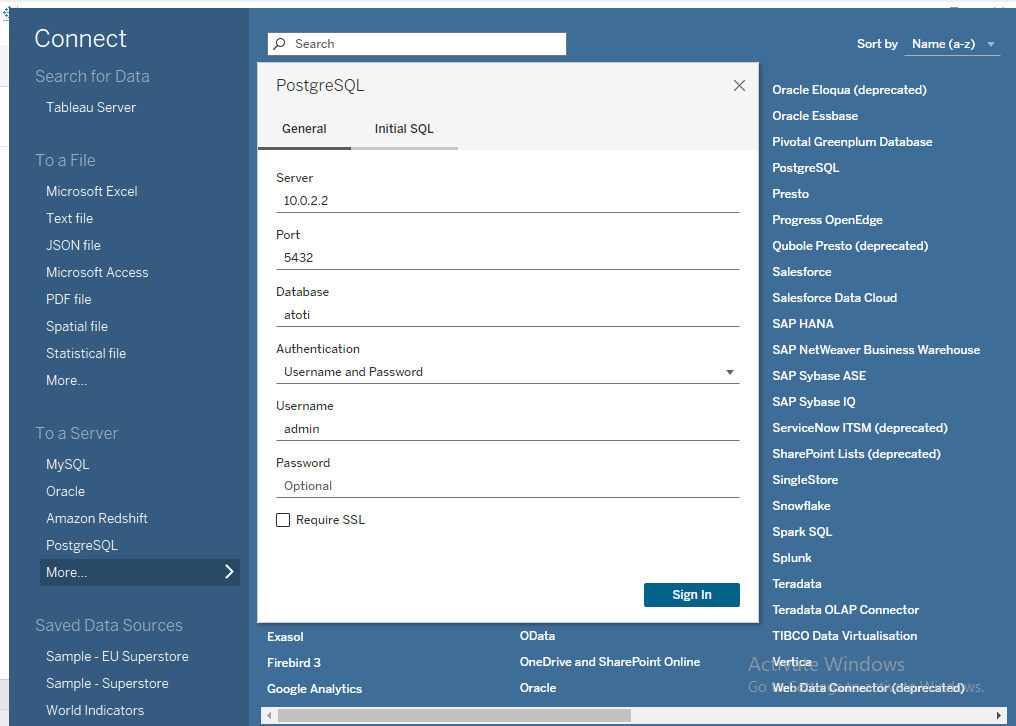
- Click Connect to establish the connection.