Connecting to an Atoti Cube in Excel via the MSOLAP Data Provider
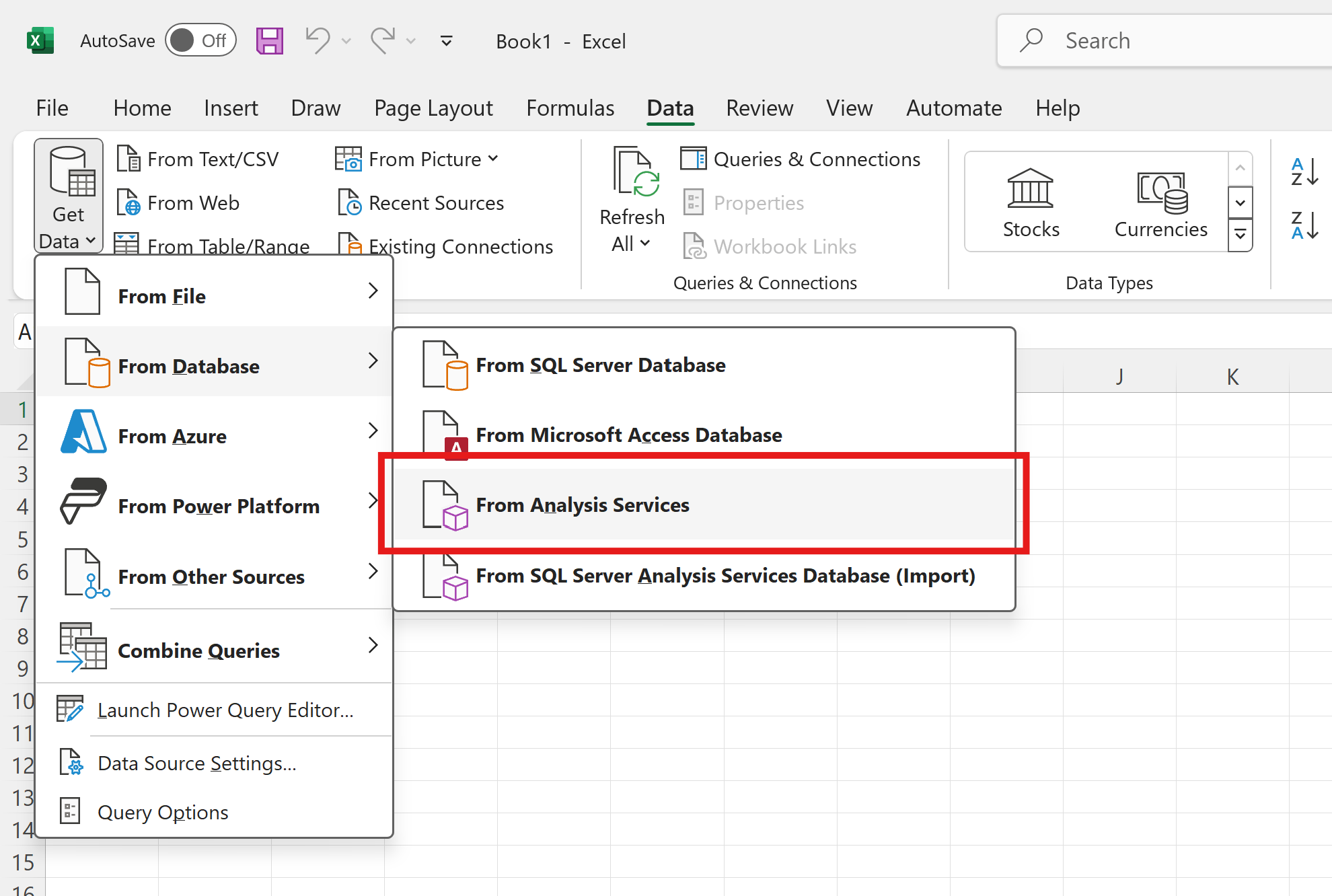
The MSOLAP data provider is also referenced in other articles as the MSAS driver since it is designed to connect to a Microsoft SQL Server Analysis Services server.Here are the steps to configure a connection using the MSOLAP 10.0 data provider, including steps related to security configuration. The screen captures are made with Excel 2010. First, open the data tab in Excel and choose to connect to a MSAS server:
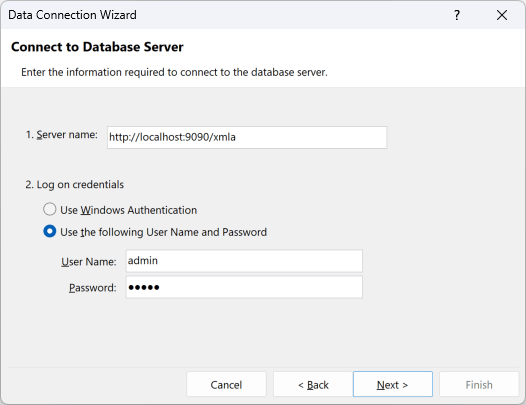
http://localhost:9090 is the host and port where Atoti Server is running
(defaults of the Atoti Server sandbox project) and /xmla is the path to the XMLA service on Atoti Server,
with which Excel will communicate.
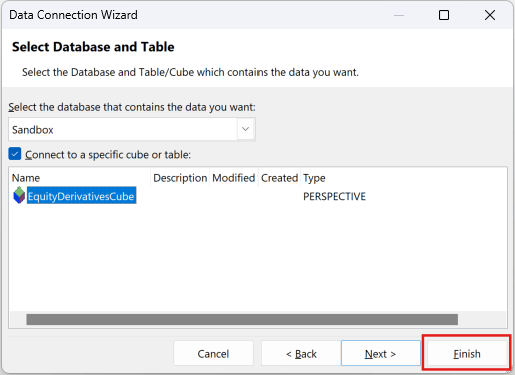
You are then prompted to choose the catalog (called database in this window), here we choose
Sandbox, and then the cube:
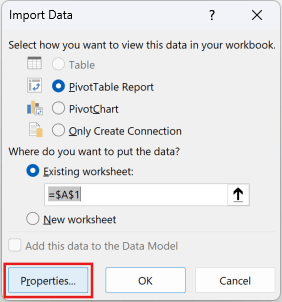
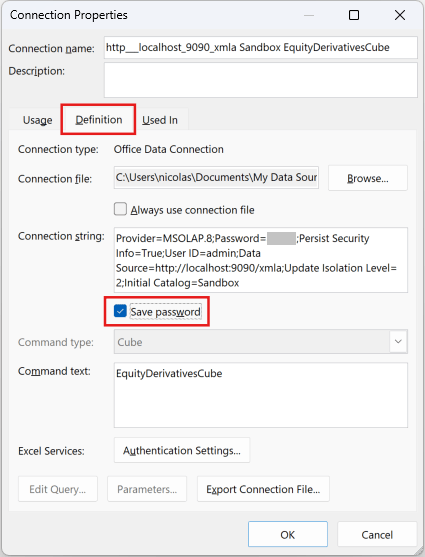
Properties... button: