

Save a filter
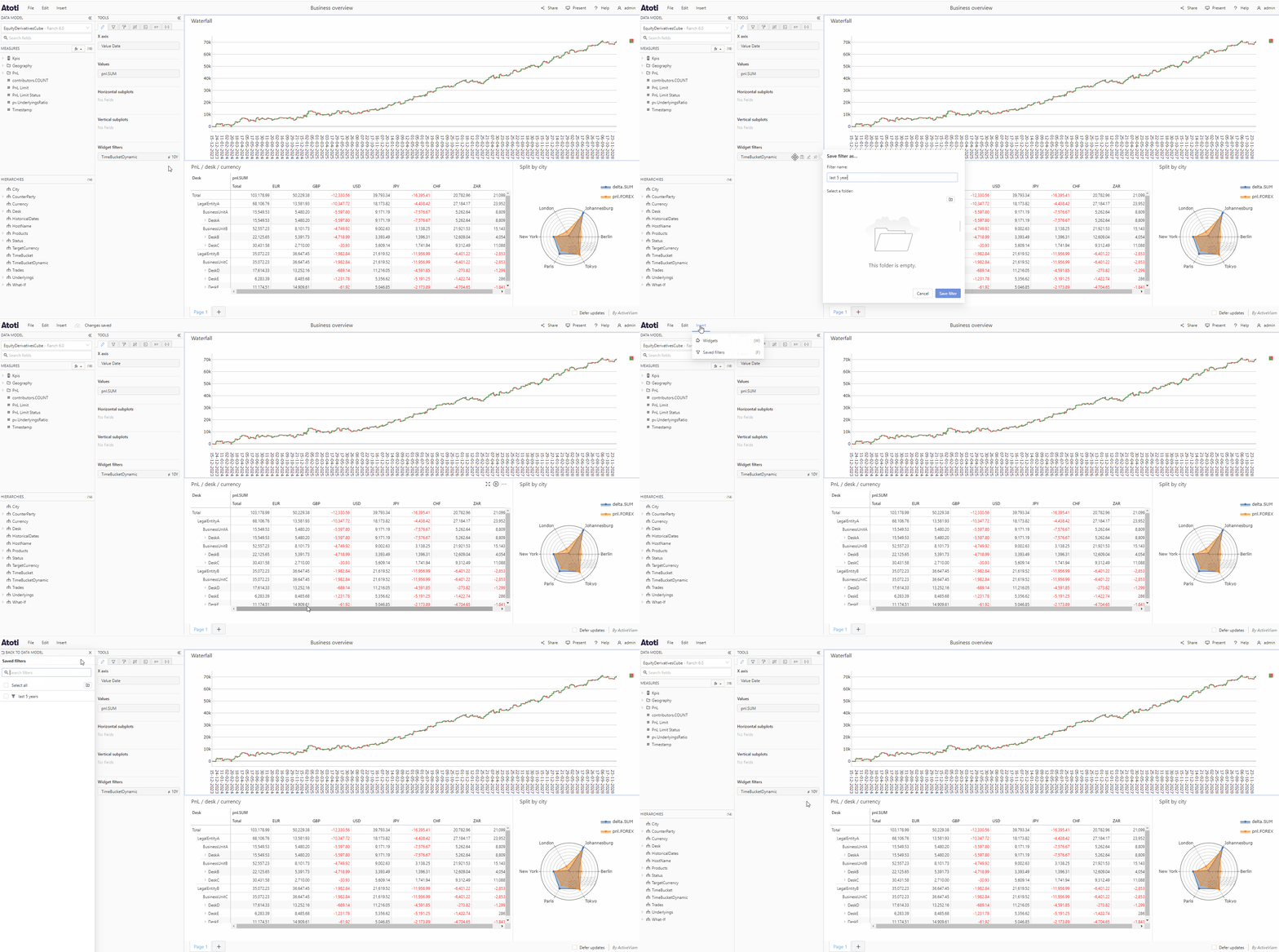
To save a filter:- Hover over the chosen filter tile in the tools panel, you will see some icons appear on the right of the tile.
- Click the save icon to open the Save filter as popup.
- Enter a name for your filter.
- If you wish to save your filter in a folder, you can either select an existing folder from the list or click the folder icon to create a new folder.
- Click Save filter to save your filter and close the popup.
Manage saved filters
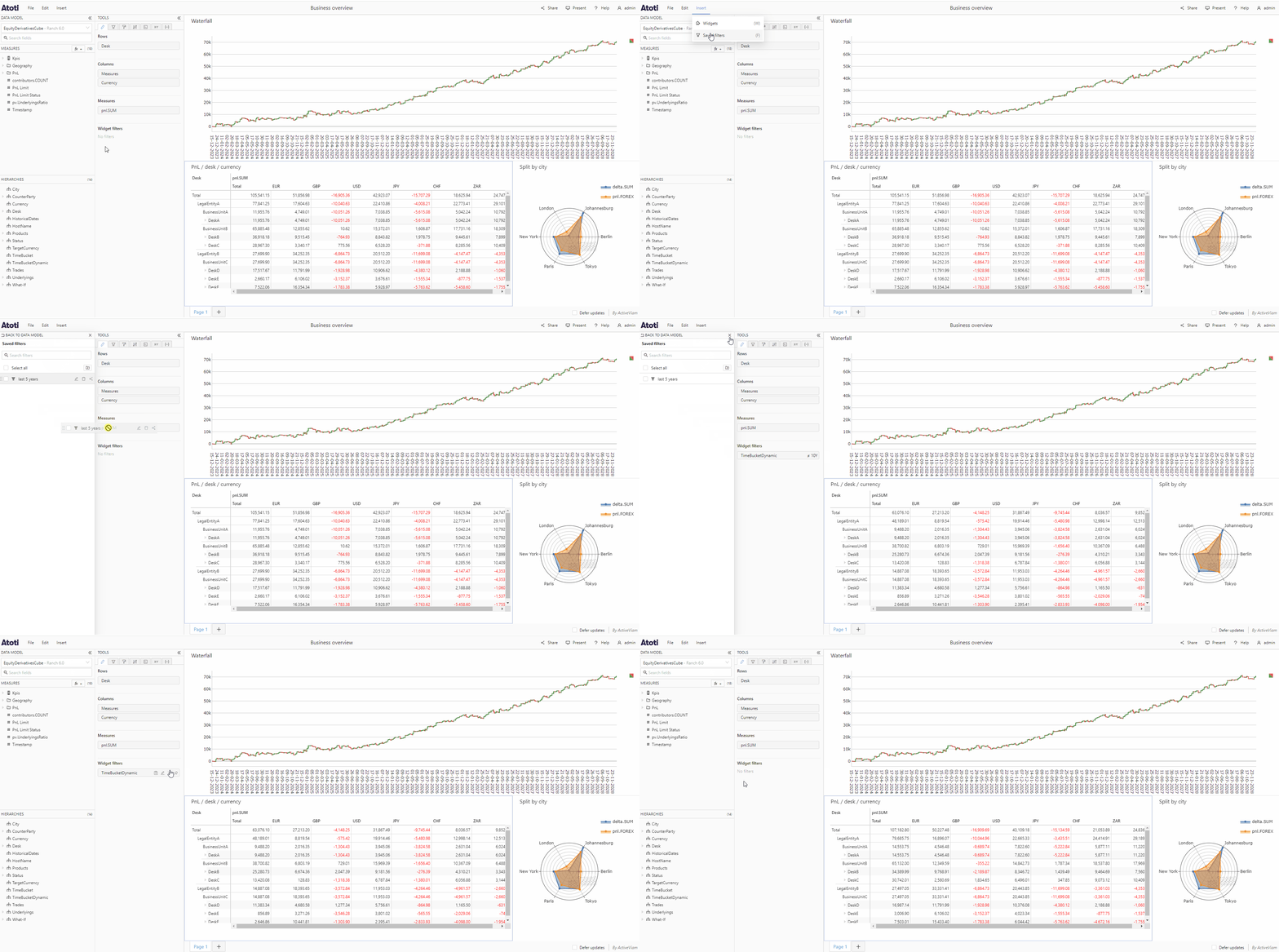
To open the Saved filters menu, click the Insert menu in the top navigation bar then choose Saved filters. Alternatively you can use the keyboard shortcut F. The Saved filters menu will appear on the left of the application in the place of the data model, displaying all of your saved filters.Add a saved filter to a widget
You can add a saved filter to a widget, page or dashboard from the Saved filters menu.- Drag a saved filter tile and drop it in the chosen section of the Filters tab.
- Alternatively, clicking a saved filter tile will automatically add that filter to the Widget filters section of the Filters tab (or the Widget filters section of the Fields tab, if that is the selected tab), after any existing filters.
Rename a saved filter
- In the Saved filters menu, hover over a saved filter tile, you will see some icons appear on the right of the tile.
- Click the edit icon.
- The filter name will become a text input, type the new name and press enter.
- If you need to cancel renaming, press Escape.
Delete a saved filter
- In the Saved filters menu, hover over a saved filter tile, you will see some icons appear on the right of the tile.
- Click the delete icon.
- If you are sure you want to delete, click the Delete button in the popconfirm which appears.