

What is required before using Notification Center?
- A signed-in Risk Portal account.
- For export downloads, a submitted report-export request associated with that account.
How to find a notification
- Select the bell icon in the application header.
- Expand the relevant date group in Notification Center.
- Check the notification’s title, message, and timestamp.
- Select the circular-arrow refresh icon when an updated list is needed.
How can export readiness be checked?
Read the request message and available actions. File request sent! acknowledges submission. A progress indicator shows pending processing without promising a completion time. When Download appears, the notification has a prepared file available for retrieval. The export button finishing its loading state does not establish workbook readiness.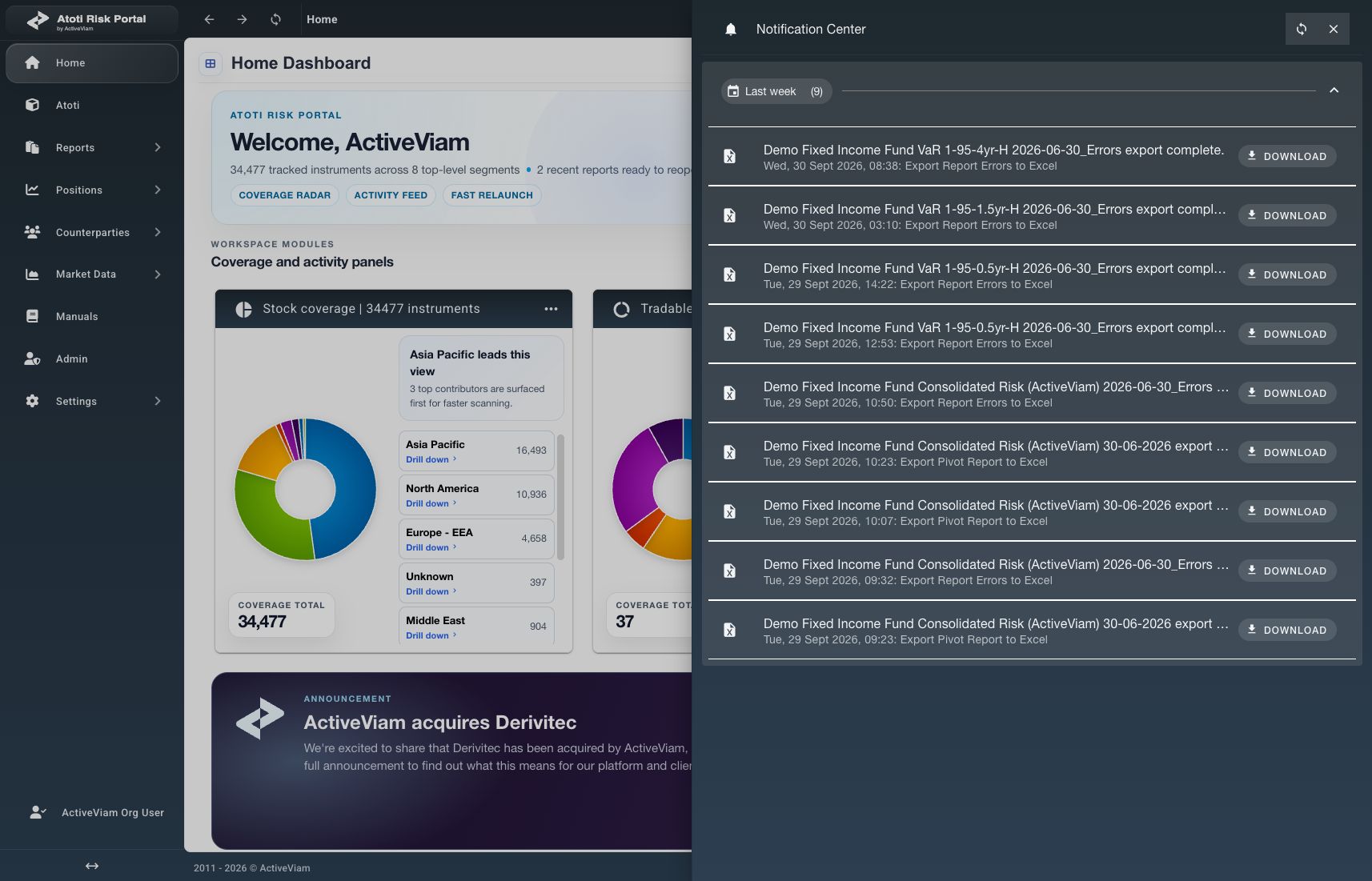
Completed exports show Download actions in the Notification Center. Production, October 19, 2026.
How to download an export
- Locate the required ready export notification.
- Select Download.
- Check the browser’s download list.
- Open the downloaded file to verify its contents.
How to mark a notification read
- Locate the unread notification.
- Select Dismiss.
What if an entry or download is missing?
The list retrieves up to the newest 100 notifications created within the last 30 days. It is scoped to the current user and organization. An empty list describes the currently available notifications, not a complete historical record.
See Dump to Excel and Export to Excel for the two report-export workflows.