

What is required before customizing Home?
- A signed-in Risk Portal session.
- Access to the underlying report and data when adding report-cell history.
- For cell-history tiles, a report viewer with a History option and available rows for the selected cell.
What does each tile show?
Coverage describes market instruments and product types. It does not represent a selected portfolio’s positions or valuation.
The default dashboard contains Stock coverage and Tradable coverage.
How to add a standard tile
Three types of tile can be added to the home page. Each tile can only be added once.- Stock coverage
- Tradable coverage
- Recent reports
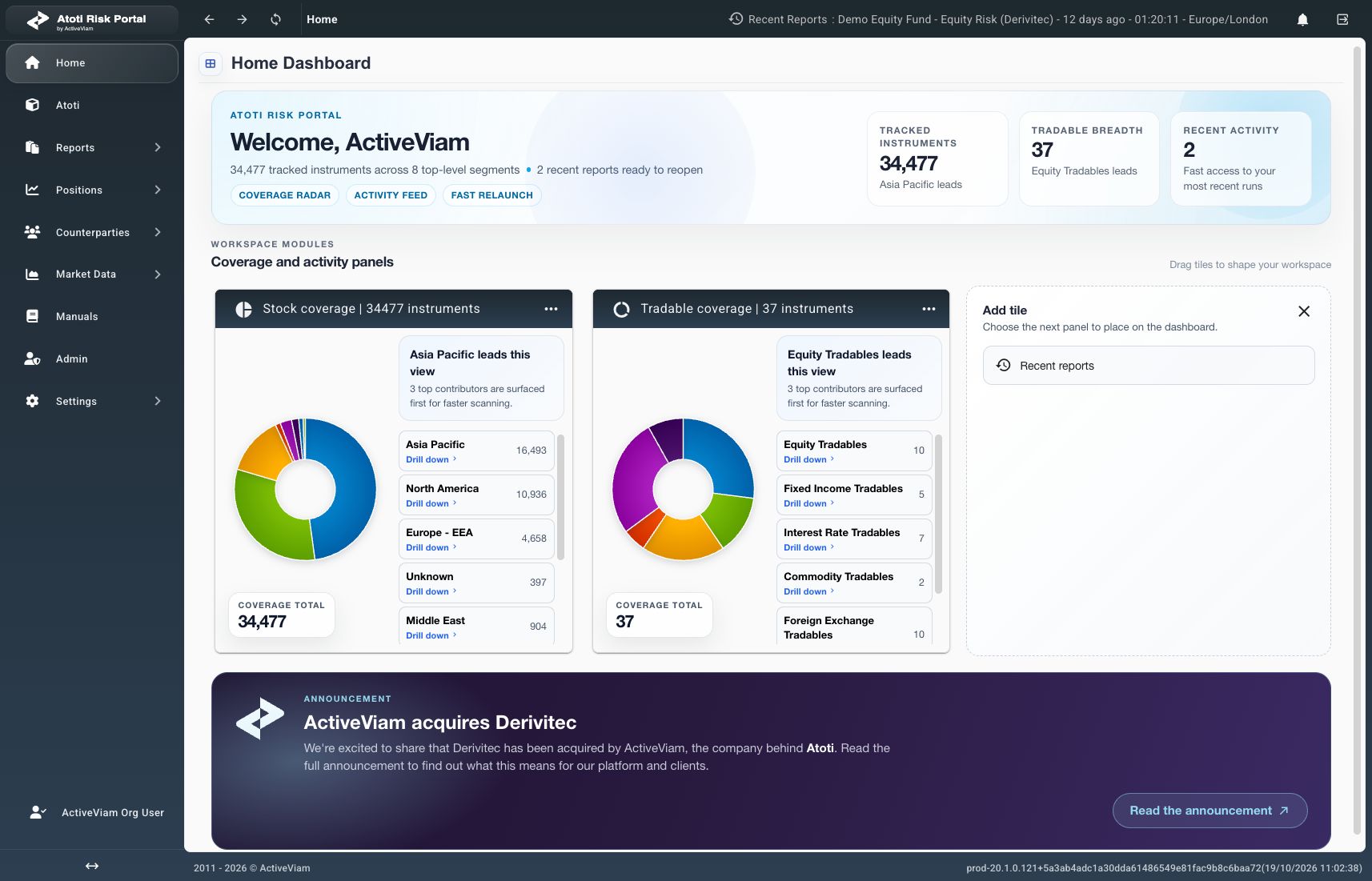
Recent reports remains available because the two coverage tiles are already on this dashboard.
How to arrange or remove tiles
Drag a tile by its title area to the desired position. Verify that the tile appears in its new position. To remove a tile:- Open the tile’s three-dot menu.
- Select Remove tile.
How to add report-cell history
Use a report viewer that offers History in a value cell’s context menu. Supported Live reports can be opened through Reports → Live. The available viewer action is View Live or View Last Completed, depending on the configured schedule. Some report viewers do not offer cell history.- Open the required report.
- Set the grouping for the required cell context.
- Apply the required filters.
- Open the value cell’s context menu.
- Select History. A Realtime History dialog opens with the column title.
- Wait for history data to load.
- Check the displayed grouping and filter context.
- Select Save widget.
- Select Close.
- Select Home.
How to use the dashboard
Select a coverage chart segment or an item marked Drill down to explore its categories. Use Back or the breadcrumbs to return to a broader level. Select a Recent reports entry to reopen that report. This action does not start another calculation. The recent list is cleared during sign-in and sign-out. Use a saved history tile’s open-report icon, when available, to return to its source report.What can prevent a tile from showing data?
See Report types for the distinction between Risk, VaR, P&L, and Live reports.