Documentation Index

Fetch the complete documentation index at: https://docs.activeviam.com/llms.txt

Use this file to discover all available pages before exploring further.

The Tasks screen provides you with the information and functionality required for completing your daily tasks. The screen displays a list of all your tasks across all your task definitions. From here you can perform the following actions:
ActionDescription
Start/Restart taskStart a task before performing any adjustments. This takes a snapshot of your data for the scope of that task.
View linked dashboardsGo to the Atoti dashboard linked to the task. This can be set up when configuring the task definition.
View analysis dashboardsSee all your adjustments on the selected task in a dedicated dashboard, or view the changes for each adjustment. For details, see Analysis dashboards.
View historySee the audit log for the selected task. See Audit for details.
Upload adjustmentsBulk upload adjustments in a CSV file. For details, see Upload Adjustments.
Approve/RejectApprove or reject a task.

Real-time updates

By default, tasks on this screen are updated in real-time. You can disable/enable real-time updates by clicking the pause/play button next to the table configuration button:
Real-time updates enable/disable button
To have more than six open connections for real-time updates, you must have HTTP/2 enabled. This is a limitation of Server-sent events, which are used to send the updates. You can enable HTTP/2 by setting the spring.http2.enabled property to true in the application.yml file.Note that you must be using a secure connection for this to work. To secure your application, contact your network administrator.

Table columns

The screen contains a table displaying details of your daily tasks.
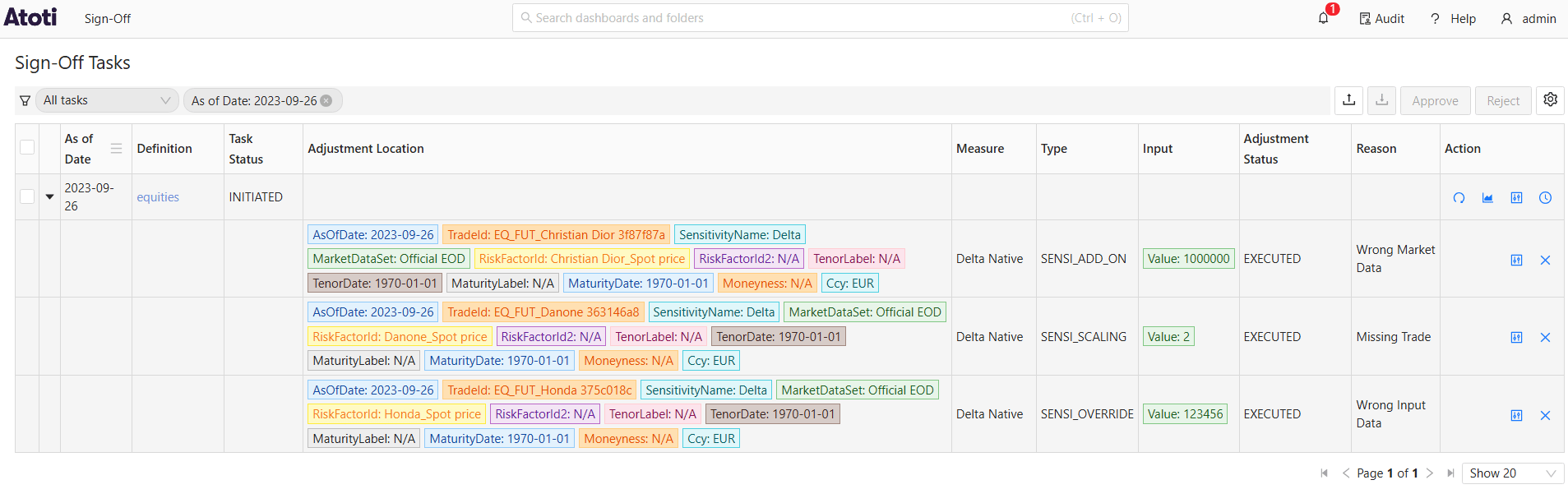
Field NameDescriptionExample
As of DateThe As of Date of the daily task.
DefinitionName of the task definition.
Task StatusThe current status of the daily task.
Adjustment LocationThe cube location of the adjustment.
MeasureThe measures the adjustment applies to.VaR
TypeThe type of adjustment. See Types and levels of adjustment for details.VAR_ROLL_OVER
InputThe value of the adjustment: data used to fulfill the adjustment.AsOfDate: 2025-03-05
Adjustment StatusThe status of the adjustment.EXECUTED
ReasonThe reason for the adjustment.Missing trade
ActionsThe actions you can carry out on the entry: - Copy: Duplicate an existing task definition to speed up creation. - History: view the audit history of the selected task definition.

Filters

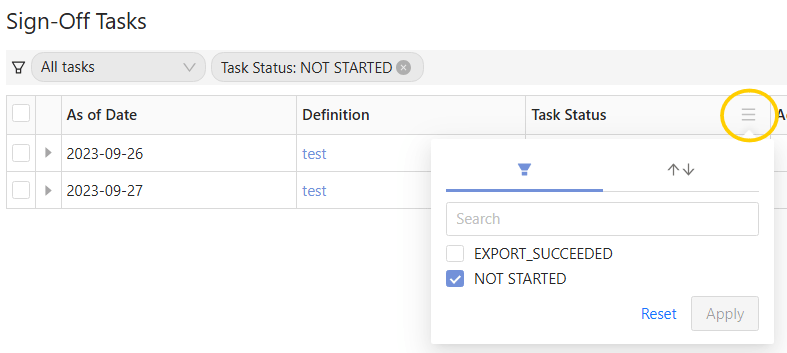
In the column headers you can filter the table values. For example, when starting a task, it may be useful to set Task Status to display tasks that are in the NOT_STARTED state so you can see the tasks you need to work on.