

Atoti Sign-Off does not offer any adjustment types out of the box. These are implemented on the application server. The types described below are available in Atoti Market Risk.
Types and levels of adjustment
Valid statuses
The status of the Sign-Off task where you can make adjustments depends on your specific configuration. By default, this status isINITIATED.
Create an adjustment
The task definition of your task may have a dashboard specified, where you can make adjustments to the data. To access this, in the Tasks screen, click the “Linked dashboard” button in your task’s Action row.
- In your dashboard, select the cube for your given Sign-Off task, and ensure a table widget is in the dashboard.
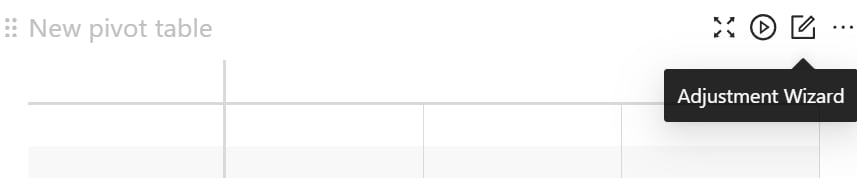
- In the title bar, click the pencil icon in the top right hand corner of the widget to open the Adjustment Wizard.
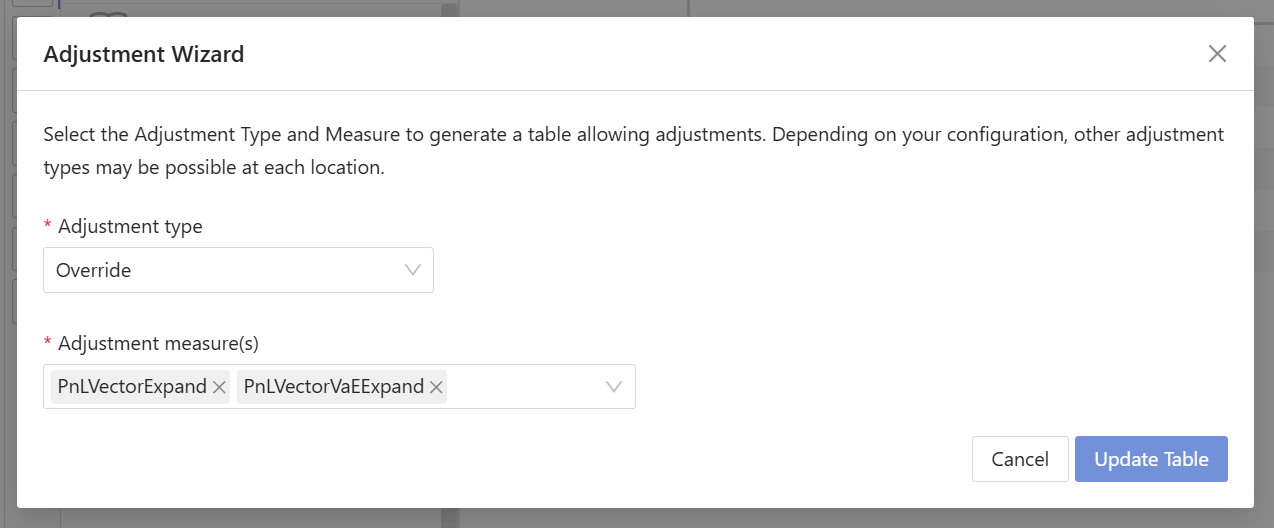
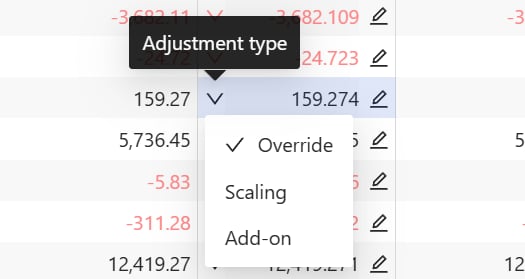
- Select the adjustment type and the measures you want to adjust.
- Editable fields with pencil icons: Click the cell to adjust the value directly. After making a change, if needed, you can revert it to the original value by clicking the undo icon.
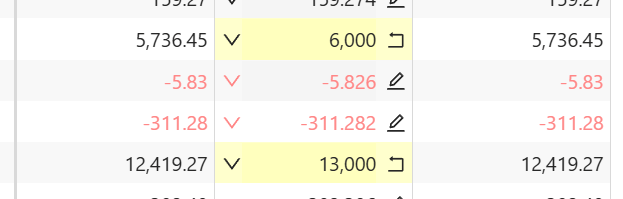
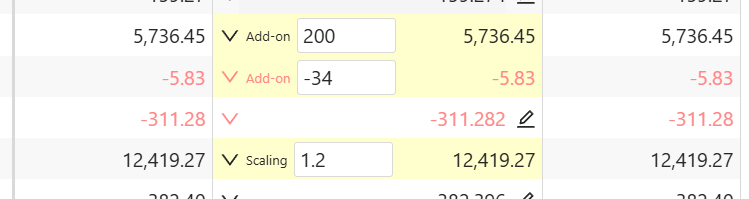
- Editable fields inlined within a measure cell: Click on the input to key in the numerical operand of the selected adjustment.
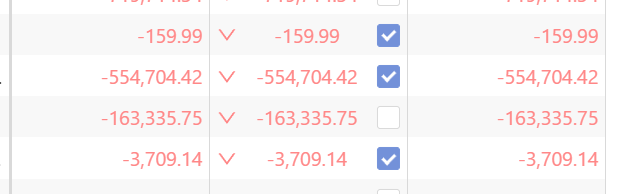
- Bulk update with checkboxes: A checkbox beside each value allows you to select multiple entries for a bulk update. Choose all the values you wish to adjust and apply the changes in one action.
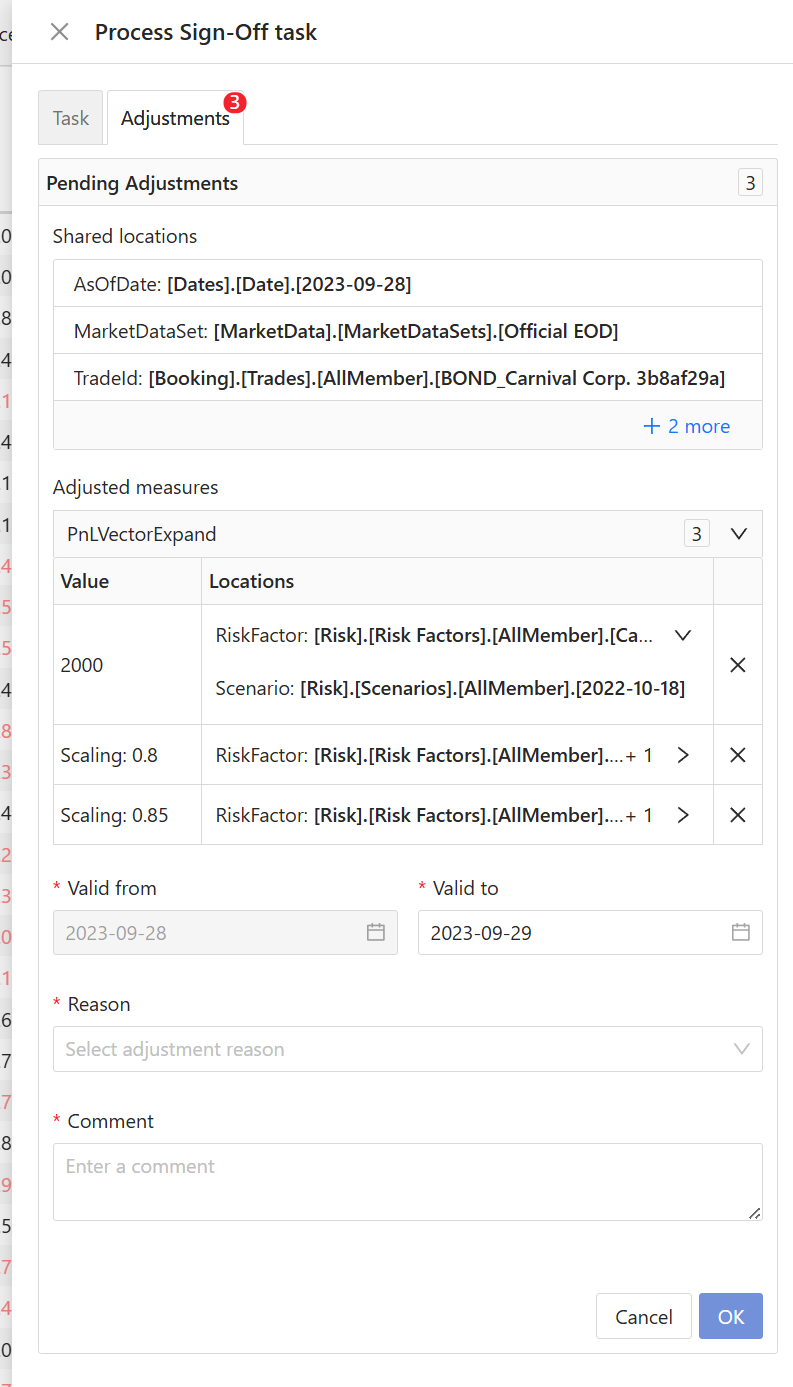
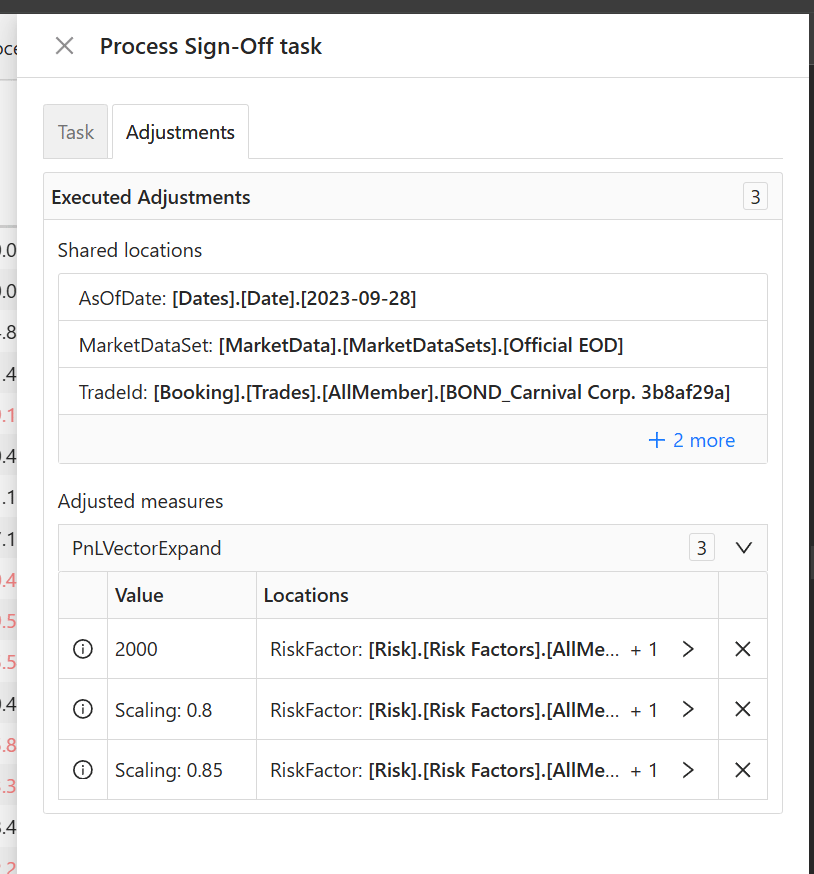
- Once you’re satisfied with your changes, you can submit your pending adjustments using the Adjustments tab in the Process task drawer.

- Define the various elements required, depending on the type of adjustment, then click OK:

Recurring adjustments
To avoid having to enter the same adjustment each time, you can use the Valid from and Valid to fields to define the time period over which to apply a given adjustment. Each time a task is initiated, any relevant recurring adjustments for that date are automatically performed.Analysis dashboards
Atoti Sign-Off lets you view all of your adjustments for a given task in a dedicated Sign-off analysis dashboard. You can access it from the Tasks table, by clicking the “Sign-off analysis dashboard” button in the task’s Action column. In addition, you can check out the before and after values of each individual adjustment in the Adjustment analysis dashboard. To do this, click the “Adjustment analysis dashboard” button in the Action column of the adjustment.
Delete adjustments
You may sometimes need to discard adjustments you have made, and then re-do them. For example, after a series of adjustments, you realize that the entire batch of trades was wrong or corrupted. To discard an individual adjustment:- In the Tasks screen table, click the x button beside the adjustment you want to discard.
- Click Yes to confirm.
The system updates the status of the adjustment to
Deleted.
- In the Tasks screen table, select the checkbox beside each of the adjustment rows you wish to discard.
- Click the Delete button above the table.
- Click Yes to confirm.
INITIATED status, there is an option to discard all adjustments associated with the task.
The system will still reapply any previously defined recurring adjustments, as they are considered valid.
Re-applying adjustments on failure
Adjustments that you create for a cube are stored in memory, along with all other data in the cube. This means that if the cube restarts, the adjustments will no longer exist. Atoti Sign-Off is designed to identify these server failures and, when the cube becomes available again, it will re-apply the adjustments that you had previously created.Adjustments are only applied for sign-off tasks that have not yet been approved. If the task has been submitted for approval, it will need to be submitted again once the adjustments have been re-applied. Additionally, we advise checking these adjustments before approving or submitting for approval, as the data in the cube may have changed, and they may no longer be appropriate.