Documentation Index

Fetch the complete documentation index at: https://docs.activeviam.com/llms.txt

Use this file to discover all available pages before exploring further.

These legacy workflows still exist for backward compatibility and to simplify migration efforts but will be removed in a future release. Please use the newer workflows in your product. This page exists only for helping users migrate and will be removed in a future release.
Atoti Limits provides a few workflows out of the box with Activiti. The complete tutorial of Activiti can be found on the Activiti website. This section shows you how to use the out-of-box workflows. You can find the Business Process Modeling Notation (BPMN) files in the limits-starter/src/main/resources/processes folder. bpmn files are in the XML format, however, we recommend that you install the Activiti Diagram Editor plugin in your IDE, such as Intellij or Eclipse, to edit and read the bpmn files in a nice UI workflow representation. The events that trigger a workflow are:
  • Limit change: a new limit is created or amended through the UI.
  • An exception (breach or warning) occurs after the limit evaluation.
You can set up workflows for each of these events.

limit-process-four-eyes.bpmn

This workflow requires one approval. By default, one user creates the limit, and another approves it. Alternatively, if the limits.workflow-rules.can-approver-be-same-as-creator property in application.yml is enabled, the creator of the limit can also approve it.
See Section:limit workflow in the application.yml configuration file on configuring the workflow. The workflow names must match the process ID in the bpmn:application.yml:
limits:
  limitWorkflows:
    FourEyes:
      key: limit-process-instance.four-eyes
limit-process-four-eyes.bpmn:
<process id="limit-process-instance.four-eyes ...>"
All serviceTasks need to have the associated Bean defined in the LimitsProcessInstanceWorkflowService.java or a delegate service: Location: limits-activeviam/src/main/java/com/activeviam/limits/workflow/instance File name: DeleteDelegateService.java
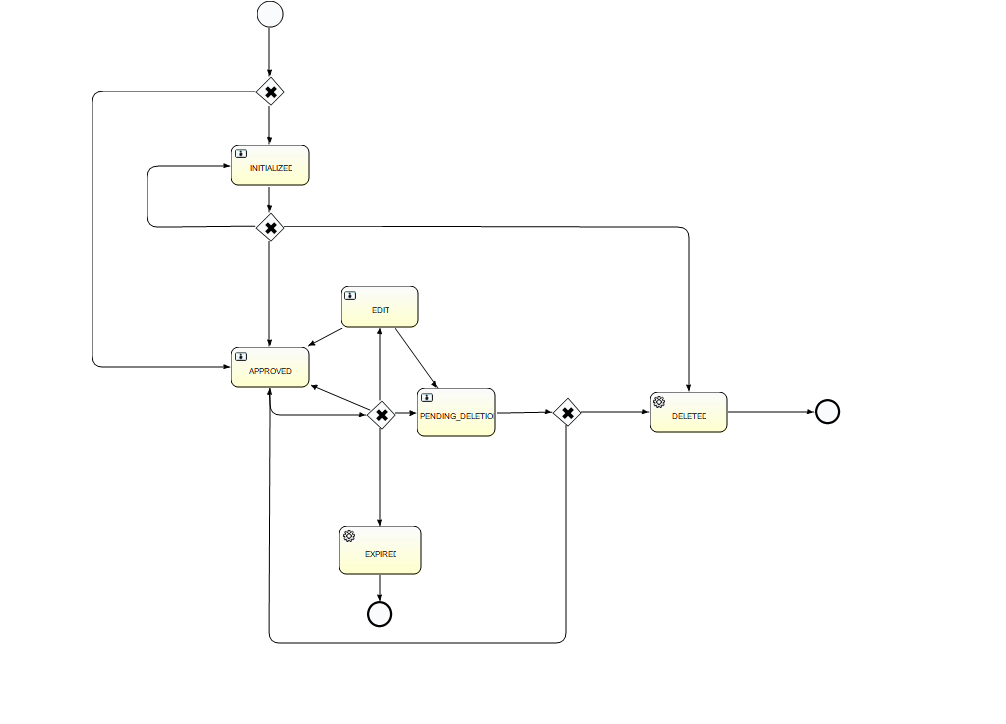
FourEyes Workflow Diagram
The possible actions in each of the actionable states are:
Start stateActionEnd state
-CreateInitialized
InitializedApproveApproved
InitializedRejectInitialized
ApprovedEditEdit
ApprovedDeletePending Deletion
ApprovedExpireExpired
EditApproveApproved
EditDeletePending Deletion
EditExpireExpired
EditRejectEdit
Pending DeletionApproveDeleted
Pending DeletionRejectApproved
DeletedSystemEnd
ExpiredSystemEnd

limit-process-straight-through.bpmn

This workflow doesn’t require an approval. The limit is created in approved state.
See Section:limit in the application.yml configuration file on configuring the workflow. The workflow names must match the process ID in the bpmn:application.yml:
limits:
  limitWorkflows:
    StraightThrough:
      key: limit-process-instance.straight-through
limit-process-straight-through.bpmn:
<process id="limit-process-instance.straight-through ...>"

limit-process-exception.bpmn

This workflow handles breaches and warnings.
See Section: Limit Workflow in the application.yml configuration file on configuring the workflow. The workflow names must match the process ID in the bpmn:application.yml:
limits:
  exceptionWorkflows:
    Exception:
      key: limit-process-instance.exception
limit-process-exception.bpmn:
<process id="limit-process-instance.exception ...>"
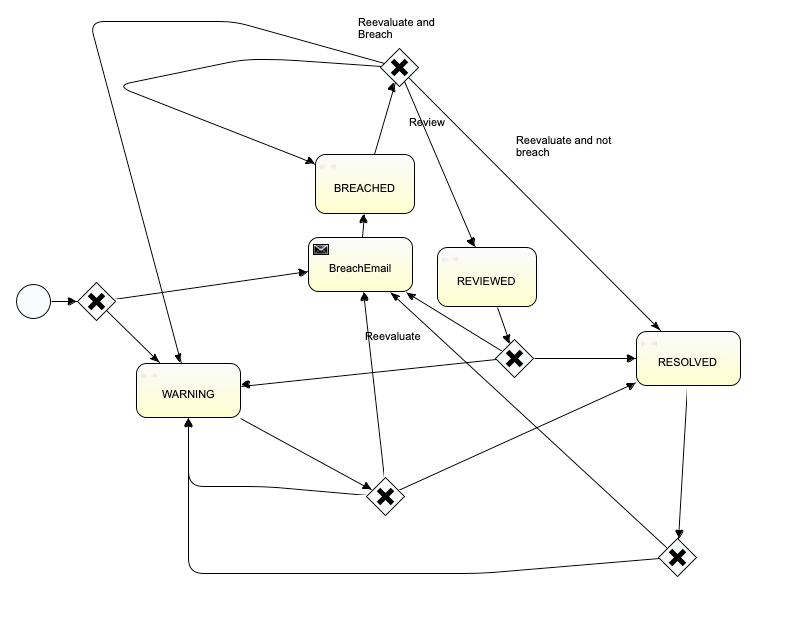
All serviceTasks need to have the associated Bean defined in the java file: Location: limits-activeviam/src/main/java/com/activeviam/limits/workflow/instance File name: LimitsProcessInstanceWorkflowService.java The following diagram represents the various possible states and actions in the Exception workflow:
Exception Workflow Diagram
Start stateActionEnd state
NoneSystem EvalWarning
Breached Email
Breached EmailSystem EvalBreached
BreachedUser ReviewReviewed
BreachedSystem EvalBreached
Resolved
Warning
ReviewedSystem EvalBreached Email
Warning
Resolved
ResolvedSystem EvalWarning
Breached Email
Resolved
WarningSystem EvalBreached Email
Warning
Resolved

incident-review-process.bpmn

This workflow handles breaches and warnings.
See Section: Limit Workflow in the application.yml configuration file on configuring the workflow. The workflow names must match the process ID in the bpmn:application.yml:
activeviam:
  apps:
    workflow-service:
      workflows:
        - process-id: incident-review-process
limit-process-exception.bpmn:
<process id="incident-review-process" ...>"
The user tasks are defined via configuration properties. You can customize the user tasks by overriding the activeviam.apps.workflow-service.workflows.actions.* properties for the workflow with process-id: incident-review-process. The default configuration is:
actions:
  - task-name: User reviews incident
    name: Review breach
    action-input-fields:
      - label: Is the incident valid?
        task-variable: incidentIsValid
        input-type: CHECKBOX
        required: true
      - label: Classification
        task-variable: classification
        input-type: SELECT
        options:
          - Unclassified
          - Technical Issue
          - True Breach
          - New Trade
          - Late Trade
          - Market Moved
        required: true
      - label: Resolution
        task-variable: resolution
        input-type: SELECT
        options:
          - No action
          - Hedge exposure
          - Reduce position
          - Keep position
          - Keep, request increase
        default-value: No action
        required: true
      - label: Comment
        task-variable: comment
        input-type: TEXT
        required: false
      - label: Attachments
        task-variable: attachments
        input-type: ATTACHMENTS
        required: false
      - label: Attachment link
        task-variable: attachmentLink
        input-type: LINK
        required: false
  - task-name: User reviews incident
    name: Review warning
    action-input-fields:
      - label: Comment
        task-variable: comment
        input-type: TEXT
        required: false
      - label: Attachments
        task-variable: attachments
        input-type: ATTACHMENTS
        required: false
      - label: Attachment link
        task-variable: attachmentLink
        input-type: LINK
        required: false
The service tasks are defined via Spring beans. You can customize the service tasks by defining your own bean with type org.activiti.api.process.runtime.connector.Connector and name matching the implementation property of the service task in the BPMN file. The default service task beans are defined in IncidentReviewConfig.java:
@Bean
@ConditionalOnMissingBean(name = "notifyUsersOfNewIncident")
public Connector notifyUsersOfNewIncident() {
  return integrationContext -> {
    log.info("A new incident has been created, notifying relevant users.");
    notificationService.publishNotification(
            Notification.notificationWithDefaultActionsBuilder()
                    .title("New Incident Created")
                    .description("A new incident has been created and requires your review.")
                    .severity(MEDIUM)
                    .classifiers(List.of("incident"))
                    .userRoles(List.of("ROLE_MANAGERS"))
                    .sourceId(integrationContext.getInBoundVariable(OBJECT_ID_VARIABLE_NAME))
                    .build());
    return integrationContext;
  };
}

@Bean
@ConditionalOnMissingBean(name = "notifyUsersOfIncidentResolution")
public Connector notifyUsersOfIncidentResolution() {
  return integrationContext -> {
    log.info("An incident has been resolved, notifying relevant users.");
    integrationContext.addOutBoundVariable(STATUS_VARIABLE_NAME, REVIEWED.toString());
    List<Notification> notifications =
            notificationService.getNotificationsBySourceId(
                    integrationContext.getInBoundVariable(OBJECT_ID_VARIABLE_NAME));
    notifications.forEach(
            notification ->
                    notificationService.updateNotificationStatus(
                            notification.getId(), "The incident has been reviewed.", OBSOLETE));
    return integrationContext;
  };
}
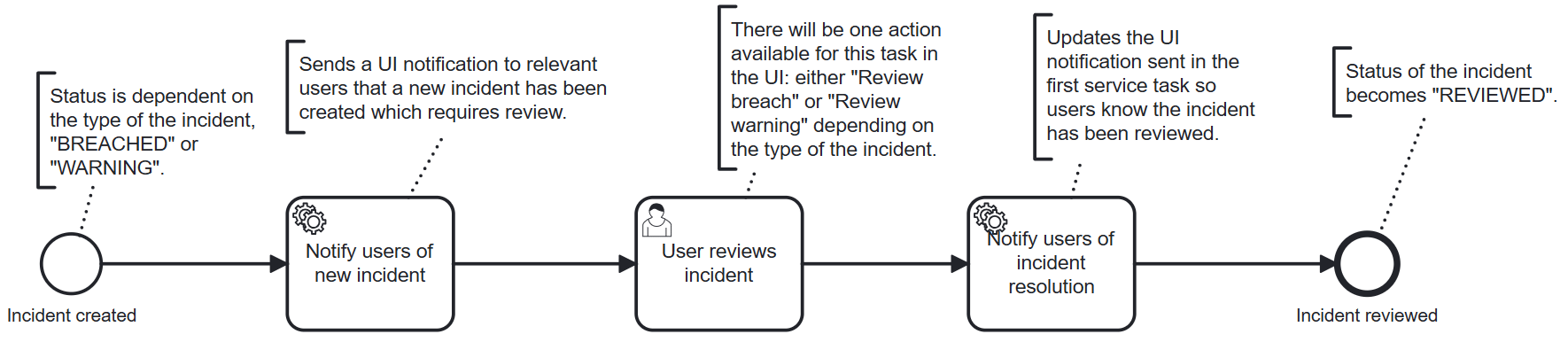
The following diagram represents the various possible states and actions in the Incident Review Process workflow:
Exception Workflow Diagram

Configure breach email notifications

When a limit is breached, Atoti Limits notifies the specified users by email. Here’s how to configure the email: In the limit-process-exception.bpmn, you can find the following BreachEmail section and configure the “to”, “from”, and “subject” fields, and the email body.
By default this implementation will not send emails. See Extending the Mail provider section below.
 <serviceTask id="mailtask1" name="BreachEmail" activiti:class="com.activeviam.limits.workflow.service.instance.activity.impl.TestMailActivityBehavior">
      <extensionElements>
        <activiti:field name="to">
          <activiti:string><![CDATA[bas.email.demo.test@gmail.com]]></activiti:string>
        </activiti:field>
        <activiti:field name="from">
          <activiti:string><![CDATA[breach@activeviam.com]]></activiti:string>
        </activiti:field>
        <activiti:field name="subject">
          <activiti:expression><![CDATA[Breach Notification - ${limitsName}]]></activiti:expression>
        </activiti:field>
        <activiti:field name="html">
          <activiti:expression><![CDATA[<html>
<head>
<style>
h3 {text-align: center;background-color:DodgerBlue;color:FloralWhite}
</style>
</head>
<body>

<h3>Breach Notification</h3>
<p>Dear Limit Controller, </p>

<p>Limit, ${limitsName}, with limit value, ${limitsValue}, is breached. Please investigate below:
<a href=${url}>Limits Inventory</a>
</p>

<p>
Thank you.
</p>

</body>
</html>]]></activiti:expression>
        </activiti:field>
      </extensionElements>
    </serviceTask>
Breach emails use out-of-the-box functionality from Activiti, which causes a performance decrease in the workflow. To avoid this, disable the breach email by removing the “BreachEmail” element from the bpmn file. Make sure that the paths to the “Breach Email” go to the “BREACHED” node after the change.

Extend the mail provider

If you’d like to use the default Activiti mail provider, replace the activiti:class="package.to.CustomClass" in the <serviceTask> description with activiti:type="mail" Note in the service task description the element activiti:class="com.activeviam.limits.workflow.service.instance.activity.impl.TestMailActivityBehavior". This is a way of providing a custom Java delegator to override the default MailActivityBehavior. This is an Activiti feature that can be used to provide extra functionality to your project. For example, to avoid sending emails in a test environment, you can do the following:
public class TestMailActivityBehavior extends MailActivityBehavior {

    protected static final Logger LOGGER = LoggerFactory.getLogger(TestMailActivityBehavior.class.getSimpleName());

    @Override
    public void execute(DelegateExecution execution) {
        LOGGER.info("Sending test email for execution: " + execution);
        leave(execution);
    }
}

Upload a limit already in a workflow state

When uploading limits in bulk, some limits may already be present in the module and in progress in one of the workflows. Here’s how the state of the affected limit changes when this happens:
FourEyes Workflow:
  • “Pending Approval” becomes “Approved”.
  • “Pending Deletion” becomes “Deleted”.
Straight-through:
A limit in the “Approved” state stays “Approved”.