
Applies to report grids with Filters, Applied Filters, and Applied Sorting controls. Filters narrow the displayed report results. Sorting changes their order. These controls query existing results without changing the underlying portfolio or report definition.

What is required before filtering or sorting?

  • An accessible report with loaded results.
  • A field that supports the required operation.
Available operators and conditions depend on the field and report viewer. Text, numeric, and date fields can offer different controls.

How to apply a column filter

  1. Select Filters beside the results grid.
  2. Open the required field’s filter controls.
  3. Select the required condition.
  4. Enter or select the comparison value, if the condition requires one.
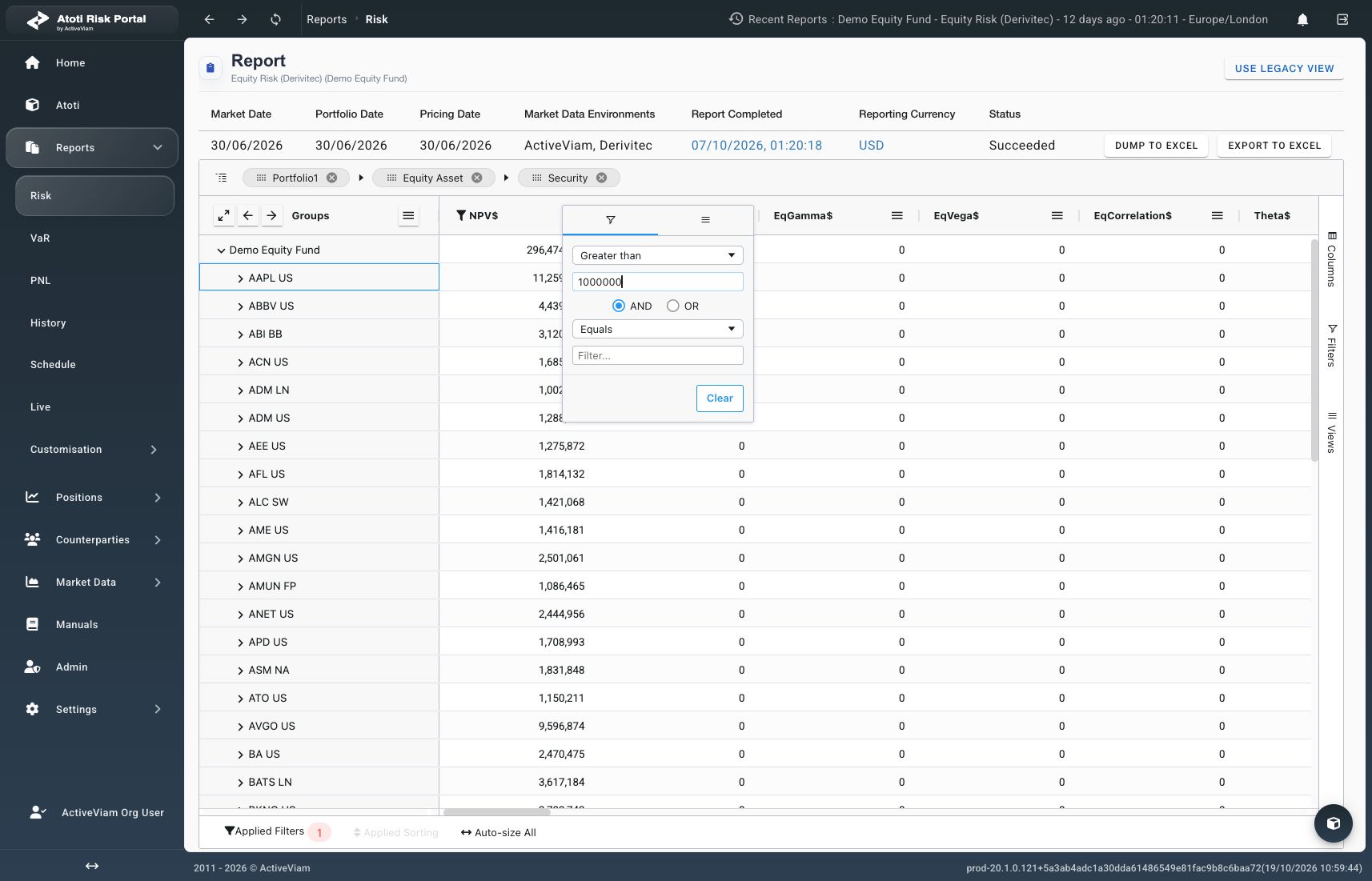
Wait for the results to update. Verify that Applied Filters lists the intended field. Check the returned rows against the selected condition.
Numeric filter condition, filtered demo results, and Applied Filters indicator

An NPV$ filter selects values above 1,000,000, with one applied filter. Production, October 19, 2026.

A column’s header menu also provides its filter controls where filtering is supported. The header displays a filter indicator when a filter is active.

How to remove filters

  1. Select Applied Filters below the grid.
  2. Select the listed field’s filter to remove it.
Verify that the field leaves the active-filter list and the rows update. To clear every column filter, select Remove All Filters from the same menu. If No Rows Available appears with Filters Applied on Columns, review the active conditions. An empty result does not establish that the portfolio has no positions.

How to sort results

  1. Select a sortable column header.
  2. Check the direction indicator beside the header.
For an unsorted column, the first selection applies ascending order. The next selection applies descending order; another selection clears that column’s sort. Hold Shift while selecting another sortable header to add a secondary sort. Select Applied Sorting below the grid to inspect active sorting fields. Select Remove All Sorting from that menu to clear them. Verify that the sort indicators disappear.

How does absolute-value sorting change the view?

The cell context menu offers Enable Absolute Value Sorting when that mode is disabled. The active mode is indicated by abs beside sorted numeric headers. Use Disable Absolute Value Sorting in the context menu to return to ordinary numeric sorting. Check this setting when the row order differs from the expected signed numeric order.

How can these settings be retained?

Create or update a saved report view after checking the filters and sort order. Use Choose columns and Group results for the other presentation controls.