

- From the Task Configuration screen, click Create Sign-Off Task Definition. This opens the Sign-Off Task Definition panel, where you can specify the details of your task.
- Fill in the details of your new task.
- In the Workflow section, define the level of scrutiny required.
- Set the Scope:
- In the Linked Dashboard section, you can select a dashboard to link the task to. This field is optional, but is required to enable the Linked dashboard icon in the Tasks screen. This field can be updated at a later date. Click the field to open the list of available dashboards, and navigate to the required dashboard.
- Click Save to save your task, Reset to clear all the fields, or Cancel to close the Sign-Off Task panel without saving. Once you save the task, in the default workflow implementation, it is created with status set to Saved. It is not yet published, so not visible to the specified owner.
- Click the Publish button in the middle of the screen to publish your task definition. This opens the Publish dialog, letting you enter a comment, if needed.
- Optionally add a comment, then click Publish. You can now see a list of daily tasks in NOT_STARTED status. Head over to the Sign-Off Tasks screen to start working on them.
Overlapping scopes
By default, you are not allowed to create definitions on overlapping scopes. This behavior can be disabled by setting the propertysign-off.application.overlapping-scopes.allowed=true.
The logic for overlapping scopes is defined as follows:
- If you have a top-of-house definition, you are not permitted to create any more definitions.
- If you have a definition with scope
hierarchy = member 1 and member 2, you are not permitted to create another definition with a scope includinghierarchy = member 1orhierarchy = member 2. - In a parent-child hierarchy, if you have a definition on a member of a parent hierarchy, you are not permitted to create another definition on a member of
any children of that hierarchy. For example, say you have a
LegalEntityhierarchy withLevel 1,Level 2andLevel 3as children. We have members as follows:
Level 2 = ActiveBank NAM, you are not permitted to create another definition with the scope Level 3 = ActiveBank USA.
You are however permitted to create a definition with the scope Level 3 = ActiveBank Ireland or Level 2 = ActiveBank EMEA, as these members do not overlap
with the existing definition.
Duplicating task definitions
To speed up task definition, you can copy an existing task definition:- In the Task Configuration screen, find the row of the definition you want to copy, then in the Action column, click the “Copy” button.
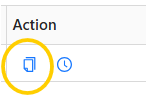
- Change any details you need, then click Save. The new task definition is created and you can see that the list of tasks is now empty.
- Click the Publish button in the middle of the screen to publish your task definition. This opens the Publish dialog, letting you enter a comment, if needed.
- Optionally add a comment, then click Publish. You can now see a list of daily tasks in NOT_STARTED status. Head over to the Sign-Off Tasks screen to start working on them.