

View limits
To view a limit structure and the limits associated with it, click its name in the Inventory table. This opens the limit’s structure details as well as the list of limit scopes/values.
Limit actions
Once you have the list of limits open, you can do the following:
Create temporary limit
A temporary limit is a limit that co-exists with an official limit for a given period of time. On evaluation, a temporary limit takes precedence over the official limit. It is used to handle extraordinary non-lasting events. For example, a trader may have an official limit of 1mm on Book A, with no expiration. The trader has an open position on Book A of 900,000, so she is not in breach of her limit. However, due to market volatility, prices have increased and her position has risen to 1.1mm, putting her in breach. She consults her risk manager, and the risk manager envisages that volatility in the market will subside in the next month, but he grants her a temporary limit on Book A of 1.15mm for 6 months. Now, the temporary limit will take precedence over the official limit for 6 months, so the trader’s position of 1.1mm is no longer in breach.- In the limits table, on the right, click the Create Temporary Limit button next to the relevant limit. A new row is added below the selected limit, with type “temporary”.
- Update the required fields: Value, Start Date, End Date, then click Save.
Temporary limits cannot be created with a Start Date prior to the Limits as-of-date. This is to prevent an invalid retrospective
resolution of a breach by a rogue actor. Furthermore, by definition of being temporary, these limits require an End Date.
Approved status. If not, it will go through the same approval steps as the original.
Edit a limit
Only limits in theInitialized or Approved state can be edited.
To edit a limit:
- In the limits table, on the right, click the Edit button next to the relevant limit. If authorized, this lets you modify some of the fields in the limit.

- Once you’ve made your changes, click Save in the top right of the screen.
Copy a limit
The Copy action allows you to easily create new limits by duplicating existing ones.- In the limits table, on the right, click the Copy button next to the relevant limit. This adds a new limit to the table with all the fields filled in.
- Edit the fields you need, then click Save.
View the limit history
Click the History button to see the audit history of the selected limit. This opens the History panel, where you can find details on who created and approved the limit and when, plus any edits, comments or attachment links that were added during the process.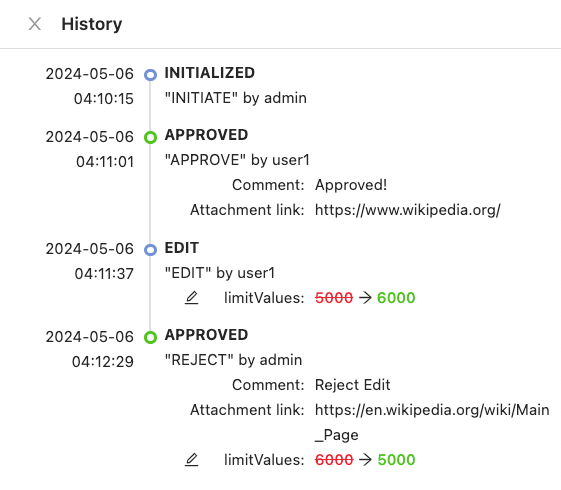
Delete a limit
There are a few limitations to deleting a limit:- The limit must be in a state other than the final state of the workflow. Usually, these are the
InitializedorApprovedstates. - For the StraightThrough limit change workflow type, the limit is immediately deleted.
- For the FourEyes limit change workflow type, deleting the limit results in a
Pending Deletionstate, and it has to be approved for it to be deleted. The active user must be authorized to approve the deletion of the limit.
- In the list of limits, tick the checkbox in front of the limit or limits to delete, then click Delete above the table.

- When prompted to confirm the deletion, click OK.
Pending Deletion state, depending on the workflow.
To delete a limit structure, click Delete at the bottom of the Limit Structure panel.