Accessing the Audit History screen
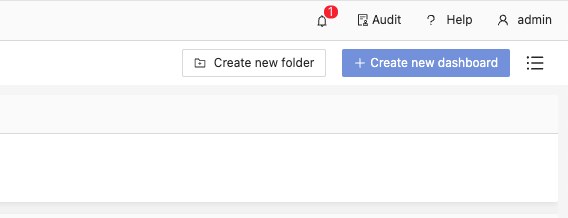
To view your audit history, navigate to the Audit History screen in Atoti UI. You can access it by clicking the Audit menu item in the top right hand corner of the application.The menu might be hidden if the user is not authorized to access the Audit feature on any of the configured servers.
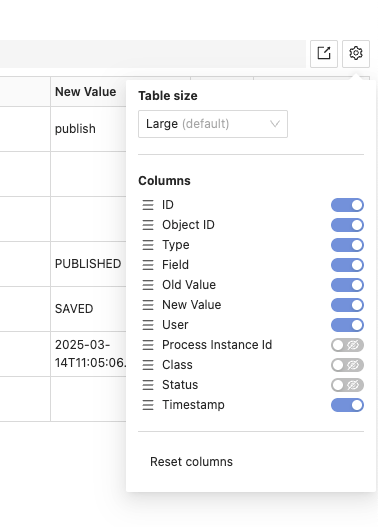
Configuring the table
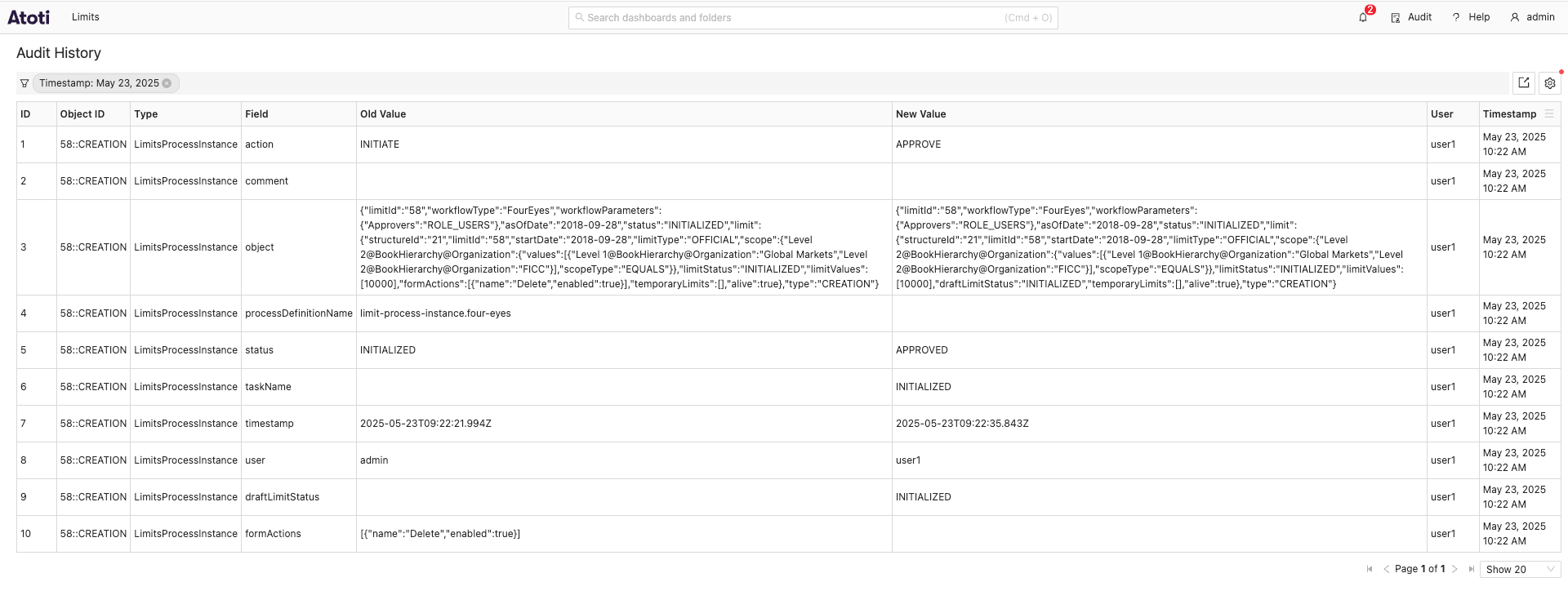
Once on the Audit History screen, you will see a table with the following columns displayed by default:| Column | Description | Example |
|---|---|---|
| ID | The numeric ID of the audit entry. | 1 |
| Object ID | The ID of the object that was changed. | sign-off-definition::2023-09-01 |
| Type | The type of the object that was changed. | SignOffProcessDefinition |
| Field | The field that was changed. | status |
| Old Value | The old value of the field. | status |
| New Value | The new value of the field. | Saved |
| User | The user who made the change. | Published |
| Timestamp | The timestamp of the change, in your local time zone. | 2025-03-14 11:05:06 |
Exporting data
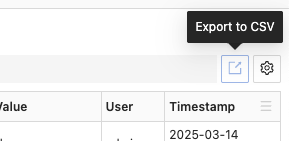
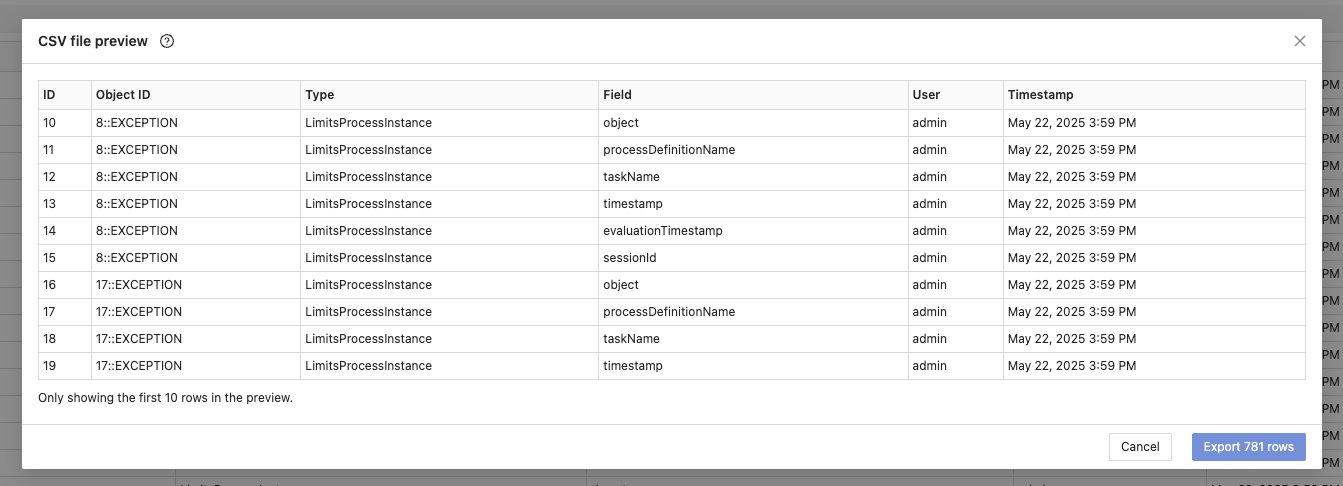
You can export the data from the audit table to a CSV file. To do so, use the export button located in the top right corner of the audit history table.