

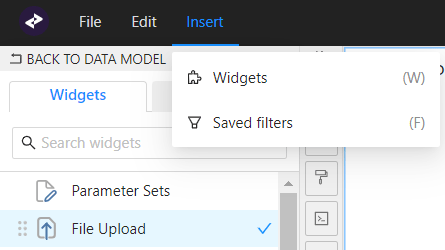
- In the top left menu, click Insert > Widgets, then drag and drop the File Upload widget into the view:
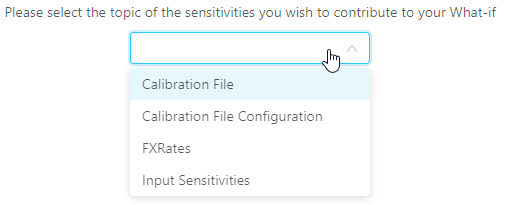
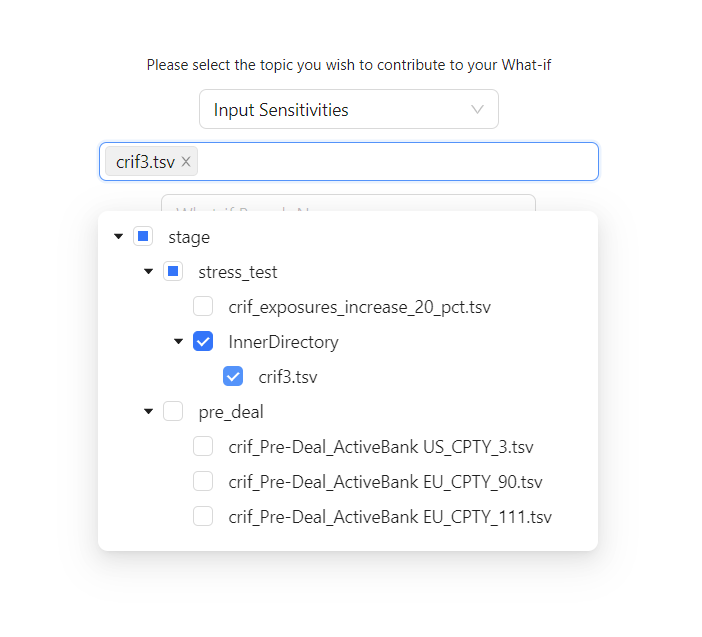
- The next step is to select a file. Below the topic selector you can expand a directory structure containing the files available for the upload associated with the selected topic.
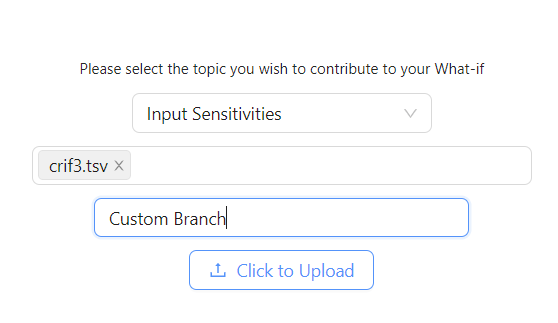
- Once files have been selected, you can give the branch a name and upload.
Calibration File Configuration usage
To define an entirely new calibration dataset, you must first upload a “Calibration File Configuration” file which defines the necessary configuration for a new calibration dataset. Once the branch is created with the “Calibration File Configuration” you can upload the “Calibration File” to the same branch. The “Calibration File Configuration” is used to populate the Calibration Support Store
To define an entirely new calibration dataset, you must first upload a “Calibration File Configuration” file which defines the necessary configuration for a new calibration dataset. Once the branch is created with the “Calibration File Configuration” you can upload the “Calibration File” to the same branch. The “Calibration File Configuration” is used to populate the Calibration Support Store
The Data Load Controller will load the experimental data. For more details on the DLC, see the Data Connectors documentation. ↩︎