

CA-Lookback
LookbackDifferentiationStepSize
This applies to the numerical Euler calculations only.
ES (Model Variation) Lookback (context value)
LookbackIMADRC-Lookback (context value)
LookbackImaNbExceptions
ImaNbExceptions
The multiplier in the formula for CA and CA-IMA can be controlled by setting the ImaNbExceptions context value to the number of exceptions.
See Table 2 in the section “Supervisory framework for the interpretation of backtesting” for the numbers of exceptions and the corresponding multipliers.
NbDaysPLMeasures
ModelEligibility
This may also be expressed as a period, to look back a number of calendar days. For example, “1M”, “3M”, “1Y” (para 183 (d) of BCBS 352).
PropagateAboveReference (experimental)
EXPERIMENTAL(!)
This context value enables the SBM Risk Charge Pro-Rata and the Portfolio Risk Charge Pro-Rata measures to return aggregated
values above the Reference Level set by the ReferenceLevel context value.
This is an experimental feature, as the aggregated values are only meaningful for certain choices of the ReferenceLevel and ProRataHierarchy context values.
When disabled (the default), the values above the Reference Level are null. When the context value is set to true, the values above the Reference Level are the sum of the values at the Reference Level.
Consider this example:
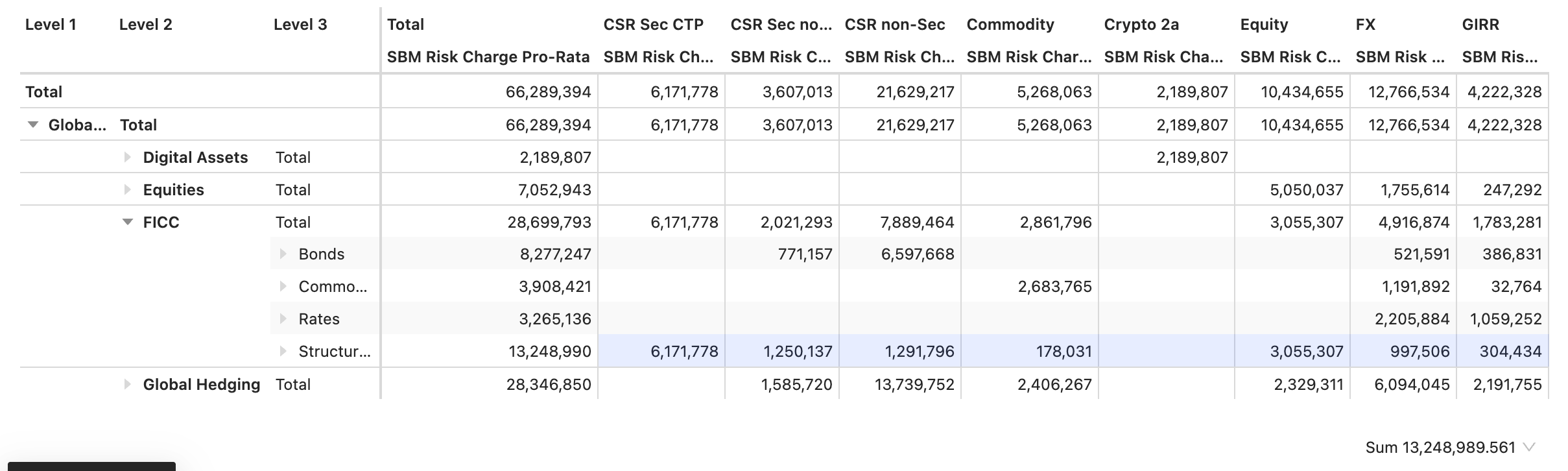
- The Risk Classes hierarchy is on the columns and selected as the ReferenceLevel context value.
- The BookHierarchy hierarchy is on the rows and selected as the ProRataHierarchy context value.
- The SBM Risk Charge Pro-Rata measure is on the columns.
- The Correlation Scenario = “high” filter is added to the widget to ensure all numbers displayed correspond to the same correlation scenario.
- The first columns displays the new aggregated values of the SBM Risk Charge Pro-Rata measure at the “Total” level, corresponding to all Risk Classes.
- All other columns, corresponding to a specific Risk Class are unaffected by the context value.
- The Total column shows the sum of all other columns at every row.
The table above can also be produced without PropagateAboveReference. Set ProRataHierarchy to
BookHierarchy;Risk Classes and enable frtb.pro-rata.multi-hierarchy-totals. Leave ReferenceLevel at Enterprise and filter Correlation Scenario on Reference.ProRataHierarchy
This context value enables “Russian Doll” calculation for a Pro-rata measure along the selected hierarchy. The ProRataLeafLevel context value must be set to “NONE”.
First, select a hierarchy from the list:
- [Booking].[Books]
- [Booking].[Desks]
- [Organization].[BookHierarchy]
- [Organization].[Legal Entities]
- [Organization].[LegalEntityHierarchy]
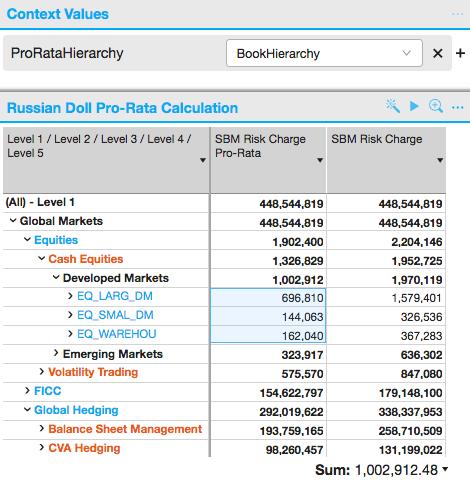
- SBM Risk Charge Pro-Rata and SBM Risk Charge measures are on columns,
- the multi-level [Organization].[BookHierarchy] is on the rows and selected in the context value.
- SBM Risk Charge and SBM Risk Charge Pro-Rata are equal at the Enterprise level.
- SBM Risk Charge Pro-Rata values at lower levels are additive. See for instance, that the total for books under “Developed Markets” is equal to the desk total (
1.002.912).
ProRataHierarchy can name several hierarchies when the frtb.pro-rata.multi-hierarchy-totals property is true. The hierarchies are separated by ;, innermost first, for example BookHierarchy;Risk Classes. The combination is offered in the ProRataHierarchy dropdown once it is added to pro-rata.hierarchies.list.
With BookHierarchy;Risk Classes, the charge is allocated to the risk classes first. Each risk class allocation is then allocated down the books. In a table with books on the rows and risk classes on the columns, every row adds up across the risk classes, and every column adds up down the books.
With the property false, the default, the Total column is an allocation of the whole charge down the books. It does not equal the sum of the risk classes.
ProRataLeafLevel
This context value enables bottom-up calculation for a Pro-rata measure. The ProRataHierarchy context value must be set to “NONE”.
The capital charge is calculated at the leaf level, then pro-rata coefficients are computed so that the scaled leaf-level charges sum to the charge at the ReferenceLevel.
Scaled Leaf-level charges are additive and can be rolled up to any level.
ReferenceLevel
Enterprise represents the top of house. All capital allocations are relative to the ReferenceLevel.
A level can be selected from the drop-down list. The labels in the list can be read as follows:
- Desk@Desks stands for the level “Desk” in the hierarchy Desks
- Level 5@BookHierarchy stands for level “Level 5” in the hierarchy BookHierarchy
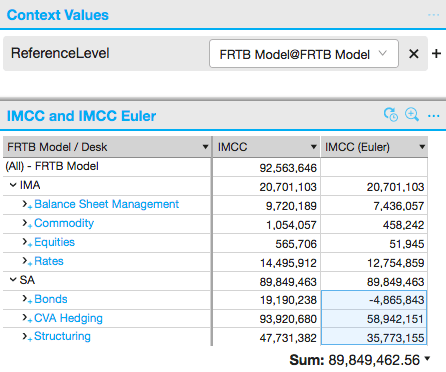
- IMCC measure computes the result for each individual cell as a standalone portfolio, for example, 20.7 mio is capital charge for a portfolio of all positions approved for IMA.
- IMCC (Euler) measures computes the result at the specified ReferenceLevel and then allocates the computed charges down to components.
- The measures IMCC and IMCC (Euler) are equal for the rows “IMA” and “SA”, which are the members of the selected ReferenceLevel “FRTB Model”.
- Below the reference level, the measures are not equal. IMCC is computed for each contributing desk as a standalone portfolio. By contrast, IMCC Euler numbers for desks sum to the capital charge at the reference level. For example, the sum of Euler charges for “Bonds”, “CVA hedging” and “Structuring” under “SA” is equal to the charge at the reference level “SA”.
ReferenceLevelVisualTotalsMode
This context value affects the interpretation of filters for capital allocation (Euler and Pro-Rata) and incremental measures.
When a capital allocation query includes filters, then the filtering is applied as follows:
- With VISUAL TOTALS, filtering is applied to the underlying data before calculating the capital allocation. The capital allocations sum to the capital charge of the filtered data.
- With NON-VISUAL TOTALS, the results are as if the filtering was applied to the result set after calculating the capital allocation. The capital allocations would sum to the capital charge of the unfiltered data, though some are filtered out of the results.
In each case the capital charge is determined at the ReferenceLevel.