How to manage the content server

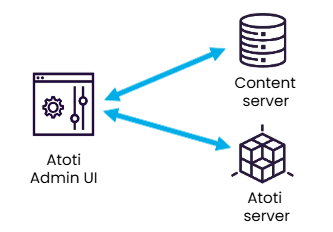
The content tab is the administration interface of the content server. The content server is a hierarchical key-value store with read/write permissions for various metadata used by Atoti components. Stores are represented as folders. Keys are represented as file names, and values as file content.

The content tab is therefore a useful resource:

  • During debugging of either Atoti Server or Atoti UI the ActiveViam support and professional services team may ask you to connect to the content tab and download some information to help them with their investigations.
  • Manage settings and permissions for the organization, specific user roles, and individual users here.
warning

Actions taken in this tab are potentially dangerous and cannot be undone. Only make changes if you fully understand their impact.

What kind of information is available in the content tab?

Atoti Server content

branches folder

Branch permissions management in the Content Server is enabled by default when using the Atoti Server starter. In this case, the Branches folder contains one file per branch, and each file's content defines the permissions for that branch.

pivot folder

This folder takes its name from the name of the content server used by Atoti to store metadata. Atoti sets a default name for the content server: Pivot. Custom names for content servers, if used, also appear in this list. This section contains the following system files:

  • Config: A legacy folder maintained only to ensure backward compatibility.
  • cm: Details about any calculated measures created from Atoti UI.
  • KPI: For users of Atoti Limits only. Details about the KPIs used for breaches and warnings.
  • Locale: For users who have set up parameters that define a user's language, region and any special variant preferences based on membership of a group.
  • Set: Details about any named sets of filters that users have saved from Atoti UI.
  • Apcs-version: A system file that ActiveViam uses to check that you are using a valid version of the content server.

Atoti Admin UI content

admin-ui folder

This folder contains Admin UI user settings.

Atoti UI content

ui folder

This folder contains some system files and some editable files:

  • Dashboards, widgets and filters: System files to indicate the content and structure. For dashboards, there are also system files for the thumbnails. Any edits to these files will probably cause failures.
  • Users, user roles, permissions and settings: These files can be edited.
How to edit settings and permissions from the content tab

Settings and permissions for the organization, specific user roles, and individual users can be edited by navigating to the corresponding file in the UI folder.

The permissions file for ROLE_USER
  1. Click to open the file. Once the file is open,
  2. Use the editable fields on the file to check and update the permissions or settings.
  3. Save the change with Ctrl + S (or Cmd + S).
How are permissions and settings different?
  • Permissions define what actions a user can perform in Atoti. They can be assigned at three levels:
    • Global
    • Role (a group of users)
    • Individual user

A user's effective permissions are the union of their individual permissions, organization permissions, and the permissions of any groups they belong to. Unlike settings, non-admin users cannot modify their own permissions.

  • Settings customize the user experience. They include options such as:
    • Light or dark theme
    • Homepage layout style (grid or list)
    • The full list of settings can be found here
Extract of user settings

How to use the content tab to debug

As a general rule, most of the files in the content tab are system files for reference only. You may on occasions be asked to download the details and forward this to our support team.

How can I debug safely?

These guidelines must be kept in mind:

  • Do not edit files unless necessary. Changes can affect system behavior and user access.
  • Always back up files before making modifications.
  • Coordinate with your team when editing shared configurations.

How to export (and import) files and folders

Export (and import) content directly from the file tree:

To export a file or folder:

  1. Right-click the item in the tree.
  2. Select Export.
  3. The file will be downloaded in your local downloads directory.

To import a file or folder:

  1. Right-click on the target folder in the tree.
  2. Select Import.
  3. Upload the file or folder from your local system.

This feature is useful for preparing information to send to our support team, backing up configurations or transferring content between environments.

How to refresh the file tree

When multiple users edit content at the same time, the file tree may become outdated. The refresh behavior differs depending on where the refresh is triggered.

  1. Refresh all files and folders Click the Refresh icon in the header of the content explorer, or right-click in the empty area below the tree ( not on a file or folder). This updates the file tree to show the latest state of all files and folders on the server.

  2. Refresh selected files or folders only Select one or more files or folders, then right-click on one of them. This updates only the selected files or folders.

In both cases, the content of all files currently open in the editor is also refreshed. If there are unsaved changes, a warning is displayed instead to avoid overwriting any changes you have made.

How to set view and edit permissions for the content server files

Manage who can view or edit each file or folder:

  1. Right-click the file or folder in the tree.
  2. Select Properties.
  3. Review or modify the access settings.

Authorization

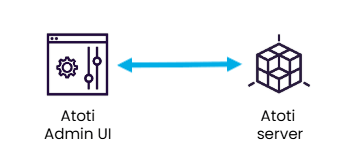
Authorization to access and edit data in the content tab is managed at the endpoint level. This tab uses the Atoti Server Content server endpoint. This endpoint is exposed by the Atoti Server starter