

This feature requires a license that enables the
bi-adapter component.Prerequisites
- Atoti application: An active Atoti application with a cube available.
- Atoti Power BI Adapter: Activated on the server.
- Power BI: Power BI Desktop.
- PostgreSQL connector: Power BI Desktop includes a built-in PostgreSQL database connector, so no driver installation is needed.
How is an Atoti cube represented in Power BI?
Once connected through the Power BI Adapter, the cube appears in Power BI’s Data pane. When Atoti exposes a cube to BI tools, it builds a flat table whose columns are the cube’s levels and measures. Not every element of the cube is exposed: the sections below describe which ones are included and which are excluded.Levels and measures exposed by Atoti
The visibility of a level or a measure in an Atoti cube is respected. For levels, this means the level’s hierarchy is marked as visible; for measures, the measure itself has a visible flag. Elements marked as hidden in the cube configuration are excluded. There are special cases:- The
AllMemberlevel is never included. - The measure hierarchy itself is never included.
Analysis hierarchies
Analysis hierarchies whose members are user-defined (i.e., hardcoded within the project rather than derived from data in a store) are exposed to BI tools as strings. Analysis hierarchies whose members are derived from a store field are exposed normally. To link an analysis hierarchy to one or more store fields, its description must be customized, as in the example below:Fields classification by Power BI
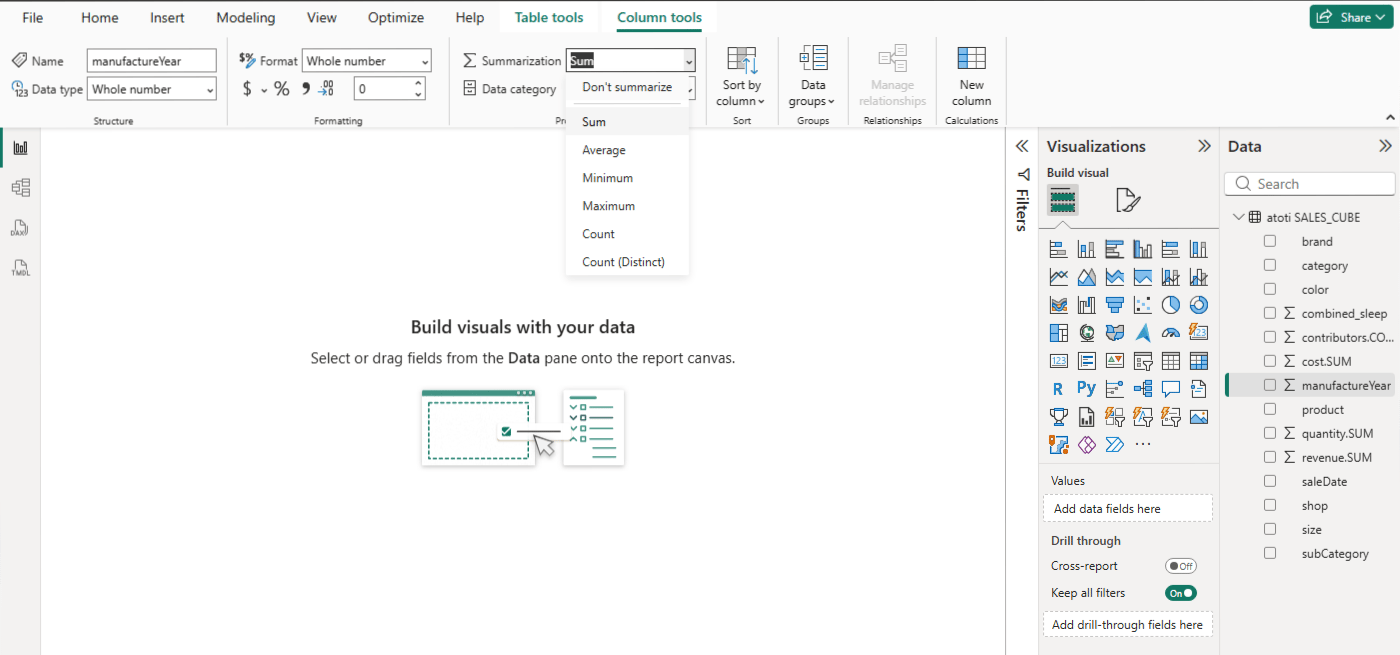
Field designates a column in a discovered SQL table. In this case, this refers to both exposed cube levels and measures. Power BI classifies discovered fields as numeric and non-numeric. A numeric field is represented by a sigma symbol next to its name in the Data pane. Power BI automatically assigns aSum aggregation to numeric fields.
This aggregation can be changed by clicking on the field in the Data pane and selecting an aggregation
among those suggested in Summarization:
How to reproduce the cube’s structure
Power BI is unaware of the cube’s structure behind the SQL table. The.pbit file generated by Atoti
declares Power BI hierarchies that mirror the cube’s multilevel hierarchies, and hides the
levels that belong to them.
The following steps adjust that structure in Power BI.
Create a hierarchy
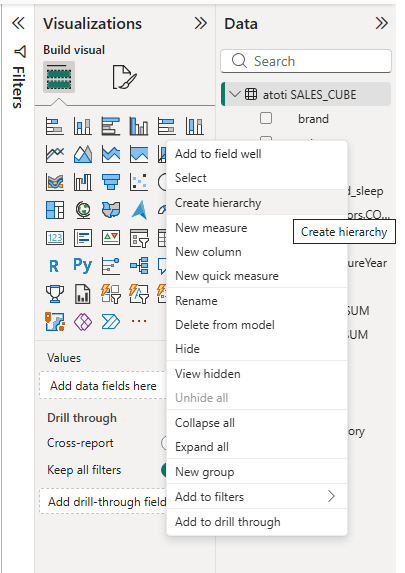
- Right-click the field (Atoti level) in the Data pane.
- Select
HierarchyandCreate Hierarchy.
Add a level to an existing hierarchy
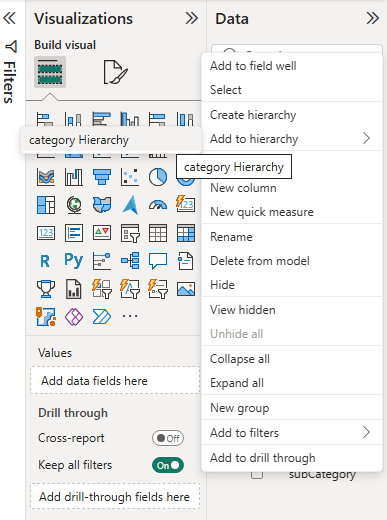
- Right-click the field (Atoti level) in the Data pane.
- Select
Add to hierarchyand the desired hierarchy.
Hide levels that have been added to hierarchies
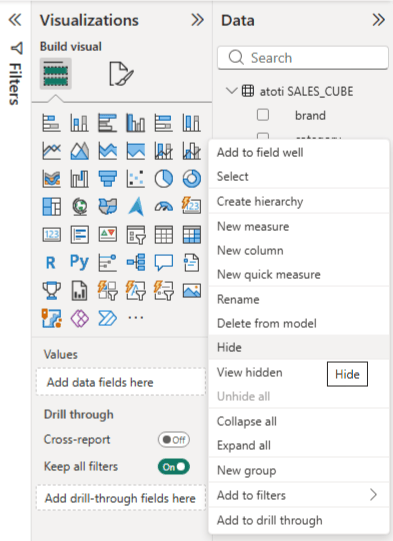
Once a level has been added to a hierarchy, it is visible in the Data pane both isolated and within the hierarchy. As the level should be visible only within its hierarchy, here are the steps to hide the isolated level:- Right-click the field that does not belong to a hierarchy in the Data pane.
- Select
Hide.
Adjust the granularity of the dashboard
Once a hierarchy has been created and populated, it can be used to drill down or up. This can be done by clicking on the+ or - icon next to the hierarchy level in a pivot table:
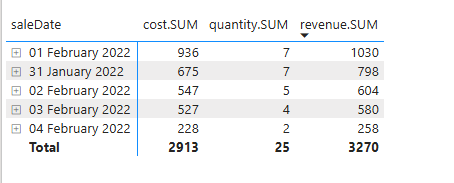
Save the structure
Once the cube’s structure has been reproduced manually, it is possible to save it for later Power BI sessions using the Power BI-specific.pbit file format.
- Click on
File. - Click on
Save as. - Save the file using the
.pbitformat.

What are the Power BI modes?
Power BI can connect in import mode or in DirectQuery mode. In import mode, Power BI queries all the granular data when the report is loaded, and stores it. In DirectQuery mode, queries are generated based on the need. Each of these modes has caveats, especially around re-aggregation. The.pbit file generated by Atoti opens in DirectQuery mode, which is the recommended mode: it lets Atoti handle the aggregations.
How DirectQuery mode works
In DirectQuery mode, Power BI sends a SQL query to the cube each time a visualization is displayed.Use of measures
Numeric measures are automatically classified as numeric fields summarized with aSum aggregation.
This aggregation must not be removed to make the generated SQL queries coherent with the Atoti returned result.
Atoti ignores this operator because the measure is already aggregated in the cube.
Power BI however may compute the aggregation on its side, leading to an undesirable re-aggregation.
OnlyFor example, when selecting anSum,Min,MaxandMediando not lead to undesirable re-aggregations.
Average aggregation, Power BI queries the Sum as well as the Count
and then computes the average on its side.
In import mode or when joining with other tables, Power BI may apply aggregation on its side.
How import mode works
Import mode retrieves data from the cube and stores it locally in Power BI. No live queries are sent after extraction, so data can be queried even if the cube is offline.Considerations
- Apply filters to limit the extraction scope.
- Hide unnecessary fields to reduce data volume.
- Aggregation operators are applied by Power BI in this mode.
- Be cautious with reaggregation:
Mtm.SUMcan be reaggregated withSumorAverage.- Non-linear measures cannot be reaggregated.
What are the supported data types?
The following types are supported without any required action:StringDoubleBooleanLongIntFloat
Data preview
Some Power BI screens allow a preview of a cube’s content. This occurs when selecting the Atoti cube after connecting to the Atoti server: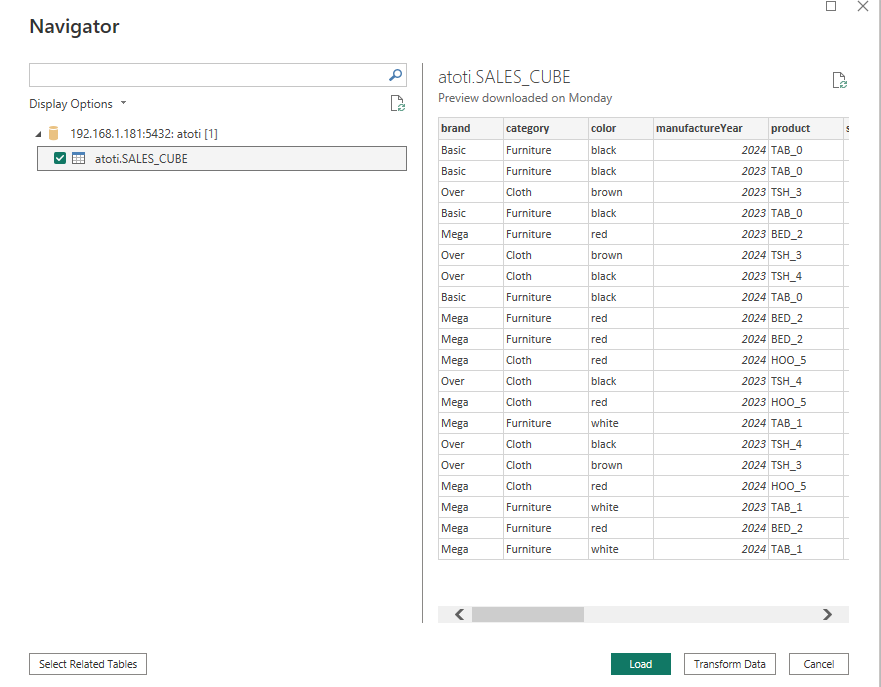
LIMIT clause and no GROUP BY clause, such as a data preview,
as a drillthrough, whatever columns it selects.
A drillthrough retrieves the stored records instead of aggregating them, so not all values are
retrieved:
- A level column has a value only if a store field has exactly the name of the level.
Otherwise, its value is
null. - Every measure column is
null, exceptcontributors.COUNT, which is1for each row. Atoti cannot reliably map a measure back to its store field: for instance, a vector store field and a measure can share a name but hold different value types, such as the sum of the vector’s coordinates.
Considerations on total aggregations
A total aggregation is present in some Power BI visuals, like a table or a matrix. This total is calculated client side by Power BI using the wrapping aggregation function chosen in Power BI (Sum by default).
If total aggregations make no sense in a specific visual, they can be manually turned off in the Format visual pane.
Slicing hierarchies
An important limitation of this total aggregation is with slicing hierarchies. It makes no sense, by definition, to compute a total aggregation over different slicing hierarchy members. The expected result would be the value corresponding to the slicing hierarchy’s default member, but this cannot be configured in Power BI. To avoid misleading totals, disable total aggregations in theFormat visual pane for visuals that include slicing hierarchies.
If the visual contains no slicing hierarchy members, its values are already calculated with the slicing hierarchies’ default members, but grand totals might still be wrong.