The roles referred to in this section should be defined in the properties of Atoti Limits, but users expected to have the roles
will need to have these roles assigned to them in both Atoti Limits and the Atoti server. We recommend that you place your security
configurations in one module, then depend on that module in both Atoti Limits and the Atoti server.
Prerequisite: define roles
Before configuring the permissions, ensure all users and roles have been defined in Atoti Limits. While it is possible, we strongly advise against configuring permissions for the predefined roles included with Atoti Limits. These roles control basic access to features of the module and will be shared by many users. Instead, define custom roles based on your business needs and assign them to users as required. Once you have defined some roles, you can configure the permissions for each role.Configure permissions
Atoti Limits uses configuration properties to define the permissions for each role. You can configure these properties in theapplication.yml file, and they are available in the application via the
LimitsRolePermissionsConfigurationProperties class. If defined, the application will use these properties to filter the
data that users can access.
Atoti Limits supports restricting access based on the following fields:
| Field | Sub property name |
|---|---|
| Group | structure-groups |
| Structure Name | structure-names |
| Structure ID | structure-ids |
| Measure | structure-measures |
| Limit ID | limit-ids |
| Scope Level | scopes.level |
| Scope Members | scopes.members |
Property structure
The configuration is stored in a nested map structure. The top-level keys are server names, which let you define separate permissions for different servers. The second-level keys are the role names, each mapping to a set of lists that define the member values available to the role. Generic example:Choose fields
Deciding which fields to use for restricting access will depend on your business requirements and data model. For example, let’s say you have all Equity-related limits under theEquity Desk group, and you want users with role ROLE_EQUITY_DESK to only
see these limits and the incidents associated with them. In this case, you could configure the role to have a value defined
for the structure-groups field.
Here’s an example of this configuration:
- Group:
MyGroup - Structure Name:
MyStructure - Measure:
MyMeasure - Structure ID:
structure_1 - Limit ID:
limit_1
limit-ids: [limit_1] is the most granular way to grant access to this limit only. If this is the
only limit in the structure, the same result can be achieved with structure-ids: [structure_1] or structure-names: [MyStructure],
but the role will have access to any limits that may be added to the structure in the future.
Another reason to always use the most granular field(s) possible is that the values can conflict if not configured correctly,
resulting in unexpected behavior. Building on the example above, in addition to the limit-ids value, say you configure the role
with structure-ids: [structure_2]. This will not result in the role having access to both limit_1 and all limits
in structure_2, but rather no access at all. Instead, you should use the more granular of the two fields, limit-ids,
and list limit_1 plus the IDs of the limits in structure_2.
Scopes
Scopes are configured slightly different from the other fields. Whereas the other fields are defined as lists of values, the scopes are defined as alevel value, a list of members, and a matchMode. The members list is optional, and if
not defined, the role will have access to scopes for all members at the specified level. If members are present for a level,
the role will have access to the scopes for the members listed that are:
EQUALS(=) orTOTAL_EQUALS(&=) AND- Simple scope (single member) OR
- Advanced scope (multiple members) and all members are included in the permission properties
NOT_EQUALS (<>) and TOTAL_NOT_EQUALS (&<>) scopes are not supported in the permission properties. If your organization has limits with exclusive scopes,
please use a field other than scope to control access to these limits.ROLE_3_BOOK_SCOPE access to three member values on the Book level:
Match mode
The optionalmatchMode property lets you specify the way scopes are matched based on the configured member values. The following modes are available:
| Mode | Description |
|---|---|
MATCH_ALL | The scopes filtered on will contain all configured member values, and only those member values. This is the default and most restrictive mode. |
MATCH_ANY | The scopes filtered on will contain any individual or combination of the configured member values, and only those member values. |
CONTAINS_ALL | The scopes filtered on will contain all configured member values, but may also contain levels and members that are not in the configuration. |
CONTAINS_ANY | The scopes filtered on will contain at least one of the configured member values, but may also contain levels and members that are not in the configuration. This is the least restrictive mode. |
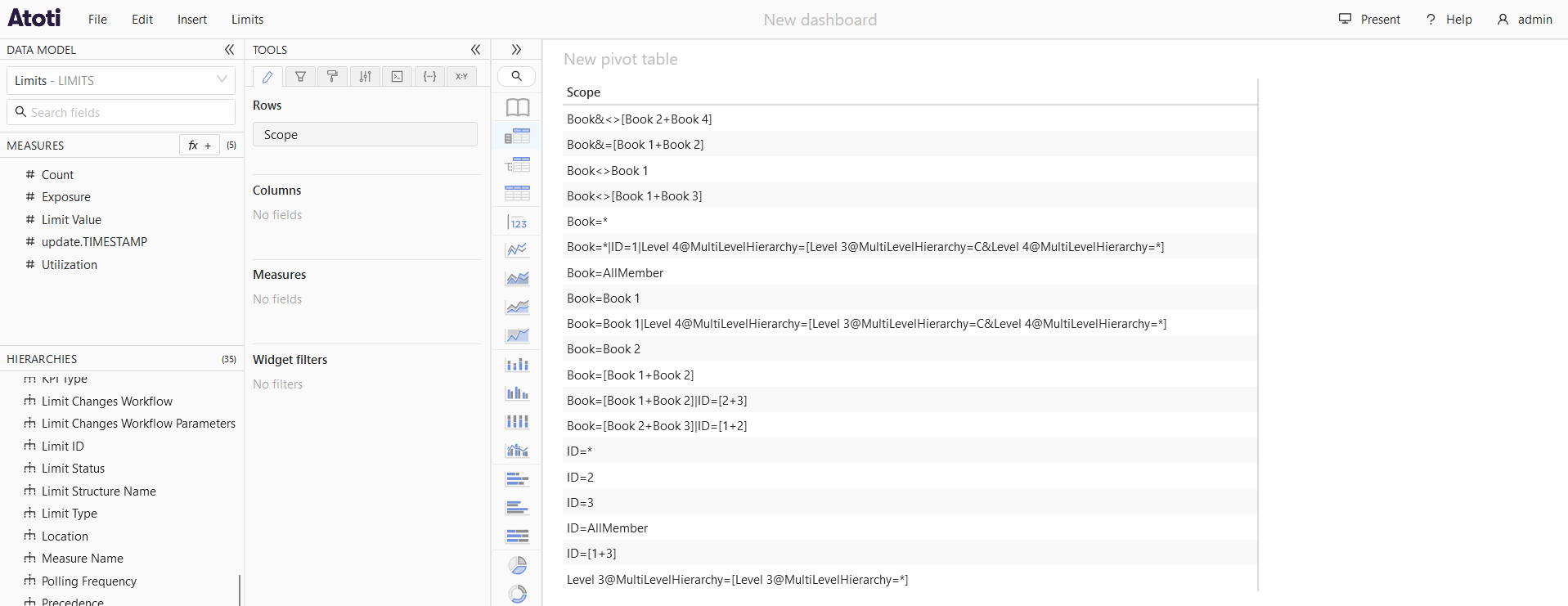
matchMode property affects the scopes that are accessible to users. First, we’ll log in to the application
as a user with no restrictions so we can see all the scopes in the cube:
matchMode: MATCH_ALL (default)
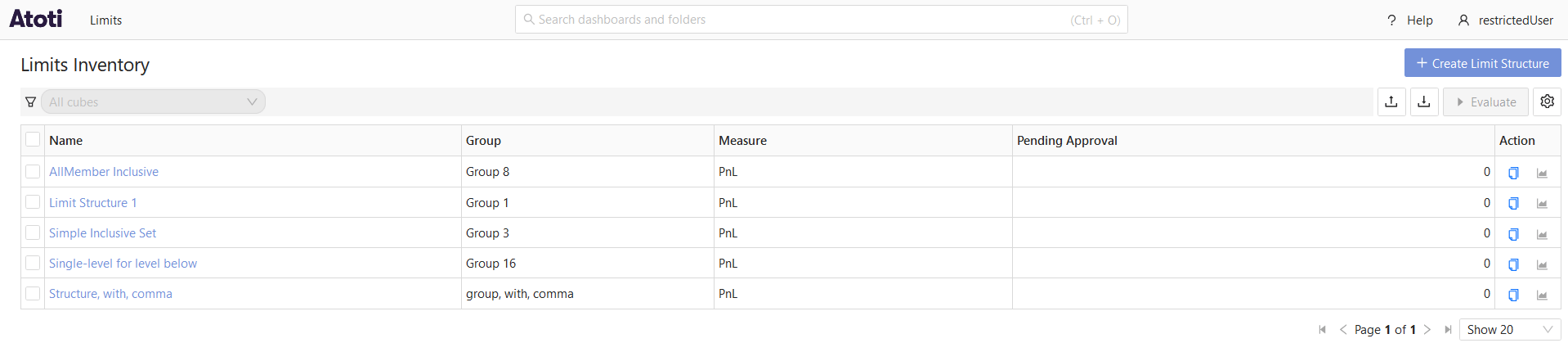
Next, we’ll configure a role with the following permissions:
restrictedUser and log in to the application to see the scopes available to this user:


matchMode: MATCH_ANY
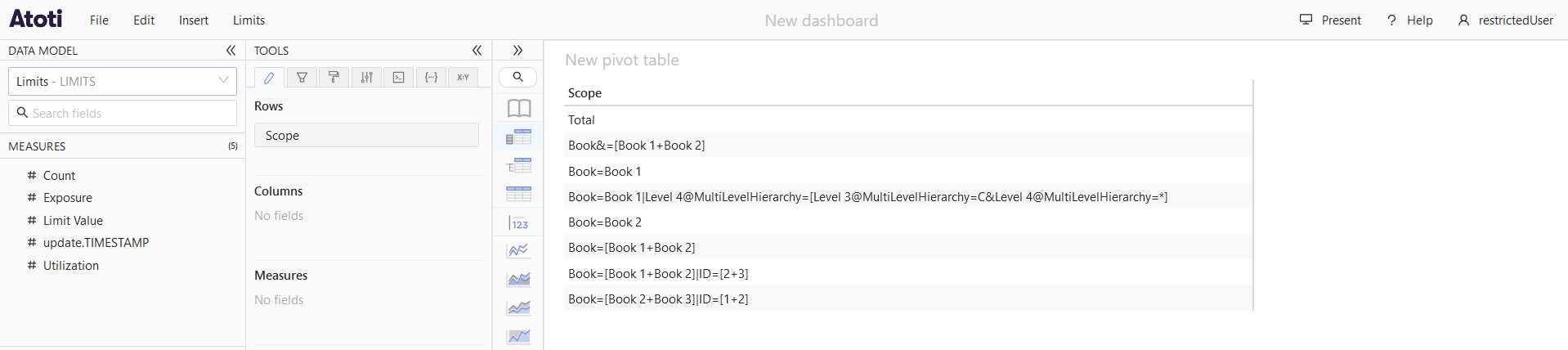
Next, we’ll update the configuration to set matchMode to MATCH_ANY:
restrictedUser and log in to the application to see the scopes available to this user:

matchMode: CONTAINS_ALL
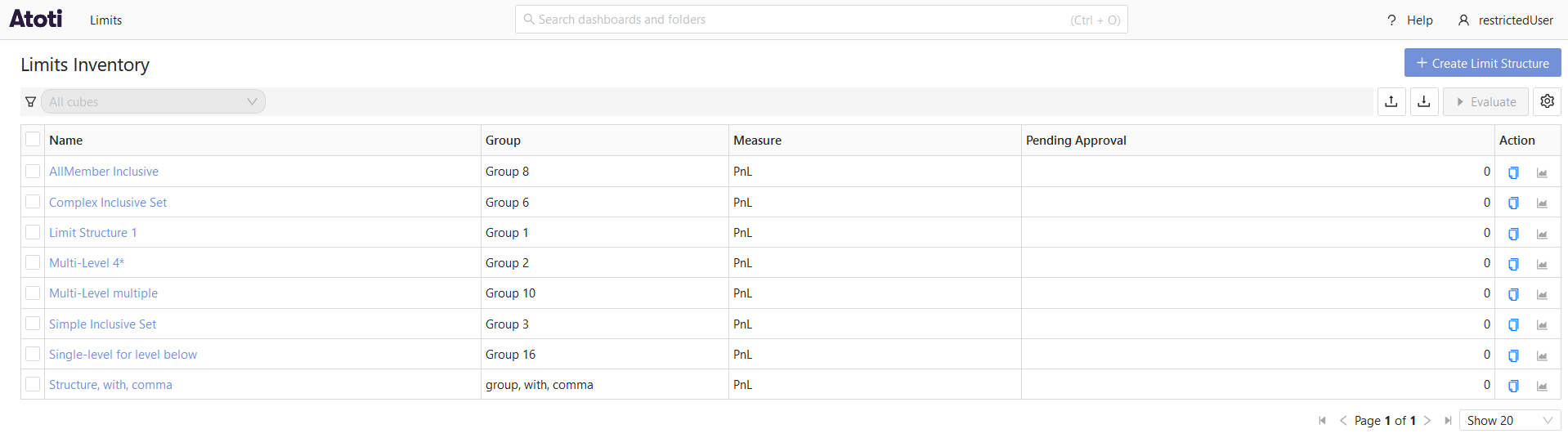
Next, we’ll update the configuration to set matchMode to CONTAINS_ALL:
restrictedUser and log in to the application to see the scopes available to this user:


matchMode: CONTAINS_ANY
Next, we’ll update the configuration to set matchMode to CONTAINS_ANY:
restrictedUser and log in to the application to see the scopes available to this user:
Multiple levels
If multiple levels are configured with member values in the permission properties, only member values configured with the samematchMode will be considered together when filtering the scopes. For example, consider the following configuration:
matchMode of MATCH_ALL. Since they share the same matchMode, the role will only
have access to scopes that match both Book 1 and ID 1 (i.e. Book=Book 1|ID=1). If you change the matchMode for the ID level to CONTAINS_ALL, the
role will then have access to scopes that either match Book 1 or contain ID 1 (i.e. Book=Book 1, ID=1, Desk=Equities|ID=1).
Apply the permissions
The permissions configured inapplication.yml are automatically applied to the Limits cube when viewed in Atoti UI,
as well as to the Inventory and Status screens. The permissions are also applied to the KPIs and related calculated members
in the business cube, ensuring that users only see data that they have permission to access.
Assign these roles to users the same way as any other role in Atoti Limits. To control access to the KPIs and calculated members
created by Atoti Limits in the business cube, configure users with the same role(s) in the business server configuration as well.
Atoti Limits creates each KPI and calculated member with a default set of owners and readers based on the
limits.autoconfiguration.content-server.limits-created-measures-owners
property. This property should be auto-configured based on the owner of the kpi folder in the content server, which you can override if needed. Any user with that role
will have access to all KPIs and calculated members, regardless of any other permissions. Unless you have a specific reason to do so, users with a data access role
should not also be given the role from limits-created-measures-owners, as this will allow them to see KPIs and calculated members for data they can’t see in Atoti Limits.Example
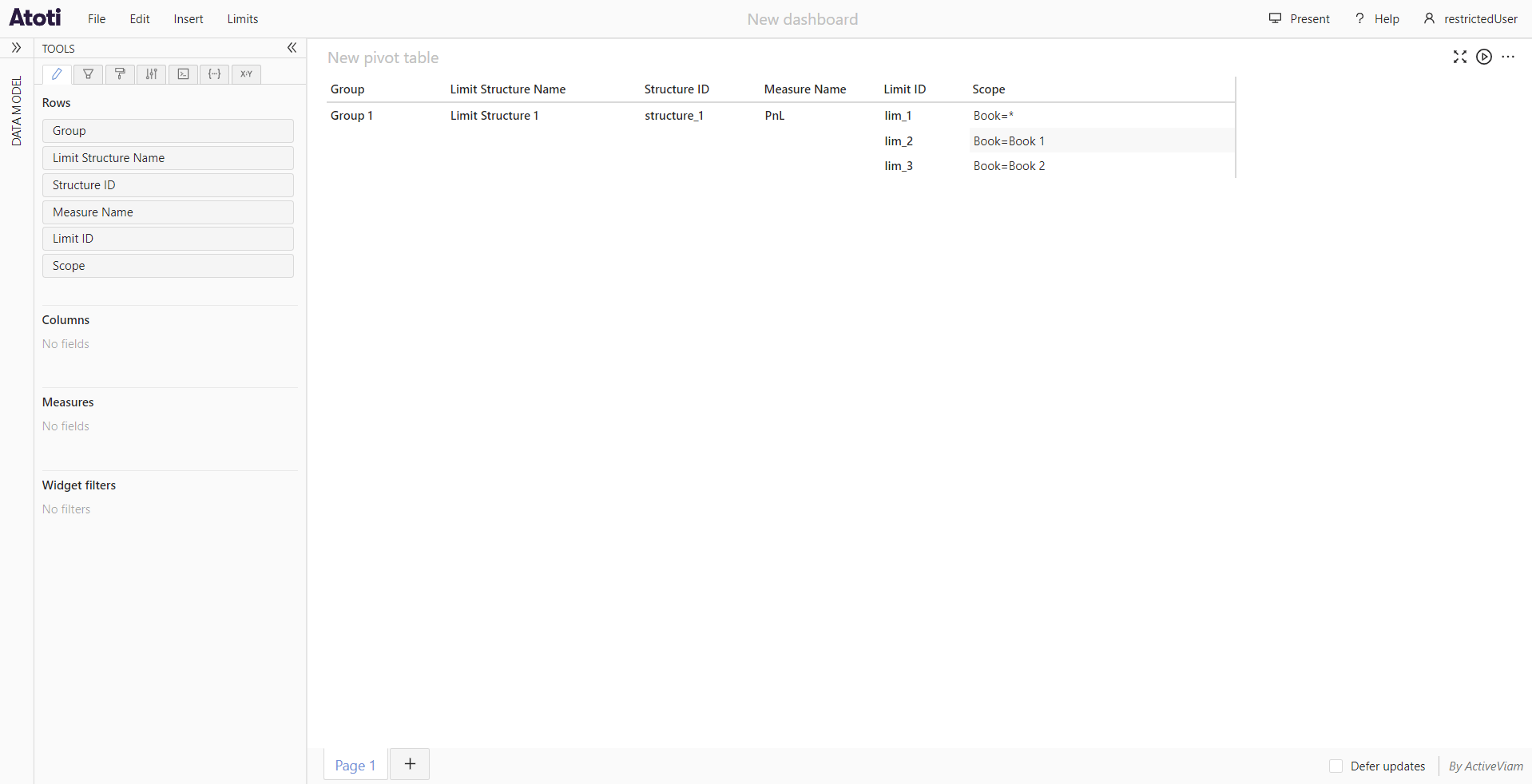
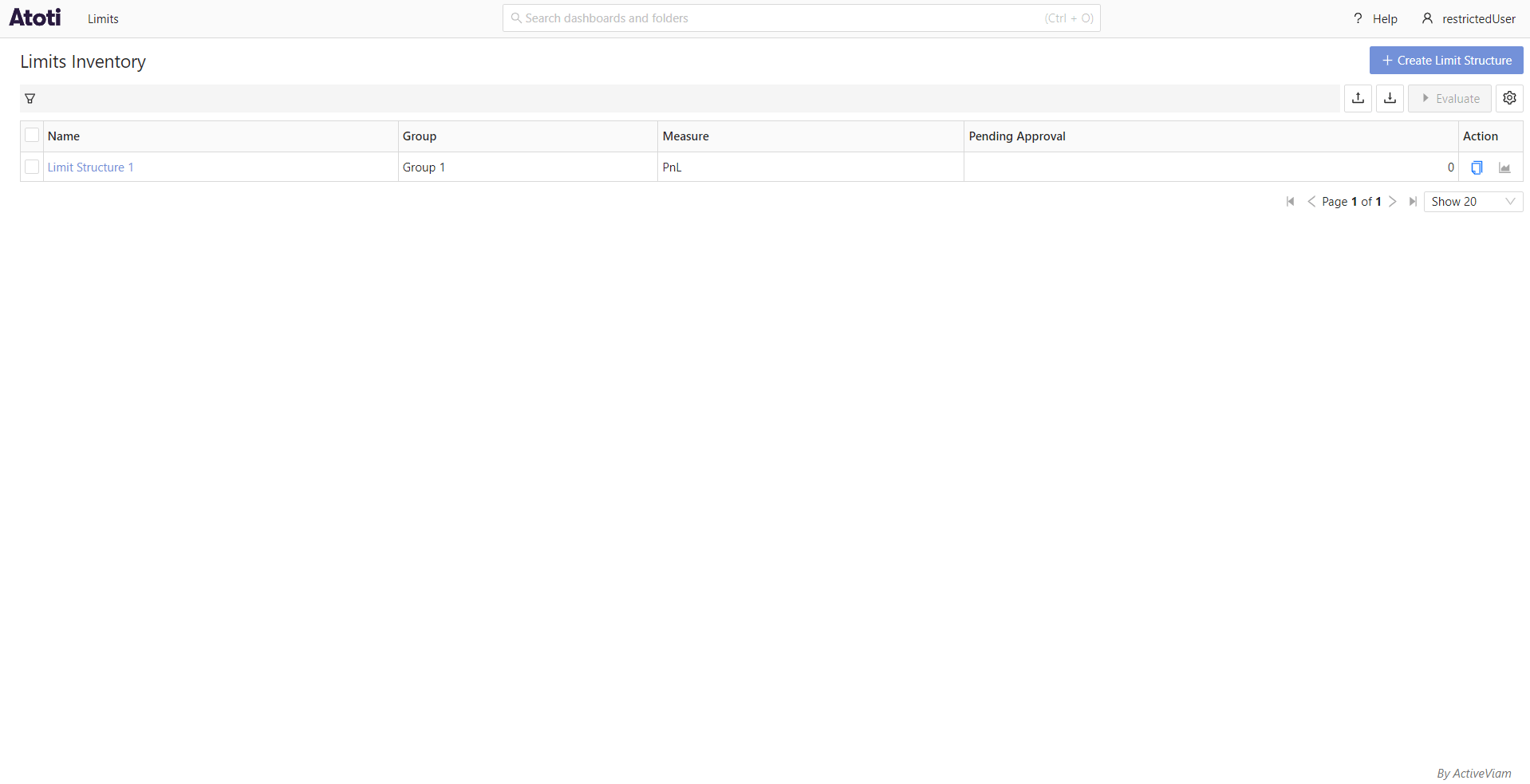
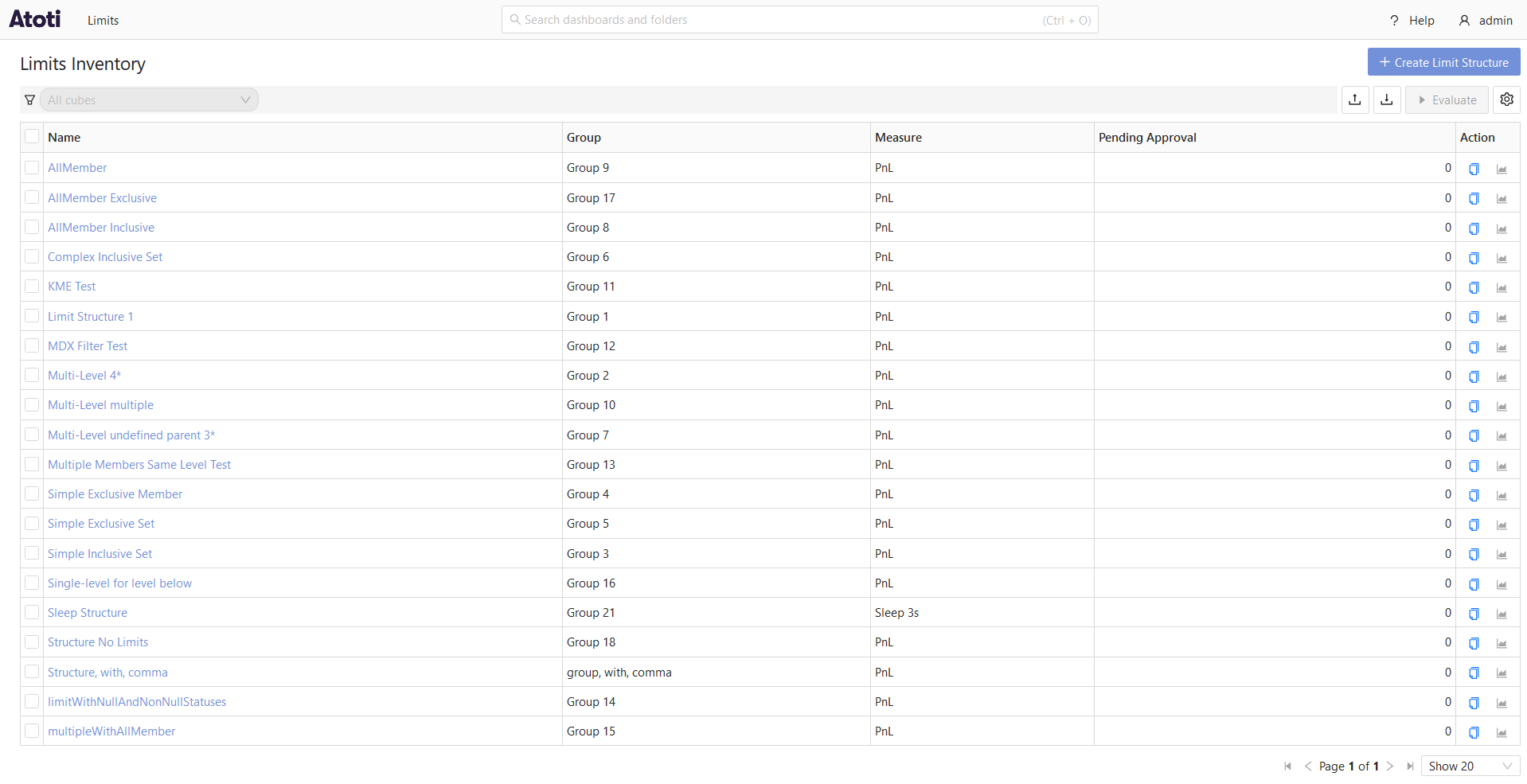
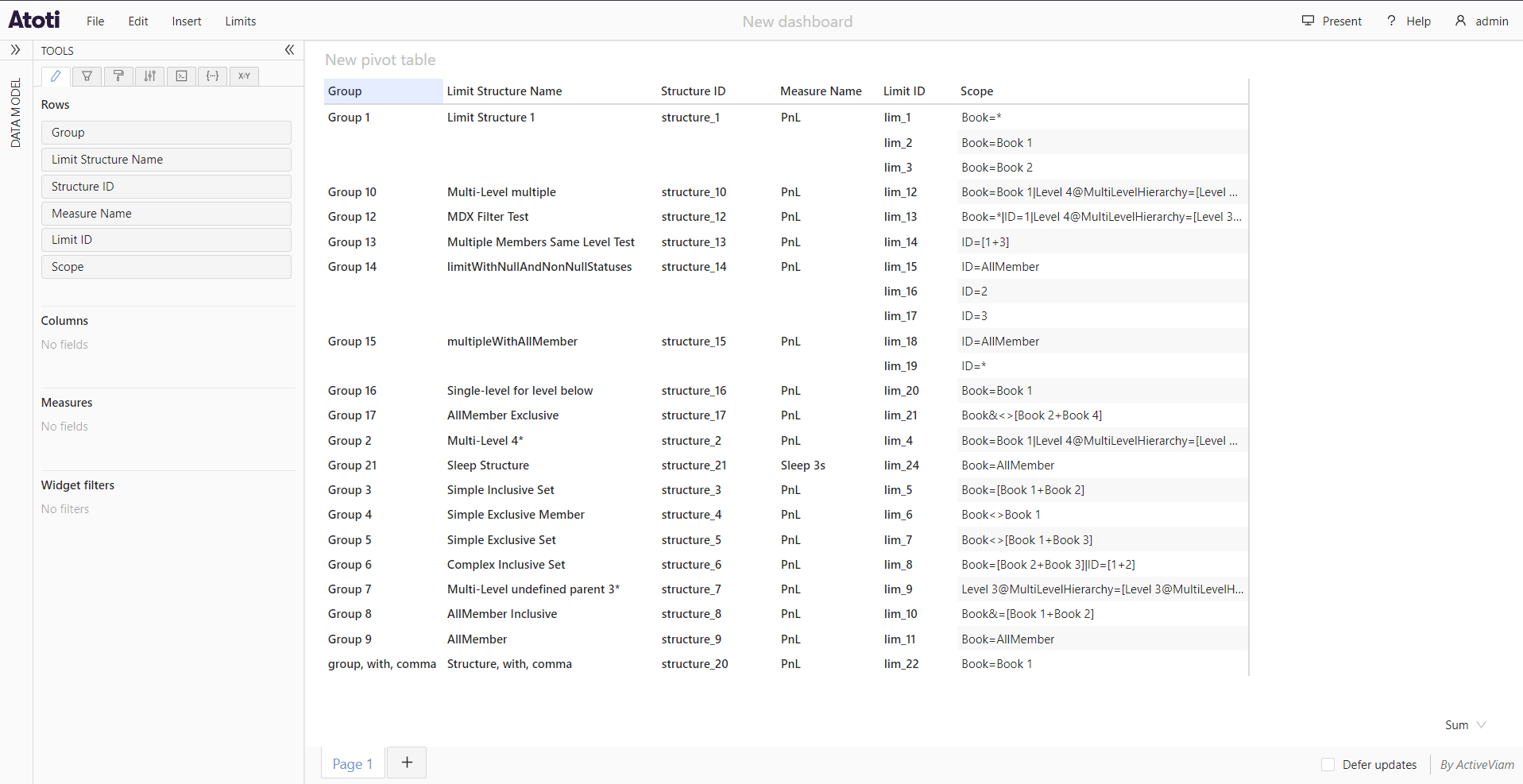
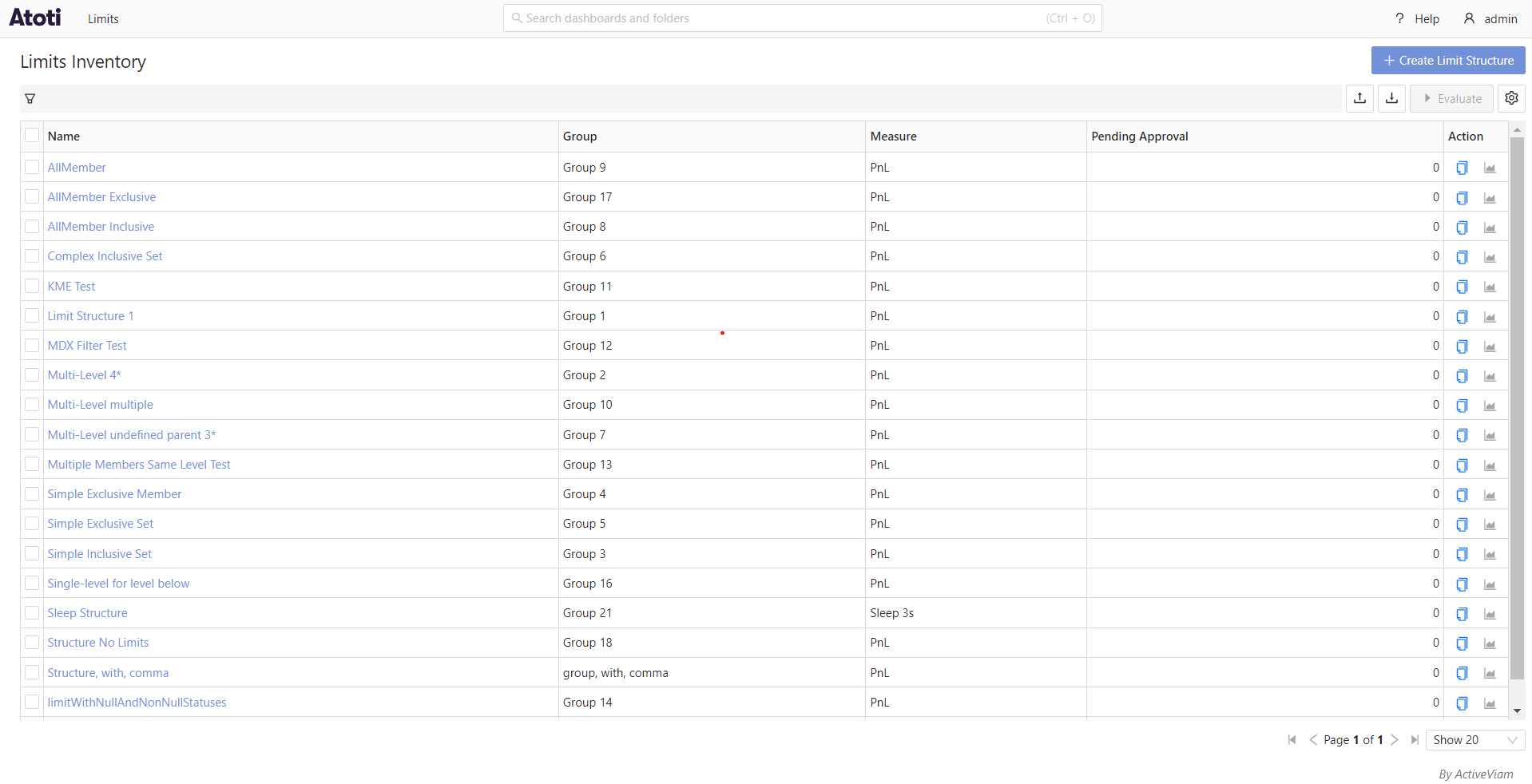
The following screenshots show the data available to 2 different users in the application:admin who does not have any
data restrictions, and restrictedUser, who has been configured to only have access to limits within the group Group 1.
Configuration:
admin:
restrictedUser: