

Overview
Once you have configured your external database and set up the connection to it, you can migrate your existing Limits data to the database. This is done in two steps:1. Start Limits in the CSV to Persistent mode
Atoti Limits can be started in theCSV_TO_PERSISTENT mode by setting the property limits.data.mode=csv_to_persistent. This will start Atoti Limits as if prior to the introduction of persistence. Please do this and wait for Atoti Limits to connect to all your Atoti Server sources.
2. Trigger the migration endpoint
Once Atoti Limits is started and all of your limits data has been loaded, you can trigger one or more of the migration endpoints we have provided. The easiest way to do this is via the Swagger UI.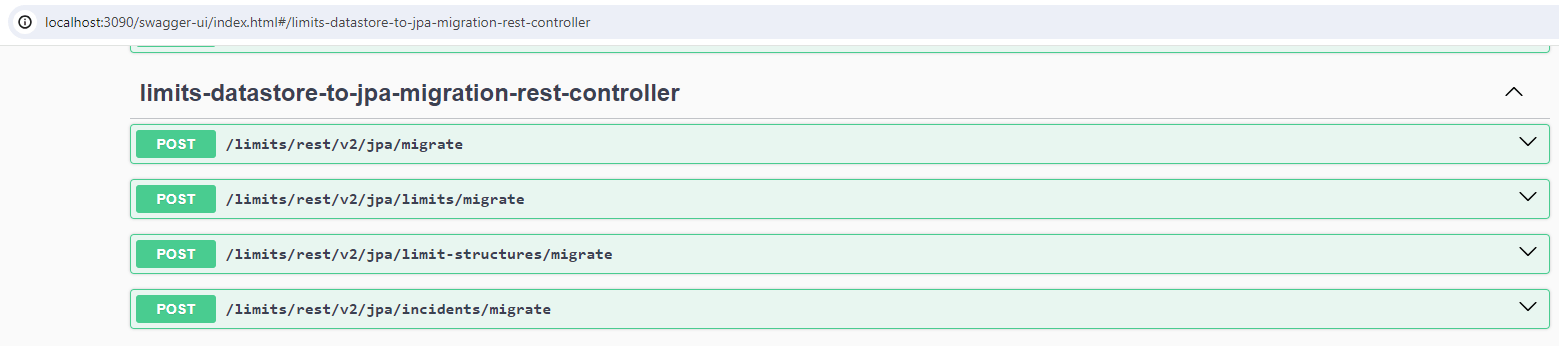
/limits/rest/v2/jpa/migrate: this will migrate all limit structures, limits, and incidents in your datastore to your connected database. This is the recommended endpoint to trigger./limits/rest/v2/jpa/limit-structures/migrate: this will migrate all limit structures to your connected database./limits/rest/v2/jpa/limits/migrate: this will migrate all limits in your datastore to your connected database./limits/rest/v2/jpa/incidents/migrate: this will migrate all incidents in your datastore to your connected database.