

Atoti Intelligence SDK
This is part of the Atoti Intelligence SDK offer.The examples below use the Streamable HTTP transport at
POST /mcp, which the starter configures by
default. The older server-sent events transport at /sse is deprecated for removal in Spring AI
2.0.0; it is served only when the deployment sets spring.ai.mcp.server.protocol=SSE, and reaching
it means pointing the client at http://localhost:9090/sse with --transport sse-only. See
MCP transport.Prerequisites
Before connecting Claude, ensure the following requirements are met:- Atoti MCP Server is set up and running
- Claude Desktop is installed
- Access to Claude Desktop configuration file
- Atoti application credentials (username and password)
How to configure Claude Desktop
Add the MCP Server configuration to the Claude Desktop config file. The location of this file depends on the operating system. The following examples assume the application runs locally on port9090. Replace 9090 with the port on which the application is running.
Option 1: Basic authentication
The following example uses HTTP Basic authentication. Replace{passkey} with a Base64-encoded string in the format Base64(<login>:<password>).
Option 2: Bearer token authentication
The following example uses a long-lived JWT bearer token. Replace<jwt> with a token generated from the MCP credentials page.
How to generate the passkey
Replace{passkey} in the Basic authentication configuration with a Base64-encoded string.
Generate the passkey using the following format:
<login> and <password> with the Atoti application credentials.
How to verify the connection
After configuring Claude Desktop, verify that the connection works:- Restart Claude Desktop
- Check that Claude discovers the MCP Server tools
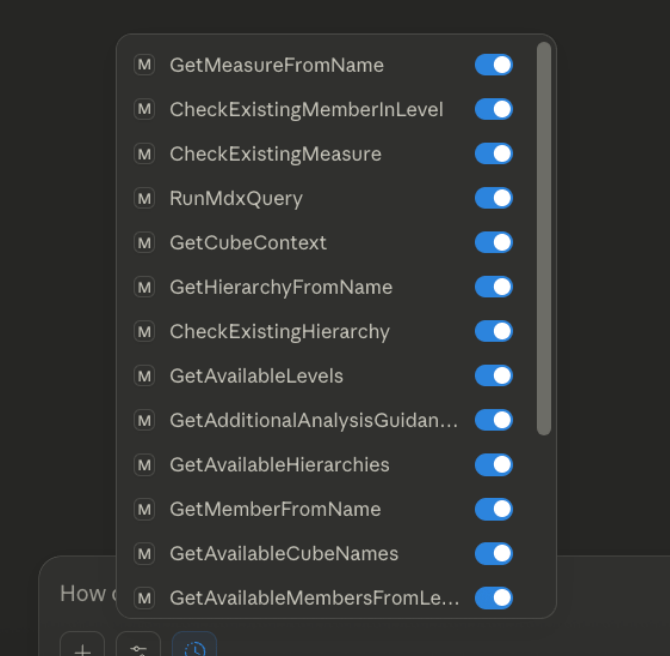
- Test interaction with the Atoti Server by asking Claude to use the available tools
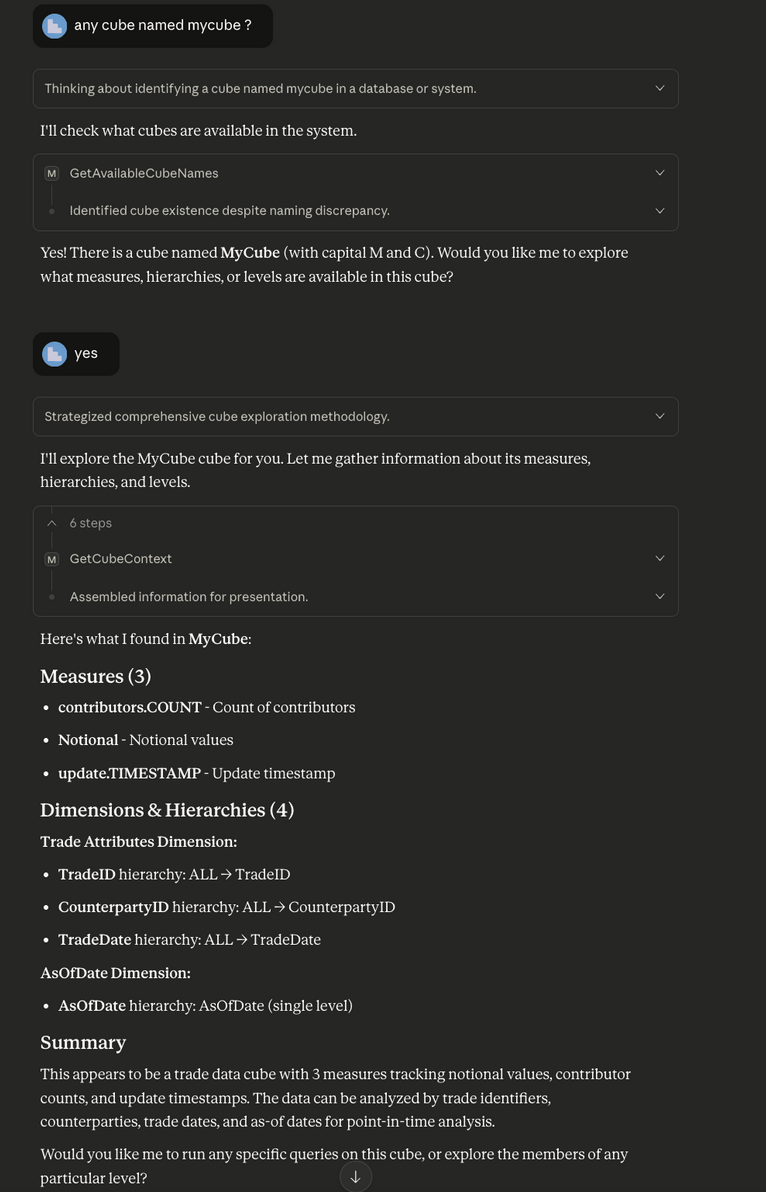
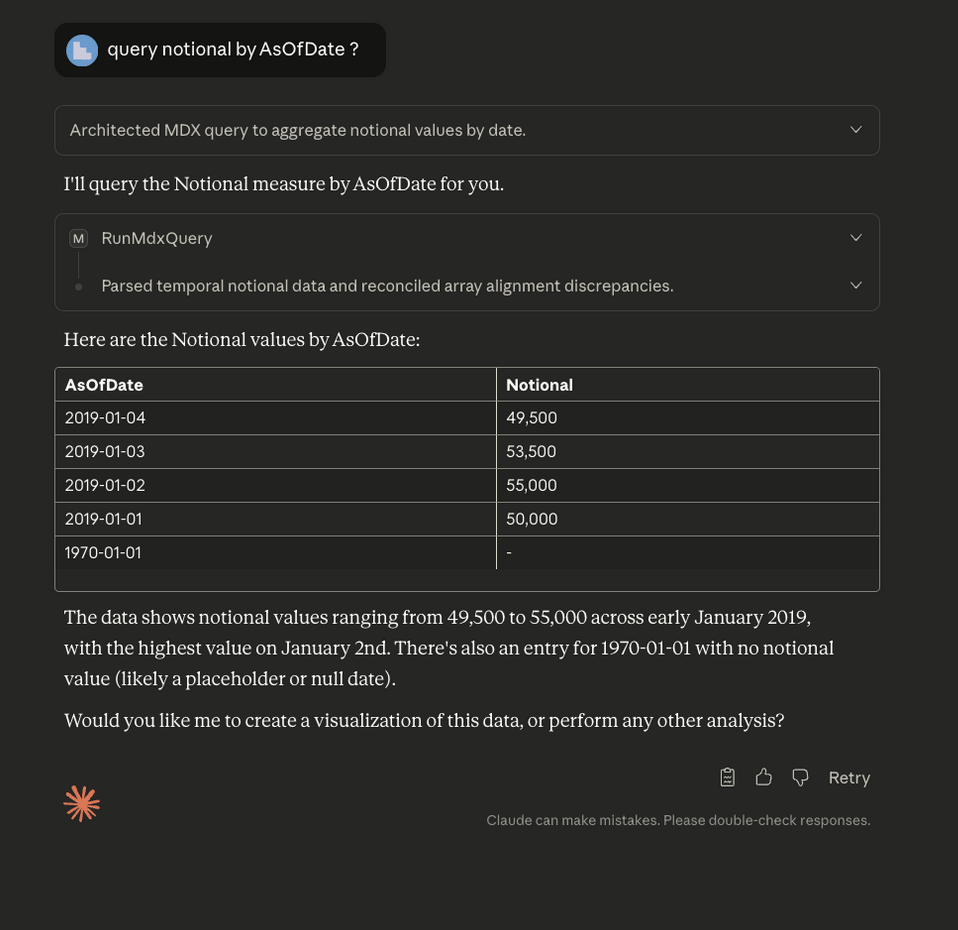
Troubleshooting
If Claude does not discover the tools, check the following:- The Atoti application is running and accessible
- The MCP Server endpoint is available at the configured URL
- The passkey is correctly formatted and encoded
- The Claude Desktop configuration file is valid JSON
Related reading
After connecting Claude, explore additional capabilities:- How the Atoti MCP Server works for the endpoint, the license tier, and how a client authenticates
- Add custom tools to extend MCP Server functionality