Documentation Index

Fetch the complete documentation index at: https://docs.activeviam.com/llms.txt

Use this file to discover all available pages before exploring further.

Overview

Plugin keyBAS Setting key
accelerator_file-uploadbas-plugin-widget-file-upload
The File Upload Widget is another tool that we provide for solutions to create What-If scenarios. This feature allows you to select files that are already located in a specific directory on the server side, and use them to create the What-If branch. Example use cases for this widget:
  • Creating What-If branches with new sensitivities.
  • Creating What-If branches with different parameters.
  • Changing datastore configurations.
  • Uploading ‘scenarios’ as What-Ifs. Files part of a specific scenario can be organized in a single grouping and sent to the UI to be selected that way.
  • Group topics and their related files to be selected as part of What-Ifs.
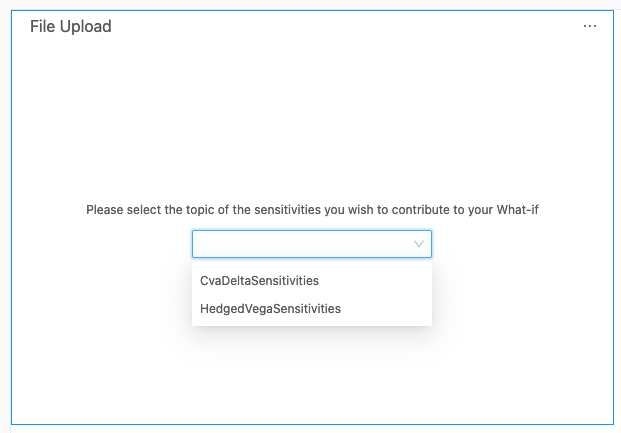
The user will be able to select the topic of the files that they wish to upload.
File Upload - 1
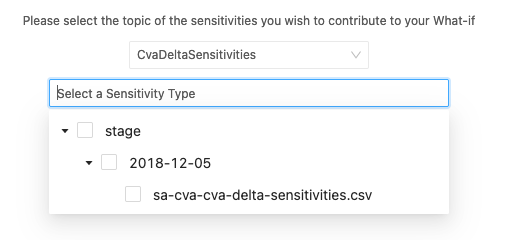
They will then will be presented with a tree of files corresponding to that topic.
File Upload - 2
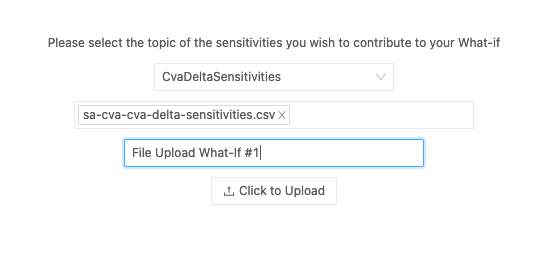
The user can give a name to the new What-If branch, and create the What-If.
File Upload - 3

Availability

SolutionEnabled
FRTB
Market risk
SIMM
CVARC
Limits
Sign-off

Settings

KeyTypeDescriptionExample
groupSelectorEnabledbooleanWhether to display the file group selection dropdown
getFilePathsRestEndpoint`stringundefined`Optional override of the service URL from versions/rest that returns the list of files for this server/services/rest/whatif/fileUpload/retrieveStagedFile
sendFilePathsRestEndpoint`stringundefined`Optional override of the service URL from versions/rest that states where to send the upload request/services/rest/whatif/stressedSensitivity/upload/
successMessagestringMessage to display when the upload is successful
initialPromptstringMessage to display at the beginning of the form
fileSelectorPlaceholderstringPlaceholder message to display when no file is selected
uploadNamePlaceholderstringPlaceholder message to display when no branch name has been typed
stagingDirectoryNamestringThe name of the folder on the server that contains the files ready to be uploadedstage
selectableDirectoriesbooleanWhether directories can be selected for upload

How to modify a setting

To modify a setting, you need to modify the basSettings that you provide to the activate function. The following example shows you how to provide the activate function with the default basSettings while updating the settings for the File Upload widget:
import { activate, basSettings } from "@activeviam/frtb-sdk";

const frtbServerKey = "FRTB";
const customSettings = structuredClone(basSettings);

customSettings[frtbServerKey][
  "bas-plugin-widget-file-upload"
].successMessage "Custom Success Message for a successful upload operation!";

activate({
  configuration,
  basSettings: customSettings,
});

How to disable it

Disable universally

To disable this feature for all solutions, add this line at the end of your extension’s activate function to unregister the plugin:
const extension: ExtensionModule = {
  activate: async (configuration: Configuration) => {
    ...
+    delete configuration.pluginRegistry["widget"]["accelerator_file-upload"];
  }
}

Disable for specific servers

To disable this feature for a given server, you must delete this feature’s settings for that server key by altering the basSettings parameter before calling the activate function. Example Disabling this feature for the FRTB server only:
+ import {produce} from "immer";
- import {activate as activateFrtb} from "@activeviam/frtb-sdk";
+ import {activate as activateFrtb, basSettings as frtbBASSettings} from "@activeviam/frtb-sdk";
 import {activate as activeMarketRisk} from "@activeviam/mr-sdk";

 const extension: ExtensionModule = {
  activate: async (configuration: Configuration) => {
    ...
+    const frtbBASSettingsWithFeatureDisabled = produce(frtbBASSettings, draft => {
+      delete draft["FRTB"]["bas-plugin-widget-file-upload"];
+    });

-   activateFrtb({configuration});
+   activateFrtb({configuration, basSetttings: frtbBASSettingsWithFeatureDisabled})
    activeMarketRisk({configuration});
  }
}