

- Inspect the actual data loaded into the cube
- Identify inconsistencies that may affect analytical results.
- Branch
- Table
- Table columns
How to select a branch
Use the branch selector located at the top left of the screen to choose the relevant data version. Each branch represents a specific version of the data. For more information about branches, refer to the Atoti data versioning documentation.How to select a table
The list of tables is displayed on the left of the screen.- Search for tables using the search box at the top of the list.
- Click any table to view the data it contains in the selected branch.
How to customize the table view
Use the following features to modify the data displayed:- Show or hide columns: Toggle column visibility using the column selector.
- Resize columns: Drag column edges to adjust their width.
- Paginate results:
- Configure the number of rows displayed per page.
- Navigate between pages using the pagination controls.
- Filter values: Click the filter icon in the column header to open the options:
- Use the filter icon in the column header to filter rows.
- Use the enter text option to search for a specific row by its exact name.
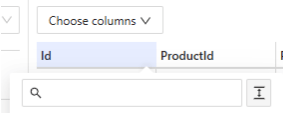
Filter options for tables
User settings
Database screen user settings (filtered columns, columns width, page size) are stored in theadmin-ui content server folder.