

- Limit change: a new limit is created or amended through the UI.
- An exception (breach or warning) occurs after the limit evaluation.
limit-process-four-eyes.bpmn
This workflow requires one approval. By default, one user creates the limit, and another approves it. The user who created, edited or requested the deletion of a limit cannot approve or reject that request, even after another approver rejected it. Any other approver can, including the approver who rejected it. Alternatively, if thelimits.workflow.workflow-rules.can-approver-be-same-as-creator property in application.yml is enabled, the creator of the limit can also approve it.
See Section:limit workflow in the application.yml configuration file on configuring the workflow. The workflow names must match the process ID in the bpmn:application.yml:limit-process-four-eyes.bpmn:
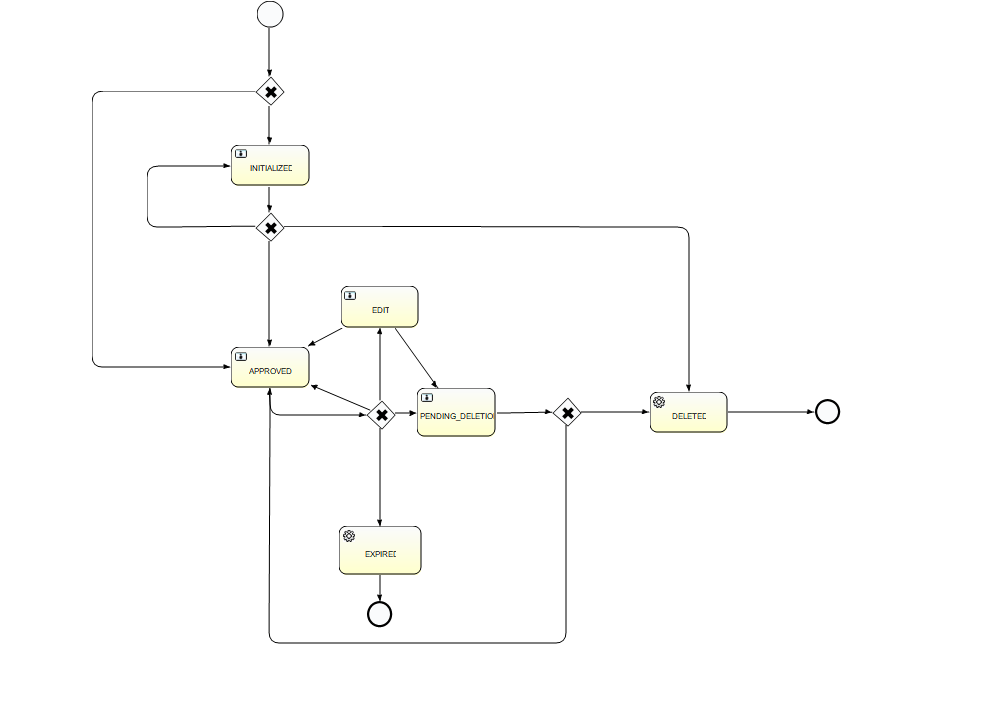
| Start state | Action | End state |
|---|---|---|
| - | Create | Initialized |
| Initialized | Approve | Approved |
| Initialized | Reject | Initialized |
| Approved | Edit | Edit |
| Approved | Delete | Pending Deletion |
| Approved | Expire | Expired |
| Edit | Approve | Approved |
| Edit | Delete | Pending Deletion |
| Edit | Expire | Expired |
| Edit | Reject | Approved |
| Edit | Edit | Edit |
| Pending Deletion | Approve | Deleted |
| Pending Deletion | Reject | Approved |
| Deleted | System | End |
| Expired | System | End |
limit-process-straight-through.bpmn
This workflow doesn’t require an approval. The limit is created in approved state.See Section:limit in the application.yml configuration file on configuring the workflow. The workflow names must match the process ID in the bpmn:application.yml:limit-process-straight-through.bpmn:
limit-process-exception.bpmn
This workflow handles breaches and warnings.See Section: Limit Workflow in the application.yml configuration file on configuring the workflow. The workflow names must match the process ID in the bpmn:application.yml:limit-process-exception.bpmn:
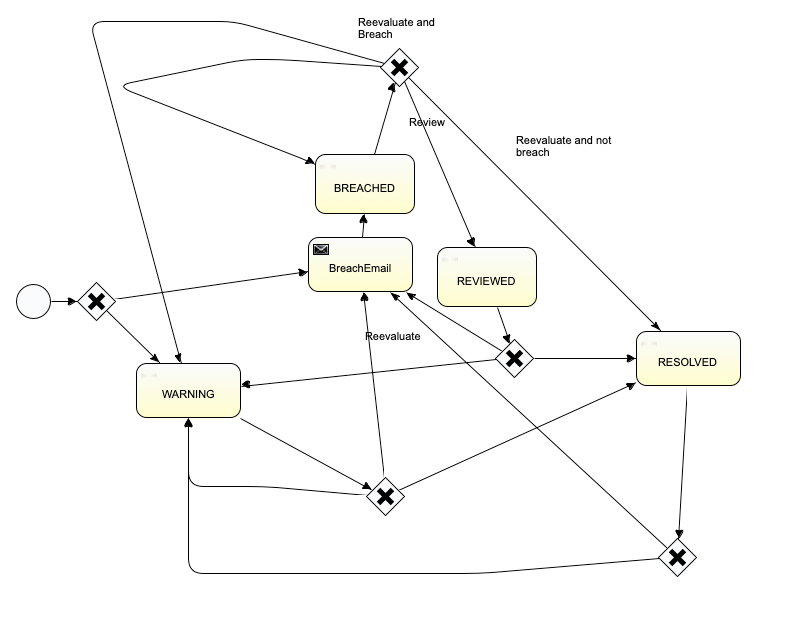
| Start state | Action | End state |
|---|---|---|
| None | System Eval | Warning Breached Email |
| Breached Email | System Eval | Breached |
| Breached | User Review | Reviewed |
| Breached | System Eval | Breached Resolved Warning |
| Reviewed | System Eval | Breached Email Warning Resolved |
| Resolved | System Eval | Warning Breached Email Resolved |
| Warning | System Eval | Breached Email Warning Resolved |
incident-review-process.bpmn
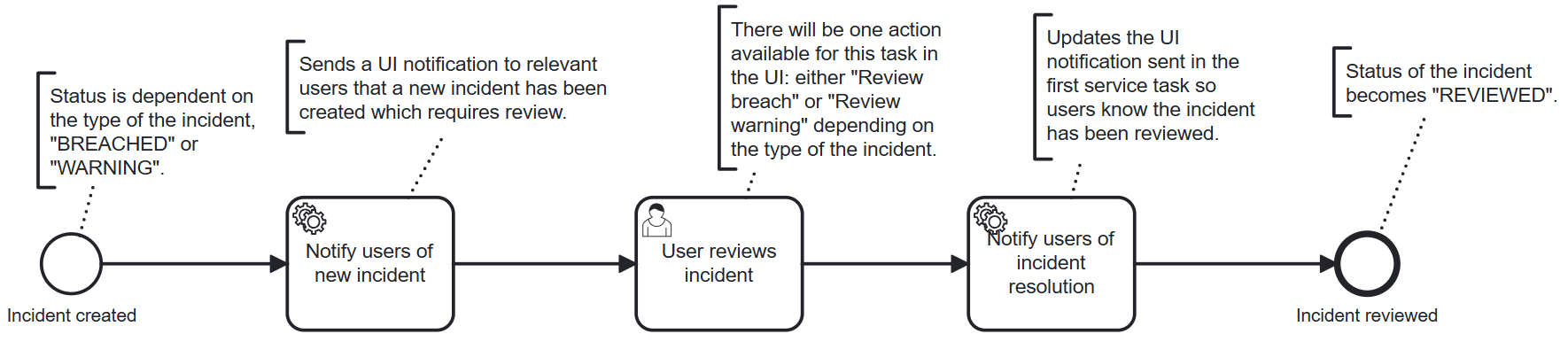
This workflow handles breaches and warnings.See Section: Limit Workflow in the application.yml configuration file on configuring the workflow. The workflow
names must match the process ID in the bpmn:application.yml:limit-process-exception.bpmn:
activeviam.apps.workflow-service.workflows.actions.* properties for the workflow with
process-id: incident-review-process. The default configuration is:
Default actions for incident-review-process.bpmn
Default actions for incident-review-process.bpmn
org.activiti.api.process.runtime.connector.Connector and name matching the implementation property of the
service task in the BPMN file. The default service task beans are defined in IncidentReviewConfig.java:
Default service tasks for incident-review-process.bpmn
Default service tasks for incident-review-process.bpmn
Configure breach email notifications
When a limit is breached, Atoti Limits notifies the specified users by email. Here’s how to configure the email: In the limit-process-exception.bpmn, you can find the following BreachEmail section and configure the “to”, “from”, and “subject” fields, and the email body.By default this implementation will not send emails. See Extending the Mail provider section below.
Breach emails use out-of-the-box functionality from Activiti, which causes a performance decrease in the workflow. To avoid this, disable the breach email by removing the “BreachEmail” element from the bpmn file.
Make sure that the paths to the “Breach Email” go to the “BREACHED” node after the change.
Extend the mail provider
If you’d like to use the default Activiti mail provider, replace theactiviti:class="package.to.CustomClass" in the <serviceTask> description
with activiti:type="mail"
Note in the service task description the element activiti:class="com.activeviam.limits.workflow.service.instance.activity.impl.TestMailActivityBehavior". This is a way of providing a custom Java delegator to override the default MailActivityBehavior.
This is an Activiti feature that can be used to provide extra functionality to your project. For example, to avoid sending emails in a test environment, you can do the following:
Upload a limit already in a workflow state
When uploading limits in bulk, some limits may already be present in the module and in progress in one of the workflows. Here’s how the state of the affected limit changes when this happens:FourEyes Workflow:
- “Pending Approval” becomes “Approved”.
- “Pending Deletion” becomes “Deleted”.