Apply filters in bulk
Filters can be saved within folders. Instead of applying filters one by one, you can add a whole folder to your dashboard, page, or widget to apply all its filters at once. This simplifies complex filtering setups and saves time by avoiding manual filter management.
Prerequisites: Before using filter folders, you need to have saved filters organized in folders in the Saved filters menu.
How to add a filter folder
To add a folder from the Saved filters menu:
- Open the Saved filters menu by clicking the Insert menu in the top navigation bar, then choose Saved filters. Alternatively, use the keyboard shortcut F.
- Drag a folder from the Saved filters menu. Drop it in the filters section of the Fields tool or the chosen section of the Filters tool (Dashboard filters, Page filters, or Widget filters).
- The folder will appear as a single tile in the section in which it was dropped. All filters within that folder will be applied to your dashboard, page, or widget.
The example below shows how to drag and drop a filter folder into the Widget filters section:
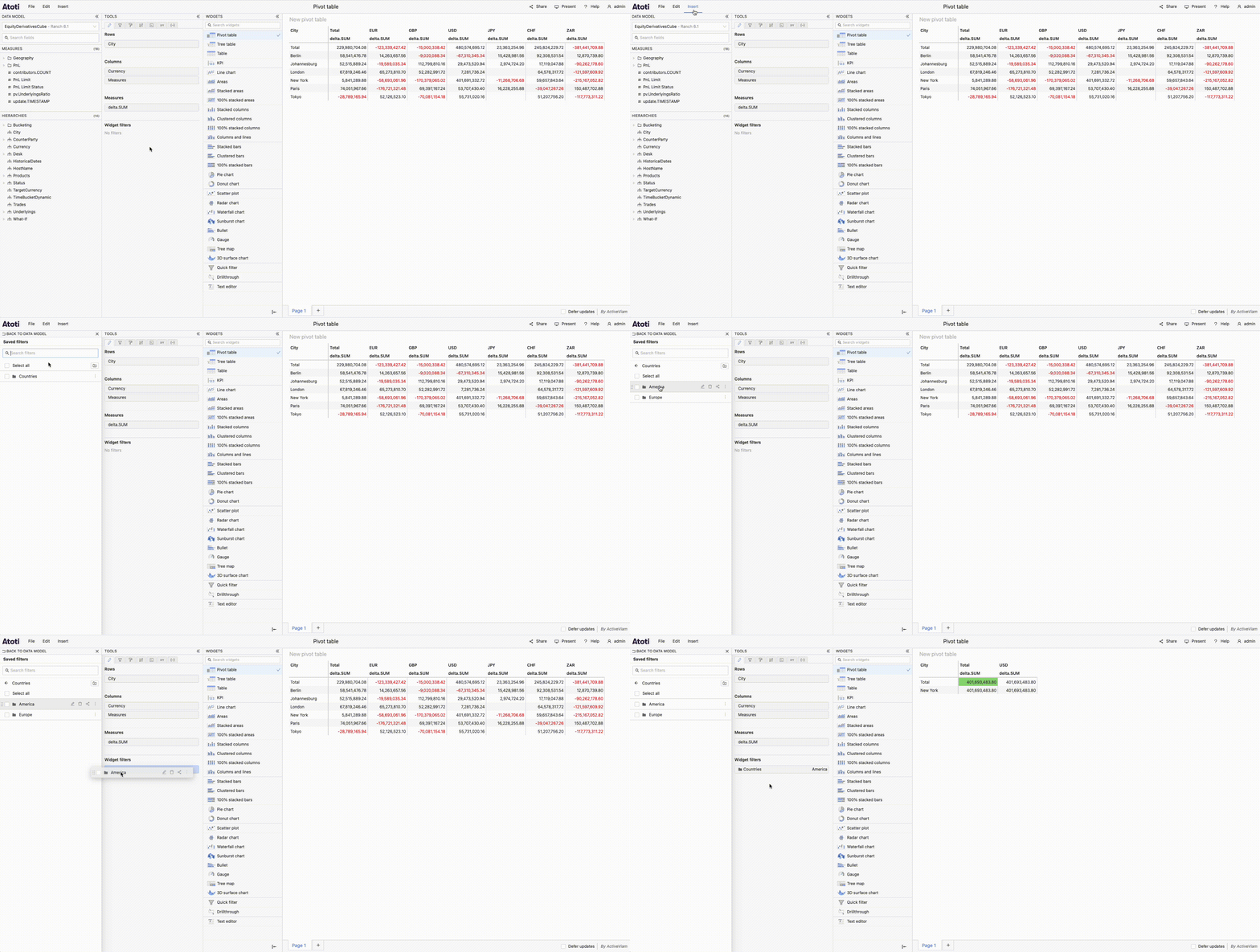
Only folders that do not contain subfolders can be applied. Folders with subfolders will not display a drag handle and cannot be dragged from the Saved filters menu. See Limitations for more information.
How to switch between filter folders
Switching from one folder to another is useful when you want to apply a different set of filters without having to add and remove individual filters manually.
Once a folder is applied, you can switch to a sibling folder to change which filters are applied. Sibling folders are other folders at the same level in the folder structure.
To switch folders:
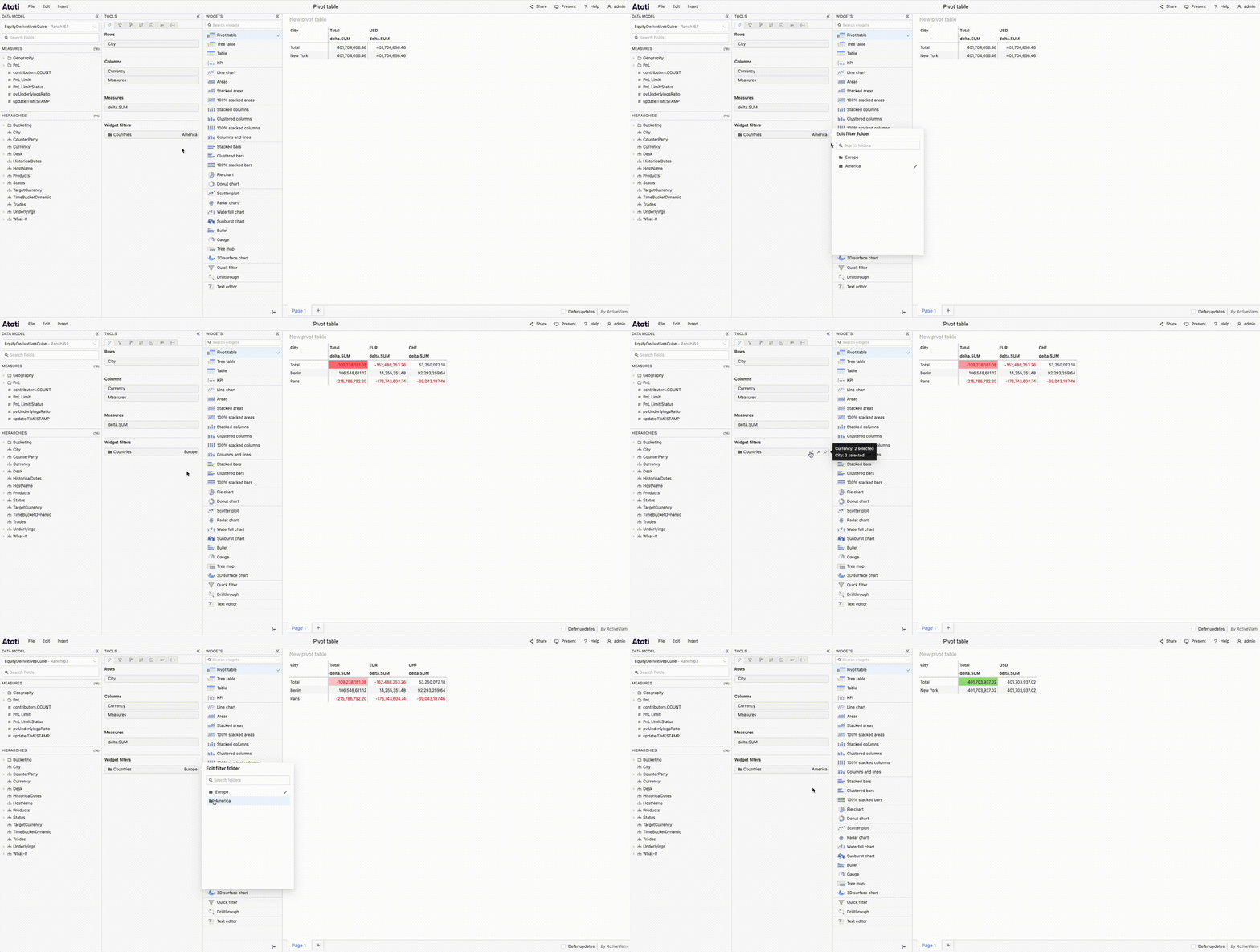
- Hover over the folder tile. You will see some icons appear on the right of the tile.
- Click the Edit icon. A popover opens with a list of sibling folders.
- Search for a specific folder using the search bar, or browse the list.
- Click a folder from the list.
- All filters from the previous folder are removed and filters from the newly selected folder are applied.
The example below shows how to switch from one folder to a sibling folder:
How to pin a filter folder
Filter folders can be pinned and unpinned like individual filters. See pin a filter.
How to switch pinned folders
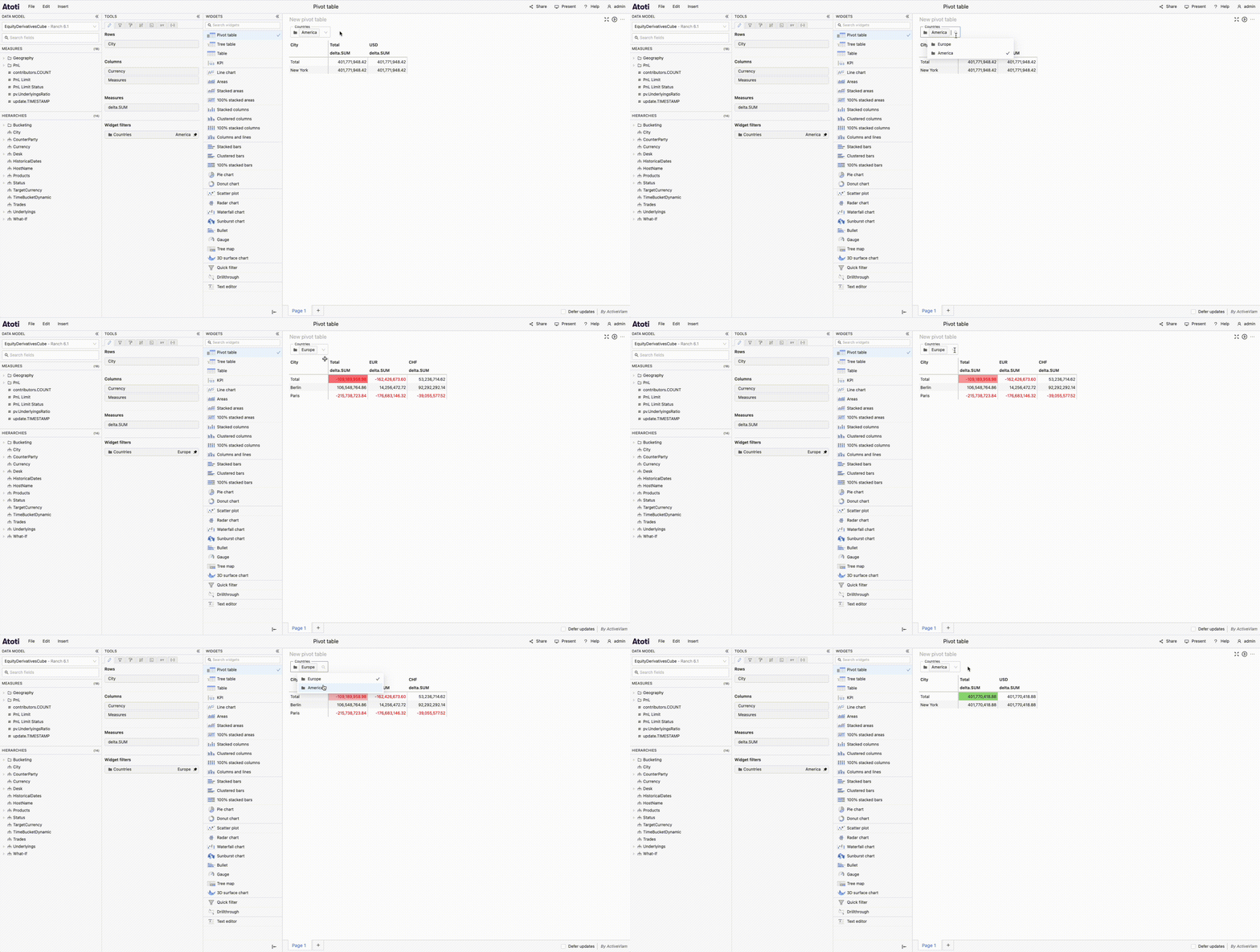
When a folder is pinned, you can switch between sibling folders directly from the filters bar:
- Click the pinned folder in the filters bar. A dropdown list of sibling folders opens.
- Click a folder from the list.
- The filters bar updates to show the newly selected folder.
The example below shows how to switch pinned folders:
Limitations
Folders have the following limitations:
-
Folders with subfolders cannot be dragged into widgets, pages, or dashboards. Folders with subfolders will not display a drag handle in the Saved filters menu.
-
If a folder is already applied and later gains a subfolder, the folder tile turns red and none of its filters are applied. To fix this, remove the folder or change to a valid folder.
-
You can only switch between sibling folders. Sibling folders are folders at the same level in the folder structure. You cannot switch to folders in different parent folders.