> ## Documentation Index
> Fetch the complete documentation index at: https://docs.activeviam.com/llms.txt
> Use this file to discover all available pages before exploring further.
# Trade Novation
The **Trade Novation** widget allows you to move trades across portfolios and compare the risk.
## Using the widget
1. In the top left menu, click **Insert** > **Widgets**, then drag and drop the **Trade Novation** widget to your dashboard.
2. On initial display, you're prompted to enter or select the following:
 | Field | Description |
| ------------------------ | ------------------------------------------------------------------- |
| **Original Netting Set** | The portfolio from which a trade or set of trades will be selected. |
| **Novated Trades** | The list of trades from the Original Netting Set. |
| **Target Netting Set** | The portfolio receiving the selected trades. |
| **What-If Branch Name** | The name of the What-If branch to be created. |
| Field | Description |
| ------------------------ | ------------------------------------------------------------------- |
| **Original Netting Set** | The portfolio from which a trade or set of trades will be selected. |
| **Novated Trades** | The list of trades from the Original Netting Set. |
| **Target Netting Set** | The portfolio receiving the selected trades. |
| **What-If Branch Name** | The name of the What-If branch to be created. |
3. After entering the necessary data, click **View Summary** to see a summary of your What-If.
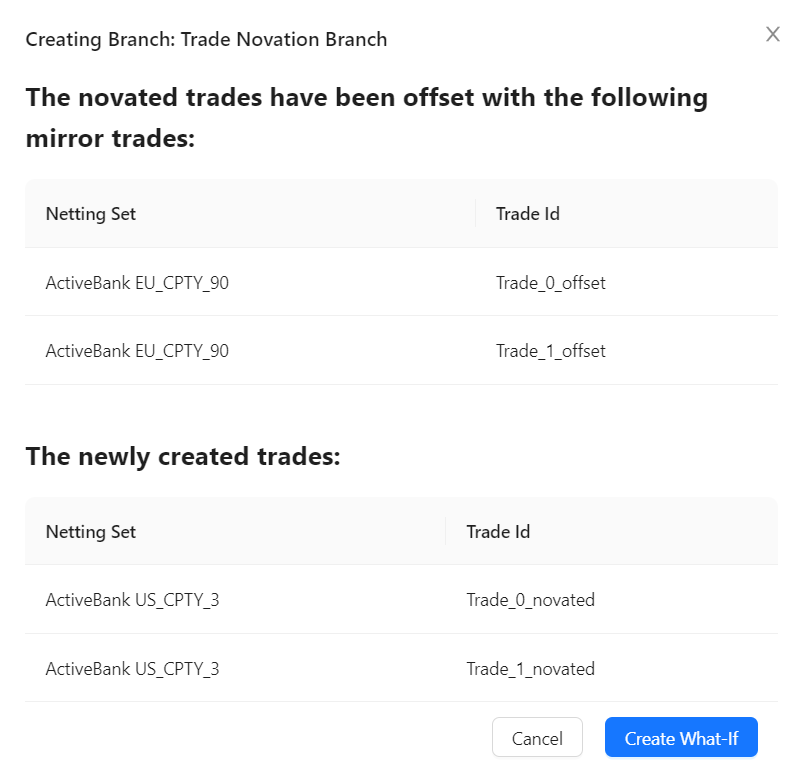 Two copies of the Novated Trades are created: an “offset” and a “novated”. The “offset” trades cancel out your risk from the Original Netting Set. The “novated” copy applies the trade’s risk value to the Transferee Netting Set.
4. Click **Create What-If** to finalize your changes.
To view the experimental calculations, add the [Epoch](../cube/dimensions/epoch) hierarchy into the view, for example, on columns of your Pivot Table. You may also want to set a filter on this hierarchy and select: “master” and your branch.
Two copies of the Novated Trades are created: an “offset” and a “novated”. The “offset” trades cancel out your risk from the Original Netting Set. The “novated” copy applies the trade’s risk value to the Transferee Netting Set.
4. Click **Create What-If** to finalize your changes.
To view the experimental calculations, add the [Epoch](../cube/dimensions/epoch) hierarchy into the view, for example, on columns of your Pivot Table. You may also want to set a filter on this hierarchy and select: “master” and your branch.