> ## Documentation Index
> Fetch the complete documentation index at: https://docs.activeviam.com/llms.txt
> Use this file to discover all available pages before exploring further.

# Scaling

Atoti Market Risk provides scaling simulations to display instant
recalculations of and incremental impact on VaR/ES and sensitivities
from simulated adjustments to a given trade or set of trades.

## Scaling factor options

You can select an existing trade and modify its size to measure the
impact of increasing or partially or completely closing down a position.

<table><thead><tr><th>Scaling factor</th><th>Impact on trade</th></tr></thead><tbody><tr><td>> 1</td><td>Adjusts the trade up</td></tr><tr><td>\< 1</td><td>Adjusts the trade down</td></tr><tr><td>negative</td><td>Inverts the trade risk profile</td></tr><tr><td>zero (0)</td><td>Closes down the position entirely</td></tr></tbody></table>

## Vector scaling

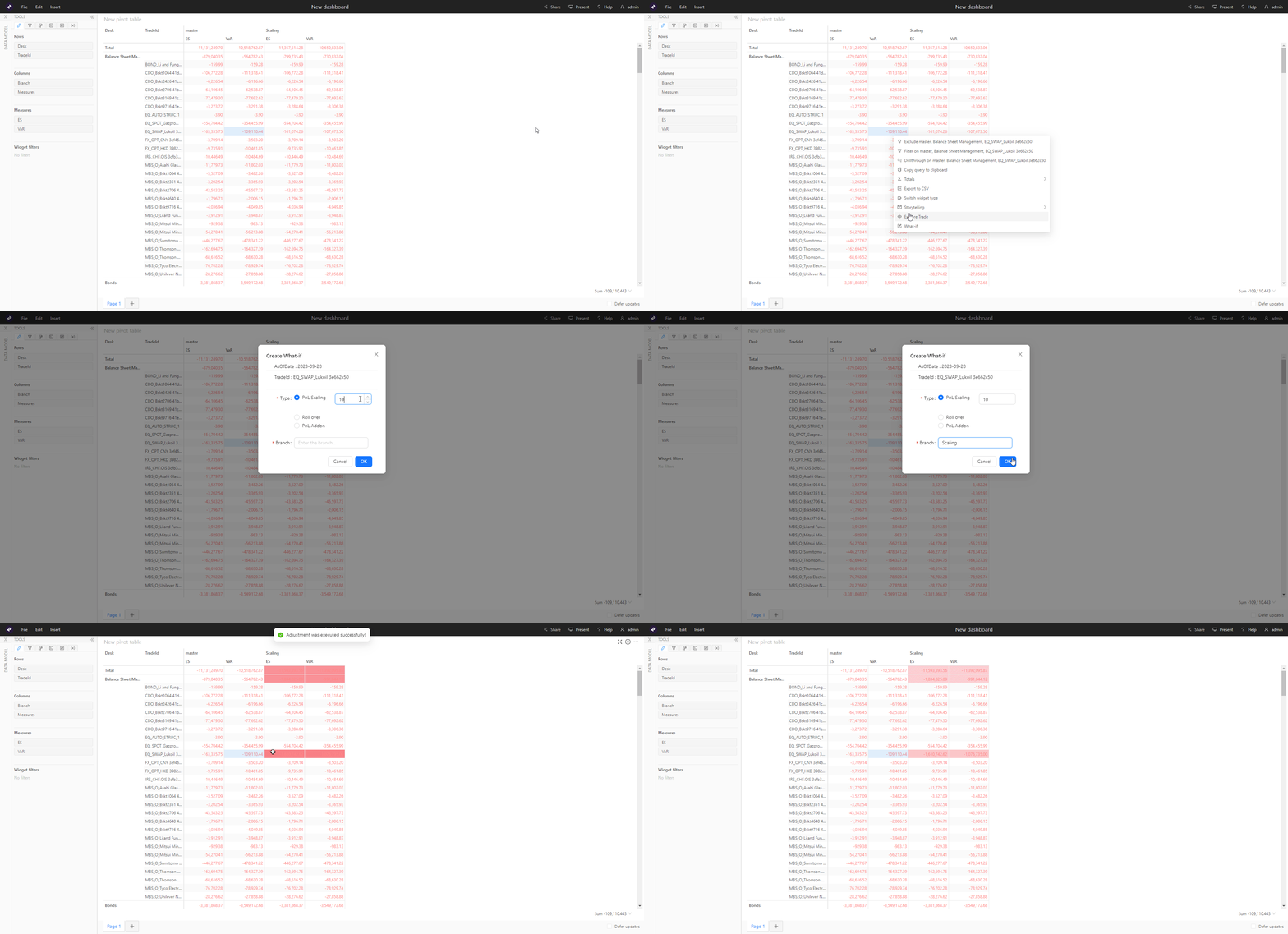
1. Select the TradeId you want to work on. This can be from any pivot
   table that has the TradeId dimension. Right-click and select
   **What-If**.

   The **Create WhatIf** dialog box is displayed with information about the TradeId.
   Check that all elements are the ones you want, otherwise cancel and set or change your filters as required.
2. Select the type of scaling you want to apply:

<table><thead><tr><th>Select Scaling type</th><th>Enter a value</th></tr></thead><tbody><tr><td>PnL Scaling</td><td>The factor by which you want to multiply the underlying PnL vectors</td></tr><tr><td>PnL Addon</td><td>The amount you want to add to the underlying PnL vectors</td></tr></tbody></table>

3. Set a name for the branch where the system saves the result of the scaling. If the branch does not exist a new branch will be created.
4. Click **OK**.

   In the Pivot table, if the Epoch dimension is selected, the new
   branch you created is displayed adjacent to the master. The new
   branch contains the same data as the master branch except for the
   selected trade, which is adjusted by the scaling you applied.

   To manage your branches and the simulations on them, use the [WhatIf Manager](.#whatif-manager).

## Scenario scaling

1. Select the TradeId(s) you want to work on. This can be from any
   pivot table that has the TradeId dimension. Right-click and select
   **What-If**
2. Select the type of scaling you want to apply:

<table><thead><tr><th>Select Scaling type</th><th>Enter a value</th></tr></thead><tbody><tr><td>PnL Scenario Scaling</td><td>The factor by which you want to multiply the underlying PnL vectors</td></tr><tr><td>PnL Scenario Addon</td><td>The amount you want to add to the underlying PnL vectors</td></tr></tbody></table>

3. Set a name for the branch where the system saves the result of the scaling. If the branch does not exist a new branch will be created.
4. Click **OK**.

   In the Pivot table, if the Epoch dimension is selected, the new
   branch you created is displayed adjacent to the master. The new
   branch contains the same data as the master branch except for the
   selected trade which is adjusted by the scaling you applied.

   To manage your branches and the simulations on them, use the [WhatIf Manager](.#whatif-manager).

## Example

The animation demonstrates how to create a what-if for PnL Scaling

<Frame>
  <img src="https://mintcdn.com/activeviam/gaoX7QceXzVFVfYn/solutions/market-risk/6.0/images/mra_scaling_whatif.gif?s=acf26e88474384825eb36bd008b063e8" alt="" width="1920" height="929" data-path="solutions/market-risk/6.0/images/mra_scaling_whatif.gif" />
</Frame>