> ## Documentation Index
> Fetch the complete documentation index at: https://docs.activeviam.com/llms.txt
> Use this file to discover all available pages before exploring further.
# Roll over PnL vectors
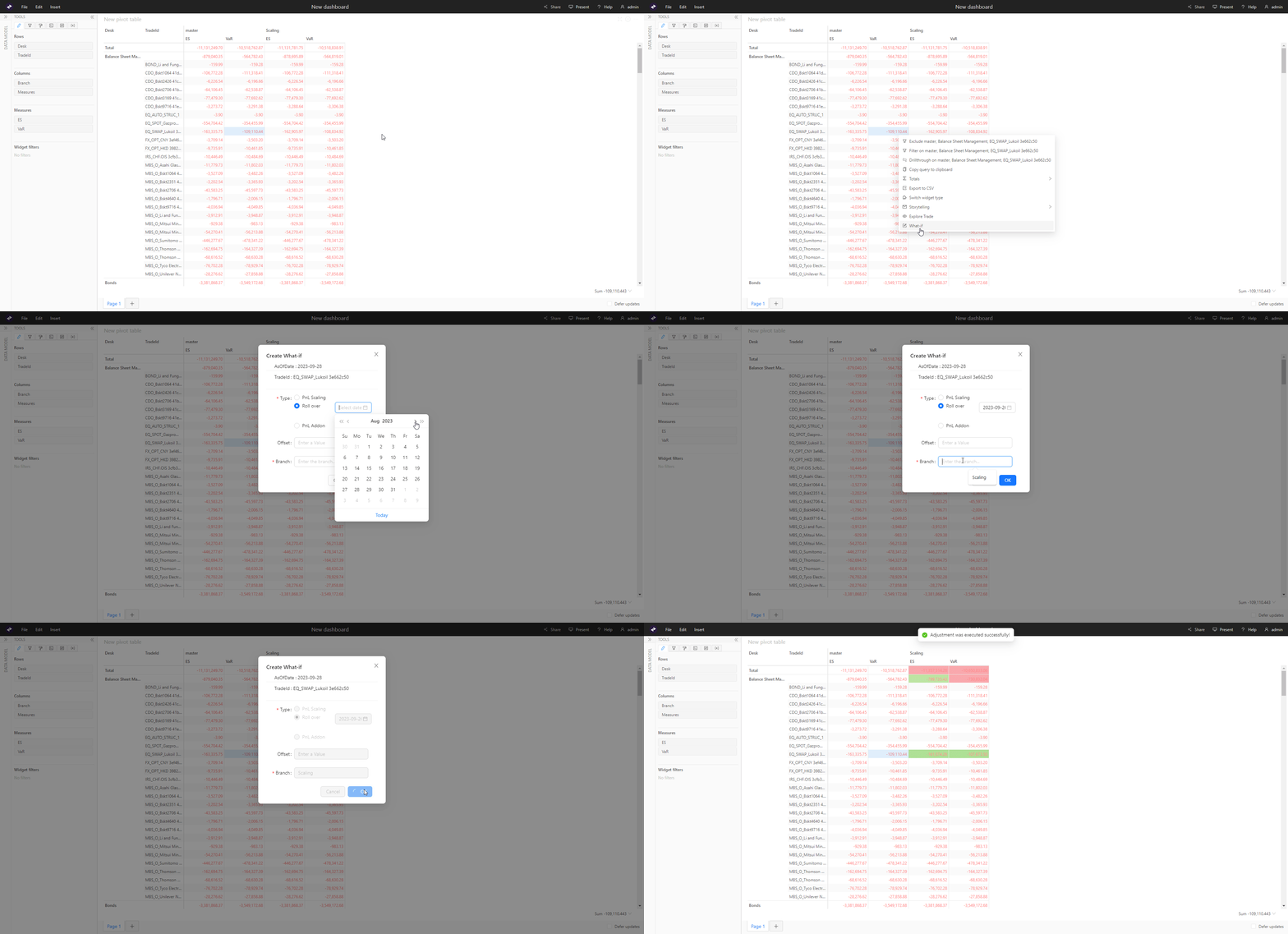
1. Select the TradeId(s) you want to work on. This can be from any
pivot table that has the TradeId dimension. Right-click and select
**What-If**.
The **Create WhatIf** dialog
box is displayed with information about the selected TradeId within
the scenario.
2. Set a name for the branch where the system saves the result of the
scaling. If the branch does not exist a new branch will be created.
3. From the **Select Date** dropdown
list, select the date whose data you want to use to overwrite the
current data.
4. Click **OK**. In the Pivot table, if
the **Epoch** dimension is selected, the
new branch you created is displayed adjacent to the master. The new
branch contains the same data as the master branch except for the
selected trade which is adjusted by the substitution you applied.
To manage your branches and the simulations on them, use the [WhatIf Manager](.#whatif-manager).
## Example
This animation demonstrates how to create a rollover what-if.