> ## Documentation Index
> Fetch the complete documentation index at: https://docs.activeviam.com/llms.txt
> Use this file to discover all available pages before exploring further.
# File Upload Widget
## Overview
| Plugin key | BAS Setting key |
| - | - |
| `accelerator_file-upload` | `bas-plugin-widget-file-upload` |
The File Upload Widget is another tool that we provide for solutions to create What-If scenarios. This feature allows you to select files that are already located in a specific directory on the server side, and use them to create the What-If branch.
Example use cases for this widget:
* Creating What-If branches with new sensitivities.
* Creating What-If branches with different parameters.
* Changing datastore configurations.
* Uploading ‘scenarios’ as What-Ifs. Files part of a specific scenario can be organized in a single grouping and sent to the UI to be selected that way.
* Group topics and their related files to be selected as part of What-Ifs.
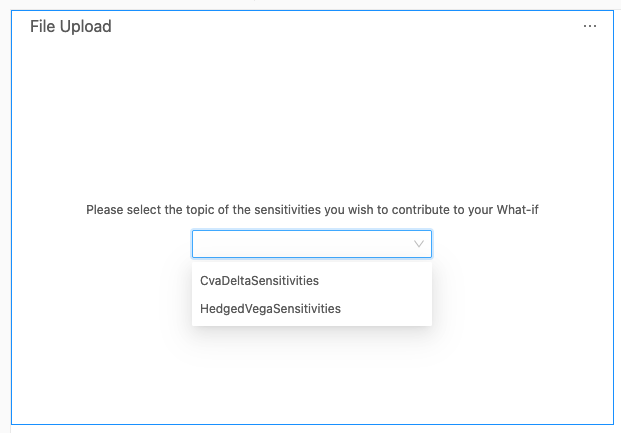
The user will be able to select the topic of the files that they wish to upload.
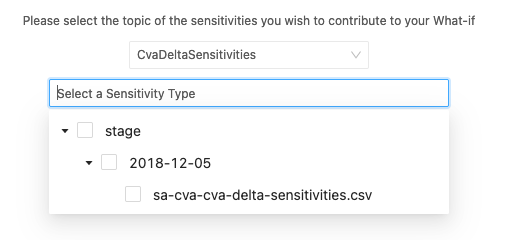
 They will then will be presented with a tree of files corresponding to that topic.
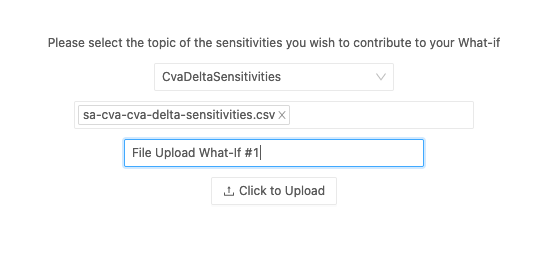
 The user can give a name to the new What-If branch, and create the What-If.
 ## Availability
| Solution | Enabled |
| - | - |
| FRTB | ✅ |
| Market risk | ✅ |
| SIMM | ✅ |
| CVARC | ✅ |
| Limits | ❌ |
| Sign-off | ❌ |
## Settings
| Key | Type | Description | Example |
| - | - | - | - |
| `groupSelectorEnabled` | `boolean` | Whether to display the file group selection dropdown | |
| `getFilePathsRestEndpoint` | `string \| undefined` | Optional override of the service URL from `versions/rest` that returns the list of files for this server | `/services/rest/whatif/fileUpload/retrieveStagedFile` |
| `sendFilePathsRestEndpoint` | `string \| undefined` | Optional override of the service URL from `versions/rest` that states where to send the upload request | `/services/rest/whatif/stressedSensitivity/upload/` |
| `successMessage` | `string` | Message to display when the upload is successful | |
| `initialPrompt` | `string` | Message to display at the beginning of the form | |
| `fileSelectorPlaceholder` | `string` | Placeholder message to display when no file is selected | |
| `uploadNamePlaceholder` | `string` | Placeholder message to display when no branch name has been typed | |
| `stagingDirectoryName` | `string` | The name of the folder on the server that contains the files ready to be uploaded | `stage` |
| `selectableDirectories` | `boolean` | Whether directories can be selected for upload | |
## How to modify a setting
To modify a setting, you need to modify the `basSettings` that you provide to the `activate` function. The following example shows you how to provide the activate function with the default `basSettings` while updating the settings for the File Upload widget:
```javascript theme={"languages":{"custom":["/engine/python-sdk/6.2/languages/pycon.tmLanguage.json"]}}
import { activate, basSettings } from "@activeviam/frtb-sdk";
const frtbServerKey = "FRTB";
const customSettings = structuredClone(basSettings);
customSettings[frtbServerKey][
"bas-plugin-widget-file-upload"
].successMessage "Custom Success Message for a successful upload operation!";
activate({
configuration,
basSettings: customSettings,
});
```
## How to disable it
### Disable universally
To disable this feature for all solutions, add this line at the end of your extension’s `activate` function to unregister the plugin:
```diff theme={"languages":{"custom":["/engine/python-sdk/6.2/languages/pycon.tmLanguage.json"]}}
const extension: ExtensionModule = {
activate: async (configuration: Configuration) => {
...
+ delete configuration.pluginRegistry["widget"]["accelerator_file-upload"];
}
}
```
### Disable for specific servers
To disable this feature for a given server, you must delete this feature’s settings for that server key by altering the `basSettings` parameter before calling the `activate` function.
**Example**
Disabling this feature for the `FRTB` server only:
```diff theme={"languages":{"custom":["/engine/python-sdk/6.2/languages/pycon.tmLanguage.json"]}}
+ import {produce} from "immer";
- import {activate as activateFrtb} from "@activeviam/frtb-sdk";
+ import {activate as activateFrtb, basSettings as frtbBASSettings} from "@activeviam/frtb-sdk";
import {activate as activeMarketRisk} from "@activeviam/mr-sdk";
const extension: ExtensionModule = {
activate: async (configuration: Configuration) => {
...
+ const frtbBASSettingsWithFeatureDisabled = produce(frtbBASSettings, draft => {
+ delete draft["FRTB"]["bas-plugin-widget-file-upload"];
+ });
- activateFrtb({configuration});
+ activateFrtb({configuration, basSetttings: frtbBASSettingsWithFeatureDisabled})
activeMarketRisk({configuration});
}
}
```
## Availability
| Solution | Enabled |
| - | - |
| FRTB | ✅ |
| Market risk | ✅ |
| SIMM | ✅ |
| CVARC | ✅ |
| Limits | ❌ |
| Sign-off | ❌ |
## Settings
| Key | Type | Description | Example |
| - | - | - | - |
| `groupSelectorEnabled` | `boolean` | Whether to display the file group selection dropdown | |
| `getFilePathsRestEndpoint` | `string \| undefined` | Optional override of the service URL from `versions/rest` that returns the list of files for this server | `/services/rest/whatif/fileUpload/retrieveStagedFile` |
| `sendFilePathsRestEndpoint` | `string \| undefined` | Optional override of the service URL from `versions/rest` that states where to send the upload request | `/services/rest/whatif/stressedSensitivity/upload/` |
| `successMessage` | `string` | Message to display when the upload is successful | |
| `initialPrompt` | `string` | Message to display at the beginning of the form | |
| `fileSelectorPlaceholder` | `string` | Placeholder message to display when no file is selected | |
| `uploadNamePlaceholder` | `string` | Placeholder message to display when no branch name has been typed | |
| `stagingDirectoryName` | `string` | The name of the folder on the server that contains the files ready to be uploaded | `stage` |
| `selectableDirectories` | `boolean` | Whether directories can be selected for upload | |
## How to modify a setting
To modify a setting, you need to modify the `basSettings` that you provide to the `activate` function. The following example shows you how to provide the activate function with the default `basSettings` while updating the settings for the File Upload widget:
```javascript theme={"languages":{"custom":["/engine/python-sdk/6.2/languages/pycon.tmLanguage.json"]}}
import { activate, basSettings } from "@activeviam/frtb-sdk";
const frtbServerKey = "FRTB";
const customSettings = structuredClone(basSettings);
customSettings[frtbServerKey][
"bas-plugin-widget-file-upload"
].successMessage "Custom Success Message for a successful upload operation!";
activate({
configuration,
basSettings: customSettings,
});
```
## How to disable it
### Disable universally
To disable this feature for all solutions, add this line at the end of your extension’s `activate` function to unregister the plugin:
```diff theme={"languages":{"custom":["/engine/python-sdk/6.2/languages/pycon.tmLanguage.json"]}}
const extension: ExtensionModule = {
activate: async (configuration: Configuration) => {
...
+ delete configuration.pluginRegistry["widget"]["accelerator_file-upload"];
}
}
```
### Disable for specific servers
To disable this feature for a given server, you must delete this feature’s settings for that server key by altering the `basSettings` parameter before calling the `activate` function.
**Example**
Disabling this feature for the `FRTB` server only:
```diff theme={"languages":{"custom":["/engine/python-sdk/6.2/languages/pycon.tmLanguage.json"]}}
+ import {produce} from "immer";
- import {activate as activateFrtb} from "@activeviam/frtb-sdk";
+ import {activate as activateFrtb, basSettings as frtbBASSettings} from "@activeviam/frtb-sdk";
import {activate as activeMarketRisk} from "@activeviam/mr-sdk";
const extension: ExtensionModule = {
activate: async (configuration: Configuration) => {
...
+ const frtbBASSettingsWithFeatureDisabled = produce(frtbBASSettings, draft => {
+ delete draft["FRTB"]["bas-plugin-widget-file-upload"];
+ });
- activateFrtb({configuration});
+ activateFrtb({configuration, basSetttings: frtbBASSettingsWithFeatureDisabled})
activeMarketRisk({configuration});
}
}
```