> ## Documentation Index
> Fetch the complete documentation index at: https://docs.activeviam.com/llms.txt
> Use this file to discover all available pages before exploring further.
# What-If Book Hierarchy Widget
## Overview
| Plugin key | BAS Setting key |
| ---------------------------------- | ---------------------------------------- |
| `accelerator_whatif-bookhierarchy` | `bas-plugin-widget-whatif-bookhierarchy` |
The What-If Book Hierarchy widget provides simulations to display
instant recalculations and their incremental impact as a result of
changing the position of a given book in the book/desk hierarchy.
Users can save modifications to the underlying datastore under
different datastore branches. Each modification’s effect on various
measures on an existing or new branch can be viewed against table
widgets.
By simply dragging a book from one point in the hierarchy to another,
you can immediately see the potential impact on the VaR/ES or
sensitivities, for example.
The book hierarchy is displayed as a horizontal tree structure. When a
new tree loads, the root node (indicated by ‘R’) is open, displaying its
immediate children, and the rest of the nodes are closed.
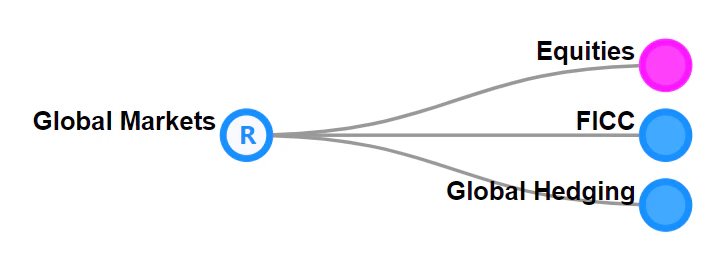 To expand a node, click on it. This reveals the node’s children. To
reveal all descendants of a node, right-click the node and select
**Expand Entire Subtree**.
This feature is currently only available when using an MR server.
To focus the view on a single node and hide all other nodes, right-click
the node and click **Toggle Focus**.
To pan the view, left-click and drag in the window. To zoom in to an
area, use the mouse scroll-wheel.
### Filtering a node’s children
You can filter a node’s children using a specific string:
1. Right-click the parent node, and from the context menu, select
**Filter Children**. This opens the **What Children Do You Want To
Filter On?** dialog.
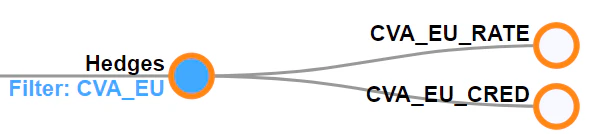
2. Enter the string and click **OK**. This leaves only the child
nodes matching the string visible. The parent node’s center is
colored blue, and a label displays the string used as the filter.
To expand a node, click on it. This reveals the node’s children. To
reveal all descendants of a node, right-click the node and select
**Expand Entire Subtree**.
This feature is currently only available when using an MR server.
To focus the view on a single node and hide all other nodes, right-click
the node and click **Toggle Focus**.
To pan the view, left-click and drag in the window. To zoom in to an
area, use the mouse scroll-wheel.
### Filtering a node’s children
You can filter a node’s children using a specific string:
1. Right-click the parent node, and from the context menu, select
**Filter Children**. This opens the **What Children Do You Want To
Filter On?** dialog.
2. Enter the string and click **OK**. This leaves only the child
nodes matching the string visible. The parent node’s center is
colored blue, and a label displays the string used as the filter.
 ### Running a simulation
1. Use your mouse to expand the nodes of the book hierarchy until you
reach the one you want to work on. Then click and drag the specified
node to where you want it.
If the destination node is too far or you want to move a large number of nodes at once, you can cut and paste the nodes by **Shift**+clicking the node or using the right-click context menu. For more information, see [Cutting and pasting nodes](#cutting-and-pasting-nodes).
Each desk must belong to only one group. The widget enforces the hierarchy of groups/desks/books (that is, you cannot move a book between a group and a desk).
2. Select the branch on which you want to run your simulation or click
**Commit As…** to initiate a new one.
### Running a simulation
1. Use your mouse to expand the nodes of the book hierarchy until you
reach the one you want to work on. Then click and drag the specified
node to where you want it.
If the destination node is too far or you want to move a large number of nodes at once, you can cut and paste the nodes by **Shift**+clicking the node or using the right-click context menu. For more information, see [Cutting and pasting nodes](#cutting-and-pasting-nodes).
Each desk must belong to only one group. The widget enforces the hierarchy of groups/desks/books (that is, you cannot move a book between a group and a desk).
2. Select the branch on which you want to run your simulation or click
**Commit As…** to initiate a new one.
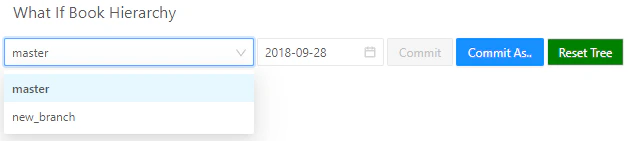 3. In the **What Branch Do You Want To Create** dialog box, enter the name for your new branch, and click **OK**.
4. Use the calendar dropdown to select an AsOfDate.
5. To save your changes in your branch, click **Commit** then give your changes a name in the **What Should This Save Submission’s Definition Be** dialog box.
### Cutting and pasting nodes
When you want to move a large number of nodes or the destination node is
far away, drag-and-drop may not be practical. In such cases, you can cut
and paste nodes by right-clicking the node and using the context menu
options, or using the keyboard shortcuts.
1. To cut a node, **Shift**+click it, or right-click and select **Cut**
from the context menu. The node becomes transparent to indicate that
it’s cut.
To undo cutting a node, **Shift**+click the node again, or
right-click and select **Un-Cut** from the context menu. To uncut
all nodes simultaneously click **Stop Cutting**.
2. Right-click the destination node, and in the context menu, click
**Paste: \[node name]**.
To undo cutting a node, **Shift**+click the node again, or right-click
and select **Un-Cut** from the context menu.
3. In the **What Branch Do You Want To Create** dialog box, enter the name for your new branch, and click **OK**.
4. Use the calendar dropdown to select an AsOfDate.
5. To save your changes in your branch, click **Commit** then give your changes a name in the **What Should This Save Submission’s Definition Be** dialog box.
### Cutting and pasting nodes
When you want to move a large number of nodes or the destination node is
far away, drag-and-drop may not be practical. In such cases, you can cut
and paste nodes by right-clicking the node and using the context menu
options, or using the keyboard shortcuts.
1. To cut a node, **Shift**+click it, or right-click and select **Cut**
from the context menu. The node becomes transparent to indicate that
it’s cut.
To undo cutting a node, **Shift**+click the node again, or
right-click and select **Un-Cut** from the context menu. To uncut
all nodes simultaneously click **Stop Cutting**.
2. Right-click the destination node, and in the context menu, click
**Paste: \[node name]**.
To undo cutting a node, **Shift**+click the node again, or right-click
and select **Un-Cut** from the context menu.
 ### Best practices for opening nodes
The widget can support hundreds of nodes open at once, but after a
point, open nodes can slow the widget down. We recommend having a
maximum of 800 nodes open at any time. The widget displays warnings when
thresholds are violated.
Closing parts of the tree you’re not working on also helps focus on the
parts you want to modify.
## Availability
| Solution | Enabled |
| ----------- | ------- |
| FRTB | ✅ |
| Market risk | ✅ |
| SIMM | ❌ |
| CVARC | ❌ |
| Limits | ❌ |
| Sign-off | ❌ |
## Settings
| Key | Type | Description | Example |
| ----------------------------- | -------- | -------------------------------------------------------------------------------------------------------------- | ------- |
| `asOfDateMdx` | `string` | The MDX query used to list the available dates for the simulation | |
| `recommendedOpenSubTree` | `number` | The number of sub trees open before being warned of performance issues due to a large number of sub trees open | |
| `recommendedRenderNodesLimit` | `number` | The number of rendered nodes before being warned of performance issues due to a large number of rendered nodes | |
## How to modify a setting
To modify a setting, you need to modify the `basSettings` that you provide to the `activate` function. The following example shows you how to provide the activate function with the default `basSettings` while updating the settings for the What-If Book Hierarchy widget:
```javascript theme={"languages":{"custom":["/engine/python-sdk/0.9/languages/pycon.tmLanguage.json"]}}
import { activate, basSettings } from "@activeviam/frtb-sdk";
const frtbServerKey = "FRTB";
const customSettings = structuredClone(basSettings);
customSettings[frtbServerKey][
"bas-plugin-widget-whatif-bookhierarchy"
].asOfDateMdx = "Custom mdx query";
activate({
configuration,
basSettings: customSettings,
});
```
## How to disable it
### Disable universally
To disable this feature for all solutions, add this line at the end of your extension’s `activate` function to unregister the plugin:
```diff theme={"languages":{"custom":["/engine/python-sdk/0.9/languages/pycon.tmLanguage.json"]}}
const extension: ExtensionModule = {
activate: async (configuration: Configuration) => {
...
+ delete configuration.pluginRegistry["widget"]["accelerator_whatif-bookhierarchy"];
}
}
```
### Disable for specific servers
To disable this feature for a given server, you must delete this feature’s settings for that server key by altering the `basSettings` parameter before calling the `activate` function.
**Example**
Disabling this feature for the `FRTB` server only:
```diff theme={"languages":{"custom":["/engine/python-sdk/0.9/languages/pycon.tmLanguage.json"]}}
+ import {produce} from "immer";
- import {activate as activateFrtb} from "@activeviam/frtb-sdk";
+ import {activate as activateFrtb, basSettings as frtbBASSettings} from "@activeviam/frtb-sdk";
import {activate as activeMarketRisk} from "@activeviam/mr-sdk";
const extension: ExtensionModule = {
activate: async (configuration: Configuration) => {
...
+ const frtbBASSettingsWithFeatureDisabled = produce(frtbBASSettings, draft => {
+ delete draft["FRTB"]["bas-plugin-widget-whatif-bookhierarchy"];
+ });
- activateFrtb({configuration});
+ activateFrtb({configuration, basSetttings: frtbBASSettingsWithFeatureDisabled})
activeMarketRisk({configuration});
}
}
```
### Best practices for opening nodes
The widget can support hundreds of nodes open at once, but after a
point, open nodes can slow the widget down. We recommend having a
maximum of 800 nodes open at any time. The widget displays warnings when
thresholds are violated.
Closing parts of the tree you’re not working on also helps focus on the
parts you want to modify.
## Availability
| Solution | Enabled |
| ----------- | ------- |
| FRTB | ✅ |
| Market risk | ✅ |
| SIMM | ❌ |
| CVARC | ❌ |
| Limits | ❌ |
| Sign-off | ❌ |
## Settings
| Key | Type | Description | Example |
| ----------------------------- | -------- | -------------------------------------------------------------------------------------------------------------- | ------- |
| `asOfDateMdx` | `string` | The MDX query used to list the available dates for the simulation | |
| `recommendedOpenSubTree` | `number` | The number of sub trees open before being warned of performance issues due to a large number of sub trees open | |
| `recommendedRenderNodesLimit` | `number` | The number of rendered nodes before being warned of performance issues due to a large number of rendered nodes | |
## How to modify a setting
To modify a setting, you need to modify the `basSettings` that you provide to the `activate` function. The following example shows you how to provide the activate function with the default `basSettings` while updating the settings for the What-If Book Hierarchy widget:
```javascript theme={"languages":{"custom":["/engine/python-sdk/0.9/languages/pycon.tmLanguage.json"]}}
import { activate, basSettings } from "@activeviam/frtb-sdk";
const frtbServerKey = "FRTB";
const customSettings = structuredClone(basSettings);
customSettings[frtbServerKey][
"bas-plugin-widget-whatif-bookhierarchy"
].asOfDateMdx = "Custom mdx query";
activate({
configuration,
basSettings: customSettings,
});
```
## How to disable it
### Disable universally
To disable this feature for all solutions, add this line at the end of your extension’s `activate` function to unregister the plugin:
```diff theme={"languages":{"custom":["/engine/python-sdk/0.9/languages/pycon.tmLanguage.json"]}}
const extension: ExtensionModule = {
activate: async (configuration: Configuration) => {
...
+ delete configuration.pluginRegistry["widget"]["accelerator_whatif-bookhierarchy"];
}
}
```
### Disable for specific servers
To disable this feature for a given server, you must delete this feature’s settings for that server key by altering the `basSettings` parameter before calling the `activate` function.
**Example**
Disabling this feature for the `FRTB` server only:
```diff theme={"languages":{"custom":["/engine/python-sdk/0.9/languages/pycon.tmLanguage.json"]}}
+ import {produce} from "immer";
- import {activate as activateFrtb} from "@activeviam/frtb-sdk";
+ import {activate as activateFrtb, basSettings as frtbBASSettings} from "@activeviam/frtb-sdk";
import {activate as activeMarketRisk} from "@activeviam/mr-sdk";
const extension: ExtensionModule = {
activate: async (configuration: Configuration) => {
...
+ const frtbBASSettingsWithFeatureDisabled = produce(frtbBASSettings, draft => {
+ delete draft["FRTB"]["bas-plugin-widget-whatif-bookhierarchy"];
+ });
- activateFrtb({configuration});
+ activateFrtb({configuration, basSetttings: frtbBASSettingsWithFeatureDisabled})
activeMarketRisk({configuration});
}
}
```