> ## Documentation Index
> Fetch the complete documentation index at: https://docs.activeviam.com/llms.txt
> Use this file to discover all available pages before exploring further.
# Parameter sets what-if widget
export const productName = "Atoti FRTB";
{productName} supports multiple (hierarchical) sets of supervisory
parameters:
* FRTB regulation contains numerous parameters, correlation factors
and risk weights
* Additional parameter sets from a customization.
These parameter values are soft-coded in {productName}, which
means that they can be overridden at query time without the need to
rebuild or redeploy the application.
## Overview
The Parameter Sets widget provides the following features:
| Element | Description |
| ------------- | ---------------------------------------------------------------------------------------------------------------------------------------------------------------------------------------------------------------- |
| Category | Select a table of parameters from the datastore. |
| Parameter Set | Select a version of parameter definitions (e.g. BCBS or CRR2). |
| Mode | Switch between:\_ creating a new What-If branch\_ modifying changes on a branch\* comparing two existing branches. |
| Lineage | Toggle between the following display options:\_ (default) only parameters that have the specific label you set in the Parameter Set (e.g. BCBS)\_ include parameters inherited from previous regulation versions |
| View branch | Selects the base branch for your new branch or comparison. By default the base branch is master for comparisons and always master when creating a new branch. |
| Mode branch | Depending on the Mode you are in:
\_ New: enter the name of your new branch
\_ Edit: select the branch to modify
\* Compare: select the comparison branch |
## Launching the Parameter Set Widget
The following sections explain how to set up and run a simulation.
### 1. Setting up your simulation
1. In the top left menu, click **Insert** > **Widgets**. This opens the list of available widgets.
2. From the list, drag and drop the Parameter Sets widget to your dashboard.
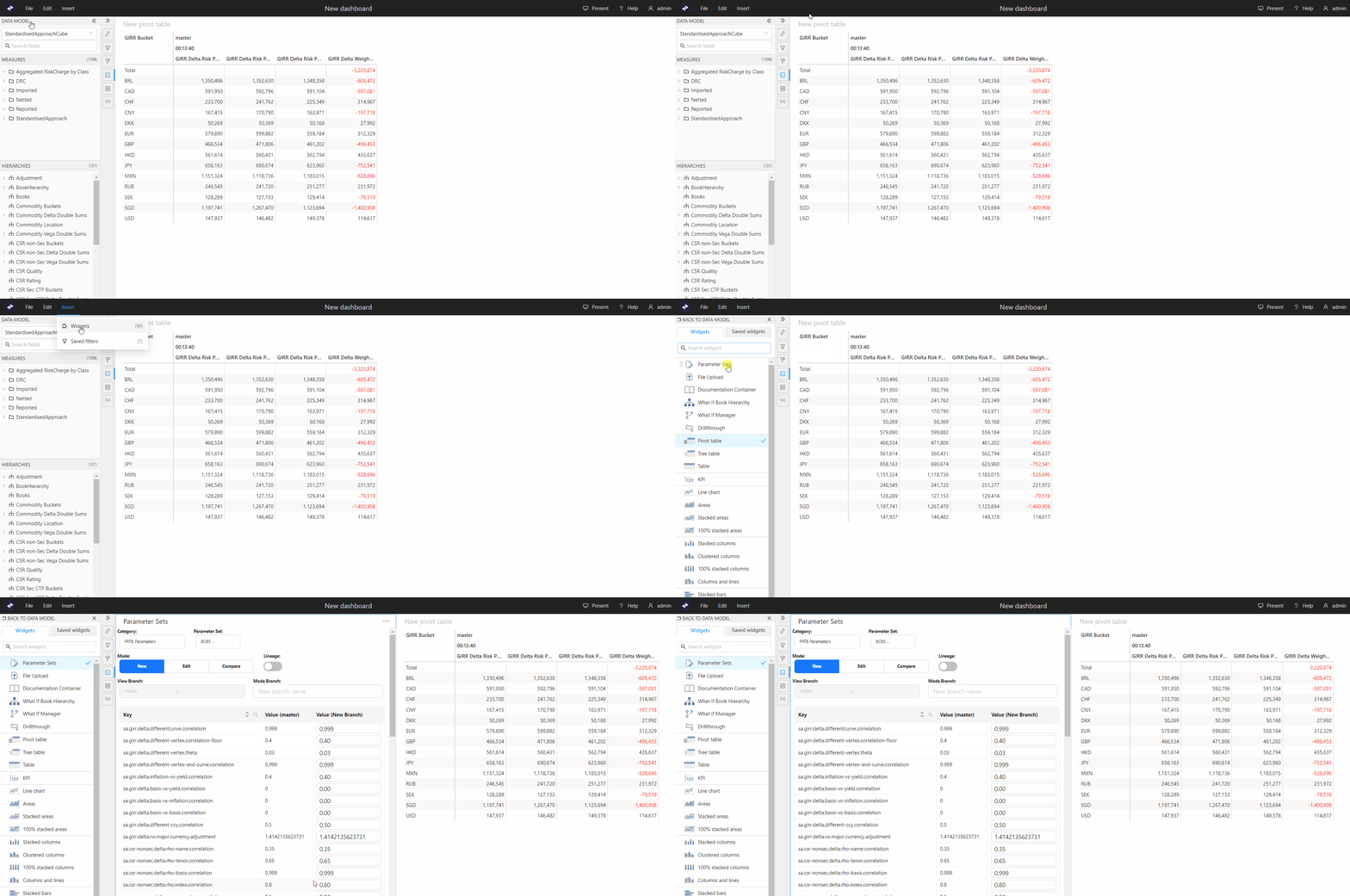 1. From the **Category** dropdown list,
select a store.
1. From the **Category** dropdown list,
select a store.
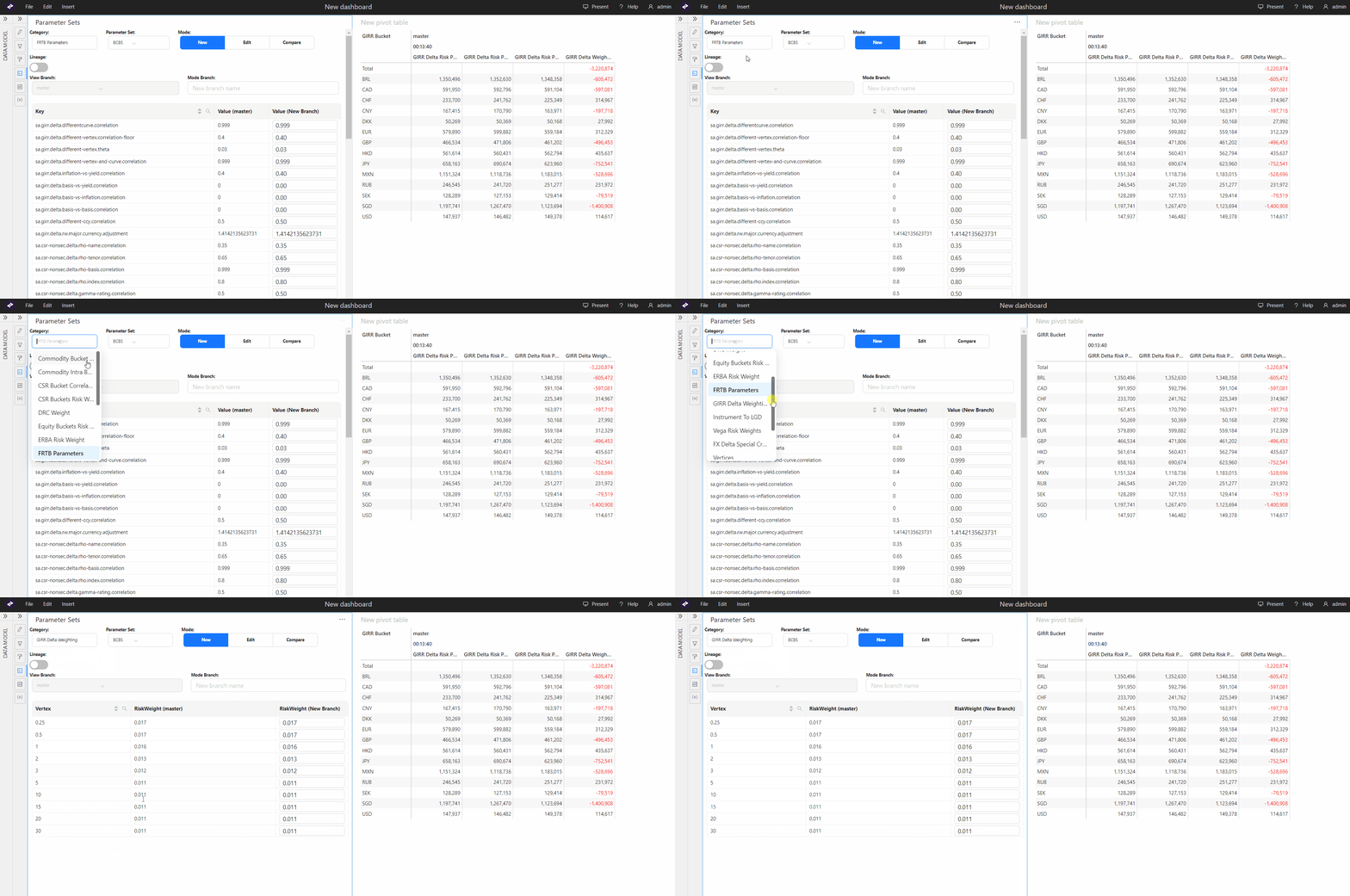 2. If required, you can use the arrows in the column header to change
the order of the table.
2. If required, you can use the arrows in the column header to change
the order of the table.
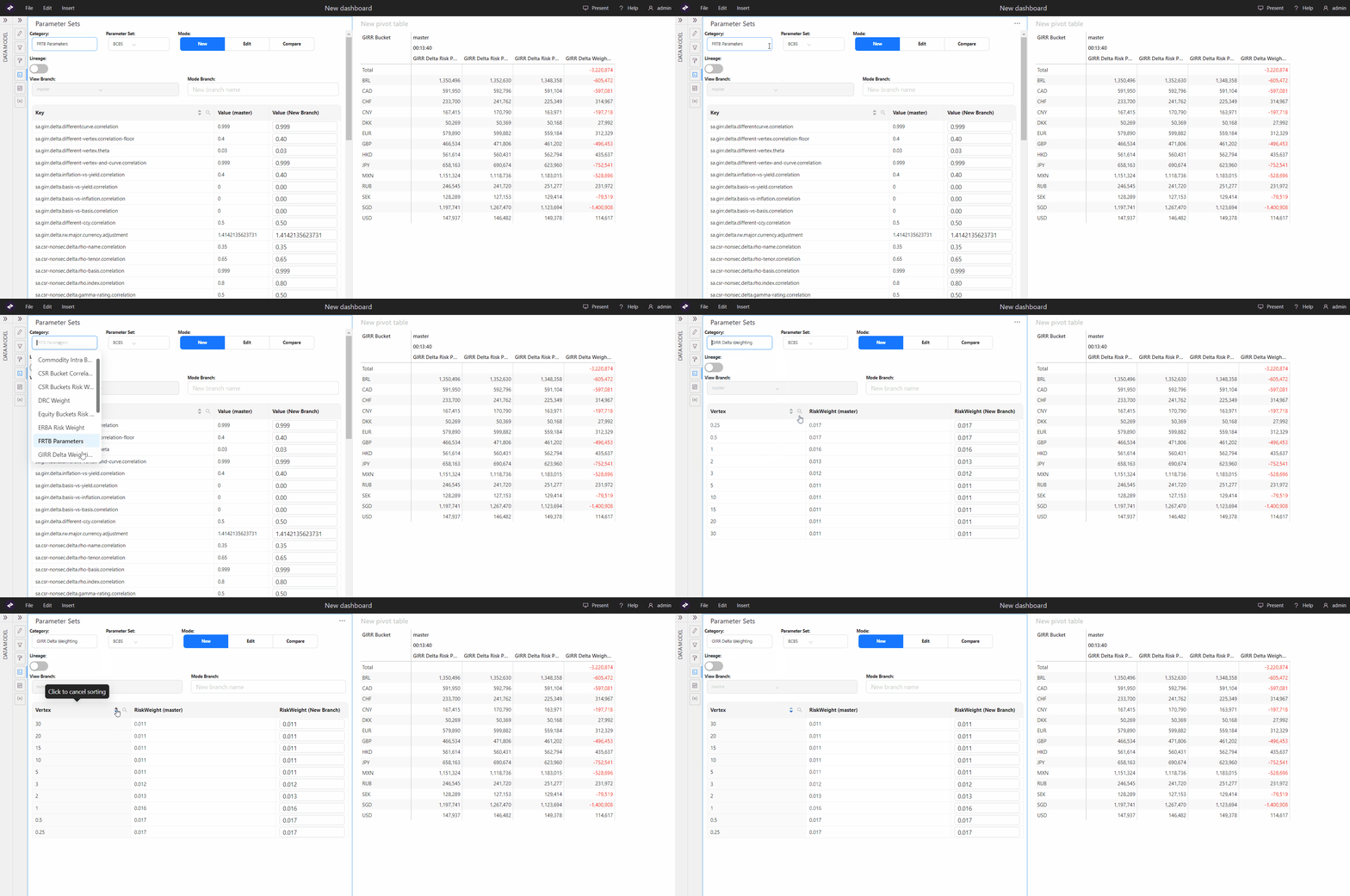 3. From the **Parameter Set** dropdown list,
select the parameter set you require.
4. (optional) Toggle the **Lineage** selector
if you want to also display the parent parameter set in addition to
the selected set.
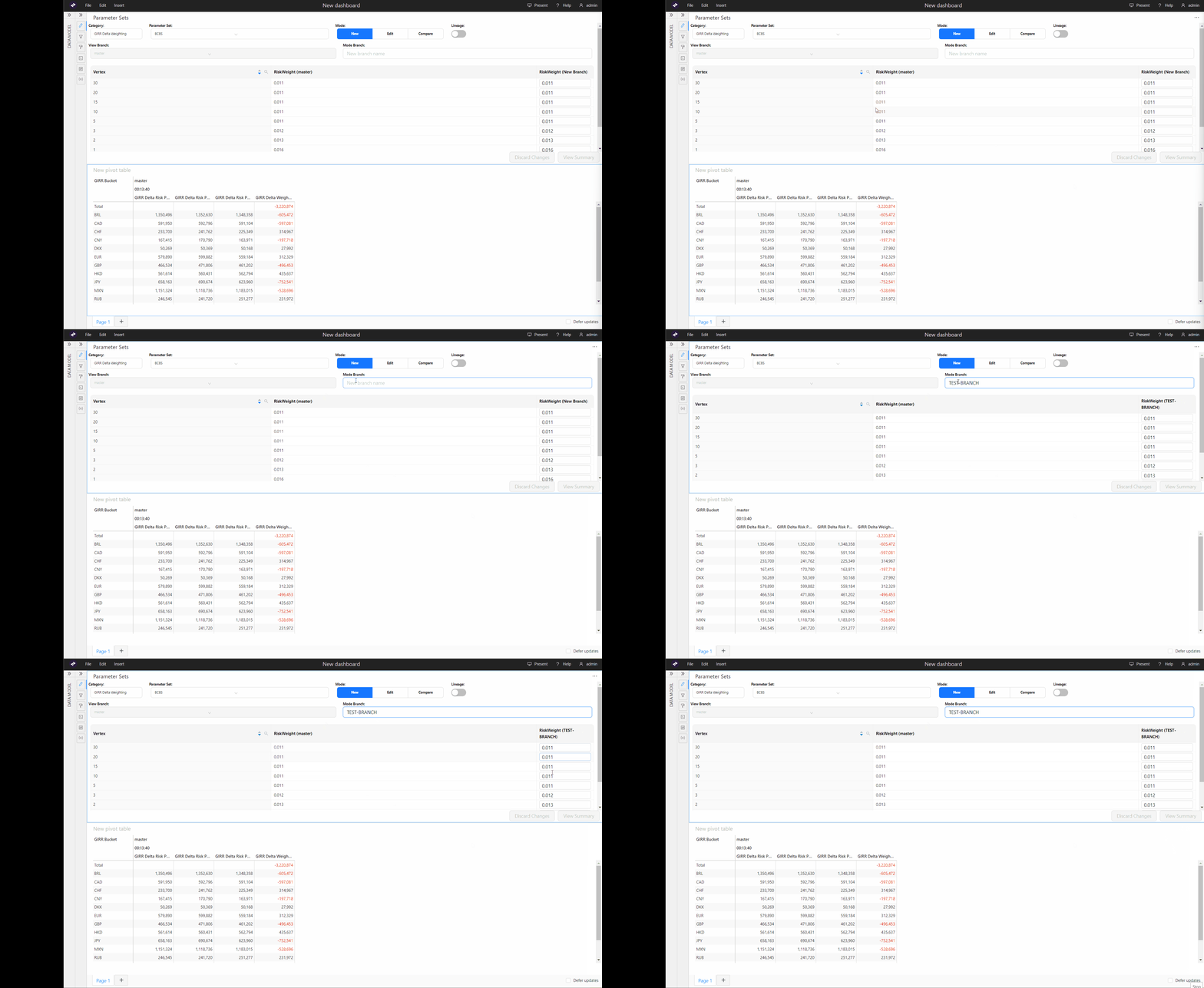
5. Set **Mode** to **New** to create a new What-If branch.
6. In the **Mode branch** field, enter a descriptive name
for your what-if simulation. This name will show up in your data visualization widgets and filters.
The current values for each parameter in the selected parameter set are
displayed for the master branch and your new branch.
You can now make changes.
### 2. Making your changes
1. To find the parameter you require, use the search
filter by clicking on the magnifying glass on the column header.
3. From the **Parameter Set** dropdown list,
select the parameter set you require.
4. (optional) Toggle the **Lineage** selector
if you want to also display the parent parameter set in addition to
the selected set.
5. Set **Mode** to **New** to create a new What-If branch.
6. In the **Mode branch** field, enter a descriptive name
for your what-if simulation. This name will show up in your data visualization widgets and filters.
The current values for each parameter in the selected parameter set are
displayed for the master branch and your new branch.
You can now make changes.
### 2. Making your changes
1. To find the parameter you require, use the search
filter by clicking on the magnifying glass on the column header.
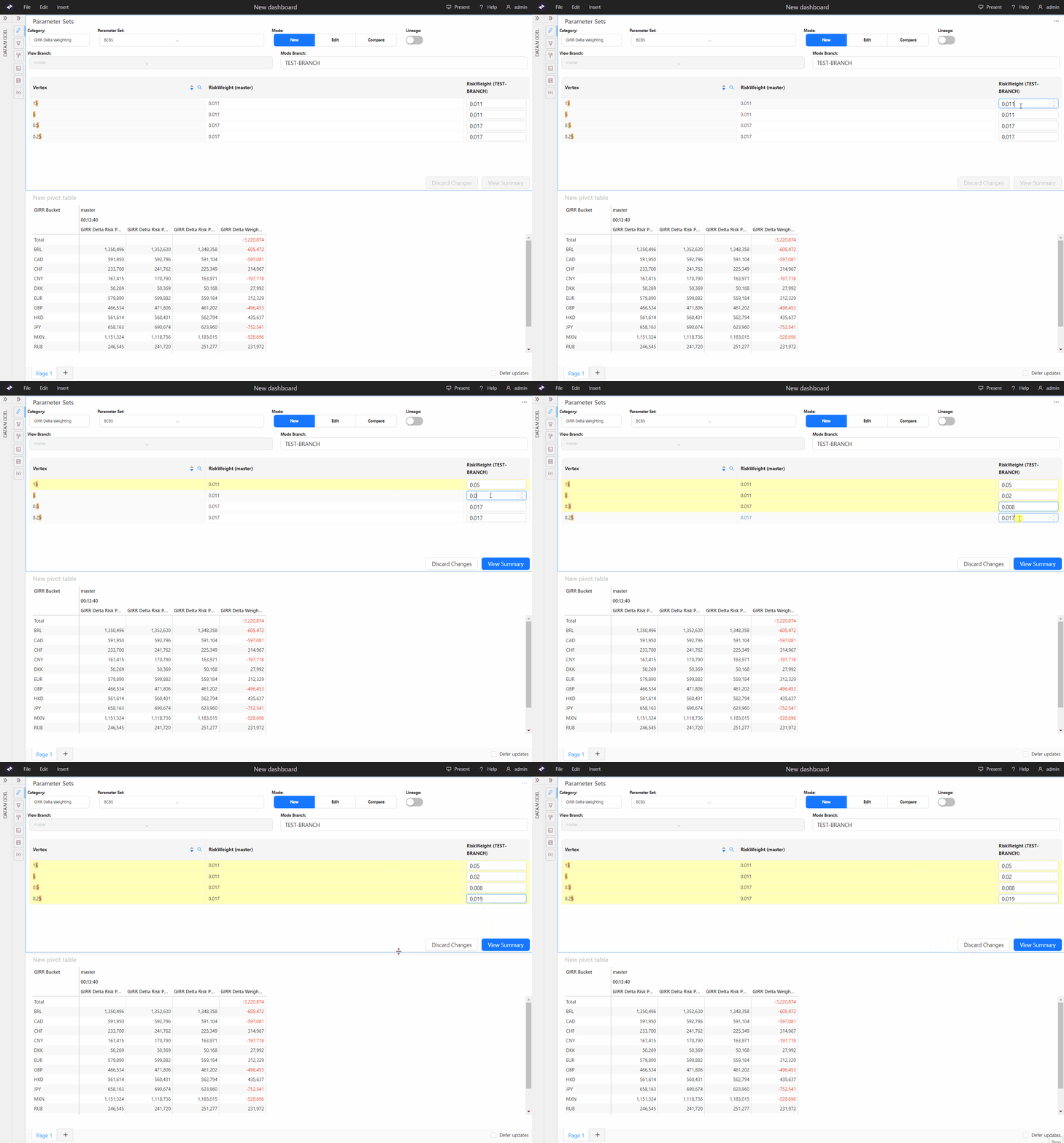
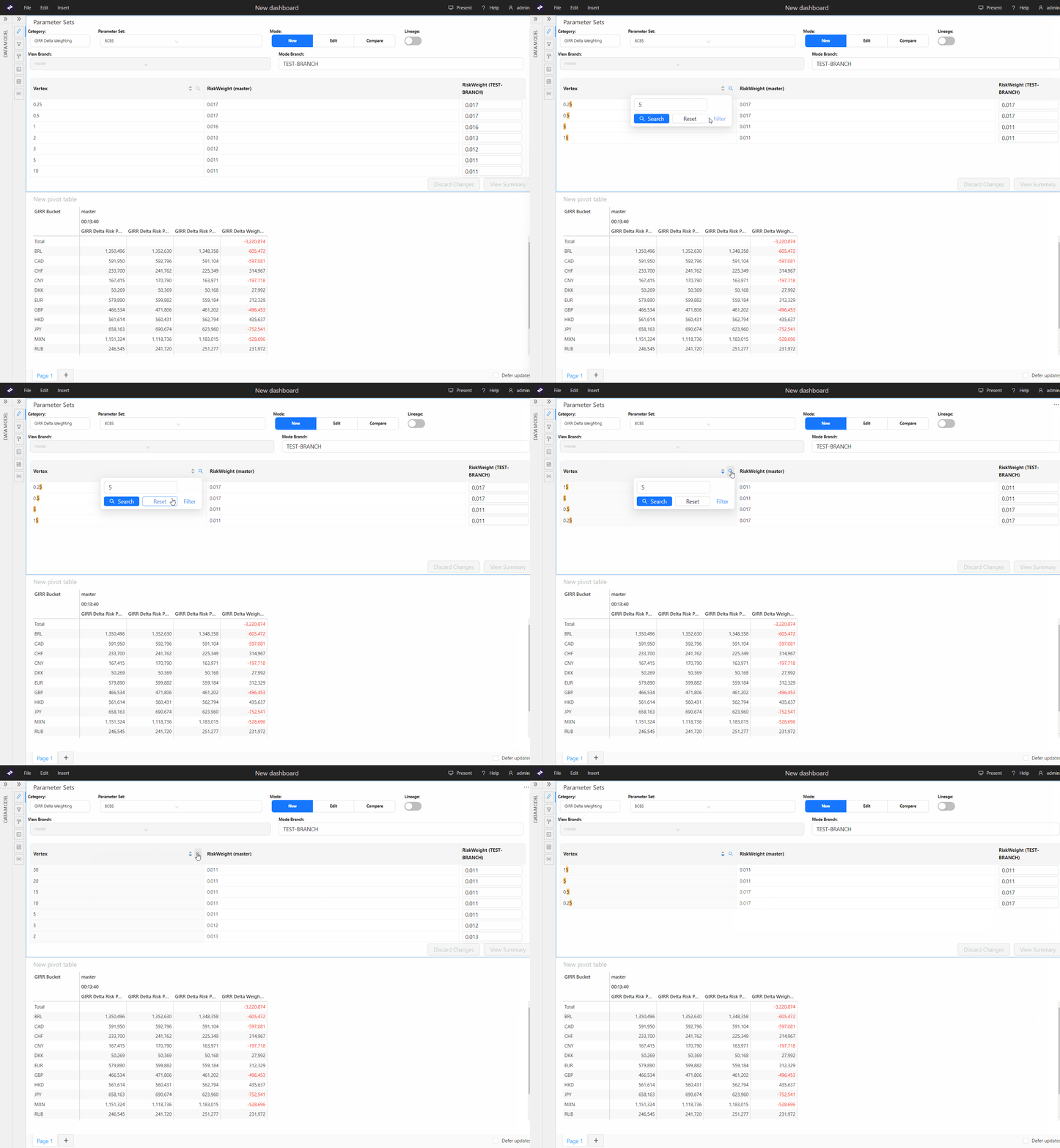 2. For each parameter, enter your changes directly in the corresponding
value field on your new branch. The system highlights changed rows
in yellow, to indicate the selected values will be modified when you create your branch in the next step.\
2. For each parameter, enter your changes directly in the corresponding
value field on your new branch. The system highlights changed rows
in yellow, to indicate the selected values will be modified when you create your branch in the next step.\
If required, you can delete your changes by clicking **Discard Changes**. This removes all your changes
and reloads the default values.
 3. Click **View Summary** to review your changes. You have the following options:
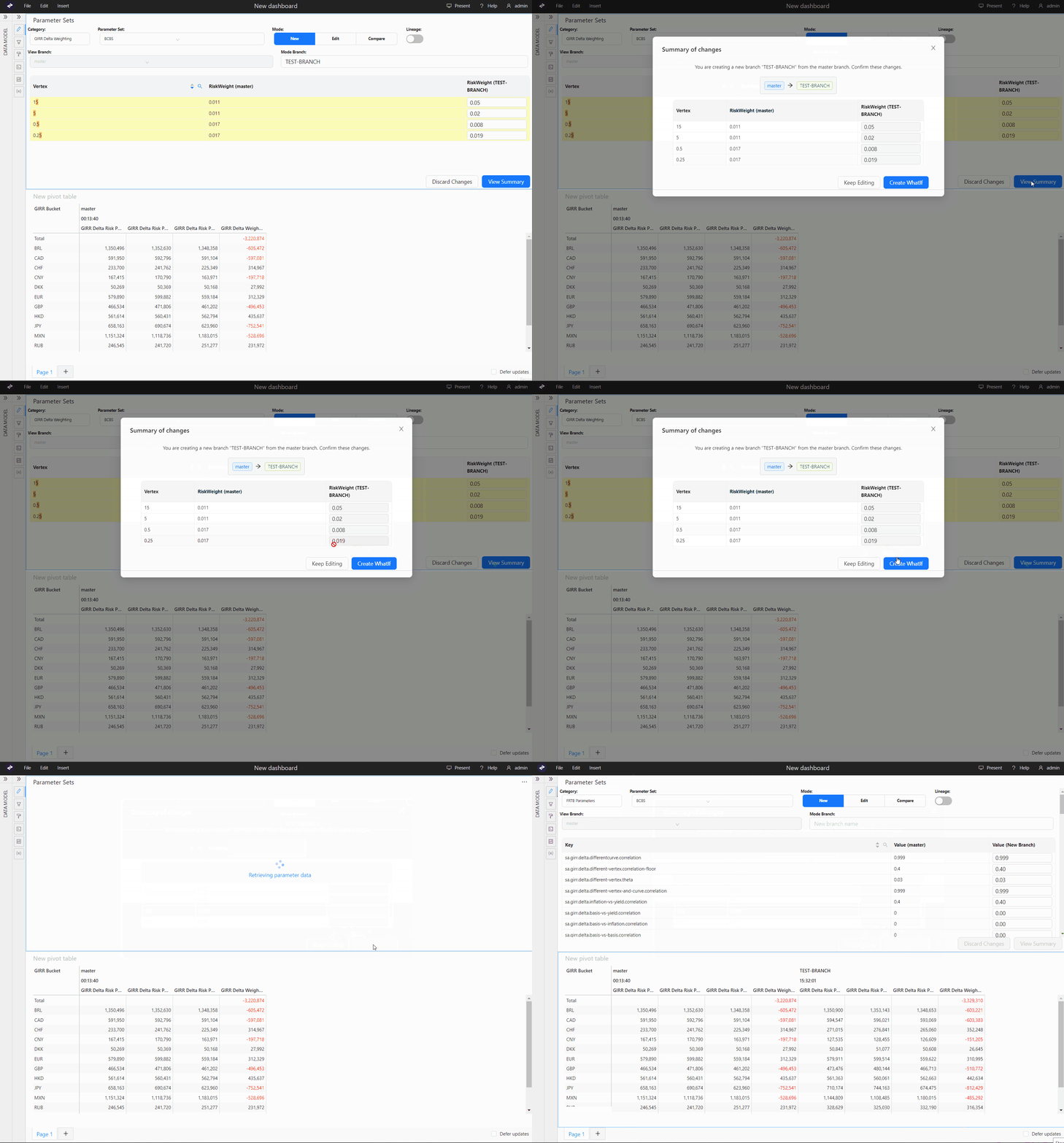 * **Keep Editing**: Closes the summary
window and returns you to the parameter set table to
continue your modifications
* **Create WhatIf**: Creates your new
branch with the values you changed
4. Once you are happy with your changes, click **Create WhatIf**.
The widget creates your new branch with the values you
changed.
* **Keep Editing**: Closes the summary
window and returns you to the parameter set table to
continue your modifications
* **Create WhatIf**: Creates your new
branch with the values you changed
4. Once you are happy with your changes, click **Create WhatIf**.
The widget creates your new branch with the values you
changed.
 You can now compare your new branch to master or another branch.
### 3. Comparing your changes
To display the committed changes made in your branch:
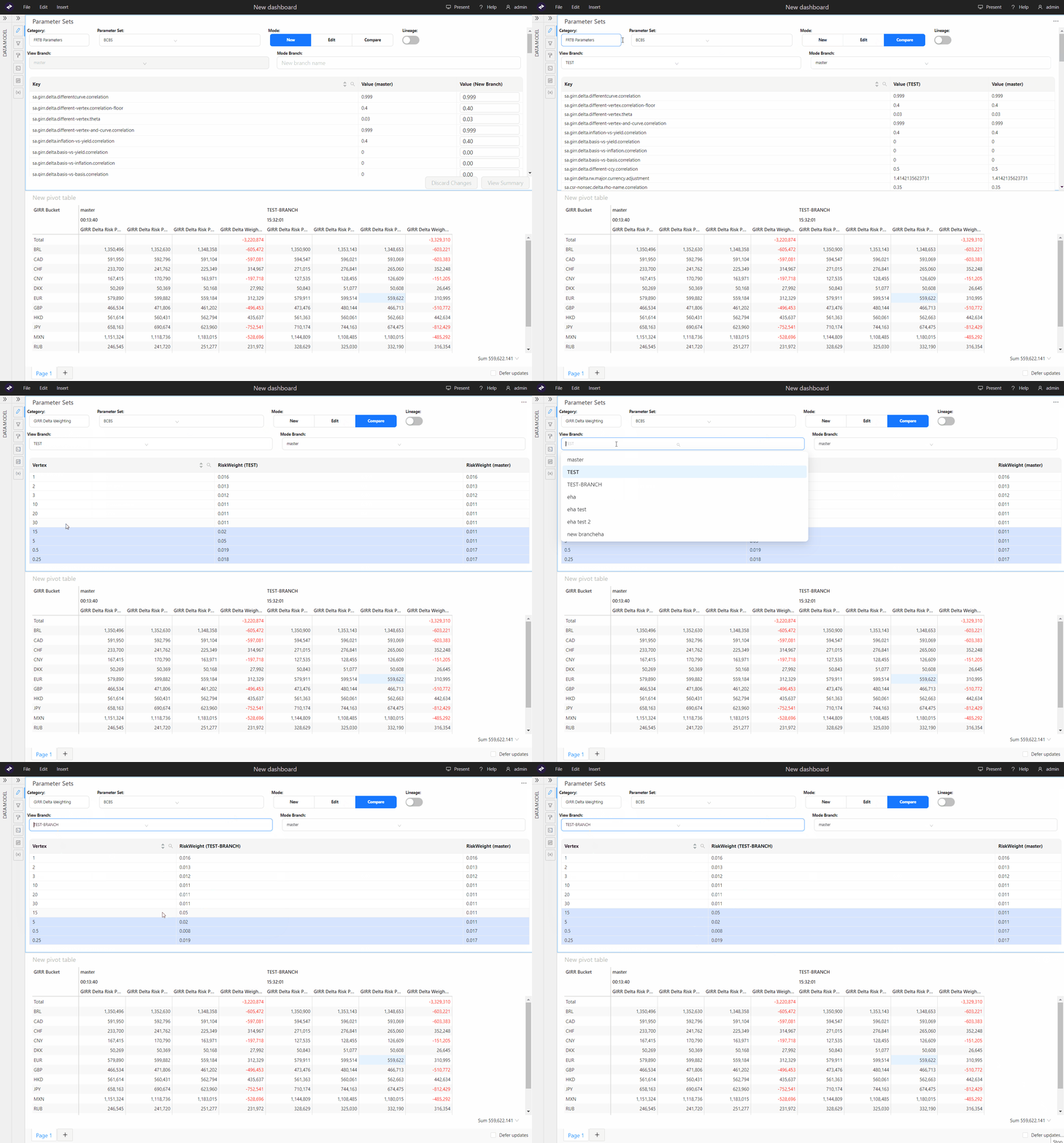
1. Set **Mode** to **Compare**.
2. Select your branch from the **View branch** dropdown list and the branch to compare against from the **Mode Branch** list.
You can now compare your new branch to master or another branch.
### 3. Comparing your changes
To display the committed changes made in your branch:
1. Set **Mode** to **Compare**.
2. Select your branch from the **View branch** dropdown list and the branch to compare against from the **Mode Branch** list.
Changed values between the selected branches are highlighted in blue.
 * (optional) Toggle the **Lineage** selector
if you want to also display values that were changed in the parent
parameter set in addition to the selected set.
### 4. Viewing the effects of your changes
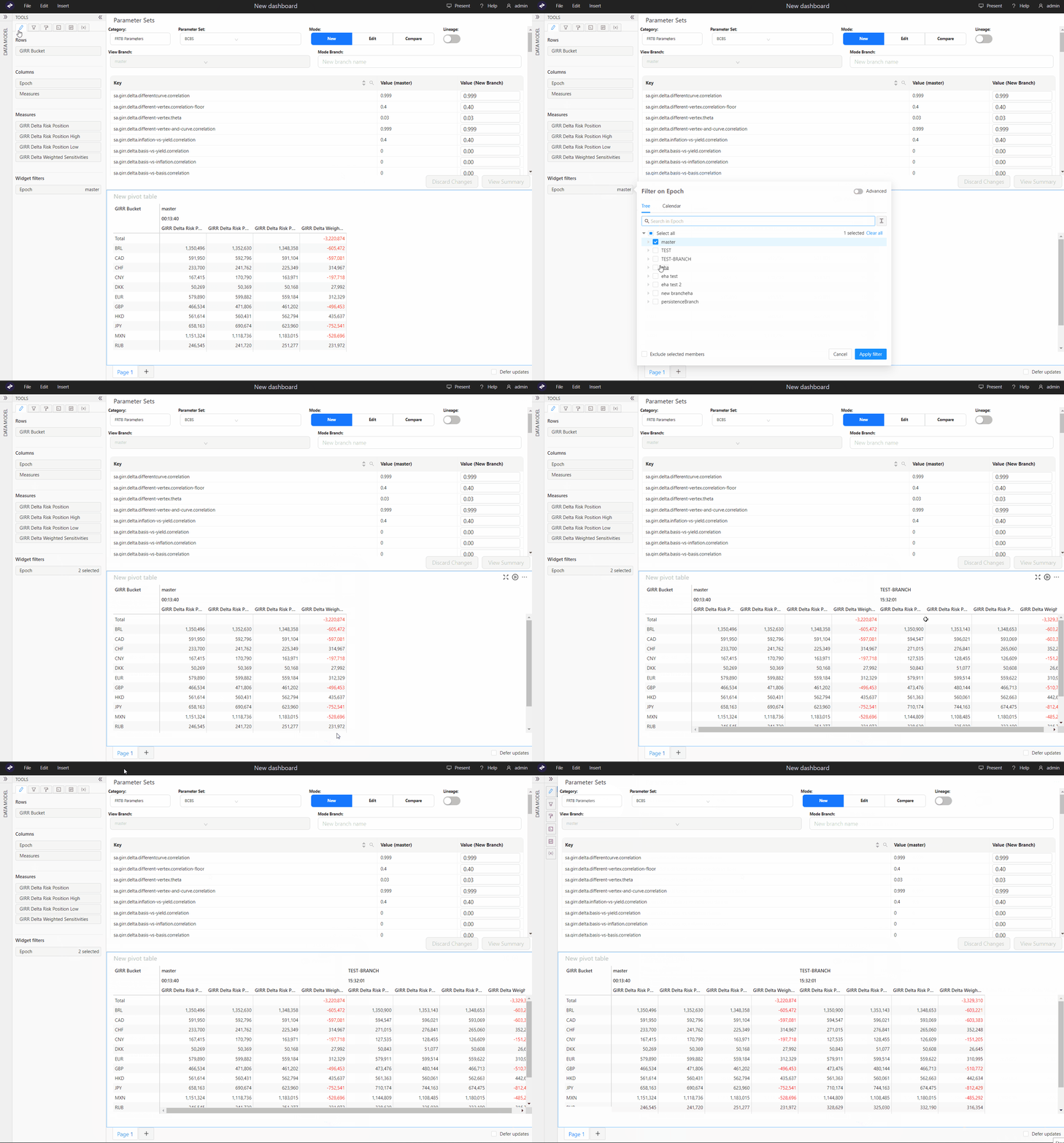
To view the simulated calculations, add the [Epoch](../cube/epoch) hierarchy into the view, for example, on columns of your Pivot Table. You may also want to set a filter on this hierarchy and select “master” and your branch
* (optional) Toggle the **Lineage** selector
if you want to also display values that were changed in the parent
parameter set in addition to the selected set.
### 4. Viewing the effects of your changes
To view the simulated calculations, add the [Epoch](../cube/epoch) hierarchy into the view, for example, on columns of your Pivot Table. You may also want to set a filter on this hierarchy and select “master” and your branch
 ### 5. Modifying your changes
To review and update changes on your branch:
1. Set **Mode** to **Edit**.
2. Select your branch from the **Mode Branch** dropdown list.
The widget presents an additional column, with your branch name prefixed with **Edited**.
3. For each parameter, enter your changes directly in the corresponding value field in the **Edited** column. The system highlights changed rows in yellow, to indicate the selected values will be modified when you update your branch in the next step.\
### 5. Modifying your changes
To review and update changes on your branch:
1. Set **Mode** to **Edit**.
2. Select your branch from the **Mode Branch** dropdown list.
The widget presents an additional column, with your branch name prefixed with **Edited**.
3. For each parameter, enter your changes directly in the corresponding value field in the **Edited** column. The system highlights changed rows in yellow, to indicate the selected values will be modified when you update your branch in the next step.\
If required, you can delete your changes by clicking **Discard Changes**. This removes all your changes and reloads the initial values in your branch.
4. Click **View Summary** to review your changes. You have the following options:
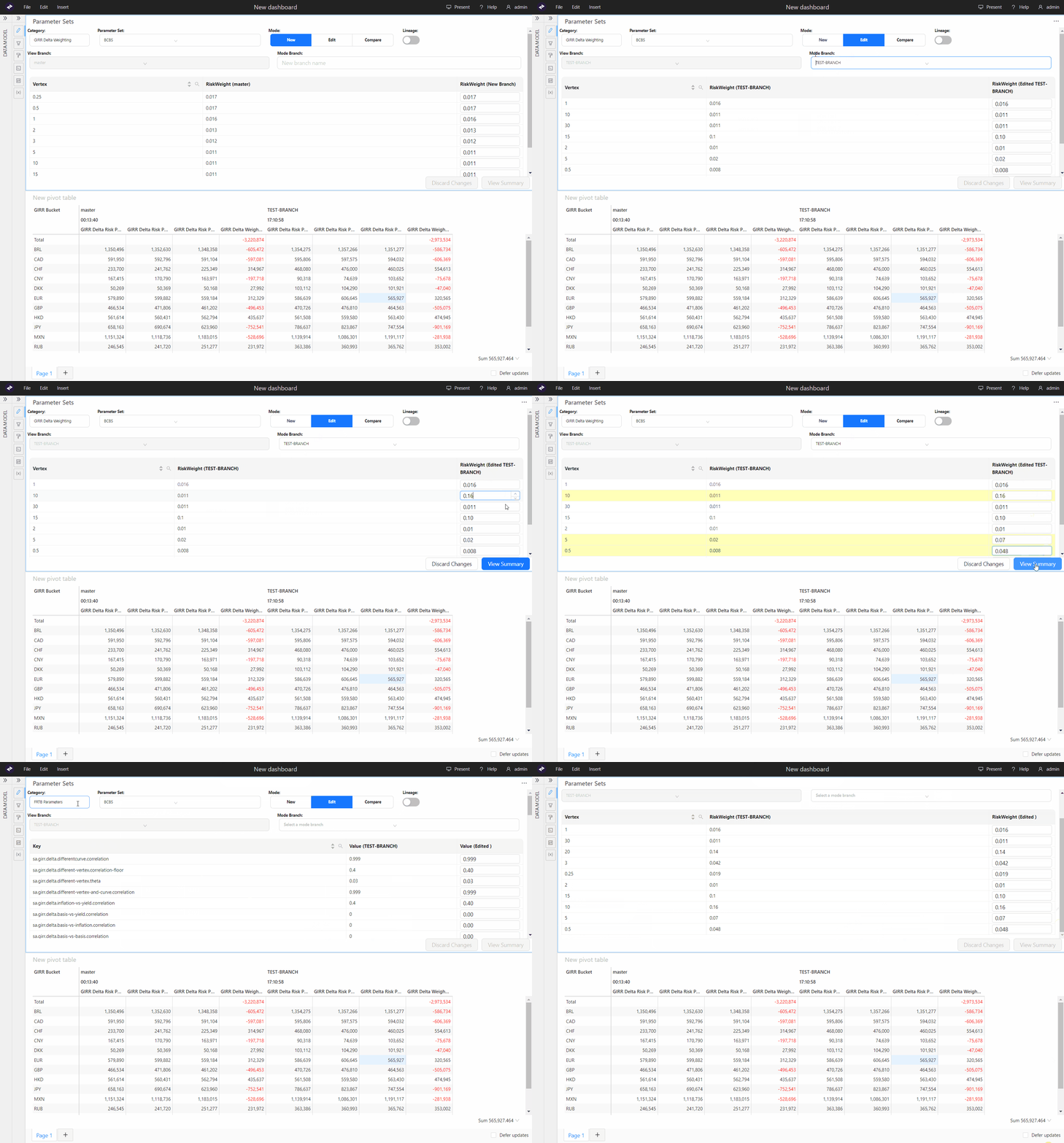 * **Keep Editing**: Closes the summary window and returns you to the parameter set table to continue your modifications
* **Update WhatIf**: Updates your branch with the values you changed
5. Once you are happy with your changes, click **Update WhatIf**. The widget updates your branch with the values you changed.
## Managing the Parameter Set simulation
* You can update your branch by [modifying](#4-modifying-your-changes) the values for specific parameters.
* Use the [WhatIf Manager](./index#whatif-manager) to manage your branches and review your
simulation runs.
* **Keep Editing**: Closes the summary window and returns you to the parameter set table to continue your modifications
* **Update WhatIf**: Updates your branch with the values you changed
5. Once you are happy with your changes, click **Update WhatIf**. The widget updates your branch with the values you changed.
## Managing the Parameter Set simulation
* You can update your branch by [modifying](#4-modifying-your-changes) the values for specific parameters.
* Use the [WhatIf Manager](./index#whatif-manager) to manage your branches and review your
simulation runs.