> ## Documentation Index
> Fetch the complete documentation index at: https://docs.activeviam.com/llms.txt
> Use this file to discover all available pages before exploring further.
# What-If analysis
export const productName = "Atoti FRTB";
{productName} uses native Atoti What-If capabilities to deliver powerful simulation tools in the following areas:
* Desk reclassification (IMA/SA)
* Trade scaling
* Parameter set changes (including correlation and risk weight)
* Datastore changes
What-If is applicable at any level in the hierarchy and you can drill down and propagate the effect of the what-if simulation to the lower levels.
## Types of What-If analysis
* Desk reclassification.
See [Switch Desk What-If Tool](./what-if-switch-desk)
* Scaling: adjust the trade data by a given percentage or an absolute
amount.
See [FRTB Trade Scaling](./what-if-scaling)
* Parameter set changes.
See [Parameter Sets What-If Widget](./what-if-parameters-widget)
* File upload: create or append a WhatIf scenario by uploading CSV files into the cube.
See [File Upload](./file-upload)
* Simple datastore changes: modify data in the datastore.
See [Simple Datastore Changes](./what-if-simple-datastore-changes)
Check out our video tutorial on Trade Scaling and Desk Reclassification:
## Branches
Each simulation you run creates a separate cloned branch of the master.
However, as the What-If is purely for simulation purposes, these
branches never impact the master branch.
### WhatIf Manager
To manage your branches and the simulations on them, use the **WhatIf Manager**.
To open the WhatIf Manager:
1. In the top left menu, click **Insert** > **Widgets**. This opens the list of available widgets.
2. From the list, drag and drop the WhatIf Manager widget to your dashboard.
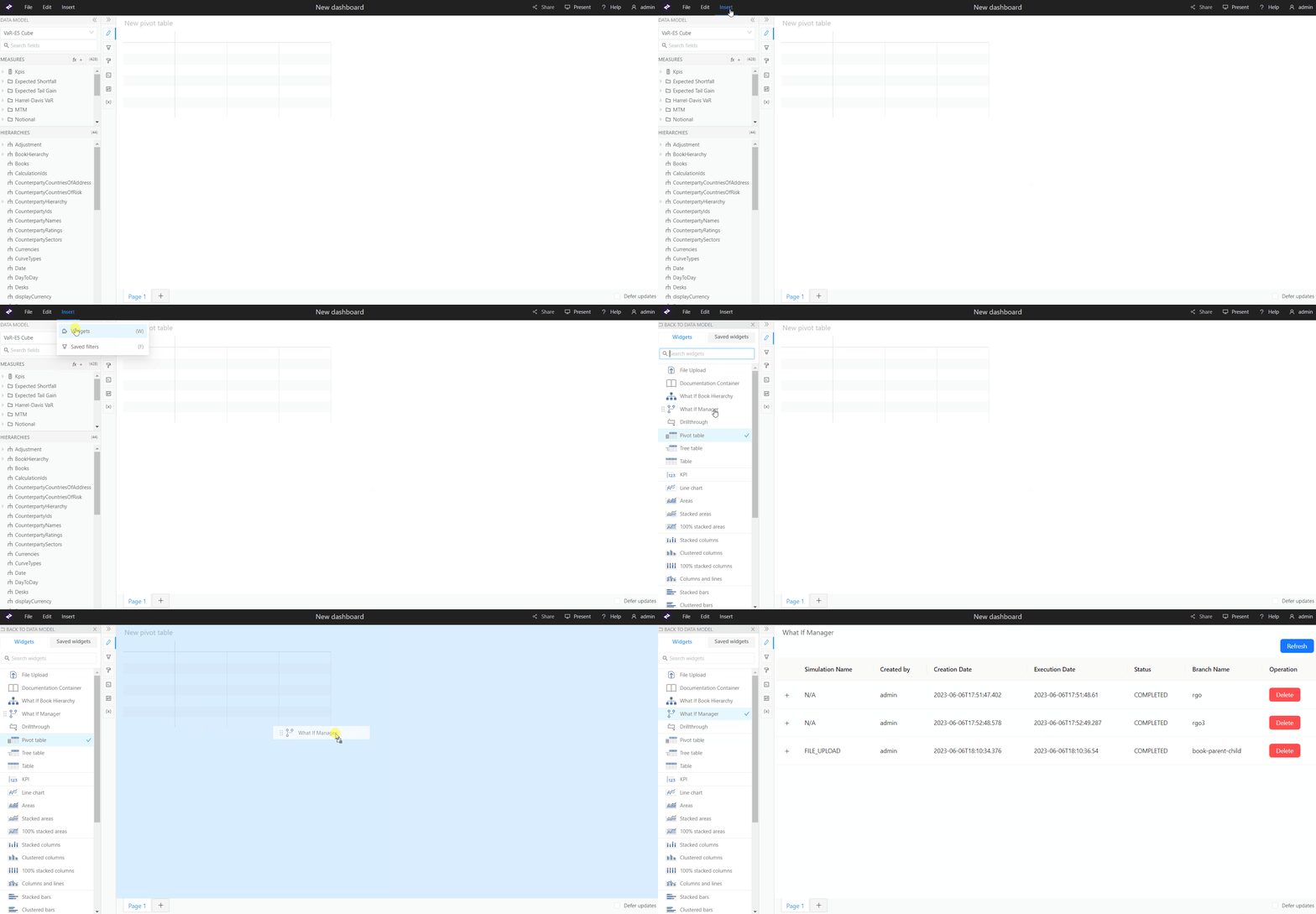 The widget displays a list of your branches:
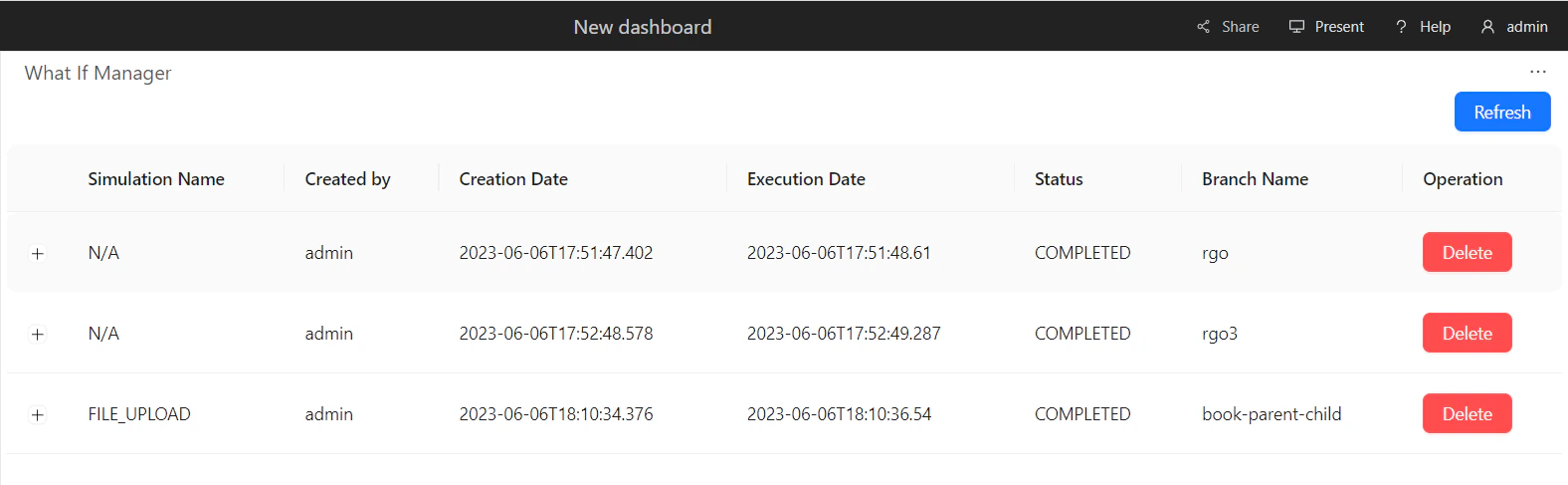 You can view the audit columns (Submission Name, Created by, Creation Date, Execution Date, Status, Branch Name, Operation), and remove a branch by clicking the **Delete** button.
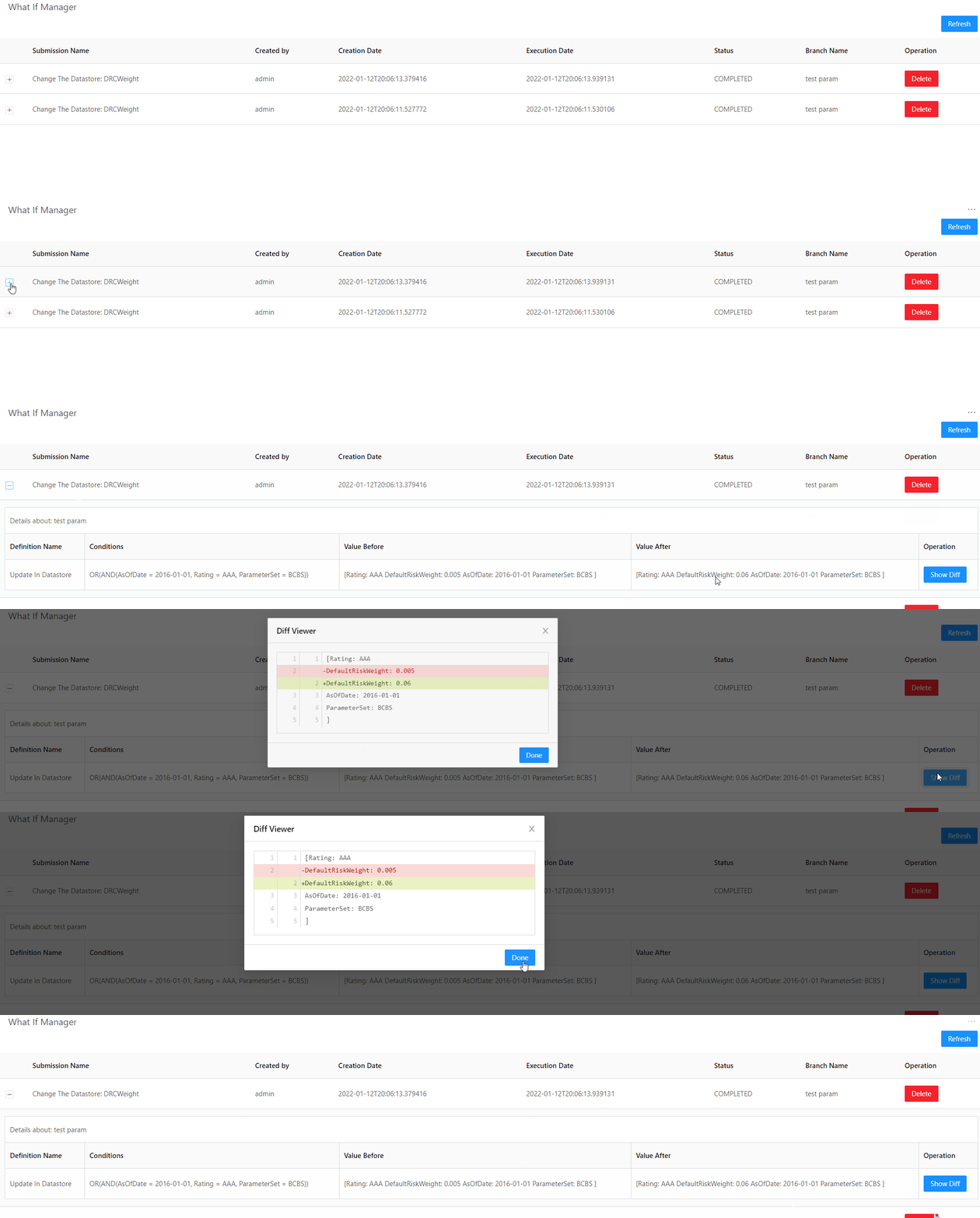
Clicking the + button in front of a row displays more details about your branch. Here you can also run a diff between the changes on your WhatIf branch and the master branch.
The diff is not available for what-ifs created using the file upload widget.
You can view the audit columns (Submission Name, Created by, Creation Date, Execution Date, Status, Branch Name, Operation), and remove a branch by clicking the **Delete** button.
Clicking the + button in front of a row displays more details about your branch. Here you can also run a diff between the changes on your WhatIf branch and the master branch.
The diff is not available for what-ifs created using the file upload widget.
 ## Audit Trail
In the reference implementation of {productName}, there is no audit
trail or persistence for the What-If simulations. Instead, the What-If
branches are cleaned-up on a regular basis depending on your
configuration.
## Customizing the What-If configuration
The What-If framework has been designed to be adapted and configured
based on your use cases.
## Audit Trail
In the reference implementation of {productName}, there is no audit
trail or persistence for the What-If simulations. Instead, the What-If
branches are cleaned-up on a regular basis depending on your
configuration.
## Customizing the What-If configuration
The What-If framework has been designed to be adapted and configured
based on your use cases.