| Element | Description |
|---|---|
| Category | Select a table of parameters from the Datastore. |
| Parameter Set | Select a version of parameter definitions. For details, see Parameter Sets. |
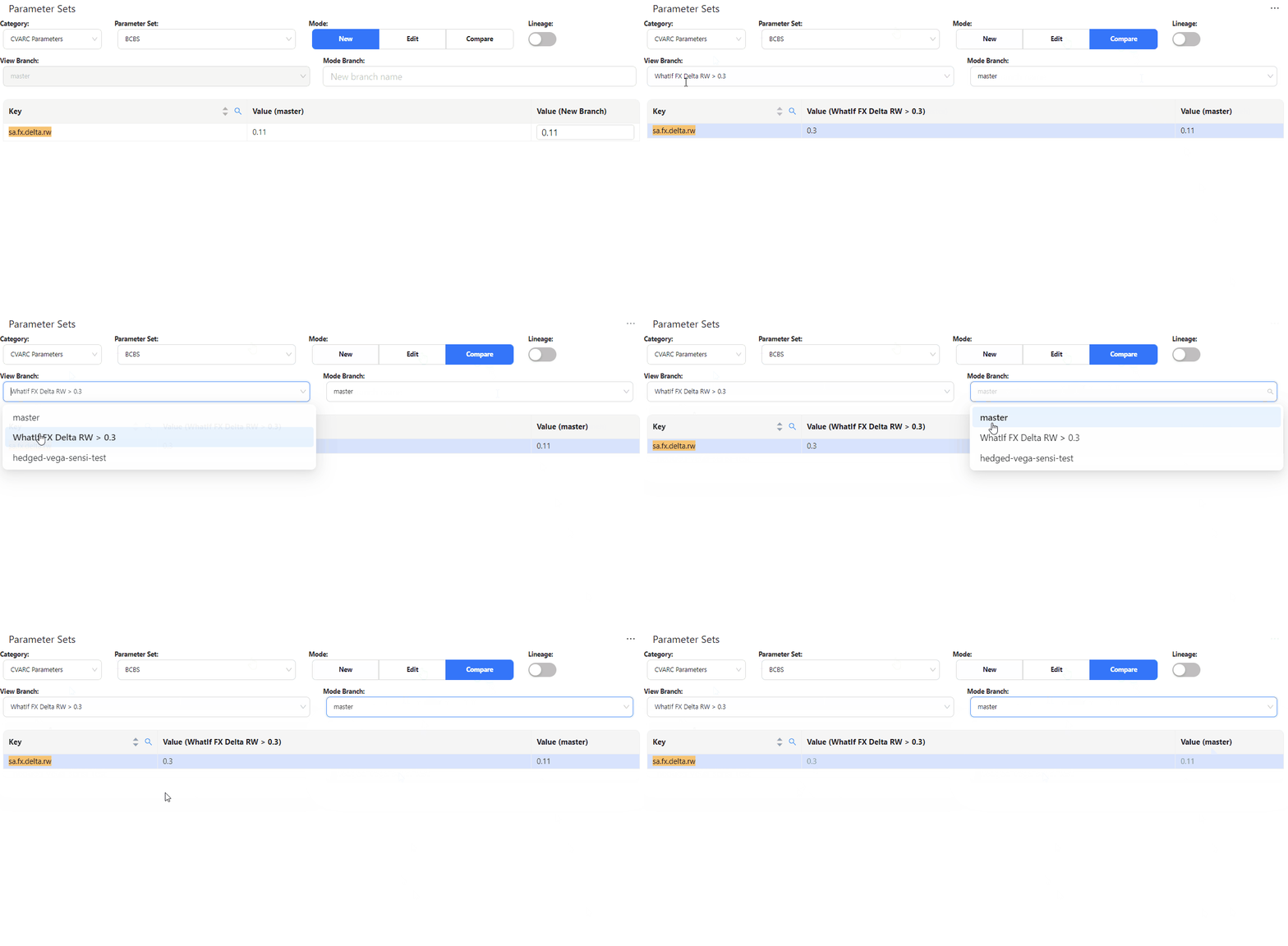
| Mode | Start a new WhatIf simulation (New), edit an existing WhatIf simulation (Edit), or compare values in two different branches (Compare). |
| Lineage | Toggle between the following display options:\* (Default) Only parameters that have the specific label you set in the Parameter Set.\* Include parameters inherited from previous regulation versions. |
| View branch | Selects the base branch for your new branch or comparison. By default the base branch is master for comparisons and always master when creating a new branch. |
| Mode branch | When in New or Edit Mode, enter the name of your new branch. When in Compare Mode, select the comparison branch. |
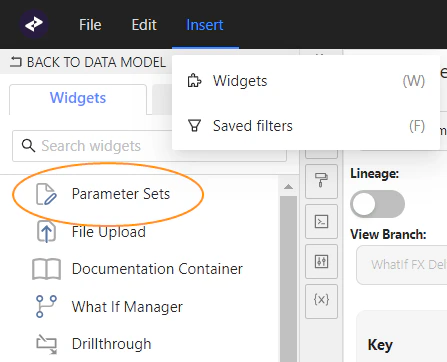 On initial display, you can see the parameter values as in the master branch.
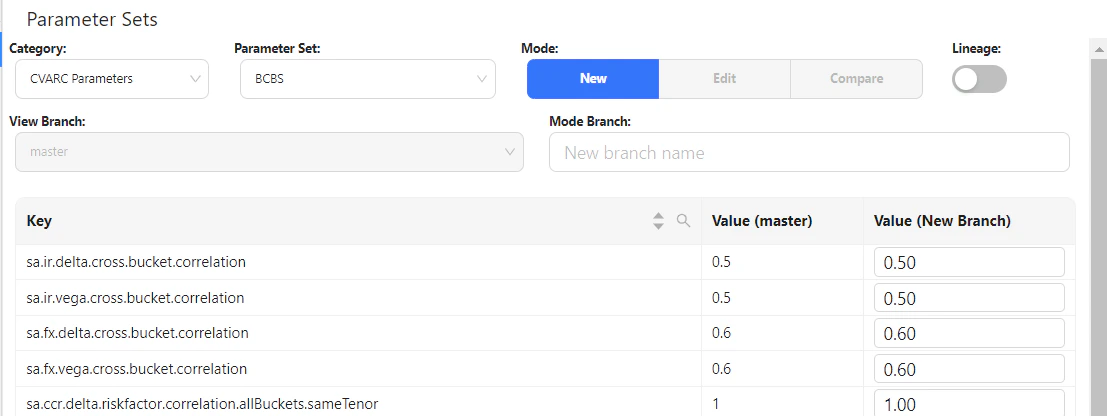 2. From the **Category** dropdown list, select a store.
3. From the **Parameter Set** dropdown list, select the parameter set you require.
4. (optional) Toggle the **Lineage** selector if you want to also display the parent parameter set in addition to the selected set.
5. Set **Mode** to **New** to create a new What-If branch.
6. In the **Mode Branch** field, enter a descriptive name for your what-if simulation. For example, “WhatIf FX Delta RW > 0.3” for the branch in which ““FX Delta Risk Weight” is changed to “0.3”.
This name will show up in your data visualization widgets and filters.
The current values for each parameter in the selected parameter set are
displayed for the master branch and your new branch.
You can now make changes.
### 2. Making your changes
1. To find the parameter you require, use the search
filter by clicking on the magnifying glass on the column header.
2. From the **Category** dropdown list, select a store.
3. From the **Parameter Set** dropdown list, select the parameter set you require.
4. (optional) Toggle the **Lineage** selector if you want to also display the parent parameter set in addition to the selected set.
5. Set **Mode** to **New** to create a new What-If branch.
6. In the **Mode Branch** field, enter a descriptive name for your what-if simulation. For example, “WhatIf FX Delta RW > 0.3” for the branch in which ““FX Delta Risk Weight” is changed to “0.3”.
This name will show up in your data visualization widgets and filters.
The current values for each parameter in the selected parameter set are
displayed for the master branch and your new branch.
You can now make changes.
### 2. Making your changes
1. To find the parameter you require, use the search
filter by clicking on the magnifying glass on the column header.
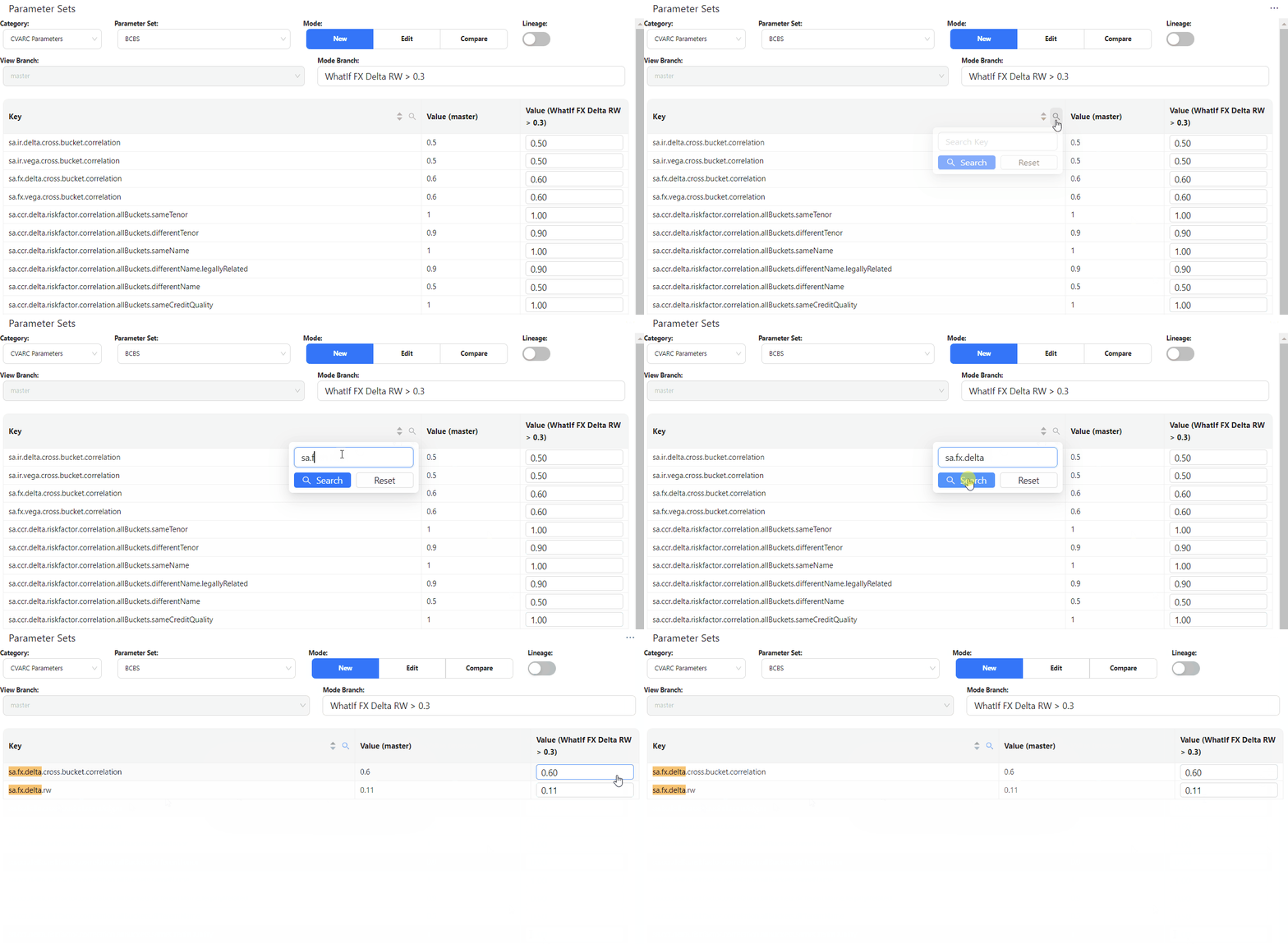 2. For each parameter, enter your changes directly in the corresponding
value field on your new branch. The system highlights changed rows
in yellow, to indicate the selected values will be modified when you create your branch in the next step.
If required, you can delete your changes by clicking **Discard Changes** at the bottom of the table. This removes all your changes and reloads the default values.
3. Click **View Summary** to review your changes. You have the following options:
2. For each parameter, enter your changes directly in the corresponding
value field on your new branch. The system highlights changed rows
in yellow, to indicate the selected values will be modified when you create your branch in the next step.
If required, you can delete your changes by clicking **Discard Changes** at the bottom of the table. This removes all your changes and reloads the default values.
3. Click **View Summary** to review your changes. You have the following options:
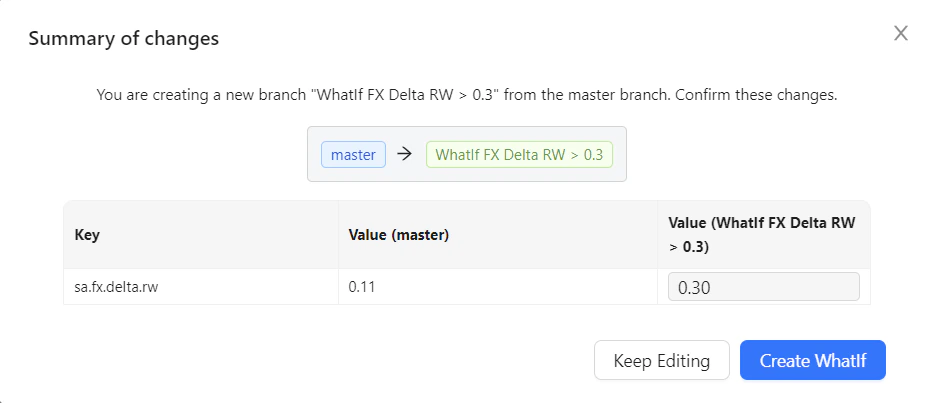 * **Keep Editing**: Closes the summary window and returns you to the Parameter Sets table to continue your modifications.
* **Create WhatIf**: Creates your new branch with the values you changed.
4. Once you are happy with your changes, click **Create WhatIf**.
The widget creates your new branch with the values you changed.
You can now compare your new branch to master.
* **Keep Editing**: Closes the summary window and returns you to the Parameter Sets table to continue your modifications.
* **Create WhatIf**: Creates your new branch with the values you changed.
4. Once you are happy with your changes, click **Create WhatIf**.
The widget creates your new branch with the values you changed.
You can now compare your new branch to master.
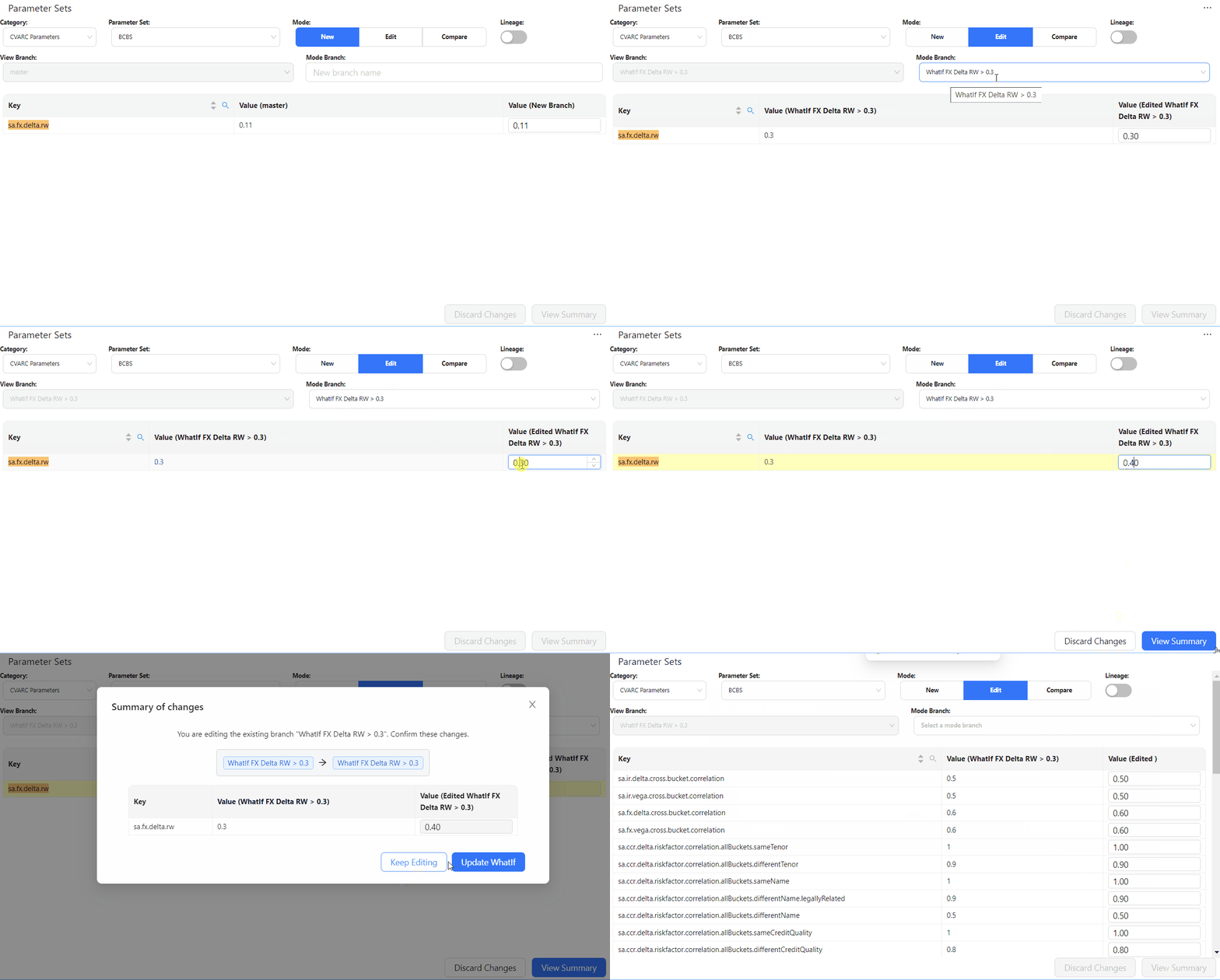 5. Once you are happy with your changes, click **Update WhatIf**. The widget updates your branch with the values you changed.
## Managing the parameter set simulation
Use the [WhatIf Manager](../what-if#whatif-manager) to manage your branches and review your
simulation runs.
5. Once you are happy with your changes, click **Update WhatIf**. The widget updates your branch with the values you changed.
## Managing the parameter set simulation
Use the [WhatIf Manager](../what-if#whatif-manager) to manage your branches and review your
simulation runs.