> ## Documentation Index
> Fetch the complete documentation index at: https://docs.activeviam.com/llms.txt
> Use this file to discover all available pages before exploring further.
# File upload
The **File Upload** widget enables you to create or append a WhatIf scenario by uploading CSV files into the cube.
## Using the widget
To use File Upload:
1. Add your files into the relevant directory in the **stage** folder. It is located in `cvarc-starter/src/test/resources/data/`. The files you add here are then displayed in the File Upload widget.
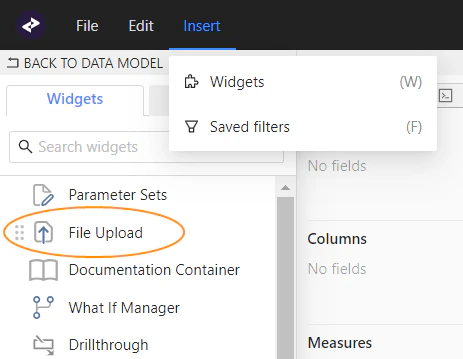
2. To launch the File Upload widget, from the top left menu, click **Insert** > **Widgets**. This opens the list of available widgets.
3. From the list, drag and drop the File Upload widget to your dashboard.
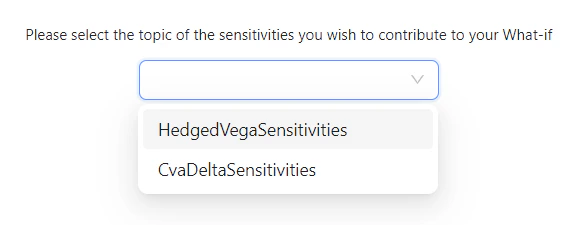
 4. Click the dropdown to select from a list of topics which are configured and have available data.
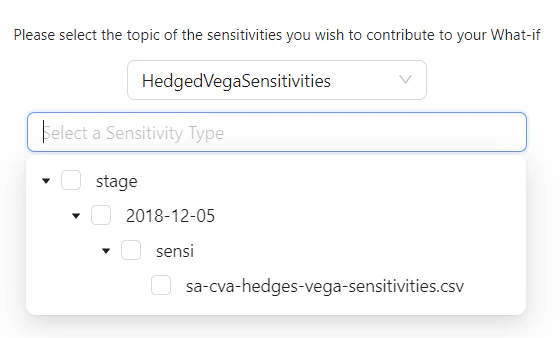
 5. Next, select a file. Below the topic selector you can expand a directory structure containing the files available for the upload associated with the selected topic.
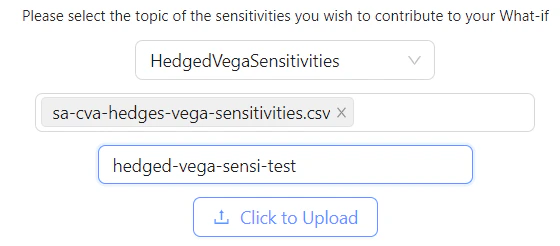
 6. Once you've selected the required files, enter a name for your branch in the **What-if Branch Name** field, then click **Click to Upload**.
 You can only create or modify a branch if you have the required permissions. By default, only the creator of the branch can modify it.
You can check and delete your branch in the What-If Manager. For more information, see [WhatIf Manager](../what-if#whatif-manager)
For details on the File Upload Widget’s settings, see [File Upload Widget](/products/tools/ui-components/latest/online-help/components-features/widget/widget-file-upload) in the UI Components Documentation.
## See also
* [Delta sensitivities of Hedges](../input-files/delta-sensitivities-of-hedges)
* [Delta sensitivities of the Regulatory CVA](../input-files/delta-sensitivities-of-the-regulatory-cva)
* [Parameter Sets](./parameter-sets)
* [Vega sensitivities of Hedges](../input-files/vega-sensitivities-of-hedges)
* [Vega sensitivities of the Regulatory CVA](../input-files/vega-sensitivities-of-the-regulatory-cva)
* [\[RiskClass\].\[RiskClass\]](../cube/riskclass.riskclass)
* [\[RiskFactorId\].\[RiskFactorId\]](../cube/riskfactorid.riskfactorid)
* [\[RiskMeasure\].\[RiskMeasure\]](../cube/riskmeasure.riskmeasure)
* [\[delta-SensitivityCcy\].\[delta-SensitivityCcy\]](../cube/delta-sensitivityccy.delta-sensitivityccy)
* [\[vega-SensitivityCcy\].\[vega-SensitivityCcy\]](../cube/vega-sensitivityccy.vega-sensitivityccy)
You can only create or modify a branch if you have the required permissions. By default, only the creator of the branch can modify it.
You can check and delete your branch in the What-If Manager. For more information, see [WhatIf Manager](../what-if#whatif-manager)
For details on the File Upload Widget’s settings, see [File Upload Widget](/products/tools/ui-components/latest/online-help/components-features/widget/widget-file-upload) in the UI Components Documentation.
## See also
* [Delta sensitivities of Hedges](../input-files/delta-sensitivities-of-hedges)
* [Delta sensitivities of the Regulatory CVA](../input-files/delta-sensitivities-of-the-regulatory-cva)
* [Parameter Sets](./parameter-sets)
* [Vega sensitivities of Hedges](../input-files/vega-sensitivities-of-hedges)
* [Vega sensitivities of the Regulatory CVA](../input-files/vega-sensitivities-of-the-regulatory-cva)
* [\[RiskClass\].\[RiskClass\]](../cube/riskclass.riskclass)
* [\[RiskFactorId\].\[RiskFactorId\]](../cube/riskfactorid.riskfactorid)
* [\[RiskMeasure\].\[RiskMeasure\]](../cube/riskmeasure.riskmeasure)
* [\[delta-SensitivityCcy\].\[delta-SensitivityCcy\]](../cube/delta-sensitivityccy.delta-sensitivityccy)
* [\[vega-SensitivityCcy\].\[vega-SensitivityCcy\]](../cube/vega-sensitivityccy.vega-sensitivityccy)