> ## Documentation Index
> Fetch the complete documentation index at: https://docs.activeviam.com/llms.txt
> Use this file to discover all available pages before exploring further.
# Documentation container
The **Documentation Container** widget allows you to include documentation pages in your dashboard.
## Accessing the widget
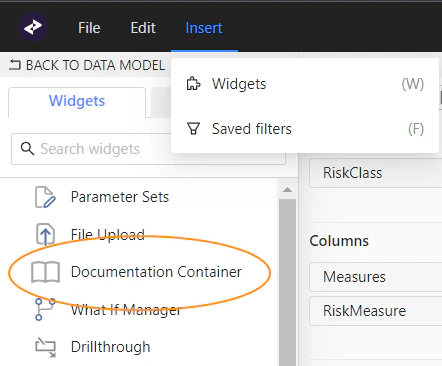
1. In the top left menu, click **Insert** > **Widgets**.
2. Drag and drop the **Documentation Container** to your dashboard.
 Once you’ve added the **Documentation Container** widget to your dashboard, you can save the dashboard with the embedded article.
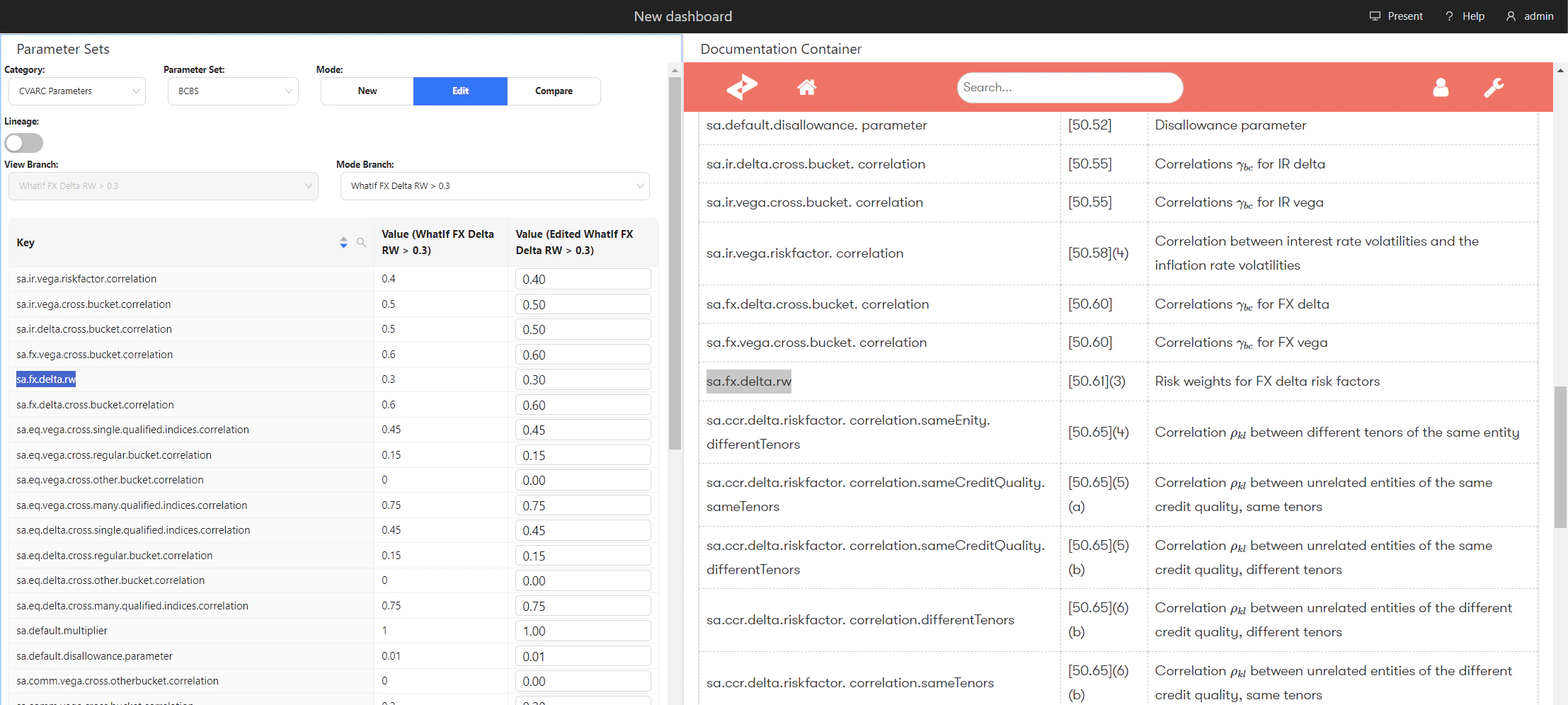 For details on settings and disabling/enabling the widget, see [Documentation Widget](/products/tools/ui-components/latest/online-help/components-features/widget/widget-documentation) in the UI Components Documentation.