> ## Documentation Index
> Fetch the complete documentation index at: https://docs.activeviam.com/llms.txt
> Use this file to discover all available pages before exploring further.
# Navigating managerDesc
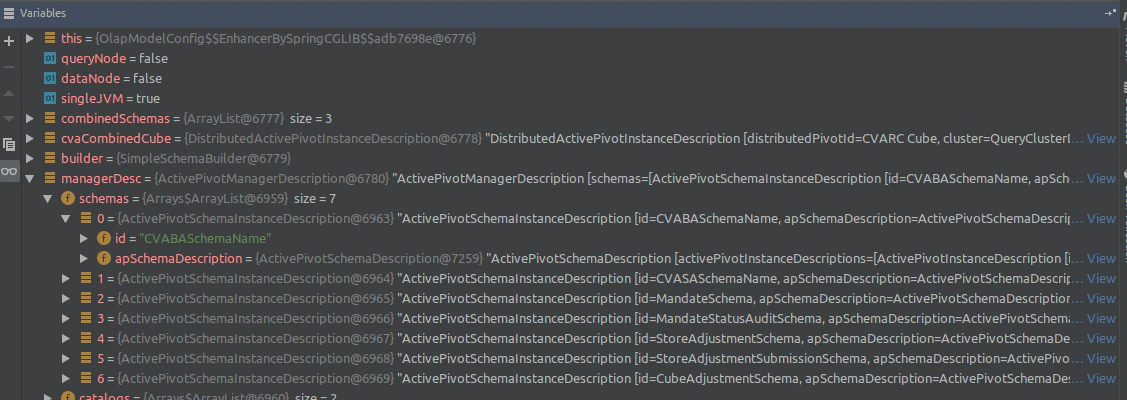
This page provides a description of how we can navigate the Schema. a field as a hierarchy. Navigating the Schema is currently the best way to add hierarchies and measures. The best way to get a sense of the structure of the ManagerDesc is using the debugger. The techniques employed are generic examples that can be extended, adapted and repeated for any use case that we need.
## Step 1 - finding manager description
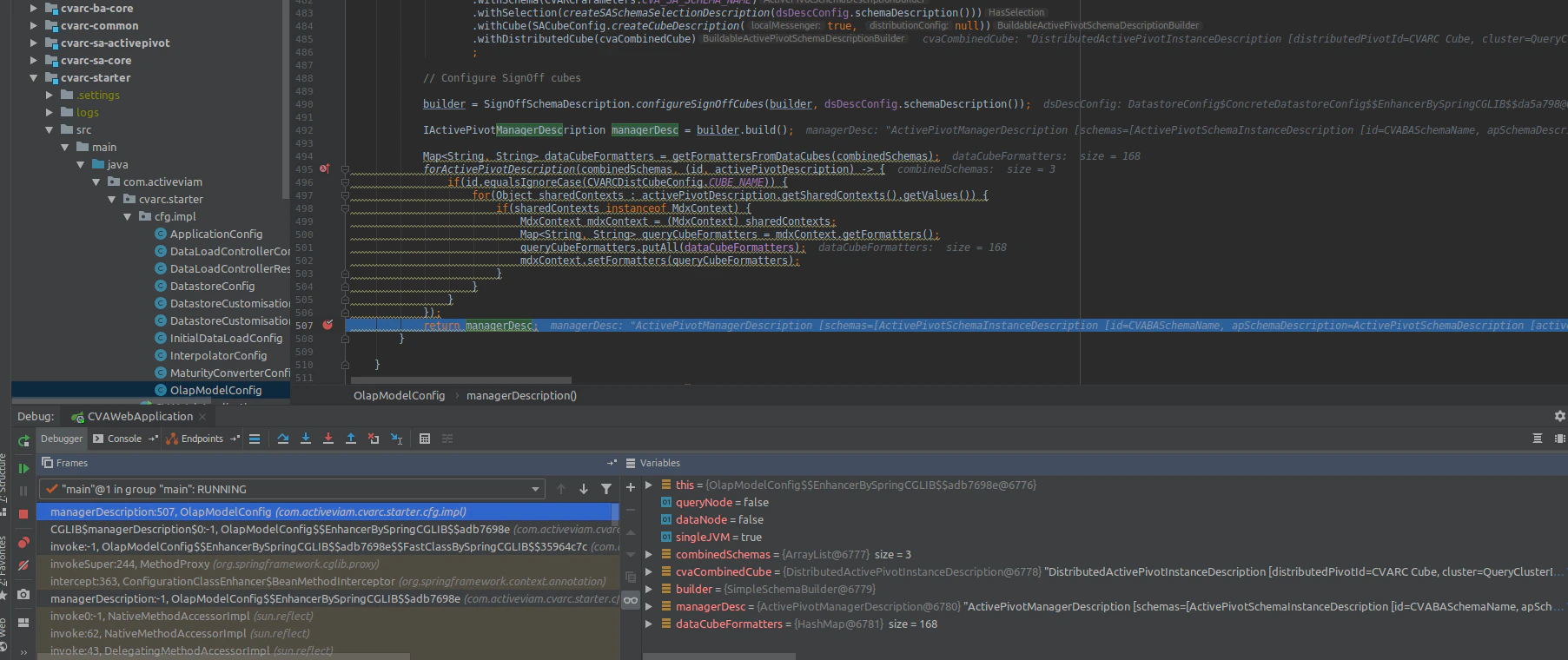
Navigate to the method managerDescription() inside of /cvarc-starter/src/main/java/com/activeviam/cvarc/starter/cfg/impl/OlapModelConfig.java and place a break point on the return statement found at the end of the method
 Step 2 - Finding Elements
Inside of the Variables section of the debugger the tree you want to navigate would be the managerDesc please see two examples below:
### Example 1: dimensions
`managerDesc.getSchemas().get(1).getActivePivotSchemaDescription().getActivePivotInstanceDescriptions().get(0).getActivePivotDescription().getAxisDimensions().getValues()`
Step 2 - Finding Elements
Inside of the Variables section of the debugger the tree you want to navigate would be the managerDesc please see two examples below:
### Example 1: dimensions
`managerDesc.getSchemas().get(1).getActivePivotSchemaDescription().getActivePivotInstanceDescriptions().get(0).getActivePivotDescription().getAxisDimensions().getValues()`
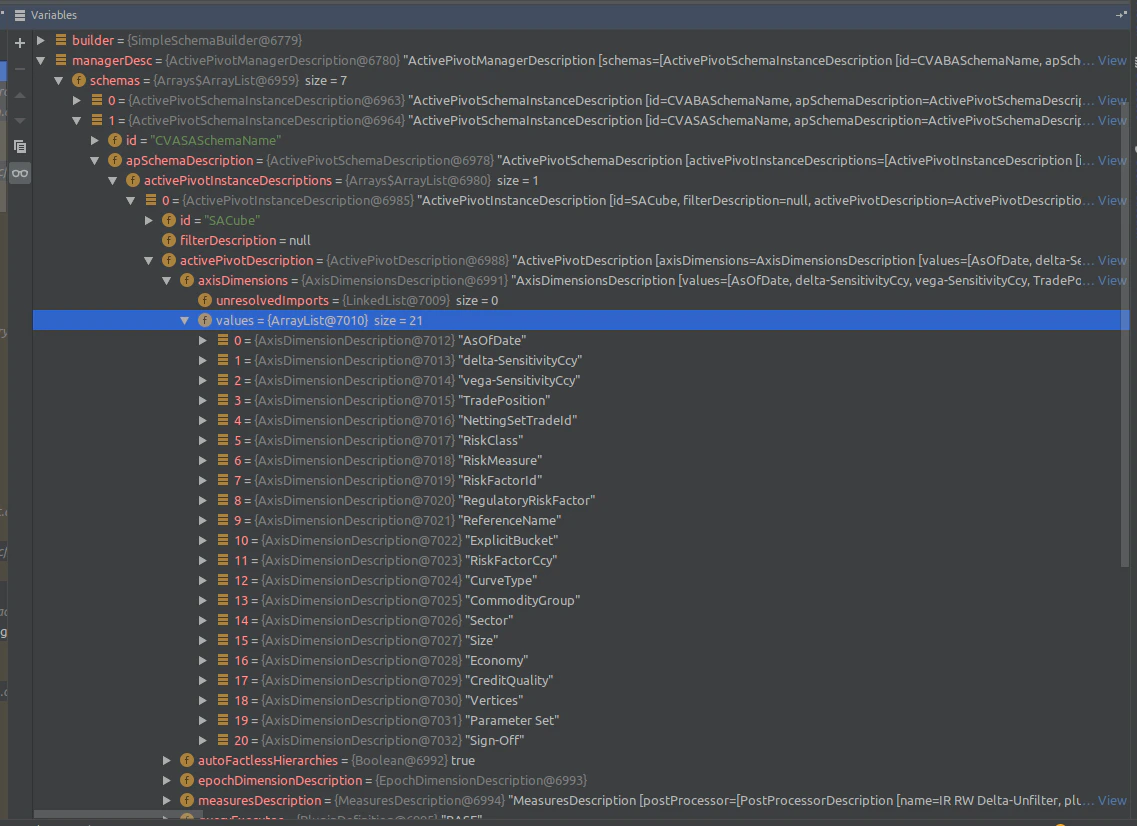 all we need to do to add a custom Hierarchy to the SACube is configure a new Heirarchy object and add it to values. For more info [CLICK HERE](./adding-a-hierarchy).
### Example 2: measures
`managerDesc.getSchemas().get(1).getActivePivotSchemaDescription().getActivePivotInstanceDescriptions().get(0).getActivePivotDescription().getMeasuresDescription().getValues()`
all we need to do to add a custom Hierarchy to the SACube is configure a new Heirarchy object and add it to values. For more info [CLICK HERE](./adding-a-hierarchy).
### Example 2: measures
`managerDesc.getSchemas().get(1).getActivePivotSchemaDescription().getActivePivotInstanceDescriptions().get(0).getActivePivotDescription().getMeasuresDescription().getValues()`
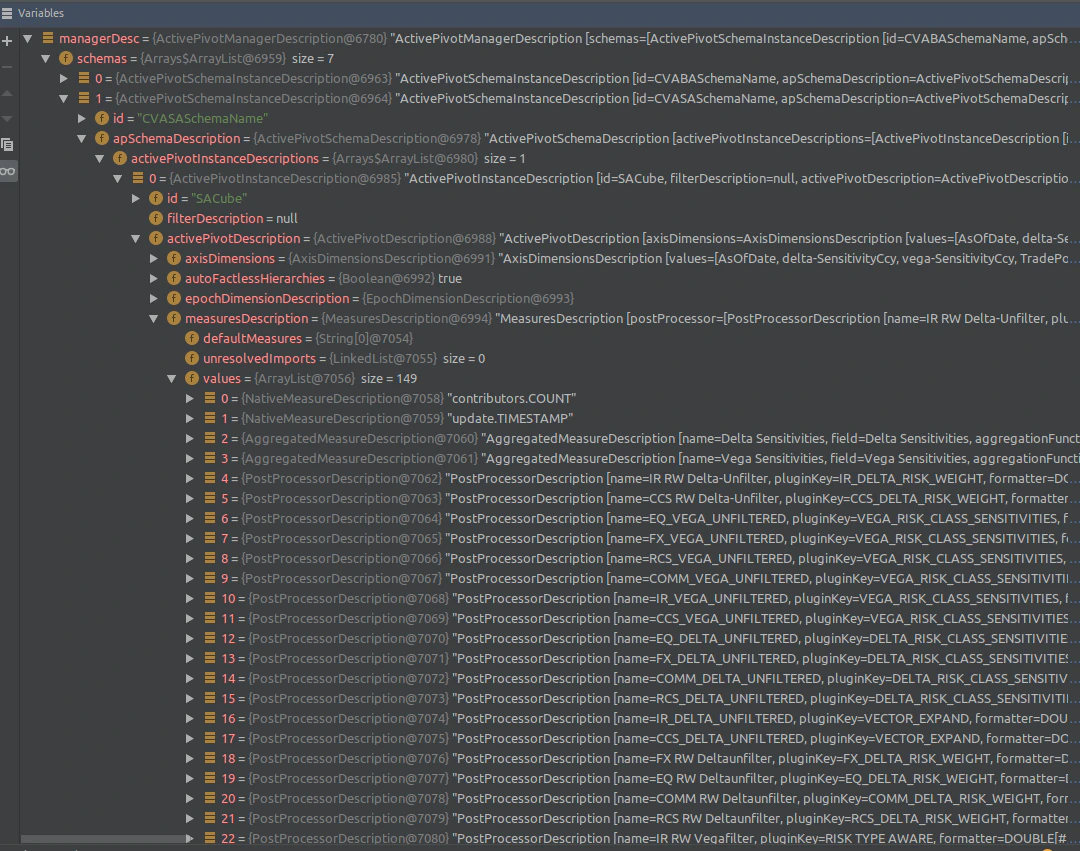 all we need to do to add a custom Measure to the SACube is configure a new measure object and add it to values. For more info [CLICK HERE](./adding-a-measure).
*Keep in mind modifications to other Cubes, for instance BA would follow the same pattern, just the selected schema would change as shown below*
all we need to do to add a custom Measure to the SACube is configure a new measure object and add it to values. For more info [CLICK HERE](./adding-a-measure).
*Keep in mind modifications to other Cubes, for instance BA would follow the same pattern, just the selected schema would change as shown below*