> ## Documentation Index
> Fetch the complete documentation index at: https://docs.activeviam.com/llms.txt
> Use this file to discover all available pages before exploring further.
# How to use Notification Center
> Excel export tracking in Risk Portal Notification Center through readiness checks and temporary Download links, with Dismiss marking notifications read without canceling requests or deleting prepared files
Applies to the **Notification Center** drawer opened from the Risk Portal header.
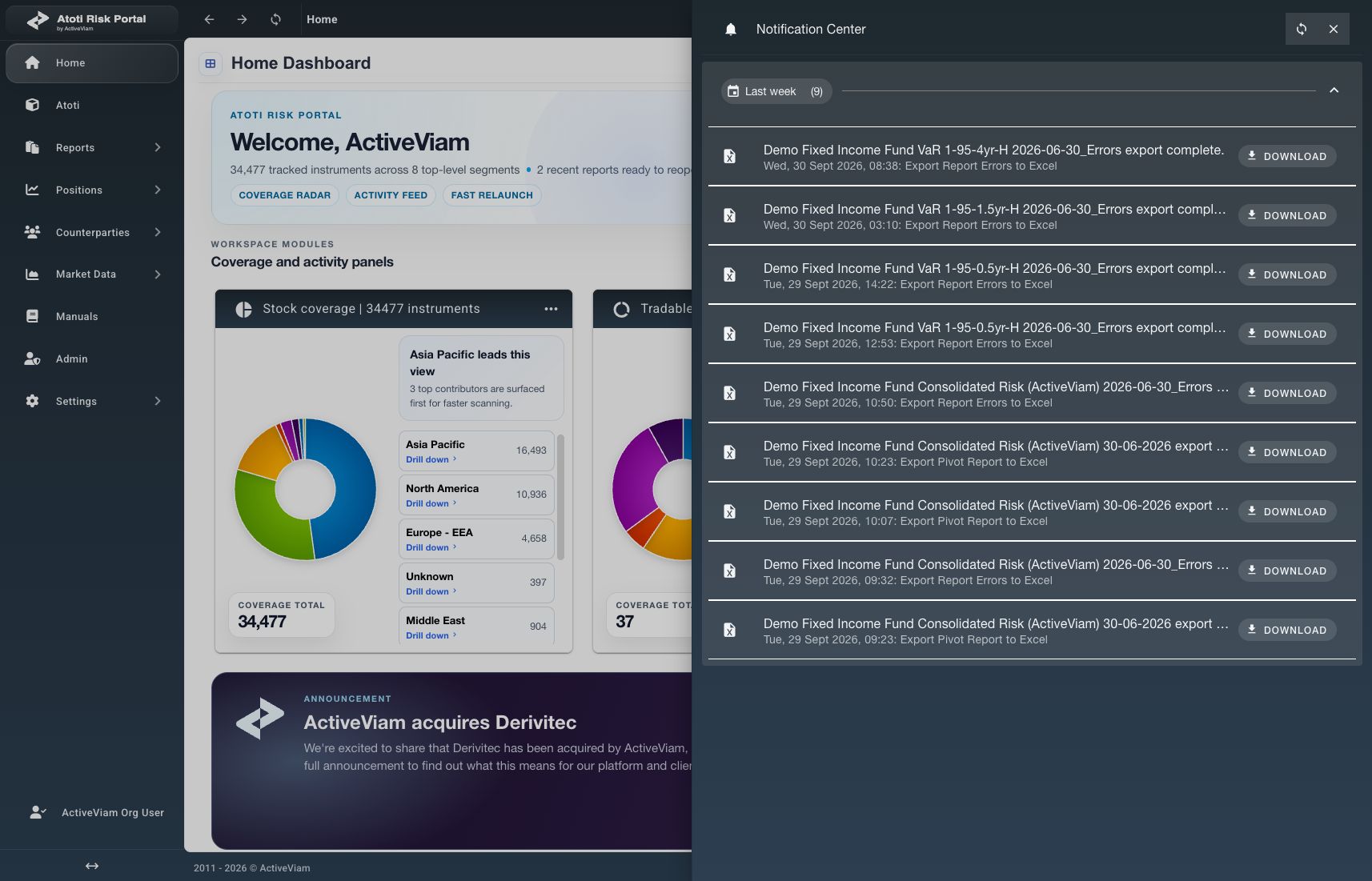
**Notification Center** shows messages and export requests for the signed-in account.
Ready export notifications provide a **Download** action.
## What is required before using Notification Center?
* A signed-in Risk Portal account.
* For export downloads, a submitted report-export request associated with that account.
## How to find a notification
1. Select the bell icon in the application header.
2. Expand the relevant date group in **Notification Center**.
3. Check the notification's title, message, and timestamp.
4. Select the circular-arrow refresh icon when an updated list is needed.
Verify that the notification matches the intended request or report.
Accepted Excel exports can open the drawer automatically.
The bell badge counts unread notifications.
It does not count active export jobs.
A request can be processing without increasing that badge.
## How can export readiness be checked?
Read the request message and available actions.
**File request sent!** acknowledges submission.
A progress indicator shows pending processing without promising a completion time.
When **Download** appears, the notification has a prepared file available for retrieval.
The export button finishing its loading state does not establish workbook readiness.
 ## How to download an export
1. Locate the required ready export notification.
2. Select **Download**.
3. Check the browser's download list.
4. Open the downloaded file to verify its contents.
Selecting **Download** also marks the notification read.
The read marker does not confirm that the browser successfully saved the file.
Download links are temporary.
Select **Download** again if a link expires and the export remains available.
The notification list does not establish how long exported files remain stored.
## How to mark a notification read
1. Locate the unread notification.
2. Select **Dismiss**.
Verify that its unread state clears.
**Dismiss** marks the entry read without canceling the request or deleting the file.
A ready entry can still display **Download** after being marked read.
Select the **X** icon to close the drawer.
Closing it does not cancel pending work.
## What if an entry or download is missing?
The list retrieves up to the newest 100 notifications created within the last 30 days.
It is scoped to the current user and organization.
An empty list describes the currently available notifications, not a complete historical record.
| Observation | Next step |
| - | - |
| A request is still processing. | Refresh the list and inspect the message before submitting a duplicate request. |
| A failure message appears. | Read the reported cause and provide unresolved details to the configured support contact. |
| A notification cannot be found. | Check the signed-in account and refresh the list. Older entries can fall outside the retrieval window. |
| A ready export does not download. | Check browser downloads and try a fresh **Download** link. Refer persistent failures to the configured support contact. |
See [Dump to Excel](./dump-to-excel) and [Export to Excel](./export-to-excel) for the two report-export workflows.
## How to download an export
1. Locate the required ready export notification.
2. Select **Download**.
3. Check the browser's download list.
4. Open the downloaded file to verify its contents.
Selecting **Download** also marks the notification read.
The read marker does not confirm that the browser successfully saved the file.
Download links are temporary.
Select **Download** again if a link expires and the export remains available.
The notification list does not establish how long exported files remain stored.
## How to mark a notification read
1. Locate the unread notification.
2. Select **Dismiss**.
Verify that its unread state clears.
**Dismiss** marks the entry read without canceling the request or deleting the file.
A ready entry can still display **Download** after being marked read.
Select the **X** icon to close the drawer.
Closing it does not cancel pending work.
## What if an entry or download is missing?
The list retrieves up to the newest 100 notifications created within the last 30 days.
It is scoped to the current user and organization.
An empty list describes the currently available notifications, not a complete historical record.
| Observation | Next step |
| - | - |
| A request is still processing. | Refresh the list and inspect the message before submitting a duplicate request. |
| A failure message appears. | Read the reported cause and provide unresolved details to the configured support contact. |
| A notification cannot be found. | Check the signed-in account and refresh the list. Older entries can fall outside the retrieval window. |
| A ready export does not download. | Check browser downloads and try a fresh **Download** link. Refer persistent failures to the configured support contact. |
See [Dump to Excel](./dump-to-excel) and [Export to Excel](./export-to-excel) for the two report-export workflows.