> ## Documentation Index
> Fetch the complete documentation index at: https://docs.activeviam.com/llms.txt
> Use this file to discover all available pages before exploring further.
# How to launch a risk report
> Steps for saving a launcher setup in the Risk Report Launcher using the Add Report dialog with Simple date setup and Live Data disabled, running a saved row, and opening completed results after checking run status
Applies to the **Risk Report Launcher** with an **Add Report** dialog.
Screenshots show the production interface on October 19, 2026.
This procedure uses **Simple** date setup with **Live Data** disabled.
The Risk Report Launcher saves reusable combinations of reports, portfolios, dates, and currencies.
Each saved setup can start a calculation and open the completed report.
## What is required before launching a report?
* A Risk Portal account with access to the required report and portfolio.
* Access to any custom market-data environments required for the report.
* A valuation date with suitable position and market data.
* The required market-data settings, cutoff, and position filter, where applicable.
Available choices depend on account access and organization configuration.
The dialog can reuse previous selections, so check each field before saving.
## How to set up the report
Saving a setup adds a launcher item. Saving does not start a calculation.
1. Select **Reports** in the sidebar.
2. Select **Risk**. The **Risk Report Launcher** page opens.
3. Select **Add** on the toolbar. The **Add Report** dialog opens.
4. Select the portfolio in **Portfolio**.
5. Select the report in **Report Name**.
6. Select **Simple** under **Date Setup**.
7. Clear **Live Data** if the checkbox is shown and selected.
8. Clear **Locked to Today** if selected. The label changes to **Lock to Today**, and manual date selection becomes available.
9. Select the valuation date in **Run Date**. Future dates are unavailable.
10. Set **Market Data Environments** to the required custom selection, if any. An empty custom selection uses the configured defaults.
11. Check **Cut Off** against the required report setup, if shown.
12. Check **Position Filter** against the required report setup, if shown.
13. Select the reporting currency in **Currency**.
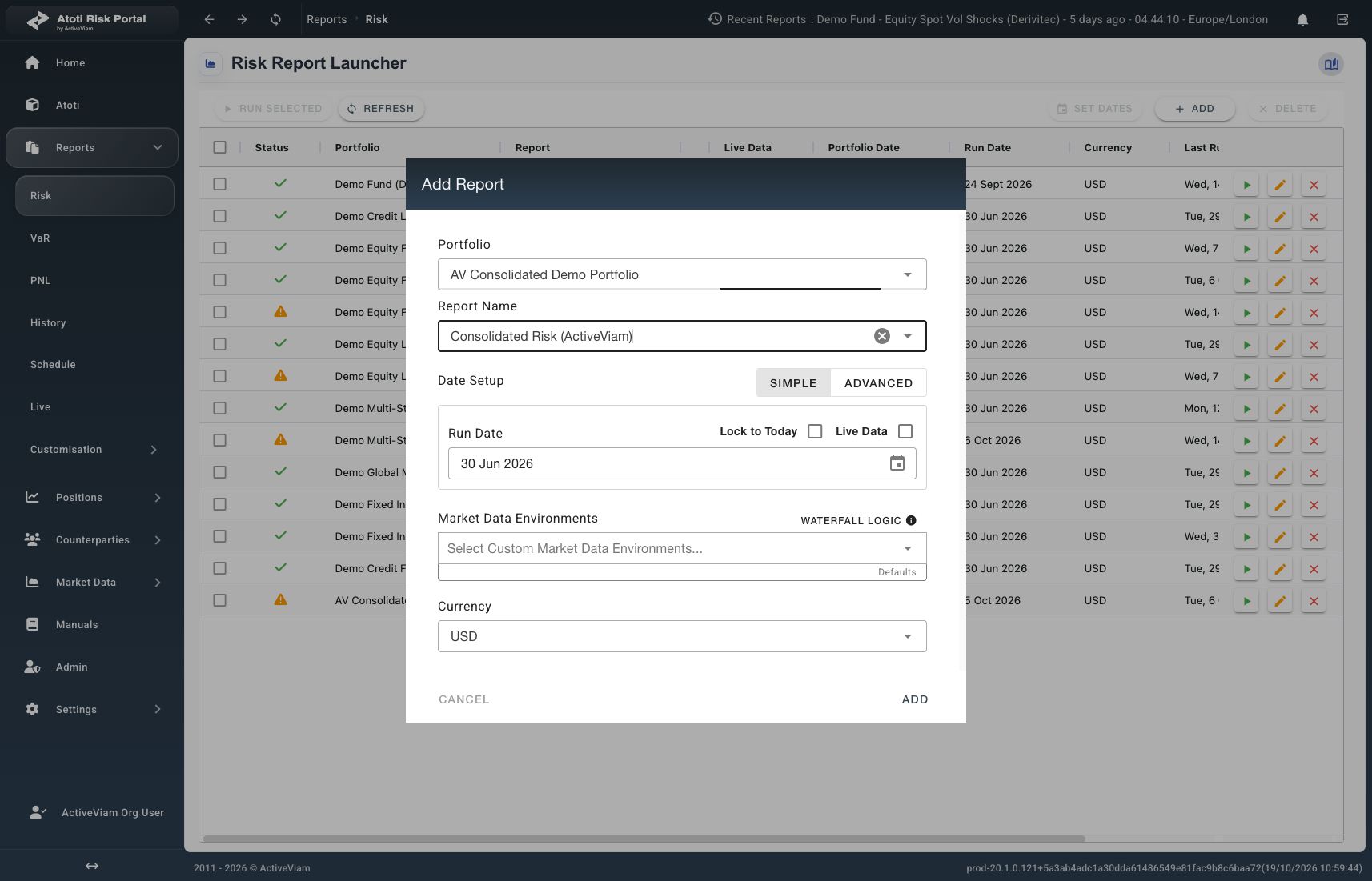 14. Select **Add** inside the dialog to save the setup. The dialog closes.
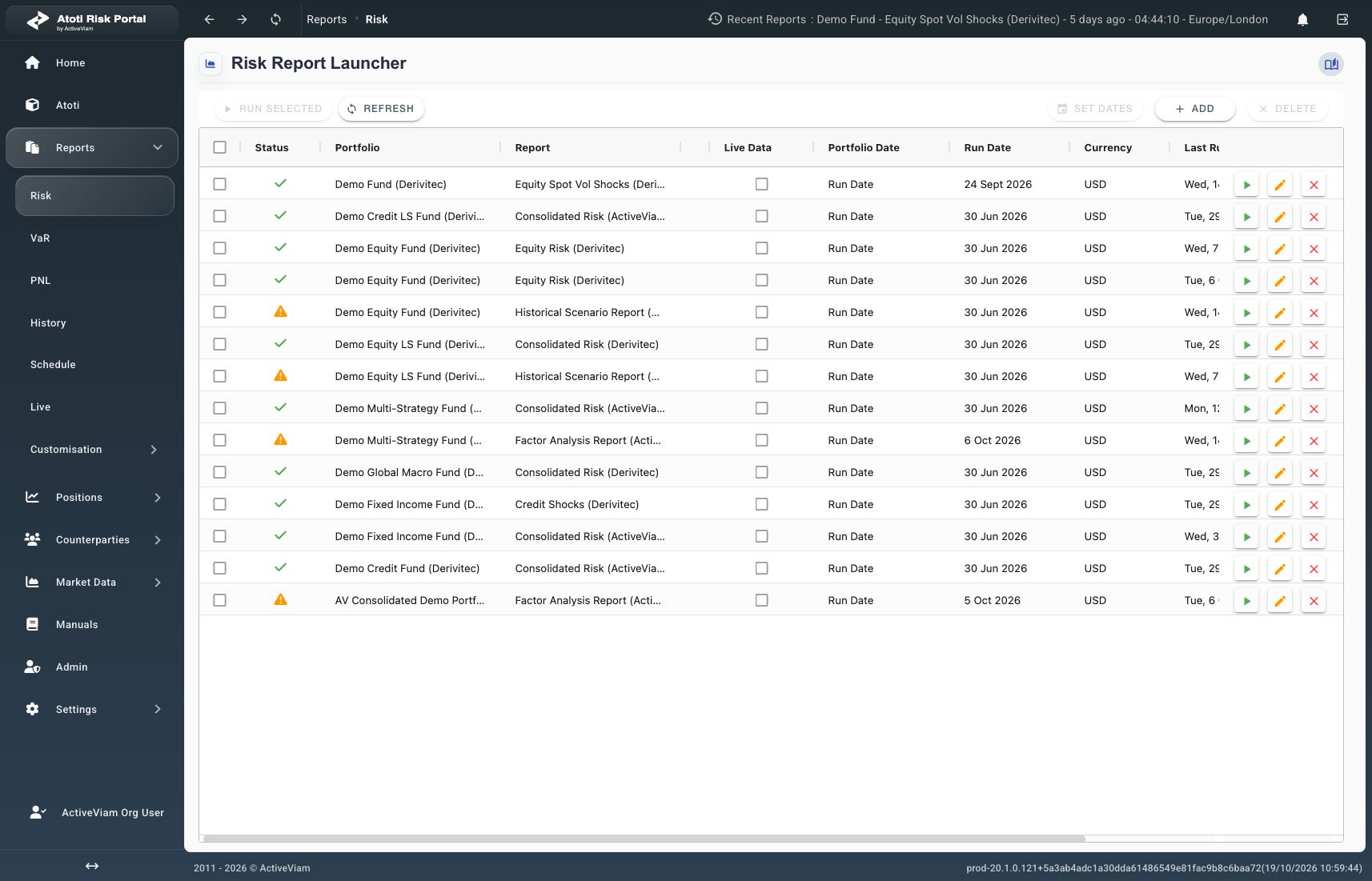
Verify that the new row shows the intended **Portfolio**, **Report**, **Currency**, and **Run Date**.
If no row appears, check any displayed error before continuing.
In **Simple** mode, the portfolio date follows **Run Date**, subject to cutoff settings.
The market-data date can differ from **Run Date**.
For a setup that follows the current day, select **Lock to Today** instead of choosing a fixed date.
The date is resolved whenever the saved item runs. This setting does not schedule or start reports.
## How to run the report
1. Locate the saved setup in the launcher grid.
2. Select the row's **Run** icon, shown as a play button.
A running indicator appears while the request is processed.
The **Run** icon is disabled while the row is running.
Submission starts asynchronous processing; results are available after completion.
14. Select **Add** inside the dialog to save the setup. The dialog closes.
Verify that the new row shows the intended **Portfolio**, **Report**, **Currency**, and **Run Date**.
If no row appears, check any displayed error before continuing.
In **Simple** mode, the portfolio date follows **Run Date**, subject to cutoff settings.
The market-data date can differ from **Run Date**.
For a setup that follows the current day, select **Lock to Today** instead of choosing a fixed date.
The date is resolved whenever the saved item runs. This setting does not schedule or start reports.
## How to run the report
1. Locate the saved setup in the launcher grid.
2. Select the row's **Run** icon, shown as a play button.
A running indicator appears while the request is processed.
The **Run** icon is disabled while the row is running.
Submission starts asynchronous processing; results are available after completion.
 ## How to open the results
1. Wait for a green check or orange warning triangle on the saved row.
2. Select the report name in the completed row. The report view opens.
Use the status indicator to distinguish completion from failure.
| Indicator | Meaning |
| - | - |
| Running indicator | The report is still processing. |
| Green check | The report succeeded. |
| Orange triangle | The report completed with warnings or errors. |
| Red failure icon | The run failed. A failed row does not open completed results. |
A warning tooltip shows the supplied status message, or **Succeeded with errors** when no message is supplied.
Read any available warning details before relying on the results.
## What can prevent a report from completing?
| Observation | Next step |
| - | - |
| The required report or portfolio is unavailable. | Ask an administrator or the configured support contact to check availability and access. |
| **Run Date** cannot be changed. | Check **Live Data** and **Locked to Today**. Clear active checkboxes before choosing a fixed date. |
| The row is already running. | Wait for the current run to finish. **Run** is disabled during processing. |
| The run fails. | Read any displayed error or available status tooltip. The next action depends on the reported cause. |
For unresolved failures, provide the reported error and selected setup to the configured support contact.
## Next steps and related reading
Use [Report history](../manage-reports/report-history) to find earlier results.
Use [Choose columns](../edit-a-report/choose-columns) to adjust the displayed fields.
For workbook downloads, see [Dump to Excel](./dump-to-excel) and [Export to Excel](./export-to-excel).
## How to open the results
1. Wait for a green check or orange warning triangle on the saved row.
2. Select the report name in the completed row. The report view opens.
Use the status indicator to distinguish completion from failure.
| Indicator | Meaning |
| - | - |
| Running indicator | The report is still processing. |
| Green check | The report succeeded. |
| Orange triangle | The report completed with warnings or errors. |
| Red failure icon | The run failed. A failed row does not open completed results. |
A warning tooltip shows the supplied status message, or **Succeeded with errors** when no message is supplied.
Read any available warning details before relying on the results.
## What can prevent a report from completing?
| Observation | Next step |
| - | - |
| The required report or portfolio is unavailable. | Ask an administrator or the configured support contact to check availability and access. |
| **Run Date** cannot be changed. | Check **Live Data** and **Locked to Today**. Clear active checkboxes before choosing a fixed date. |
| The row is already running. | Wait for the current run to finish. **Run** is disabled during processing. |
| The run fails. | Read any displayed error or available status tooltip. The next action depends on the reported cause. |
For unresolved failures, provide the reported error and selected setup to the configured support contact.
## Next steps and related reading
Use [Report history](../manage-reports/report-history) to find earlier results.
Use [Choose columns](../edit-a-report/choose-columns) to adjust the displayed fields.
For workbook downloads, see [Dump to Excel](./dump-to-excel) and [Export to Excel](./export-to-excel).