> ## Documentation Index
> Fetch the complete documentation index at: https://docs.activeviam.com/llms.txt
> Use this file to discover all available pages before exploring further.
# How to customize the home page
> Browser-local customization of the Risk Portal Home Dashboard through tile controls, with separate report-viewer steps for saving cell history while retaining the selected grouping and filter context
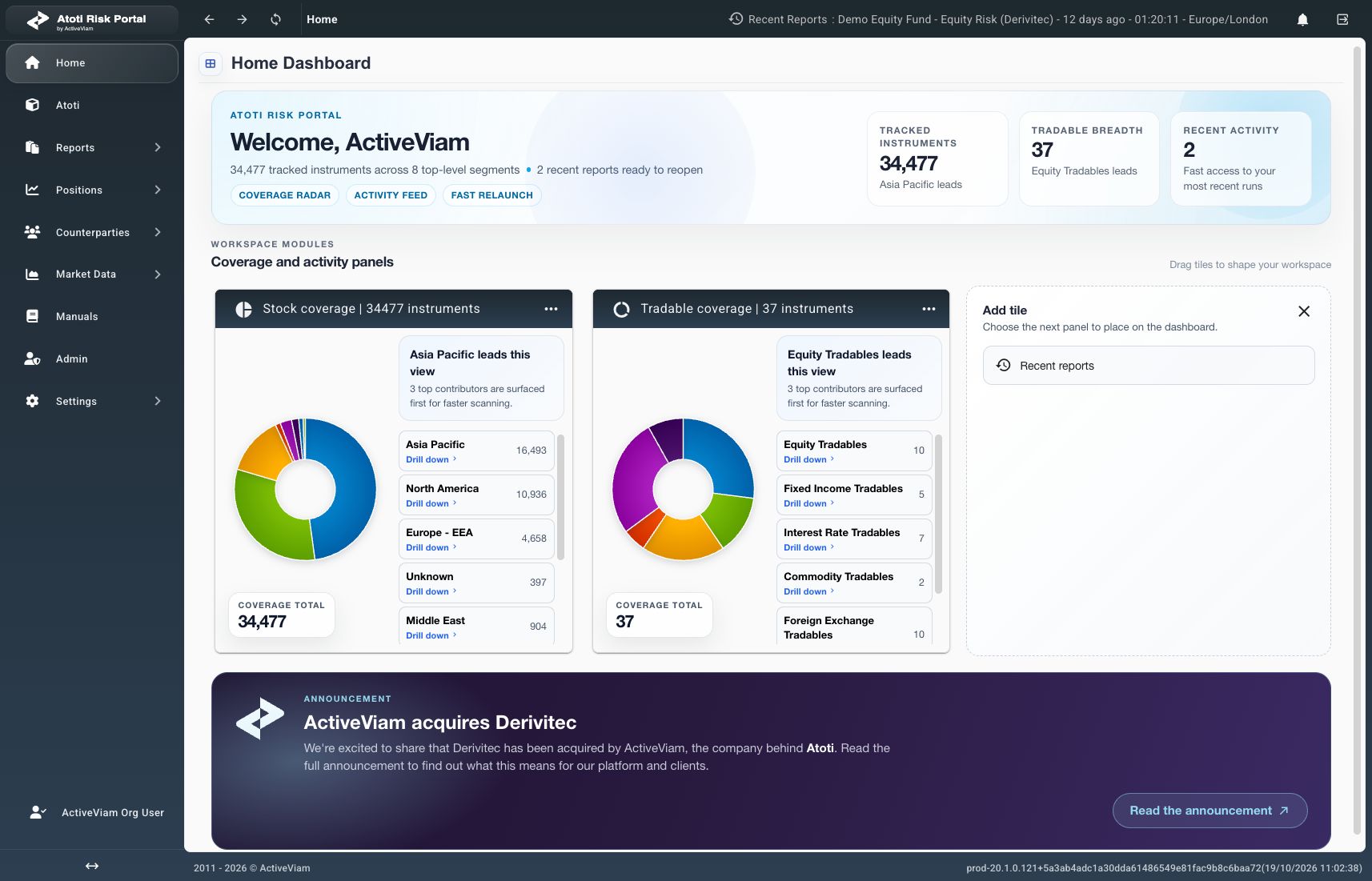
Applies to the **Home Dashboard** with **Add tile** controls.
The screenshot shows the production interface on October 19, 2026.
The **Home Dashboard** combines market coverage, recently opened reports, and saved report-cell history.
Tiles can be added, moved, and removed to arrange the dashboard.
## What is required before customizing Home?
* A signed-in Risk Portal session.
* Access to the underlying report and data when adding report-cell history.
* For cell-history tiles, a report viewer with a **History** option and available rows for the selected cell.
Select **Home** in the sidebar to open the **Home Dashboard**.
The summary cards show **Tracked instruments**, **Tradable breadth**, and **Recent activity**.
## What does each tile show?
Coverage describes market instruments and product types.
It does not represent a selected portfolio's positions or valuation.
| Tile | Contents |
| - | - |
| **Stock coverage** | Covered stocks and indices, grouped by geography and industry classifications. |
| **Tradable coverage** | Product types grouped by asset class and cash or derivative categories. Counts represent product types, not booked trades. |
| **Recent reports** | Up to five recently opened reports recorded in the current browser. This list is separate from report history. |
| Saved report-cell history | Values for a report cell, retaining its selected grouping and filter context. The tile title identifies the selected column. |
The default dashboard contains **Stock coverage** and **Tradable coverage**.
## How to add a standard tile
Three types of tile can be added to the home page. Each tile can only be added once.
1. Stock coverage
2. Tradable coverage
3. Recent reports
To add a tile that is not already visible, select **Add tile** below the existing panels.
Then select from the available options.
When all three tiles are included on the home page, **Add tile** is hidden.
 Use [How to add report-cell history](#how-to-add-report-cell-history) to save a tile from the report viewer.
## How to arrange or remove tiles
Drag a tile by its title area to the desired position.
Verify that the tile appears in its new position.
To remove a tile:
1. Open the tile's three-dot menu.
2. Select **Remove tile**.
Verify that the tile disappears.
Removal affects the dashboard tile; the underlying report, schedule, and data remain available.
A removed standard tile becomes available under **Add tile** again.
Layout changes are saved automatically in the current browser.
Clearing site data can remove these preferences.
If every tile is removed, returning to Home restores the two default coverage tiles.
## How to add report-cell history
Use a report viewer that offers **History** in a value cell's context menu.
Supported Live reports can be opened through **Reports** → **Live**.
The available viewer action is **View Live** or **View Last Completed**, depending on the configured schedule.
Some report viewers do not offer cell history.
1. Open the required report.
2. Set the grouping for the required cell context.
3. Apply the required filters.
4. Open the value cell's context menu.
5. Select **History**. A **Realtime History** dialog opens with the column title.
6. Wait for history data to load.
7. Check the displayed grouping and filter context.
8. Select **Save widget**.
Verify that the button changes to **Saved**.
The button is disabled while history loads or when no rows are available.
A matching saved cell context does not create a duplicate tile.
9. Select **Close**.
10. Select **Home**.
Verify that the new tile shows the selected column title and **Saved live report cell history**.
To change the saved context, remove the tile and save the required selection from the report again.
Supported live-history tiles load data when opened and refresh when report updates arrive.
Adding a tile does not create a report schedule or start a calculation.
## How to use the dashboard
Select a coverage chart segment or an item marked **Drill down** to explore its categories.
Use **Back** or the breadcrumbs to return to a broader level.
Select a **Recent reports** entry to reopen that report.
This action does not start another calculation.
The recent list is cleared during sign-in and sign-out.
Use a saved history tile's open-report icon, when available, to return to its source report.
## What can prevent a tile from showing data?
| Observation | Next step |
| - | - |
| **No recent reports** appears. | Open an accessible report to populate the recent list. |
| **Coverage data unavailable** appears. | Read the displayed error. Refer unresolved failures to the configured support contact. |
| **Save widget** remains disabled. | Wait for loading to finish and check whether history rows exist. |
| A save attempt reports that the live report query is unavailable. | The required report context is missing. No tile is added; refer the message to the configured support contact. |
| A history tile shows **Live error**. | Previously loaded rows can remain visible. Check the source report before relying on the displayed values. |
See [Report types](./report-types) for the distinction between Risk, VaR, P\&L, and Live reports.
Use [How to add report-cell history](#how-to-add-report-cell-history) to save a tile from the report viewer.
## How to arrange or remove tiles
Drag a tile by its title area to the desired position.
Verify that the tile appears in its new position.
To remove a tile:
1. Open the tile's three-dot menu.
2. Select **Remove tile**.
Verify that the tile disappears.
Removal affects the dashboard tile; the underlying report, schedule, and data remain available.
A removed standard tile becomes available under **Add tile** again.
Layout changes are saved automatically in the current browser.
Clearing site data can remove these preferences.
If every tile is removed, returning to Home restores the two default coverage tiles.
## How to add report-cell history
Use a report viewer that offers **History** in a value cell's context menu.
Supported Live reports can be opened through **Reports** → **Live**.
The available viewer action is **View Live** or **View Last Completed**, depending on the configured schedule.
Some report viewers do not offer cell history.
1. Open the required report.
2. Set the grouping for the required cell context.
3. Apply the required filters.
4. Open the value cell's context menu.
5. Select **History**. A **Realtime History** dialog opens with the column title.
6. Wait for history data to load.
7. Check the displayed grouping and filter context.
8. Select **Save widget**.
Verify that the button changes to **Saved**.
The button is disabled while history loads or when no rows are available.
A matching saved cell context does not create a duplicate tile.
9. Select **Close**.
10. Select **Home**.
Verify that the new tile shows the selected column title and **Saved live report cell history**.
To change the saved context, remove the tile and save the required selection from the report again.
Supported live-history tiles load data when opened and refresh when report updates arrive.
Adding a tile does not create a report schedule or start a calculation.
## How to use the dashboard
Select a coverage chart segment or an item marked **Drill down** to explore its categories.
Use **Back** or the breadcrumbs to return to a broader level.
Select a **Recent reports** entry to reopen that report.
This action does not start another calculation.
The recent list is cleared during sign-in and sign-out.
Use a saved history tile's open-report icon, when available, to return to its source report.
## What can prevent a tile from showing data?
| Observation | Next step |
| - | - |
| **No recent reports** appears. | Open an accessible report to populate the recent list. |
| **Coverage data unavailable** appears. | Read the displayed error. Refer unresolved failures to the configured support contact. |
| **Save widget** remains disabled. | Wait for loading to finish and check whether history rows exist. |
| A save attempt reports that the live report query is unavailable. | The required report context is missing. No tile is added; refer the message to the configured support contact. |
| A history tile shows **Live error**. | Previously loaded rows can remain visible. Check the source report before relying on the displayed values. |
See [Report types](./report-types) for the distinction between Risk, VaR, P\&L, and Live reports.