> ## Documentation Index
> Fetch the complete documentation index at: https://docs.activeviam.com/llms.txt
> Use this file to discover all available pages before exploring further.
# How to group report results
> Report row hierarchies built from eligible grouping fields, with field order, removal, group expansion controls, and the distinction between a saved grouping arrangement and currently expanded rows
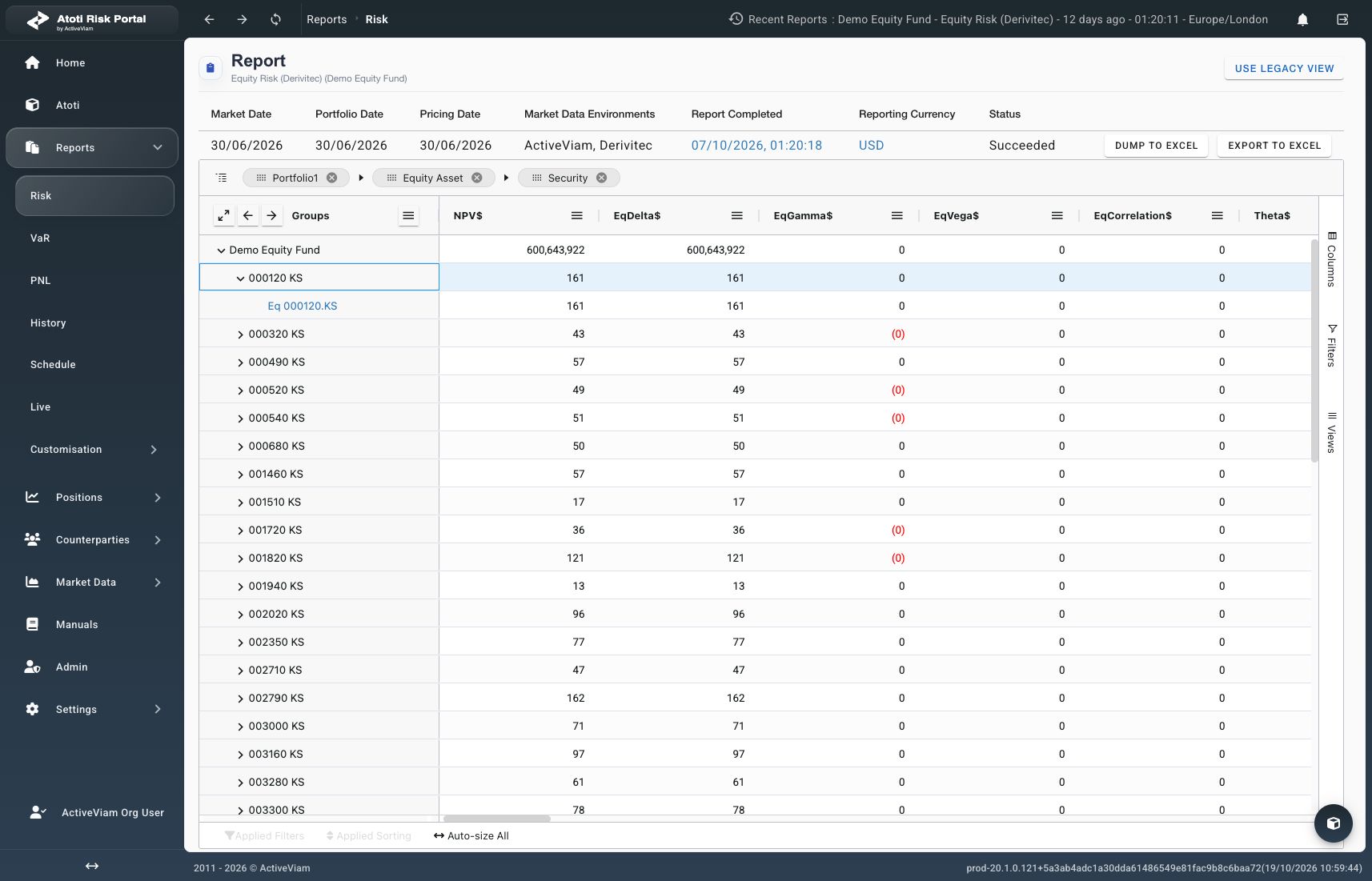
Applies to report grids with an editable grouping area above the results.
Grouping arranges results into a hierarchy of fields.
The order of the grouping fields determines the outer and inner levels.
## What is required before grouping results?
* An accessible report with loaded results.
* A field that the report supports for grouping.
Available grouping fields depend on the report definition and viewer.
A visible column is not necessarily available for grouping.
## How to add a grouping field
1. Select **Columns** beside the grid.
2. Locate an eligible field in the column list.
3. Drag the field into the grouping area above the grid.
4. Place it at the required position among the existing grouping fields.
Verify that the field appears in the grouping area and the row hierarchy updates.
The leftmost grouping field forms the outermost level.
Additional fields create progressively deeper levels.
 ## How to change the hierarchy
Drag an existing grouping field to a different position in the grouping area.
Verify the new field order before interpreting the regrouped results.
To remove a grouping level through the results:
1. Open the context menu on a group value at that level.
2. Select **Un-Group by** followed by the field name.
Verify that the field leaves the grouping area and the corresponding level disappears.
Removing a grouping field does not delete the underlying report data.
## How to expand or collapse groups
Use a row's expansion control to inspect its child groups.
Use **Group Menu** in the **Groups** header for broader changes.
| Action | Result |
| - | - |
| **Expand Next Group** | Opens the next level of the hierarchy. |
| **Collapse Lowest Group** | Collapses the deepest currently expanded level. |
| **Expand All Groups** | Opens the available grouping levels. |
| **Collapse All Groups** | Collapses the grouping hierarchy. |
Wait for requested rows to load after expansion.
Grouping and expansion are separate: collapsing a level retains its grouping field.
## How can the grouping be reused?
Save the arrangement as a [report view](./save-a-report-view).
Named views retain the grouping fields and their order.
A named view does not retain which individual rows are expanded.
Use [Filter and sort results](./customize-a-report) to refine the grouped results.
## How to change the hierarchy
Drag an existing grouping field to a different position in the grouping area.
Verify the new field order before interpreting the regrouped results.
To remove a grouping level through the results:
1. Open the context menu on a group value at that level.
2. Select **Un-Group by** followed by the field name.
Verify that the field leaves the grouping area and the corresponding level disappears.
Removing a grouping field does not delete the underlying report data.
## How to expand or collapse groups
Use a row's expansion control to inspect its child groups.
Use **Group Menu** in the **Groups** header for broader changes.
| Action | Result |
| - | - |
| **Expand Next Group** | Opens the next level of the hierarchy. |
| **Collapse Lowest Group** | Collapses the deepest currently expanded level. |
| **Expand All Groups** | Opens the available grouping levels. |
| **Collapse All Groups** | Collapses the grouping hierarchy. |
Wait for requested rows to load after expansion.
Grouping and expansion are separate: collapsing a level retains its grouping field.
## How can the grouping be reused?
Save the arrangement as a [report view](./save-a-report-view).
Named views retain the grouping fields and their order.
A named view does not retain which individual rows are expanded.
Use [Filter and sort results](./customize-a-report) to refine the grouped results.