> ## Documentation Index
> Fetch the complete documentation index at: https://docs.activeviam.com/llms.txt
> Use this file to discover all available pages before exploring further.
# How to choose report columns
> Column visibility and arrangement in the Risk Portal report grid, covering field selection, header order, automatic sizing, configured-field limits, and reuse of the presentation through a saved view
Applies to report grids with a **Columns** side panel.
Column controls select the fields displayed in the report and arrange their presentation.
Available fields depend on the selected report definition.
## What is required before changing columns?
* An accessible report with a loaded results grid.
* A **Columns** panel beside the grid.
Open an existing result or follow [How to launch a risk report](../login-and-start/launch-a-report).
## How to show or hide a column
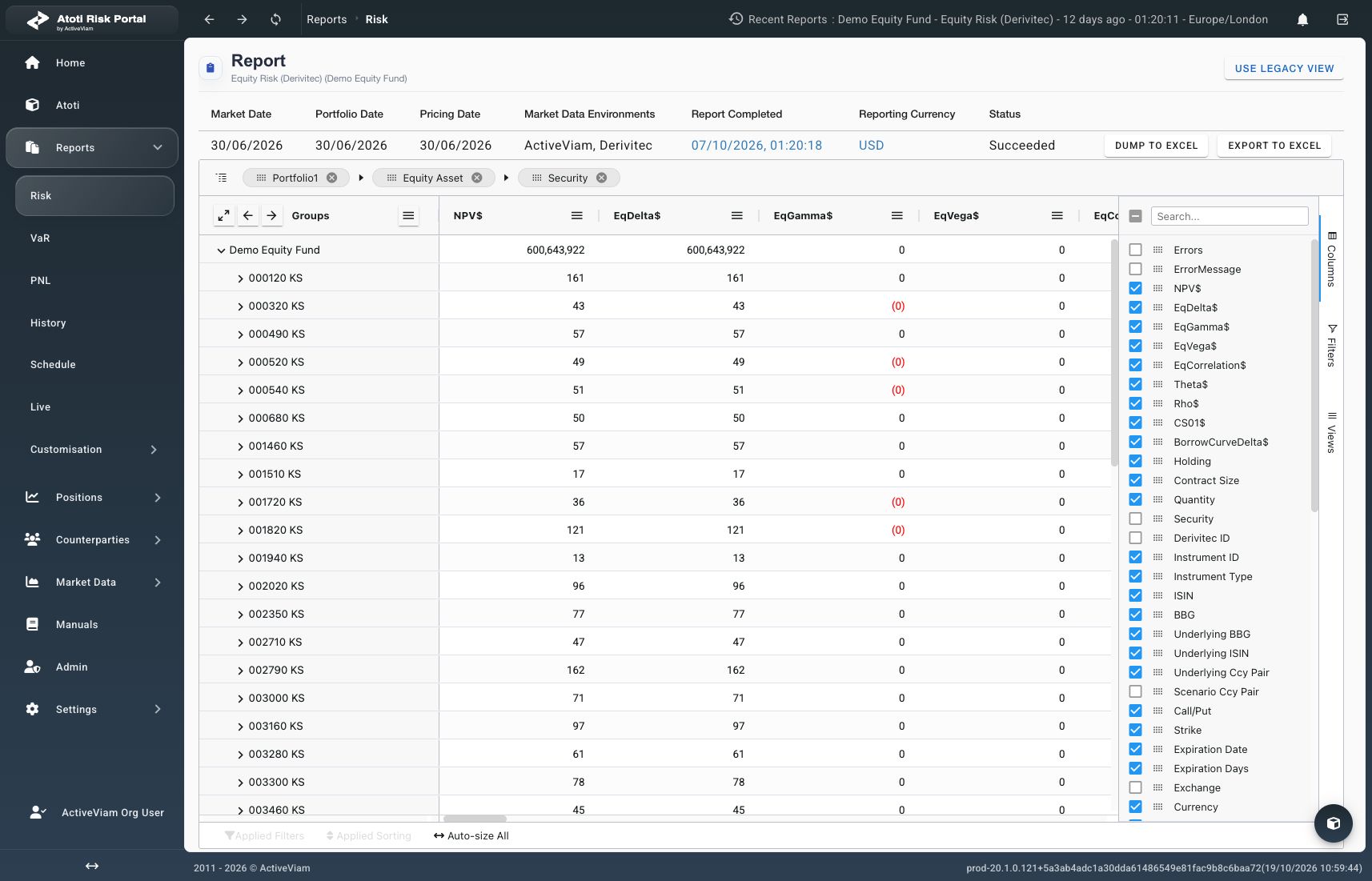
1. Select **Columns** beside the results grid.
2. Locate the required field in the column list.
3. Expand its field group if the entry is nested.
4. Select the field's checkbox to show the column.
Verify that the column header appears in the grid.
Scroll horizontally if the column is outside the visible area.
To hide the column, clear its checkbox and verify that its header disappears.
 Hiding a column changes the presentation without deleting report data.
It does not remove filters already applied to that field.
Check **Applied Filters** when interpreting the displayed rows.
## How to arrange and resize columns
Drag a column header horizontally to the required position.
Verify that the surrounding headers appear in the intended order.
Drag the boundary between headers to adjust a column's width.
For automatic sizing, select **Auto-size All** below the grid.
Use the column checkbox to hide a field.
Dragging a header outside the grid does not hide it in this viewer.
## What if a field is unavailable?
The column list reflects the report's configured fields and grouping fields.
A missing measure cannot be created through a visibility checkbox.
Check the selected report and ask the administrator about the required field.
Some fields have different filtering, sorting, or grouping capabilities.
Showing a column does not enable unsupported operations.
## How can the selection be reused?
Create a [saved report view](./save-a-report-view) after arranging the columns.
Use [Group report results](./group-results) to change the row hierarchy.
Use [Filter and sort results](./customize-a-report) to narrow or reorder the displayed rows.
Hiding a column changes the presentation without deleting report data.
It does not remove filters already applied to that field.
Check **Applied Filters** when interpreting the displayed rows.
## How to arrange and resize columns
Drag a column header horizontally to the required position.
Verify that the surrounding headers appear in the intended order.
Drag the boundary between headers to adjust a column's width.
For automatic sizing, select **Auto-size All** below the grid.
Use the column checkbox to hide a field.
Dragging a header outside the grid does not hide it in this viewer.
## What if a field is unavailable?
The column list reflects the report's configured fields and grouping fields.
A missing measure cannot be created through a visibility checkbox.
Check the selected report and ask the administrator about the required field.
Some fields have different filtering, sorting, or grouping capabilities.
Showing a column does not enable unsupported operations.
## How can the selection be reused?
Create a [saved report view](./save-a-report-view) after arranging the columns.
Use [Group report results](./group-results) to change the row hierarchy.
Use [Filter and sort results](./customize-a-report) to narrow or reorder the displayed rows.