Import and export dashboards
Why export and import dashboards?
Exporting and importing dashboards can be a time saver. For example:
Export dashboards
- Back up work.
- Share dashboards with other users.
- Move dashboards between environments (from a test to a prod environment).
Import dashboards
- Restore previously saved dashboards.
How to export dashboards or folders
You can export individual dashboards, folders, or all dashboards at once.
Export a single dashboard or folder
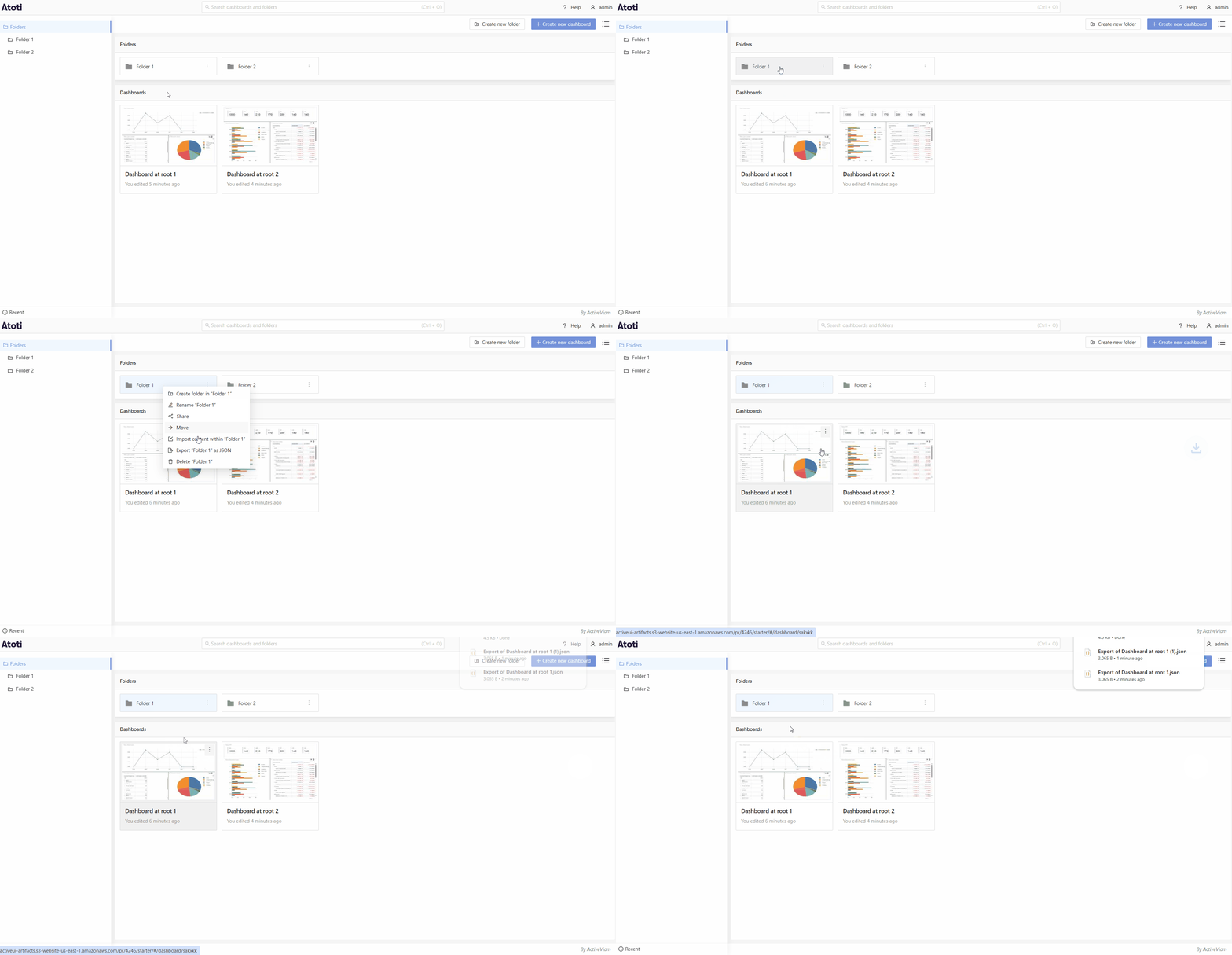
- In the left-hand sidebar, locate the folder or the parent folder of the dashboard you want to export.
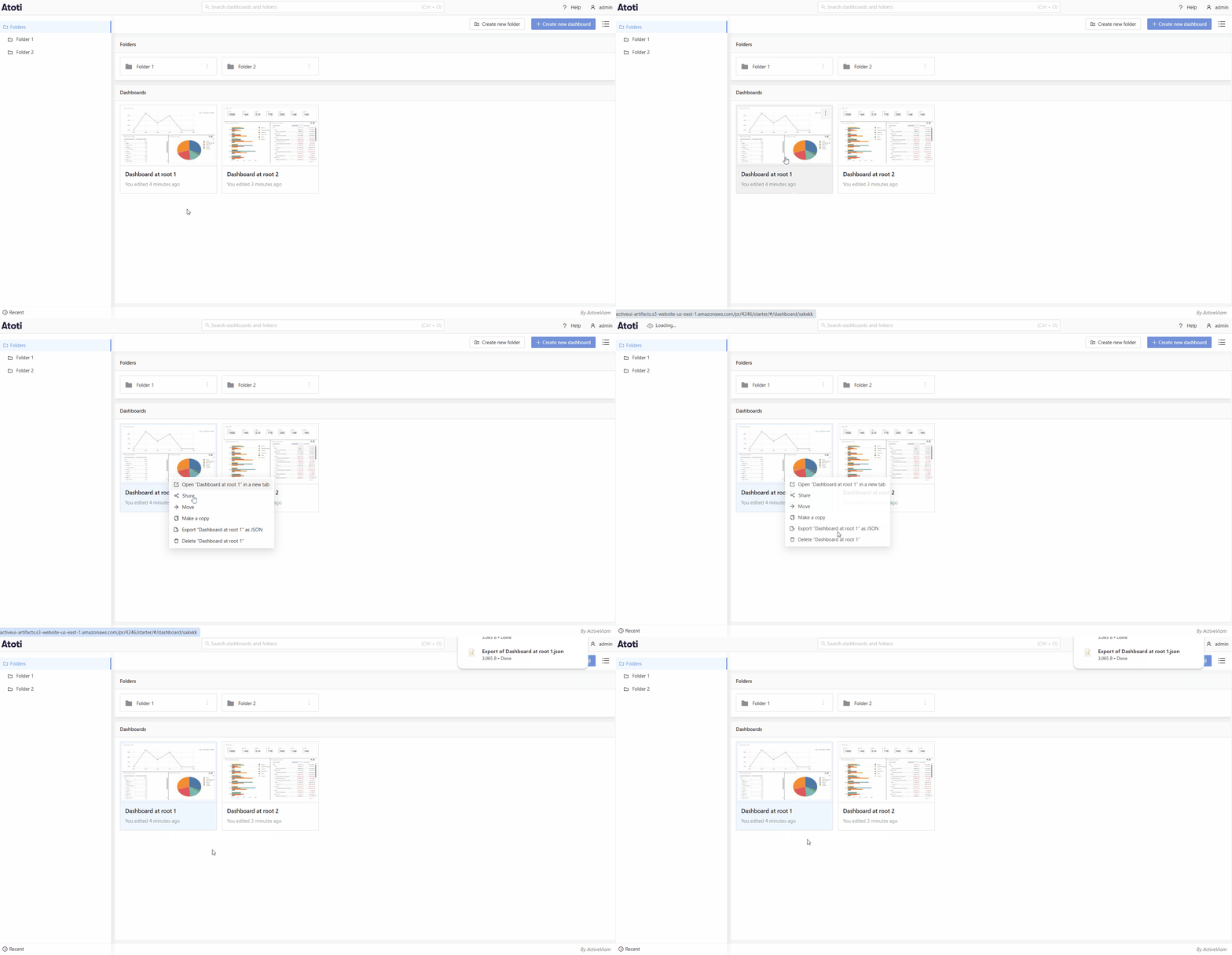
- Right-click on the folder in the left-hand sidebar, or the dashboard tile in the dashboard grid.
- In the context menu, select Export [name of dashboard] as JSON.
- A JSON file will be downloaded to your computer. This file contains the dashboard or folder configuration.
To export a dashboard:
To export a folder:
Export all dashboards
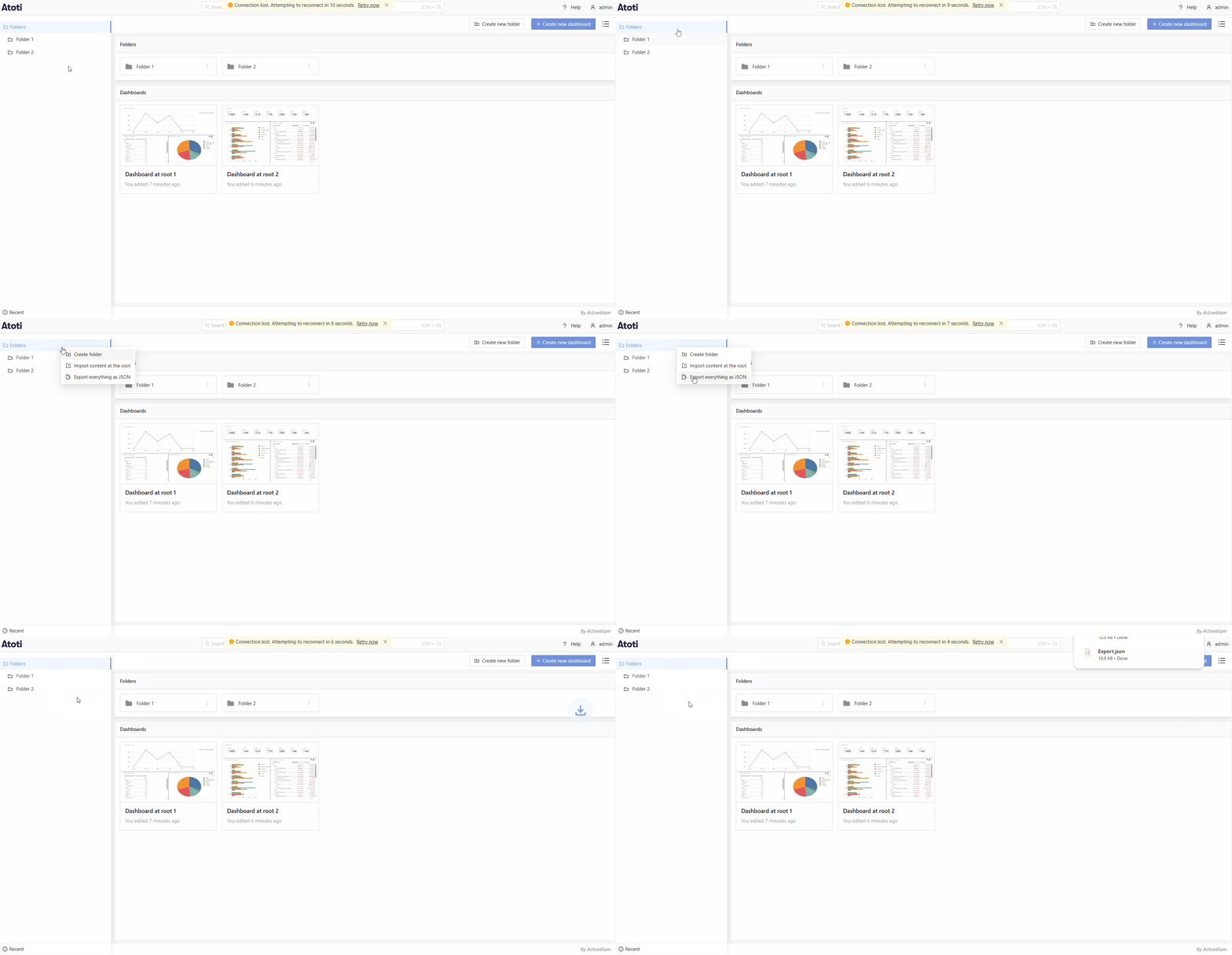
- In the left-hand sidebar, right-click on Folders.
- Select Export everything as JSON.
- A JSON file containing all dashboards and folders will be downloaded.
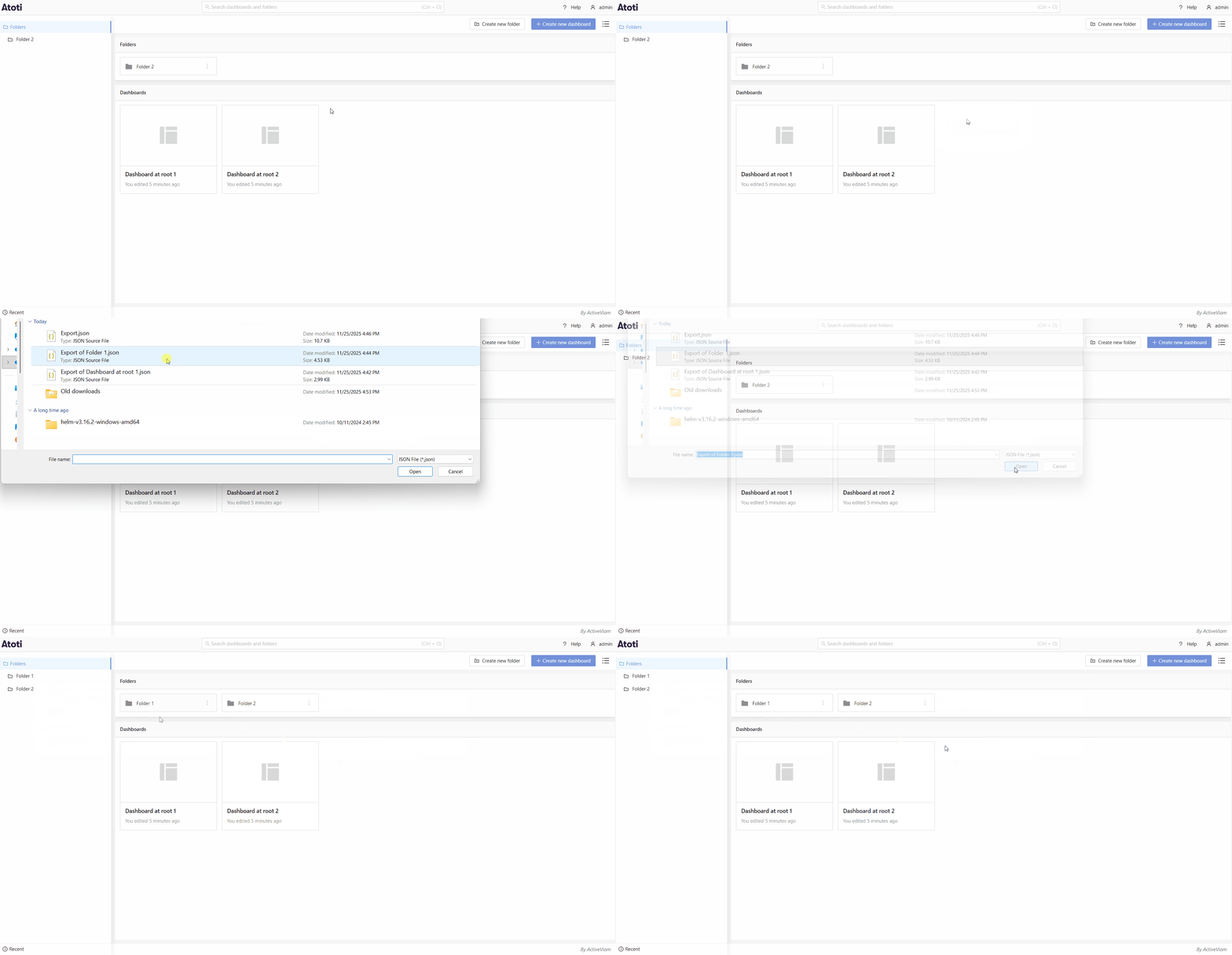
How to import dashboards or folders
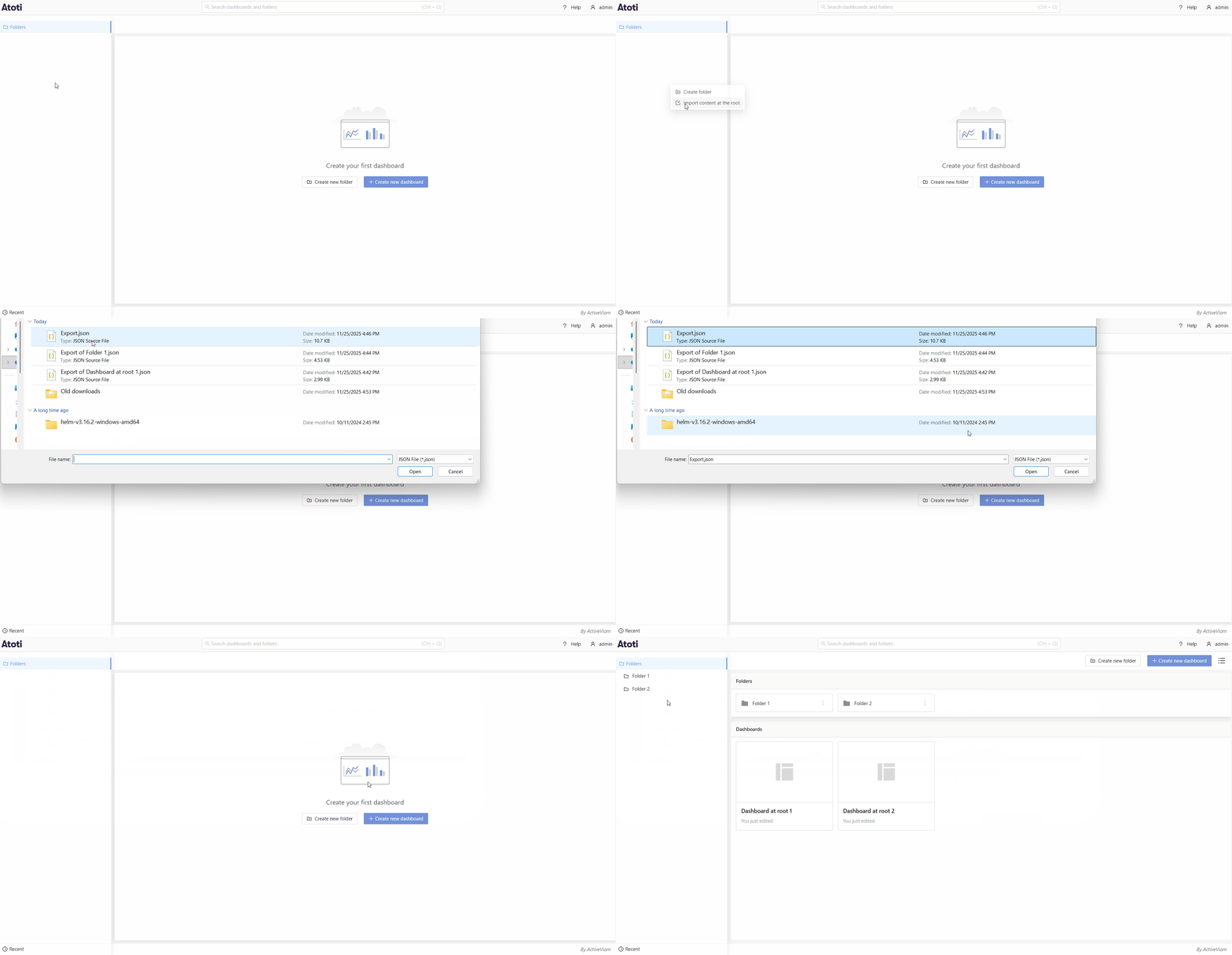
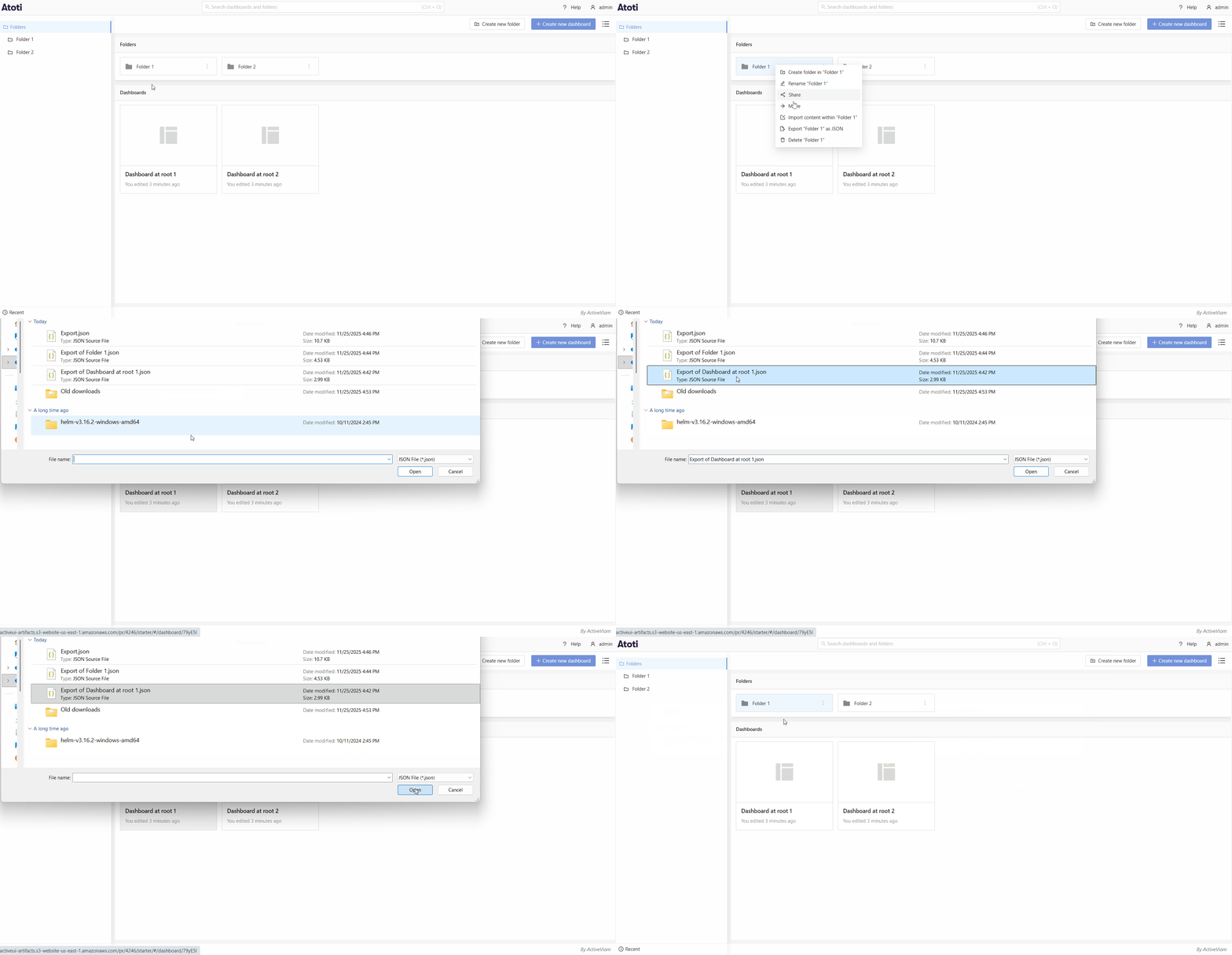
- In the home page, either right-click on a folder or in a folder
- Click the Import option. This will tell you where you are importing to
- Select the JSON file you would like to import.
- The dashboard or folder will appear in your workspace.
To import to a new project:
To import to a specific folder:
To import to the root: